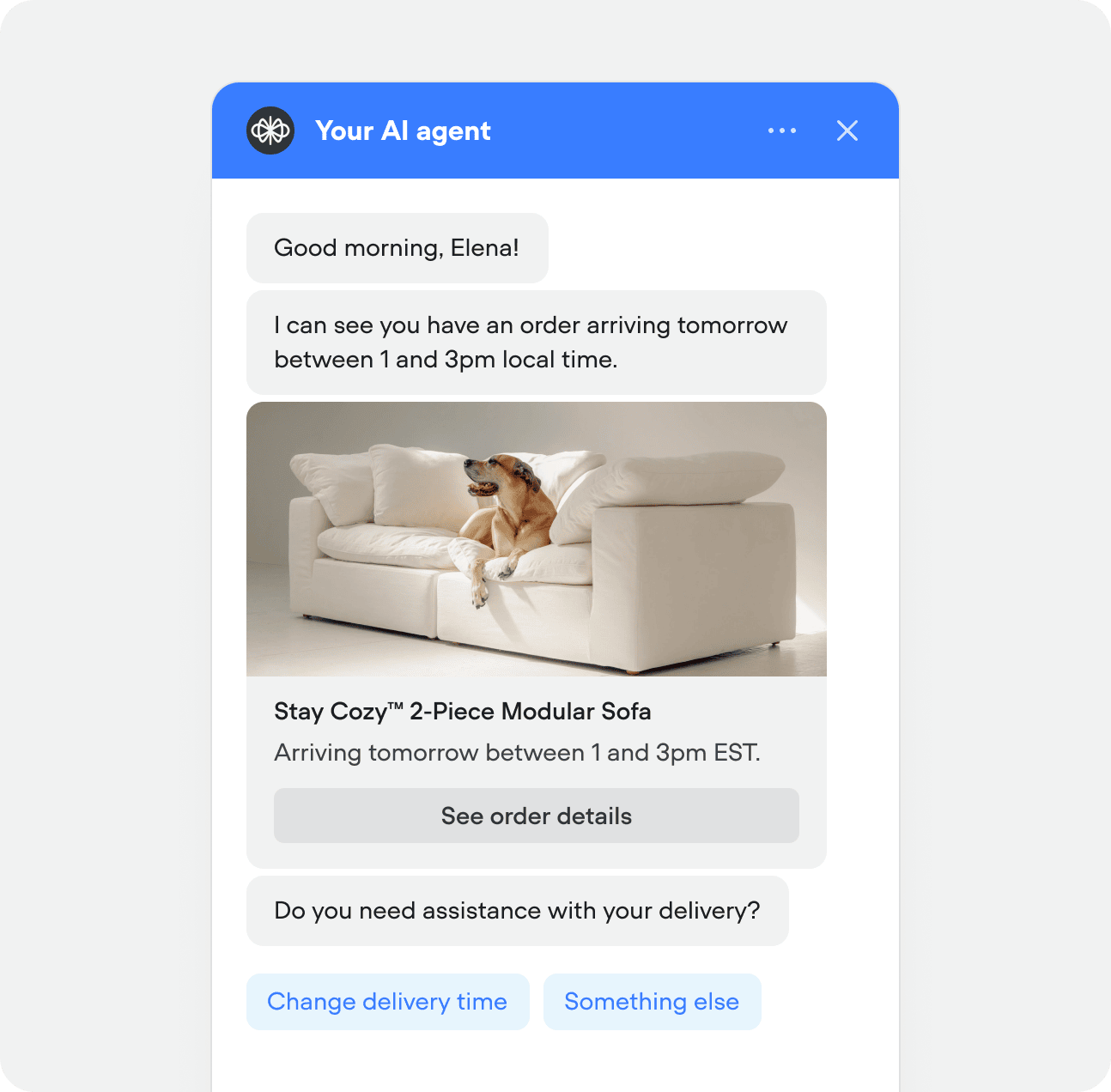
The quickest way to launch your agent is with the chat widget. You can deploy it to production in minutes, making it ideal for customer support, lead capture, or any use case where users interact with your agent through a website. The widget supports text and voice input, and can be displayed as a floating widget, popover, or embedded directly into your page.
Before adding the widget, you’ll need to publish a version of your agent. Once published, open the Widget tab in the sidebar, then copy the code snippet into your website’s codebase. The snippet points at your project’s default environment (Main) by default. To point the widget at a different environment, see Choosing which environment the widget loads. If you’re not a developer and aren’t sure where to add this code, try asking ChatGPT.Your widget should match your brand. From the Widget settings page, scroll down to configure your agent’s colors, icons, launcher style, interface type, and more. You can also add placeholder text and privacy policy links. Customers on a Business plan can disable Voiceflow branding.