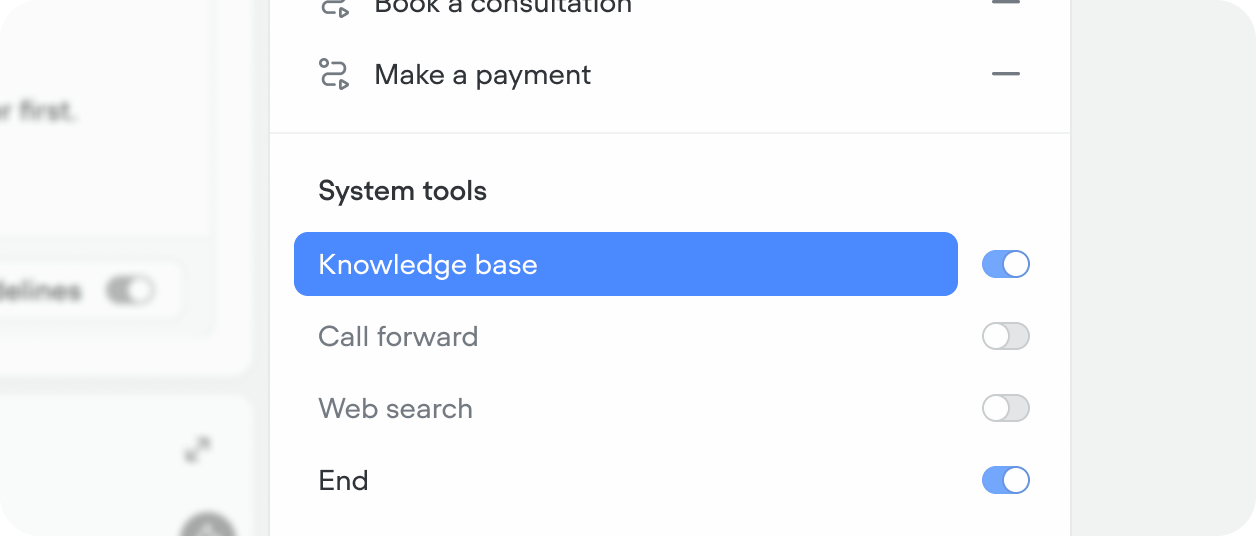
To give your agent access to the knowledge base, open the Agent and make sure the knowledge base toggle is on in system tools. When on, your agent will automatically use this tool when it needs information to answer a question.
When on at the agent level, individual playbooks can also query the knowledge base. You can override query settings at the playbook level without impacting the agent or other playbooks.
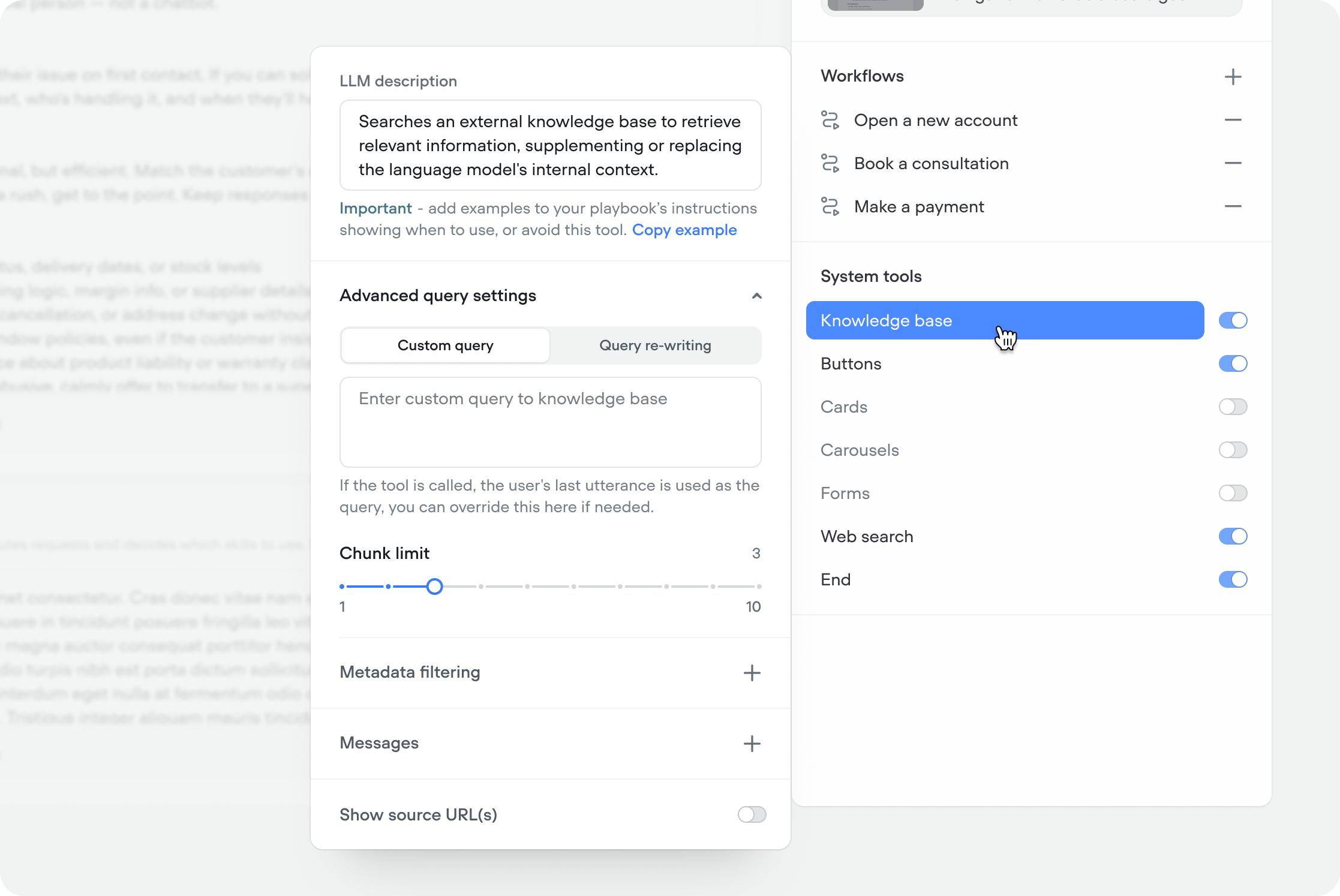
Describes what this tool does and when the agent should use it. By default this is pre-filled with an opinionated description, however, you can reset it to a simpler default, or override it to your use-case. You can also add examples in your agent or playbook instructions showing when to use — or avoid — this tool for better retrieval accuracy.
Opinionated default we apply to new projects
Use this tool when answering any question about your company, product, service,or purpose, unless the answer has already been retrieved in the currentconversation.Never answer these questions from your own knowledge - only use informationretrieved from this tool or web search. Before searching, reformat the user'squery for retrieval by extracting key terms and intent, stripping filler, andincluding relevant conversation context.If no results are found, try web search (if available) before saying you don'thave information. Never mention the knowledge base, or your use of it, to users.
Simple default you can reset to
Searches an external knowledge base to retrieve relevant information,supplementing or replacing the language model's internal context.
By default, the agent uses the user’s last message as the search query. Use a custom query to override this — useful when you want to search on a specific variable or a reformulated version of the user’s input. To insert a variable, type { in the input.
When enabled, the model rewrites the user’s last message before searching based on your instructions — improving retrieval for conversational or ambiguous inputs. Useful when users don’t phrase questions the way your content is written.
Query re-writing example
Search for the underlying user intent rather than the user's exact words. For example:- "it won't let me log in" = "login error troubleshooting"- "my thing never showed up" = "missing order or delivery issue"- "how much is it" = "pricing and plan information"
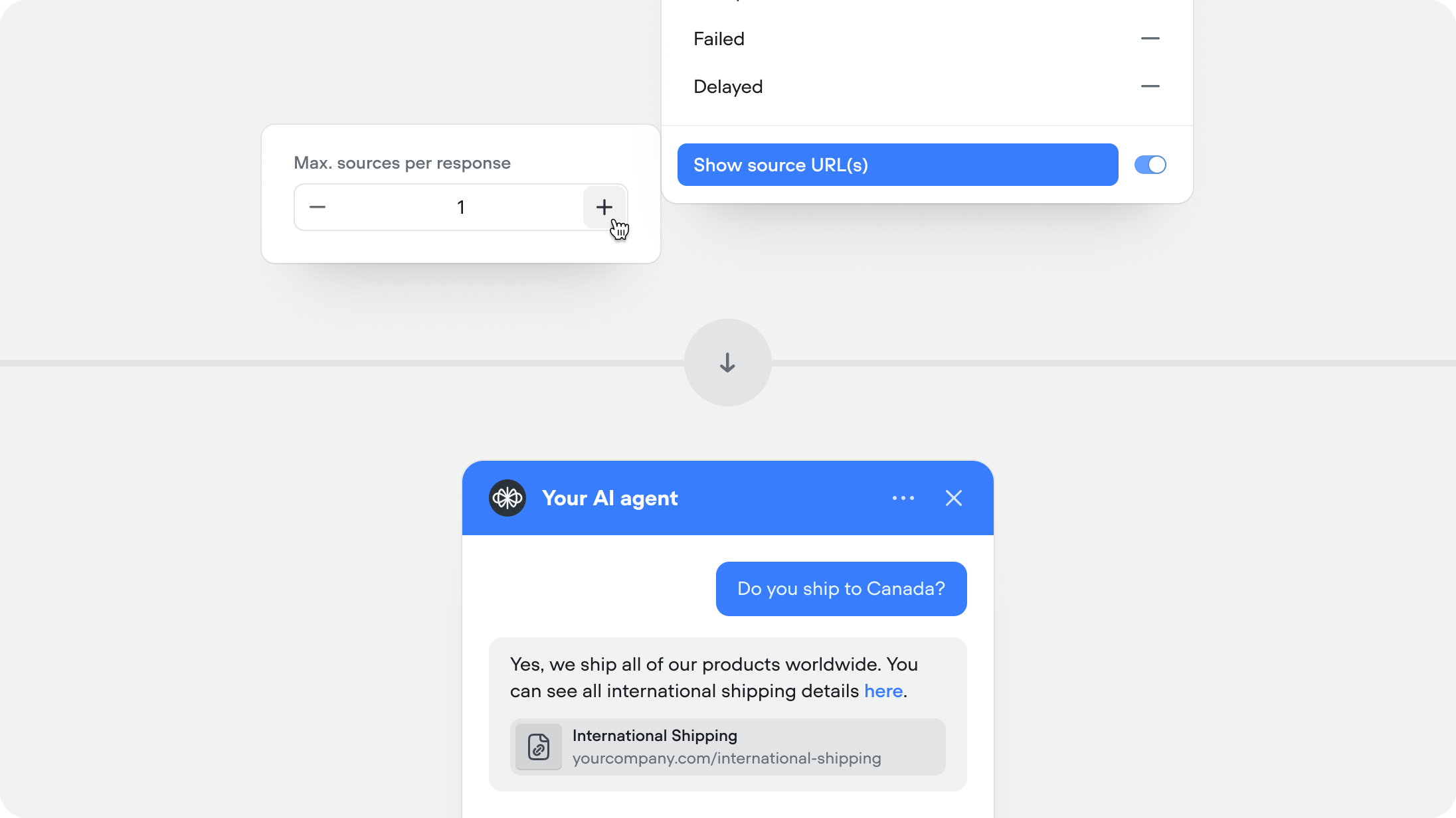
Controls how many content chunks are returned per query (1–10, default 3). Higher values return more context but increase latency and token usage. Start at 3 and increase if the agent is missing relevant information.
Unfamiliar with adding meta data in the knowledge base? Learn more
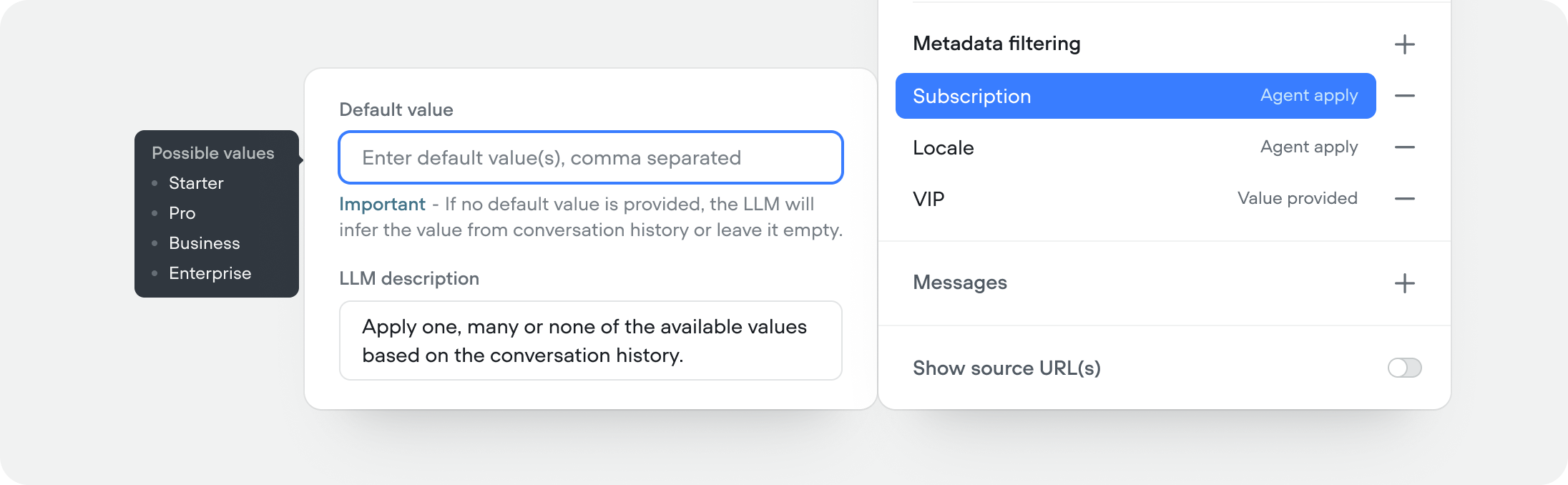
Filter which data sources are queried based on metadata tags. Useful when you have content for different plans, regions, or product lines and want to make sure the agent only retrieves what’s relevant for the current user.Meta data filtering lets you apply values manually, or let the agent/playbook apply query values at runtime based on the conversation history.You can add a variable to the default value field by typing{ .
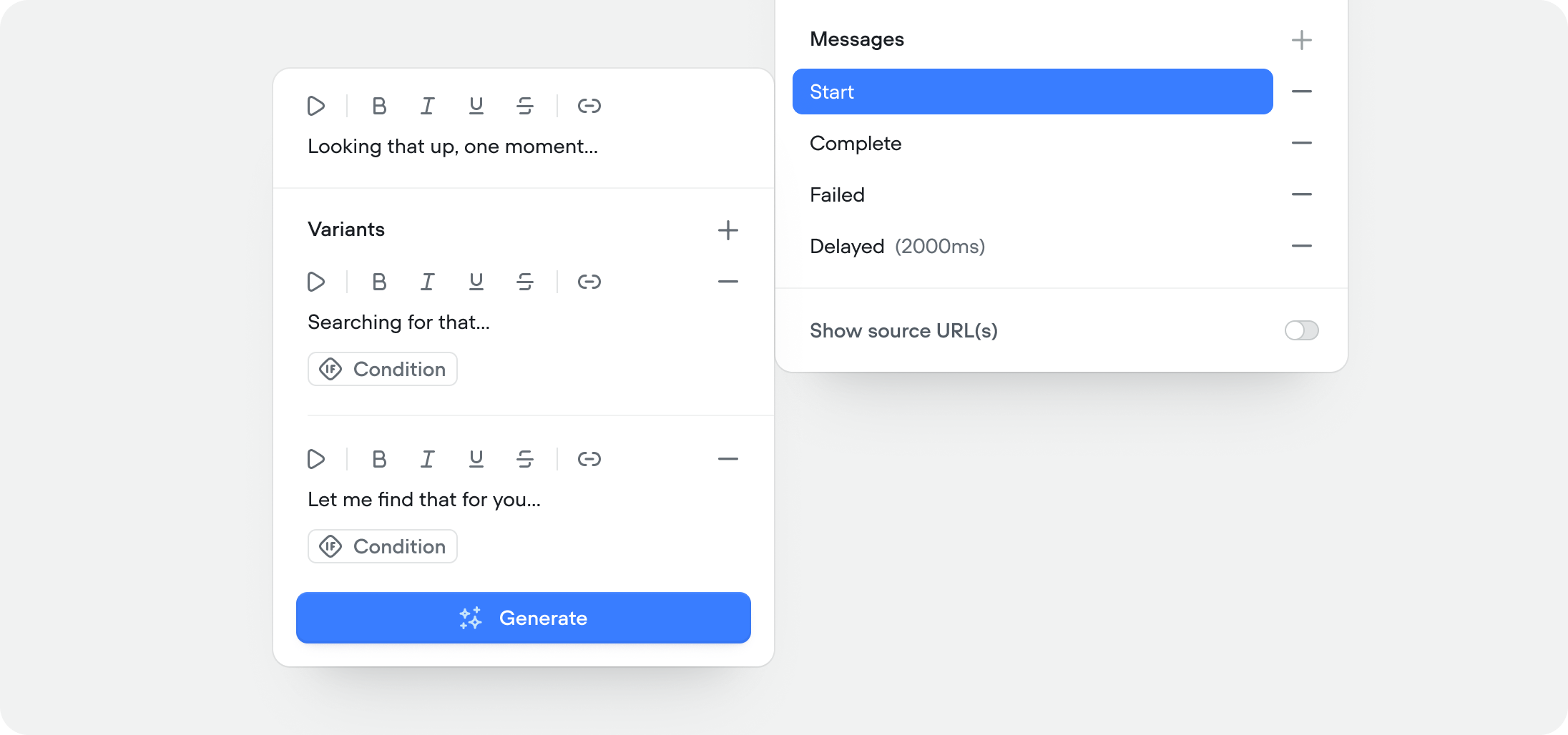
Customize what the user sees while the knowledge base tool is running. You can set scripted messages for four states:
Start — shown when the tool begins querying
Complete — shown when results are returned
Fail — shown when the query returns nothing or errors
Delay — shown if the query takes longer than expected (you set the delay threshold)
Each state supports multiple message variants — the agent picks one randomly to avoid repetition. You can also set conditional variants that trigger based on variables or context, giving you fine-grained control over what the user sees depending on the situation.
When enabled, the agent includes the source URL alongside its response so users can verify or read more. Recommended for help centers and documentation.
The Knowledge base API gives you programmatic access to the documents that power your agent’s knowledge base. You can use it to create, retrieve, update, and delete documents, as well as manage their metadata and individual chunks.