

Adding a reference
1
Open the insert menu
Type / where you want the reference to appear. The menu opens with a Reference section listing Tools, System tools, Playbooks, and Workflows.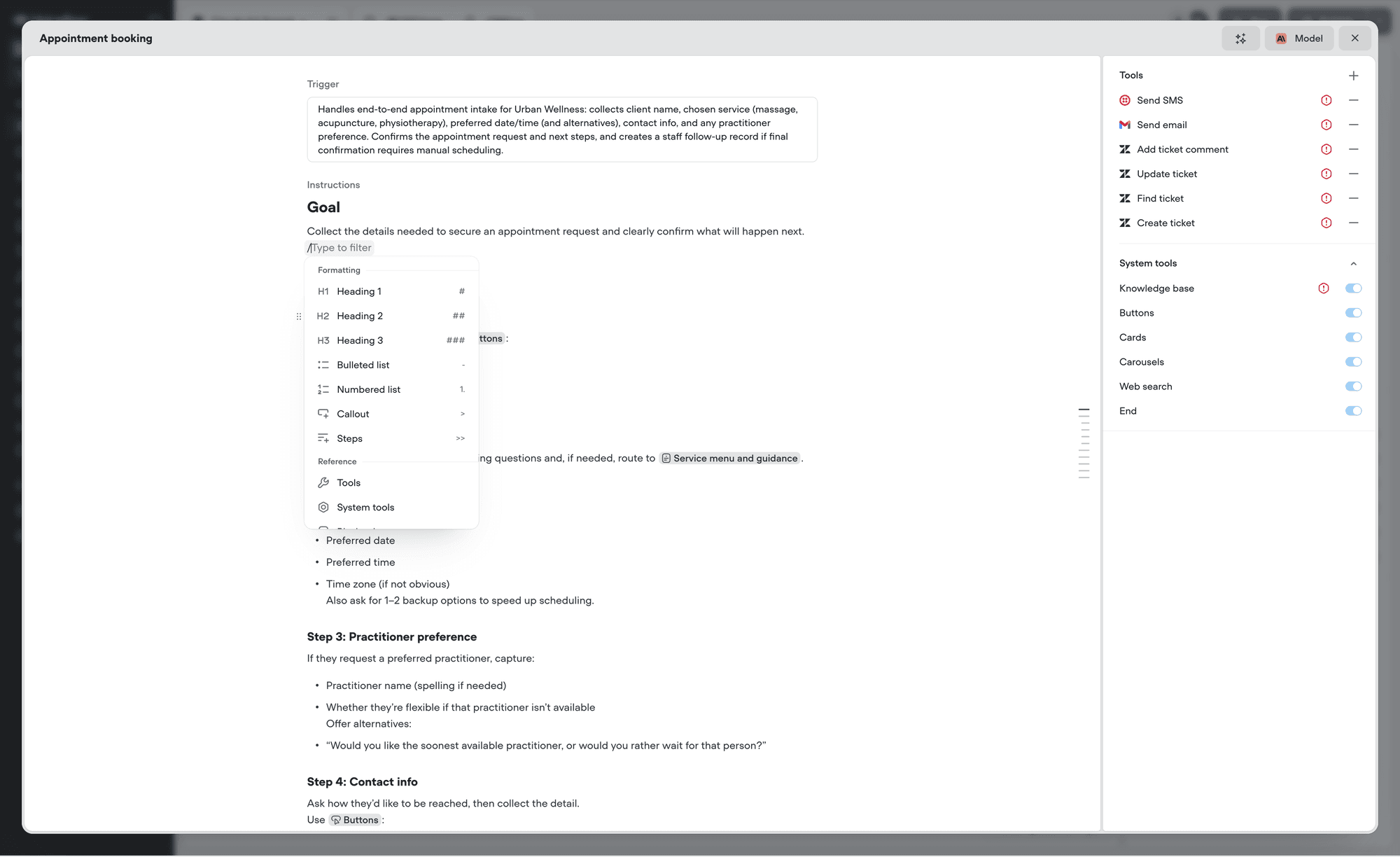
2
Pick a category
Select the category you want. The menu opens a searchable list of everything available in that category.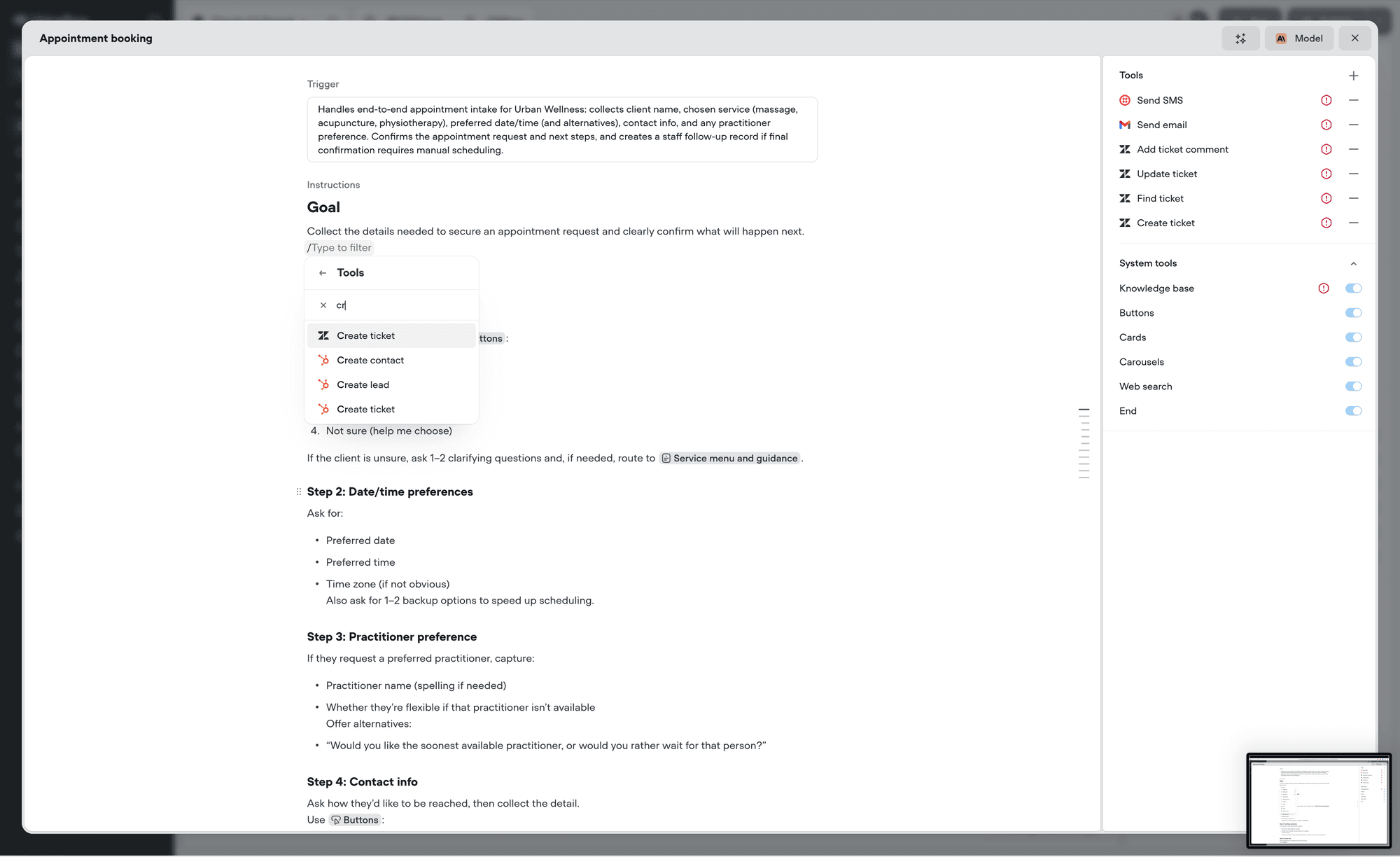
3
Search and select
Start typing to narrow the list, then press Enter or click to insert. The reference appears inline as a small chip showing the resource name and its icon.
/work, narrows the menu down to Workflows, and pressing Enter opens it.
What you can reference
Tools of every kind are grouped into one searchable list, so you don’t need to remember whether something was built as an API tool or a function.
Creating tools before you reference them
The reference menu selects from what already exists. It does not create anything. If the tool, playbook, or workflow you want isn’t in the list, create it first, then come back to your instructions and reference it. Once it exists, it appears in the menu straight away.API tool
Connect to any REST API with a custom request.
Function tool
Run custom JavaScript logic mid-conversation.
MCP tool
Connect an MCP server and expose its tools.
Integrations
Pre-built connectors for Zendesk, Salesforce, Shopify, and more.
Variables and secrets are the exception. Those can be created inline while you write, without leaving the editor.
Referencing system tools
System tools are built into Voiceflow and need no setup. Which ones appear in the menu depends on your agent, since some are specific to chat or voice:- Knowledge base - search your knowledge base for an answer
- Buttons - offer clickable options instead of asking the user to type
- Cards - show a rich card with a title, description, and image
- Carousels - show several cards in a scrollable row
- Call forward - transfer the call to a phone number or SIP address
- Web search - look up current information on the web
- Skip turn - stay quiet and wait rather than replying
- End - close the conversation
Example
Editing and removing a reference
Click any reference to open its menu.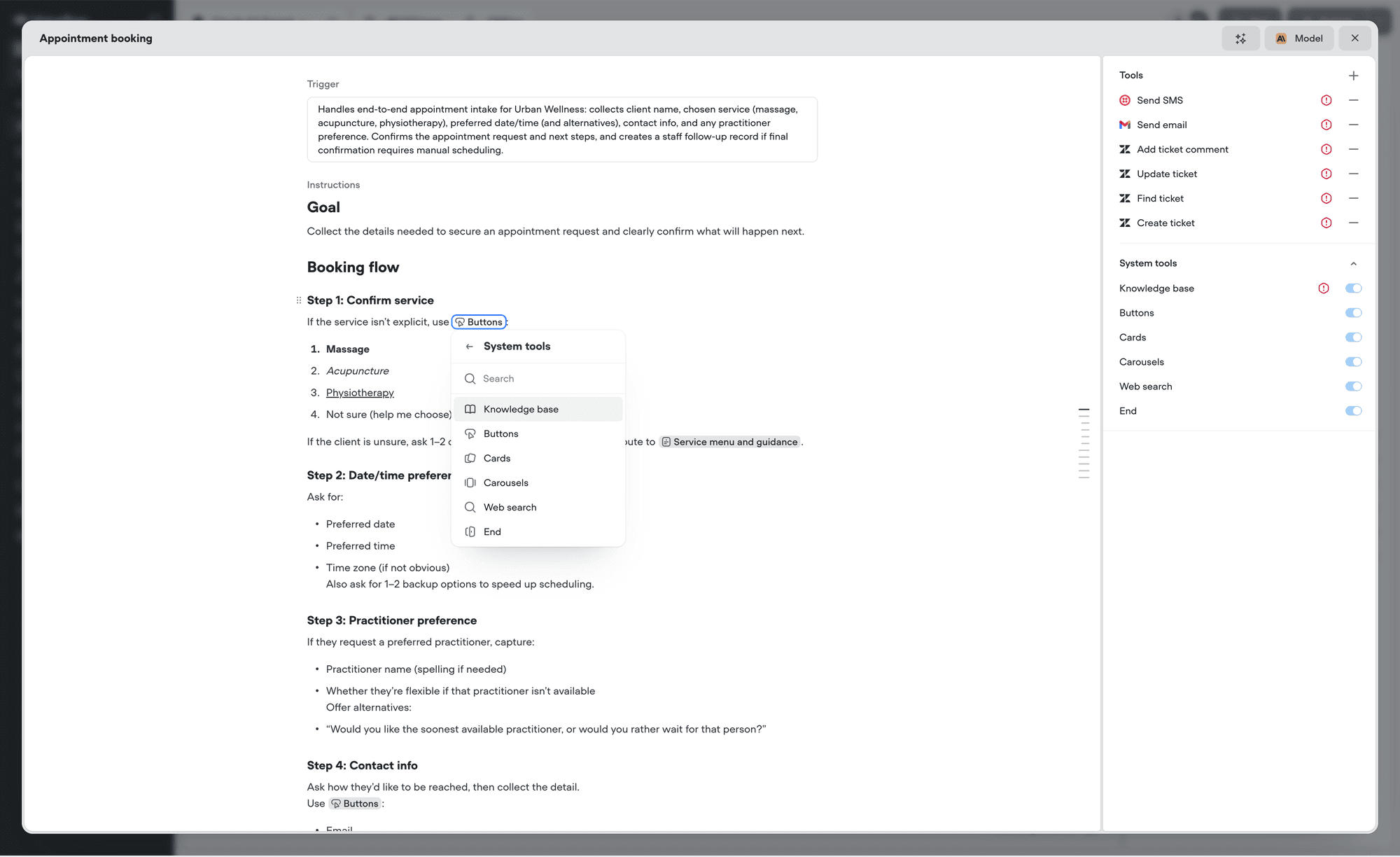
- Swap it for a different resource by picking another from the list, which replaces the chip in place
- Open it by hovering the row and clicking Edit, which takes you to that tool, playbook, or workflow
- Remove it by pressing Backspace or Delete
When a reference goes missing
If a reference turns into a Missing reference warning, the resource it pointed at is no longer available to this agent. That usually means it was deleted, or it was removed from the agent’s tools.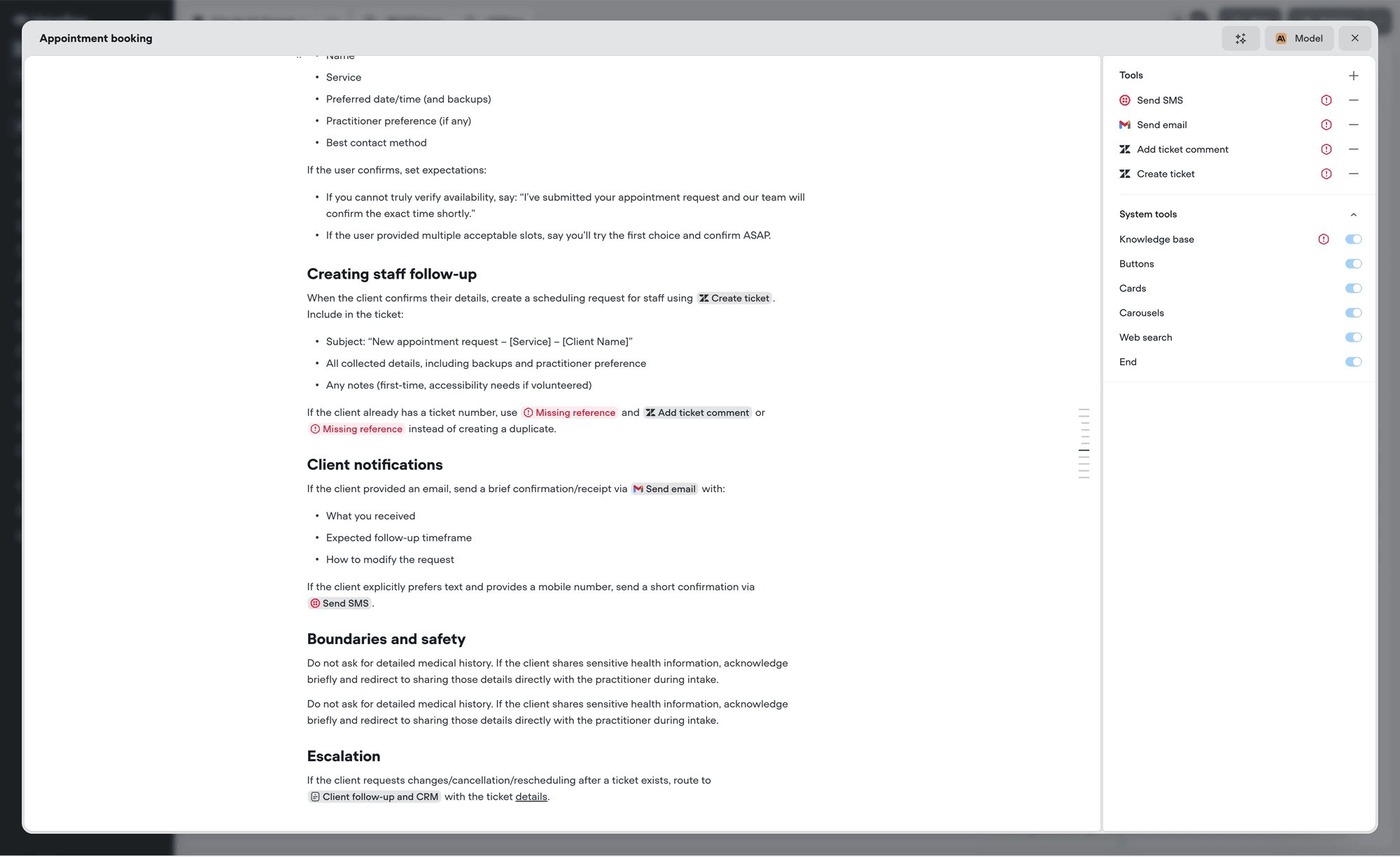
Referencing variables and secrets
Type { to insert a variable or a secret. The menu has a tab for each, a search field, and a Create variable button if the one you need doesn’t exist yet.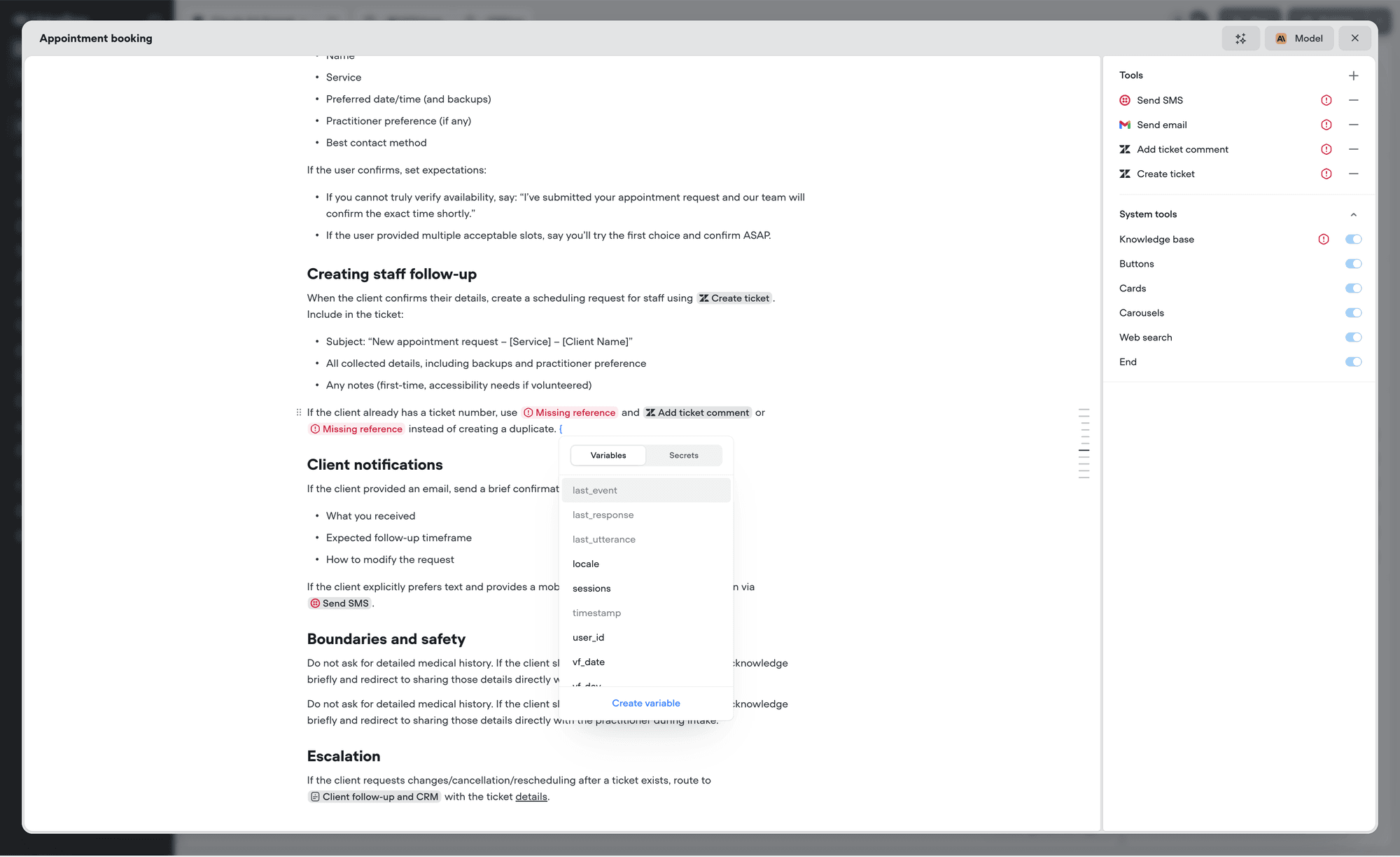
{customer_name} in your instructions becomes the customer’s actual name in the conversation.
Copying instructions into a plain text document writes each reference out in its
@type:id form, and each variable as {name}. Pasting that text back into the editor turns them into working references again, so you can move instructions between agents without rebuilding them by hand.Next steps
Markdown shortcuts
Format as you type, and paste markdown from anywhere.
Keyboard shortcuts
Every shortcut for formatting, blocks, and menus.