

Key concepts
Best practices
Follow this workflow for any meaningful change to your agent.1
Clone Main
Create a new environment cloned from
Main and name it after the change you’re making.2
Make your change
Update playbooks, workflows, tools, or anything else in the new environment.
3
Add tests if needed
Write new tests for any behaviour you’ve introduced or changed. If your existing tests already cover what you’re working on, you can skip this step.
4
Run your tests
Click Run all tests in the Tests tab to run both your new tests and any tests that were already on the environment. Existing tests catch behaviour you didn’t mean to change.
5
Iterate
If anything failed, dig into the result, adjust your changes, and re-run the tests. Repeat until everything passes.
6
Ship the change
Once your tests are green, merge the environment back to
Main. Or, route some traffic to the new environment first to A/B test it with humans before merging it to Main.Creating a test
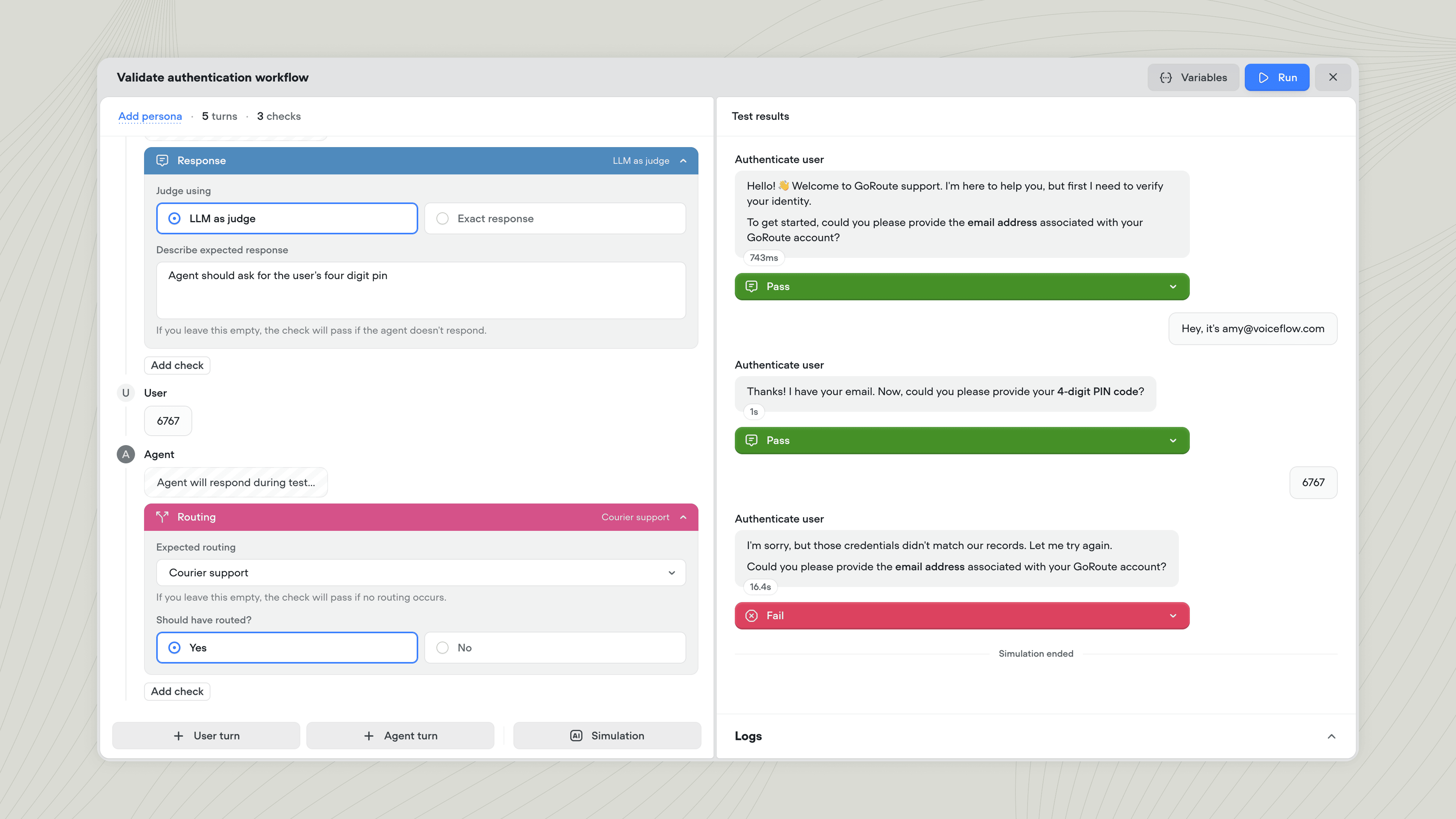
To create a test, open Tests in the sidebar and click New test.
- User turn is an exact user message you script.
- Agent turn waits for your agent’s real response. Your agent’s messages are generated using your playbooks and workflows each time a test is run.
- Simulation lets an AI play the user across a section of the conversation. You describe a scenario and success criteria, and the simulation passes if the AI reaches the criteria within a turn cap you set.
.png?fit=max&auto=format&n=NHpRp09zo70gXfwC&q=85&s=cc0bc21e97830c1b4689bd6905b09140)
Adding checks to an agent turn
Checks allow you to verify that certain criteria are met during a turn. Click Add check on an agent turn and pick a type. Multiple checks can run on the same turn.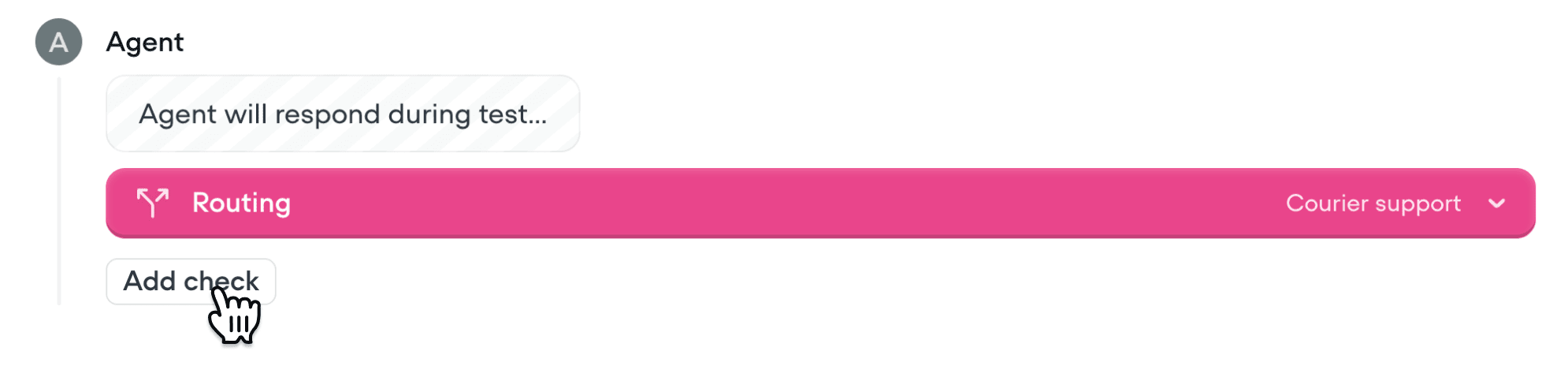
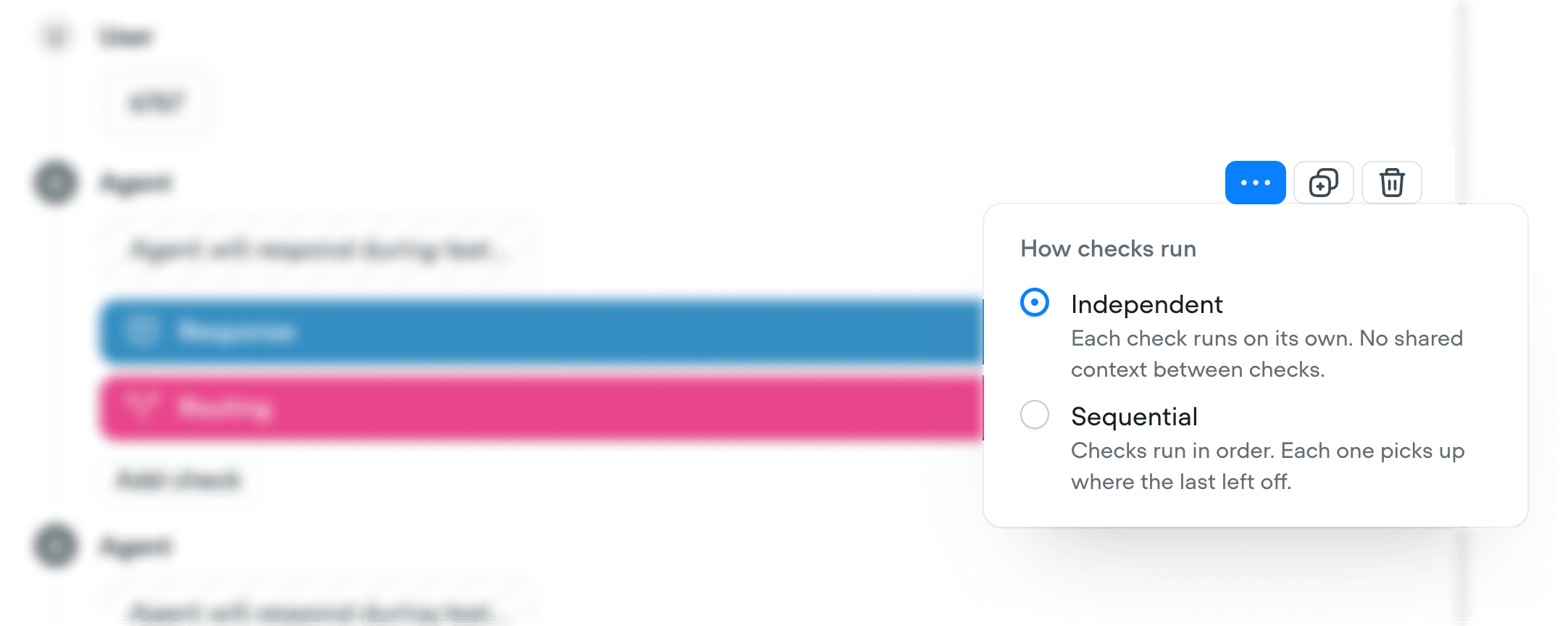
You can choose whether to run checks independently or sequentially on each turn by clicking the … button on a turn:
- Independently: each check runs on its own with no shared context. Use when order doesn’t matter.
- Sequentially: checks run in order, each picking up where the last left off. Use when checks depend on each other.
Running tests
Tests never run automatically. You always start them yourself, either as a single test or as a batch. For each test you run, you can see the conversation as it plays out, whether each check passed or failed along with the reasoning, and the full conversation logs.Running a single test
While editing a test, click Run in the top right to start it.
Running multiple tests
From the Tests tab, click Run all tests to run every test, or select specific tests and click Run [number] tests.
Reviewing past runs
The Past runs tab lists every test and test batch that’s been run on this environment. Open a past run to see exactly what failed, then go fix the issue in your agent..png?fit=max&auto=format&n=NHpRp09zo70gXfwC&q=85&s=d22613cf52ba318296b4bbe9d786dc46)