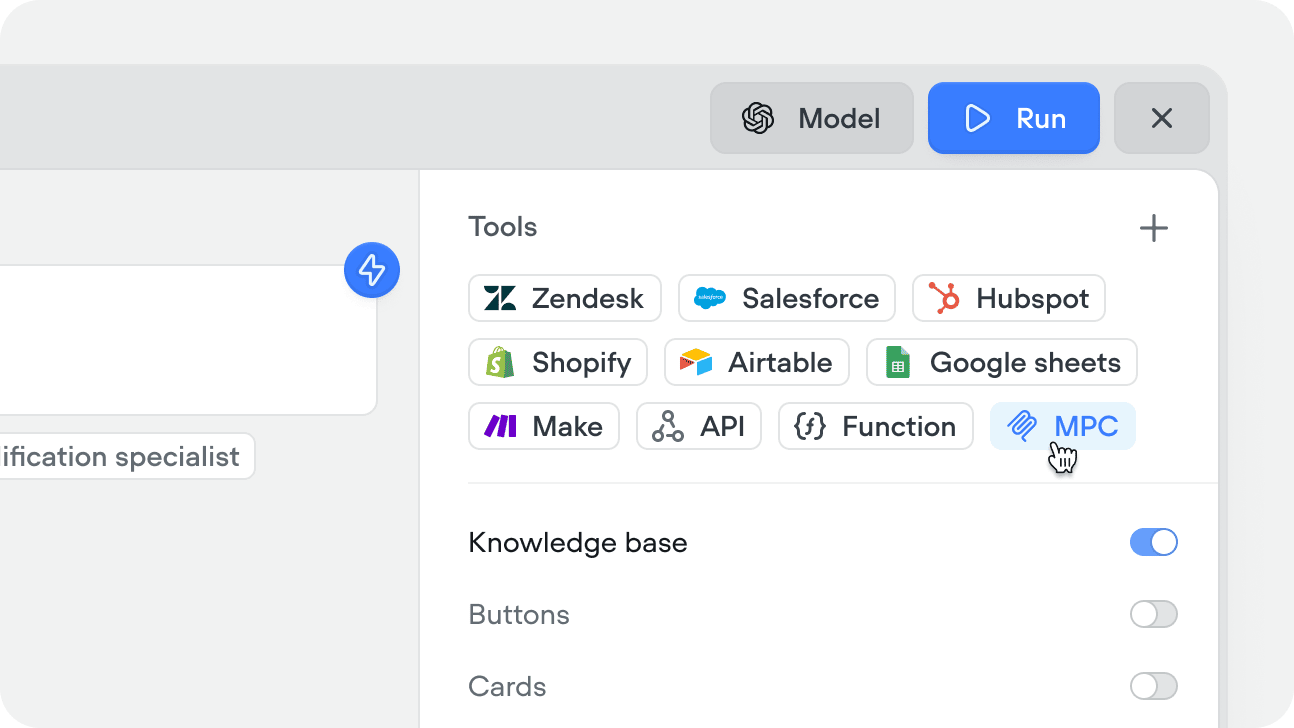
Voiceflow supports hosted MCP servers accessible from the internet. Local MCP servers are not supported. You can use a service like Zapier MCP to build a hosted server.
MCP (Model Context Protocol) is a standardized way for AI agents to connect to external services. Unlike API tools where you configure individual endpoints, an MCP server can expose multiple tools at once — each with its own description, parameters, and context that helps your agent understand how and when to use them.

Creating an MCP tool

1

Add an MCP server

You can add MCP tools from a server, or connect to a new server directly from within a playbook.MCP Playbook Docs
You can also add MCP servers from within a workflow using the MCP step, or from the tools CMS tab. Servers can be managed centrally in Settings → MCP servers.
2

Connect your server

Enter your server details:Create MCP Docs
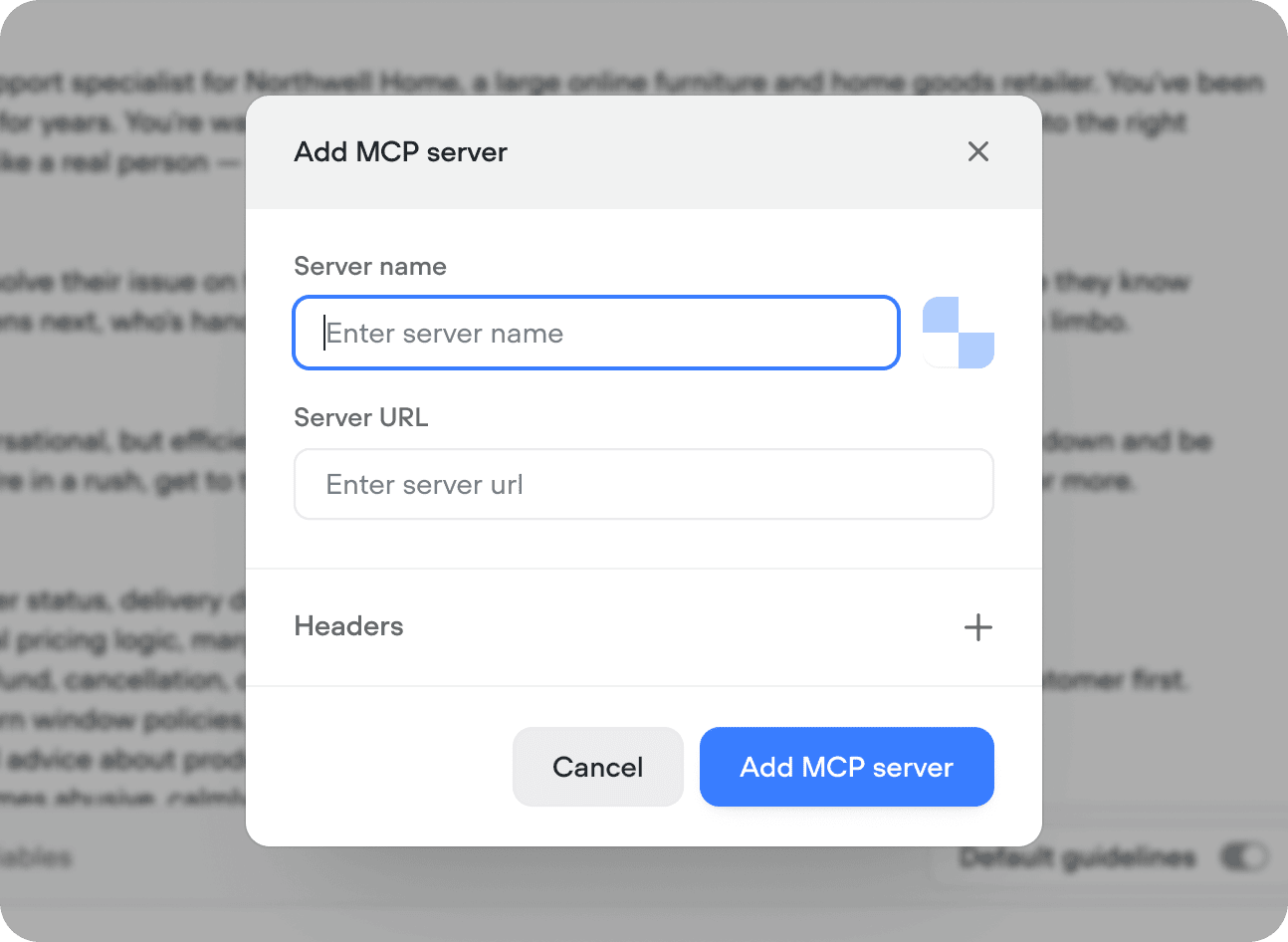
FieldDescription
Server name & imageA friendly label shown inside Voiceflow and optional image
Server URLThe root URL of your hosted MCP server
HeadersOptional key-value pairs for authentication (API keys, tokens)
ImageOptional icon displayed next to the tool in playbooks and workflow steps
3

Select tools

Once connected, Voiceflow fetches the available tools from your server. Select the ones you want your agent to have access to — you don’t have to enable all of them and can refresh the server when you choose to access new tools.
Each tool from an MCP server comes with a name, description, and parameters defined on the server itself. If your agent isn’t using a tool correctly, check the tool descriptions on your server — they’re what the model reads to decide when and how to call them.

Using the MCP tool

There are two ways to use an MCP tool:

In a playbook

Add the MCP tool to a playbook’s Tools editor. The agent calls the individual tools autonomously based on the conversation context, your playbook instructions, and the tool descriptions from the server. For example, a CRM MCP server might expose “lookup contact”, “create ticket”, and “update deal stage” tools. Add the server to a support playbook and the agent will call the right tool at the right time. Give the tool a clear name and description inside Voiceflow so the agent knows what the server is for. The individual tool descriptions come from the server.

In a workflow

Drag an MCP step onto the canvas and select the specific tool you want to call. Input variables are mapped explicitly in the step config — the workflow executes it at that point in the flow every time. Use this when the MCP call is part of a fixed process — for example, always logging a ticket after a complaint, or always syncing a record after a form is completed.