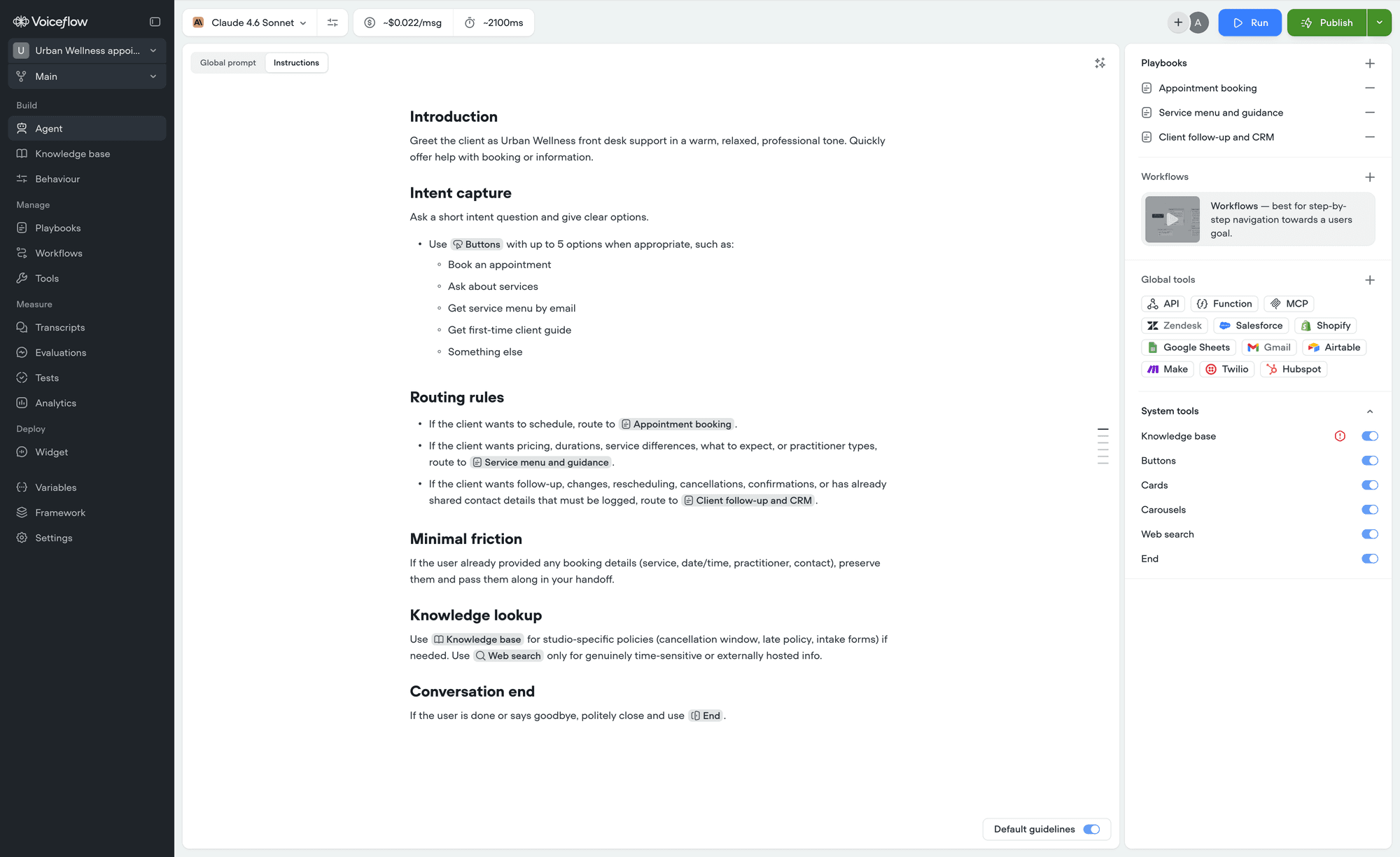
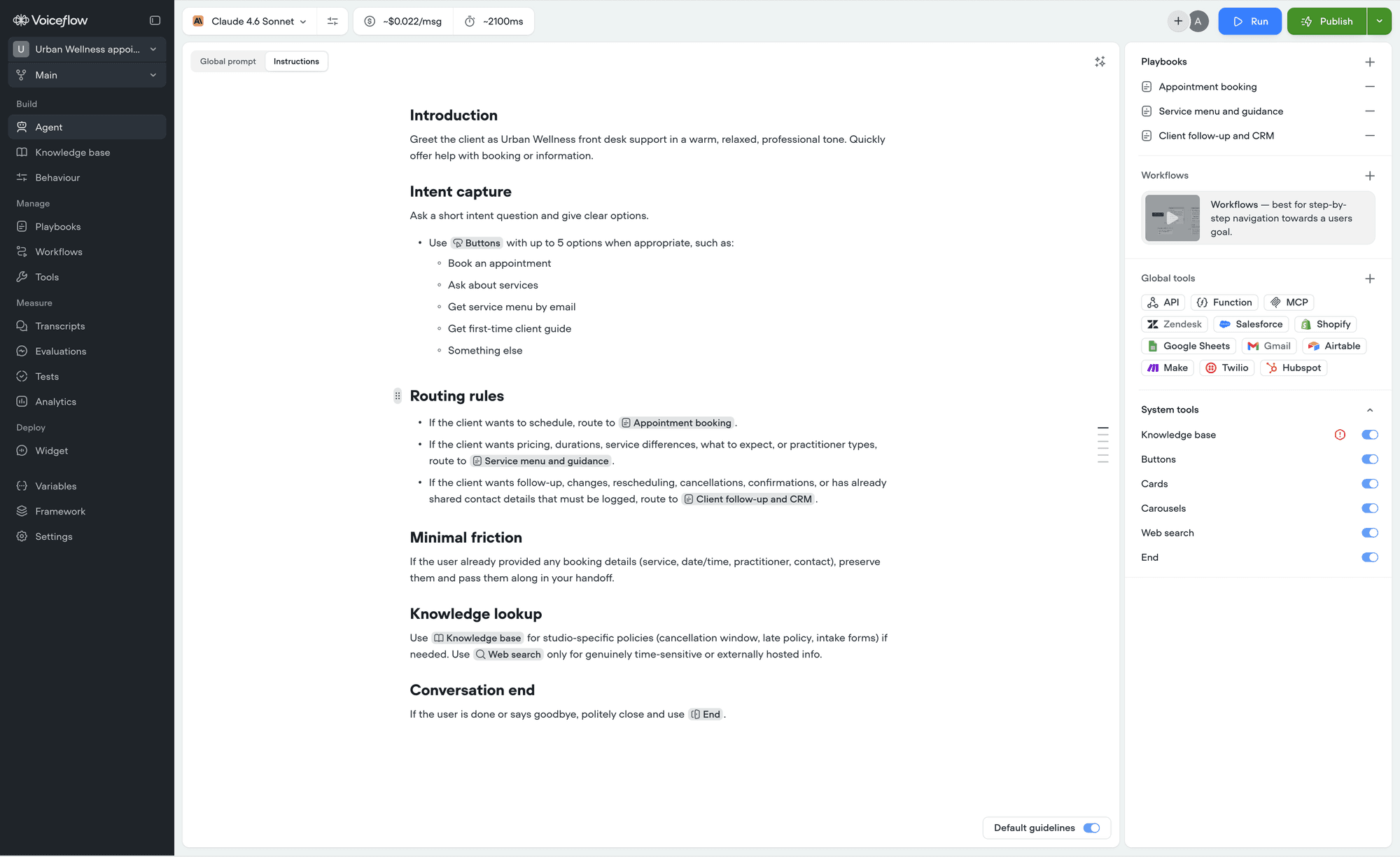
Editor Overview Docs The editor is where you write everything your agent reads: the global prompt, your agent instructions, and the instructions inside every playbook. It works like a document editor. You can add headings, lists, and callouts, drag lines around to reorder them, and format text as you type. Structure is not decoration - well-organized instructions are easier for you to maintain, and easier for the model to follow.

Three things worth knowing first

  • Type / to insert anything. One menu covers headings, lists, callouts, steps, and references to your tools.
  • You can point at your tools instead of naming them. A reference links to the real tool, playbook, or workflow, so renaming it never breaks your instructions.
  • Markdown works as you type. Typing ## makes a heading, **text** makes it bold. See markdown shortcuts.

Adding blocks with the insert menu

Type / on any empty line to open the insert menu. Keep typing to filter, use the arrow keys to move through the results, and press Enter to insert. Press Esc to close the menu and go back to typing. Editor Insert Menu Docs The menu has two sections. Formatting turns the current line into a block: Reference inserts a link to something your agent can use - a tool, system tool, playbook, or workflow. Categories with nothing in them yet appear greyed out. See references for the full detail.
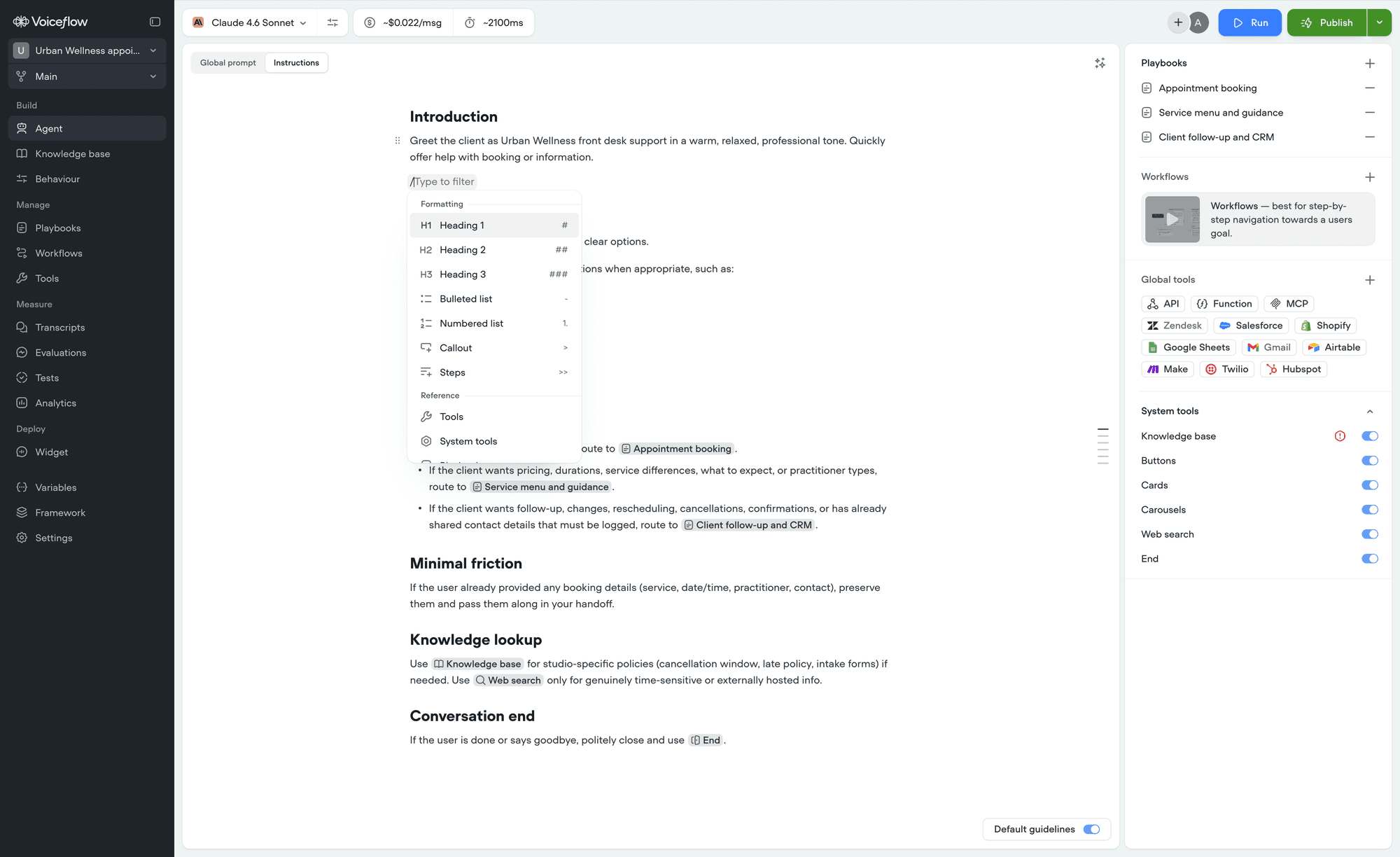
The / menu only opens at the start of a line or after a space, so you can still type things like and/or without interrupting yourself.

Changing formatting on selected text

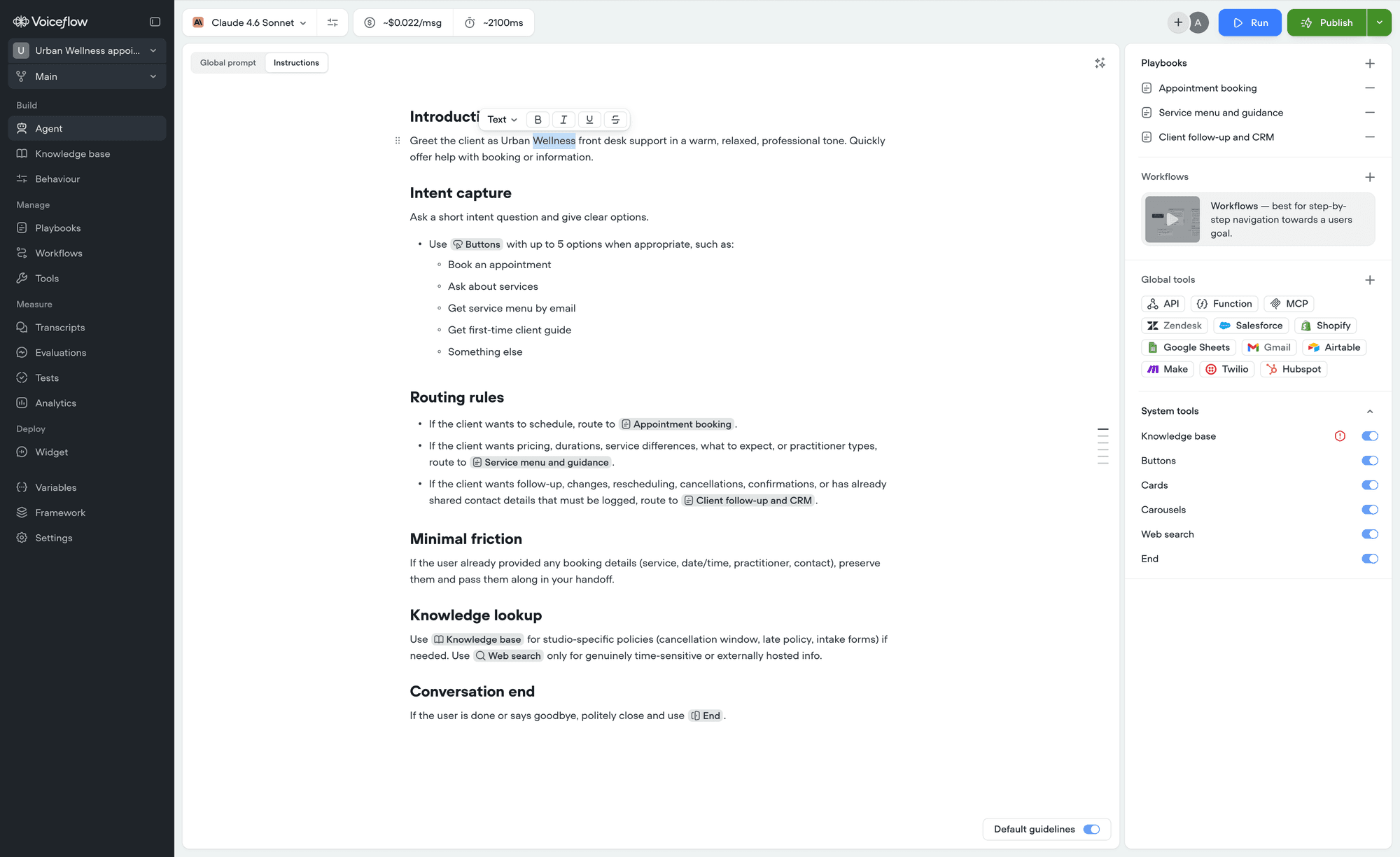
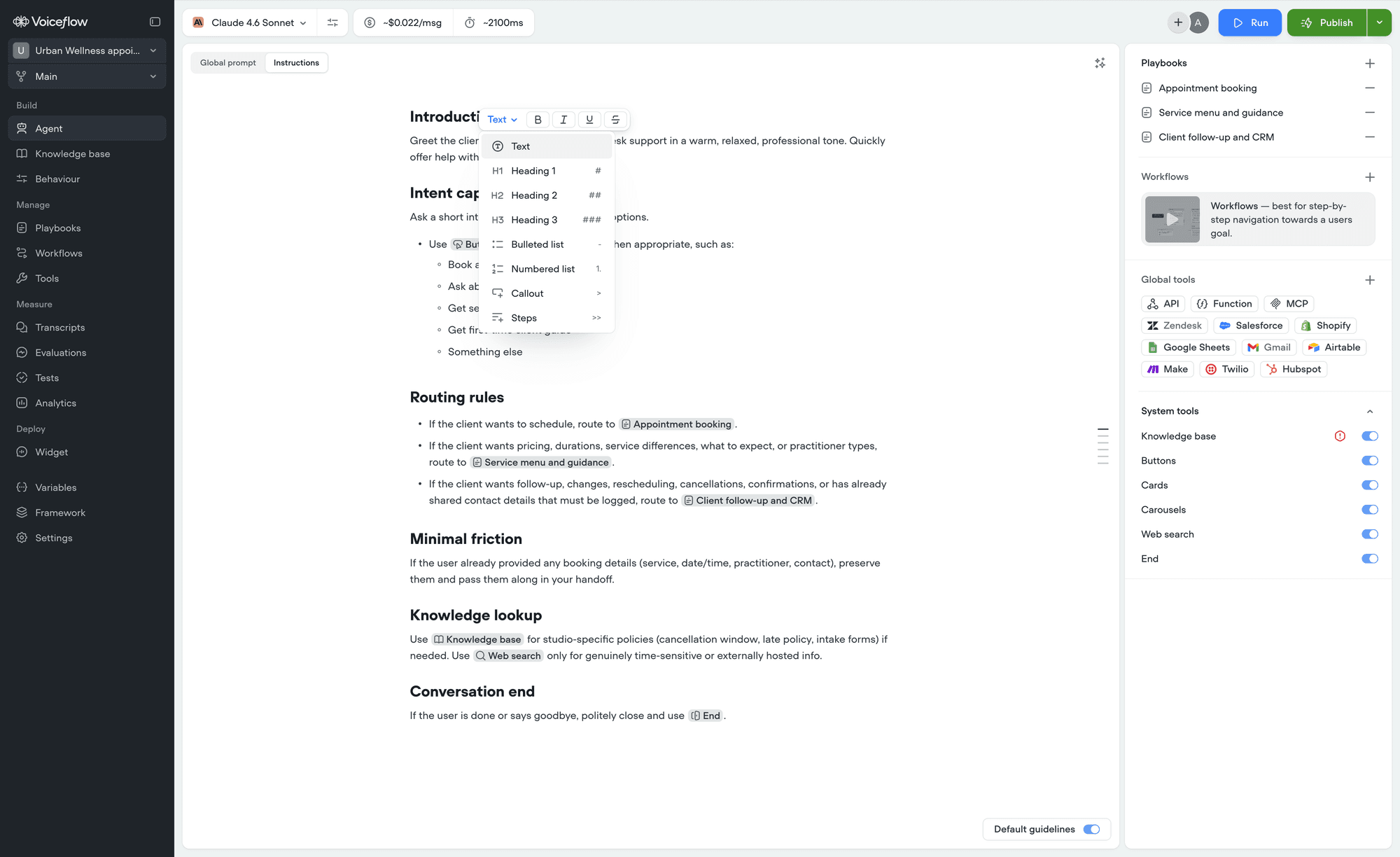
Select any text and a small toolbar appears above it. Editor Floating Toolbar Docs On the left is the Turn into dropdown, showing what the current line is. Open it to convert the line to something else - a heading, a list, a callout, or back to plain text. If you have several lines selected, all of them convert together. Editor Turn Into Docs To the right are Bold, Italic, Underline, and Strikethrough. Press Esc to dismiss the toolbar. Paste a URL into the editor and it becomes a link. Click any link to edit its address or the text it shows, or to remove it.
Reordering and selecting blocks

Hover over any line and a drag handle appears in the left margin. Drag it to move the line, and a dark line shows where it will land. Whole lists move as one block. Dragging near the top or bottom of the editor scrolls the page for you, and pressing Esc mid-drag cancels the move. Editor Drag Handle Docs Clicking the handle instead of dragging selects the line. You can also click and drag across empty space in the editor to select several lines at once, the same way you would select files on your desktop. Once one or more lines are selected, keyboard shortcuts let you duplicate, delete, or extend the selection.
Breaking instructions into steps

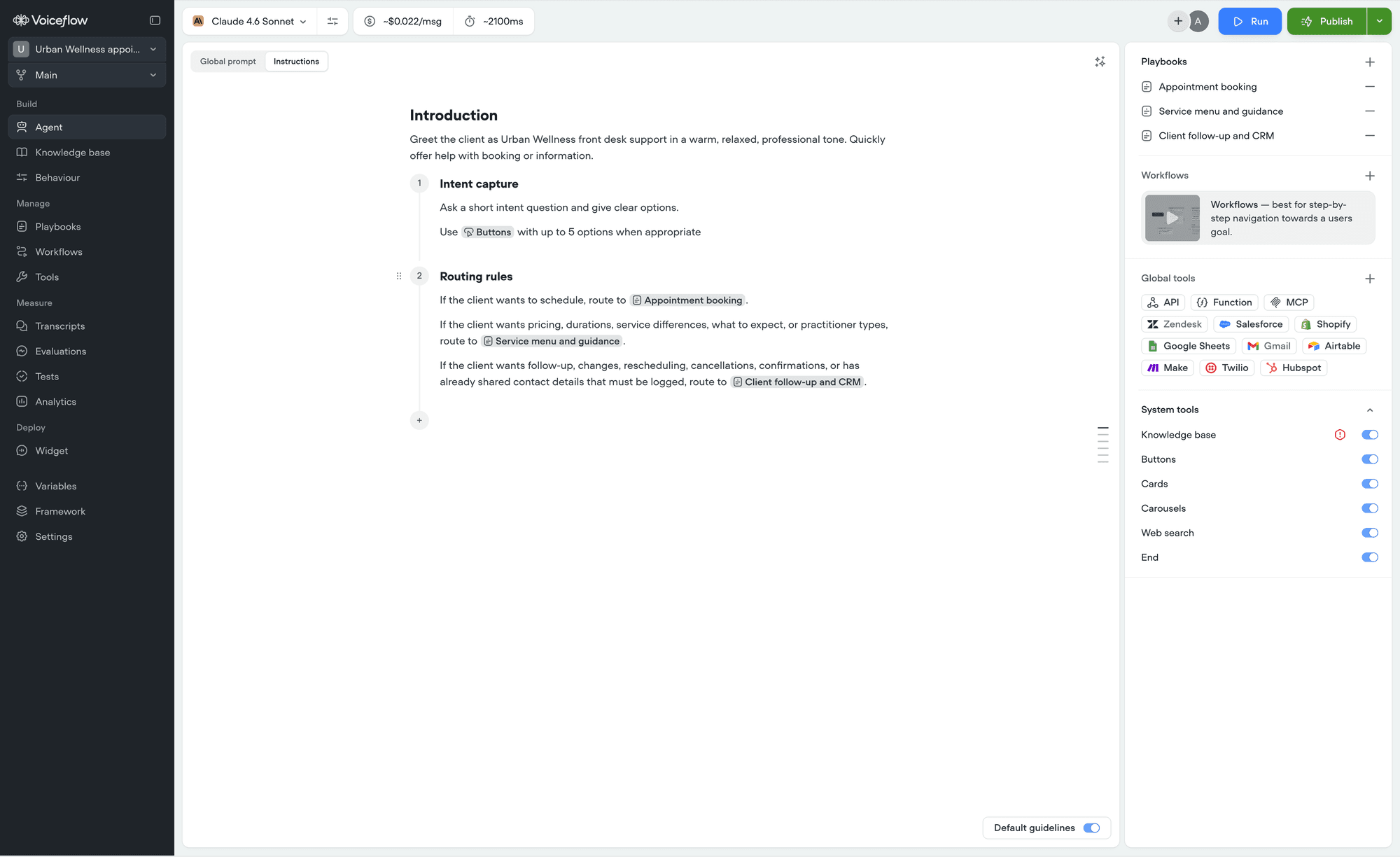
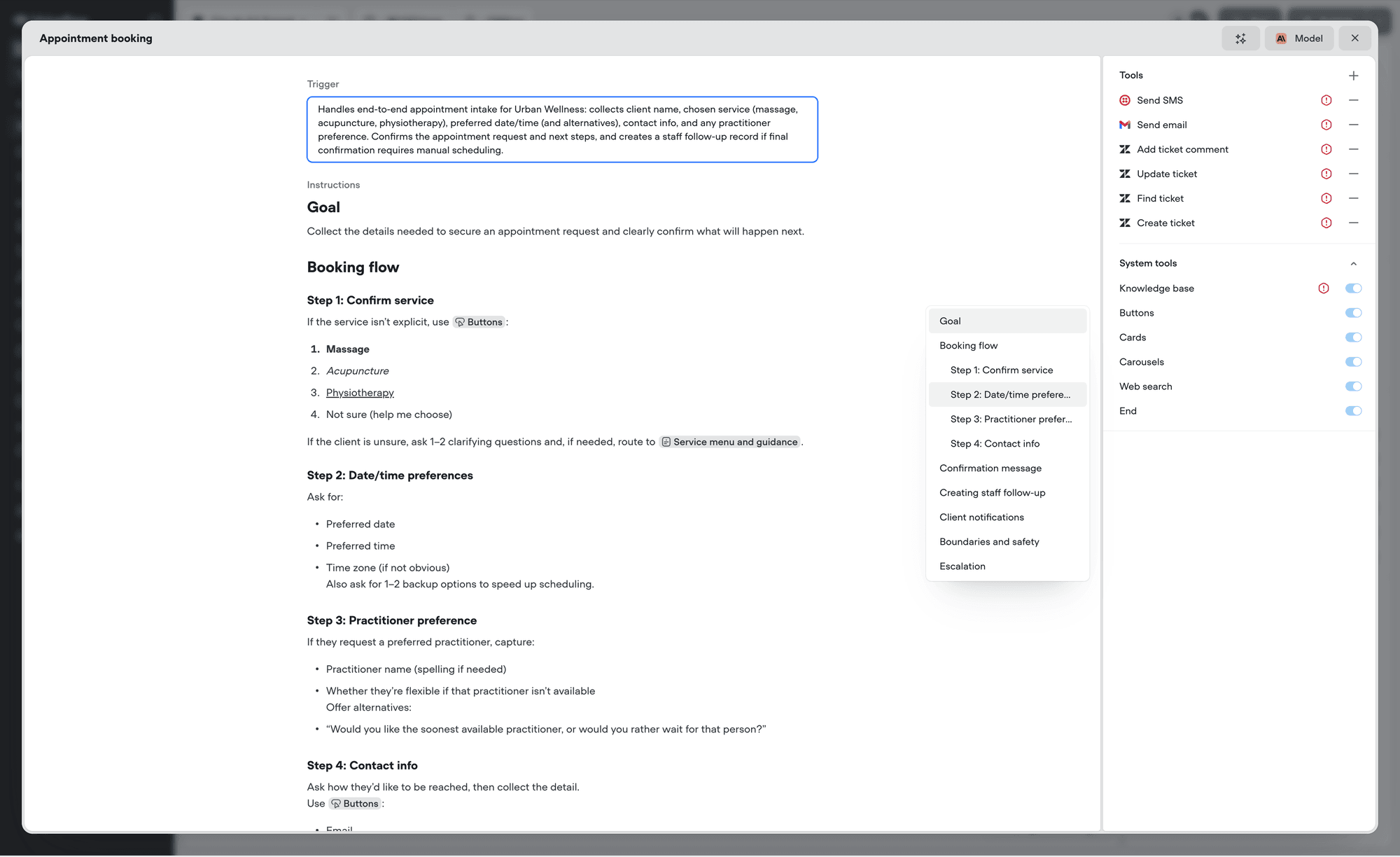
When a playbook needs to happen in a set order, a Steps block makes that order explicit. Type >> followed by a space, or pick Steps from the insert menu. Editor Steps Docs Each step gets a number and a title, with room for as much detail as you need underneath. Press Enter in the title to move down into the body. To add another step, click + below the last one. Steps renumber themselves as you add, remove, or drag them around. Steps hold plain text only, so headings and lists are not available inside one. Once your instructions have headings, an outline appears down the right-hand side. Hover it to see your headings by name, and click any one to jump to it. Editor Table Of Contents Docs Only Heading 1, Heading 2, and Heading 3 appear in the outline.
Next steps

References

Point at your tools, playbooks, and workflows by name.

Markdown shortcuts

Format as you type, and paste markdown from anywhere.

Keyboard shortcuts

Every shortcut for formatting, blocks, and menus.

Variables

Store and reuse information across a conversation.