

Creating secrets
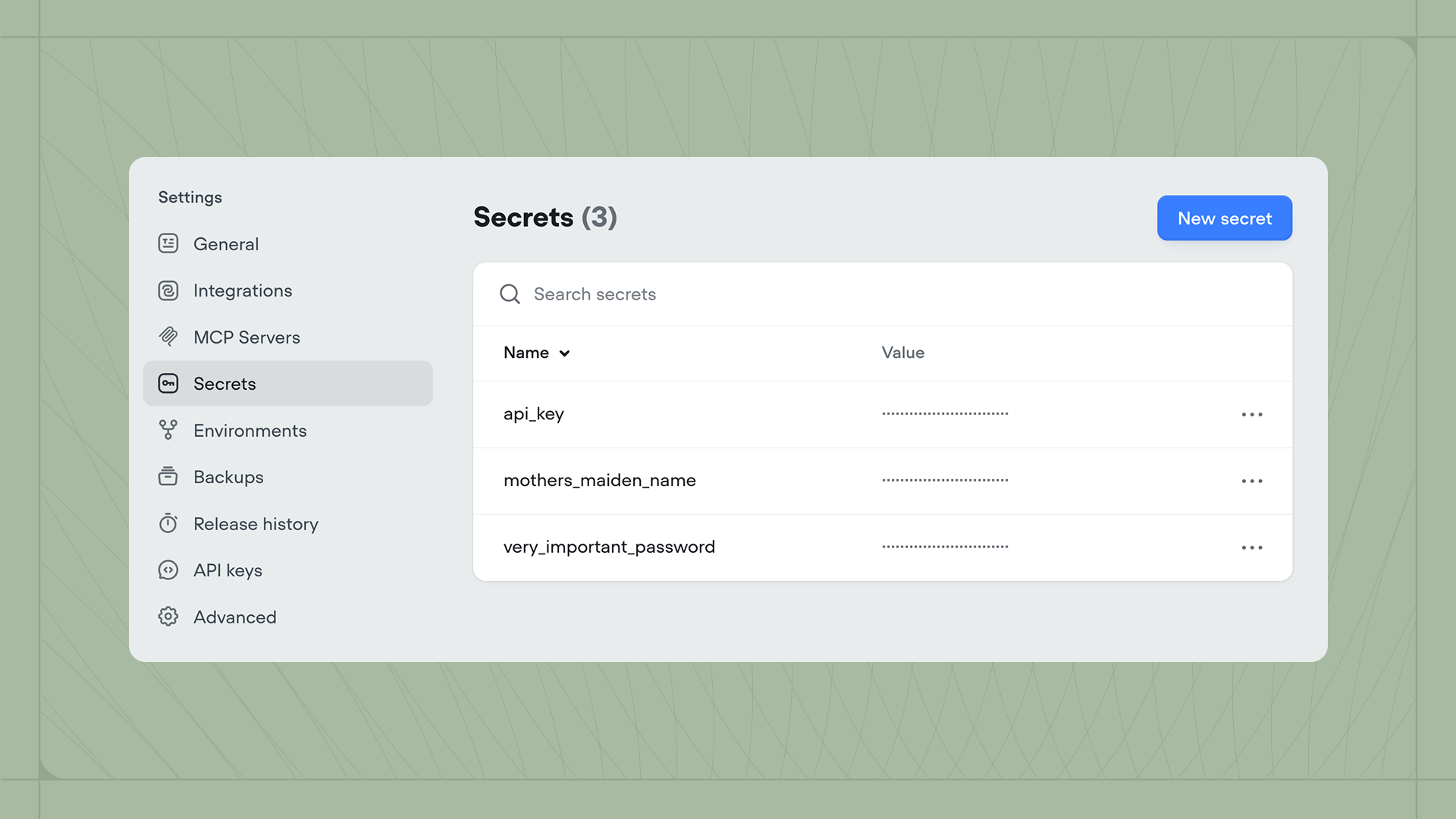
You can create and manage secrets in Settings → Secrets. Click New Secret in the top right to create one. When creating a secret, you’ll provide a name, value, and visibility setting:- Masked secrets are hidden by default but can be temporarily revealed by clicking on them.
- Restricted secrets cannot be revealed after creation. Use this for highly sensitive credentials.
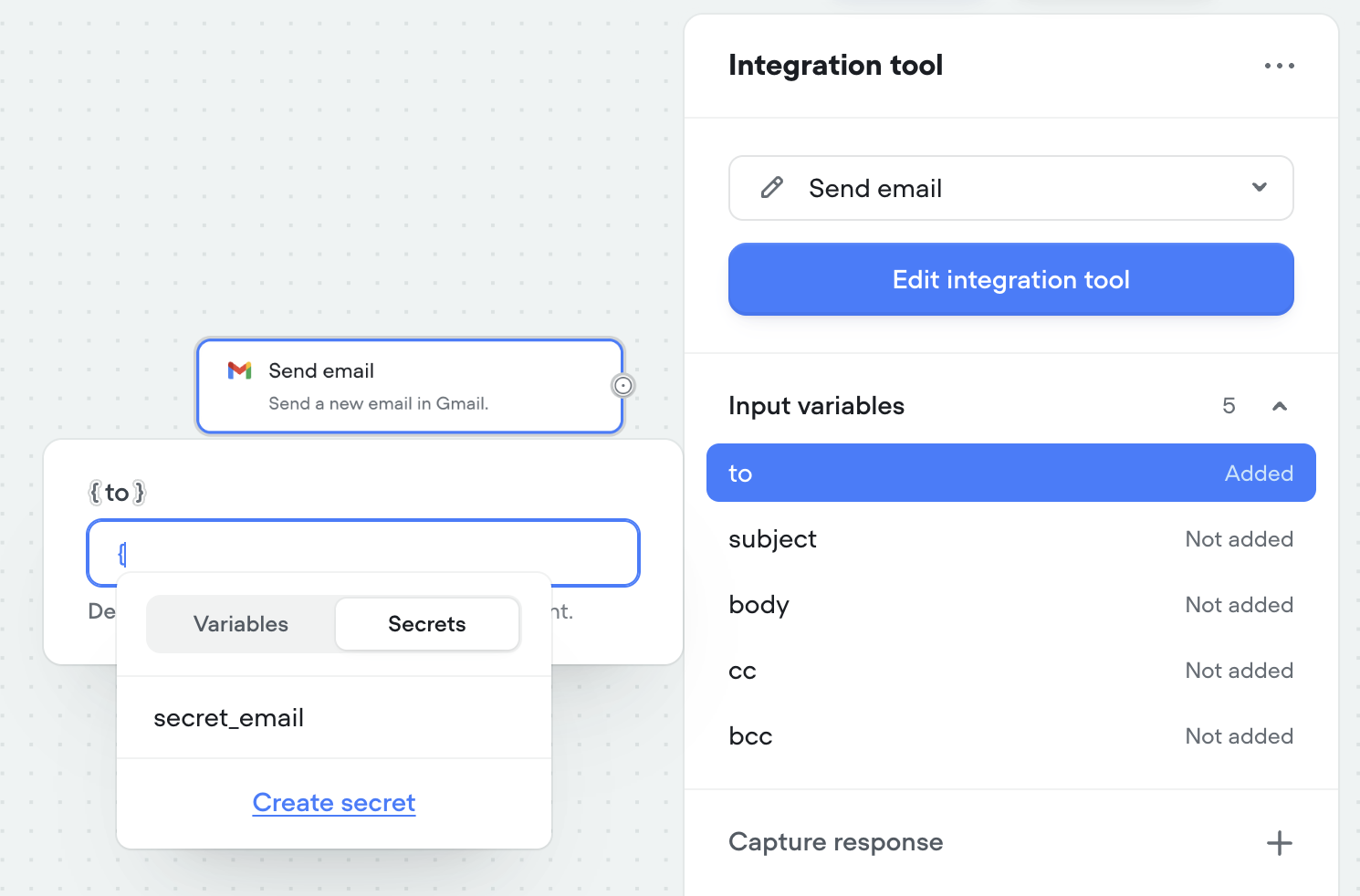
{ in any input field, switch to the Secrets tab in the dropdown, then click Create Secret at the bottom.
Using secrets
Secrets work like variables but are accessed from a separate tab. In any input field within a tool, type{ to open the dropdown, then switch to the Secrets tab and select the secret you need.
Managing secrets
To edit or delete a secret, click the three dots menu next to it. For masked secrets, you can also copy the value to your clipboard. Restricted secrets cannot be copied or revealed.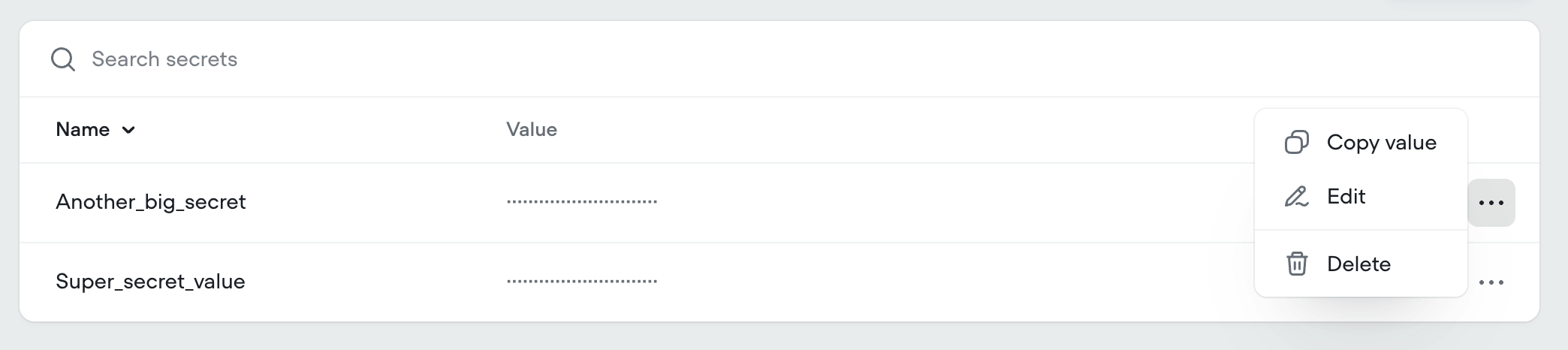
Secrets across environments
Secrets are project-wide. The values you set in Settings → Secrets are the defaults for every environment in your project, includingMain, and any change applies across all of them immediatelySecrets are project-wide. The values you set in Settings → Secrets are the defaults for every environment in your project, including Main, and any change applies across all of them immediately.
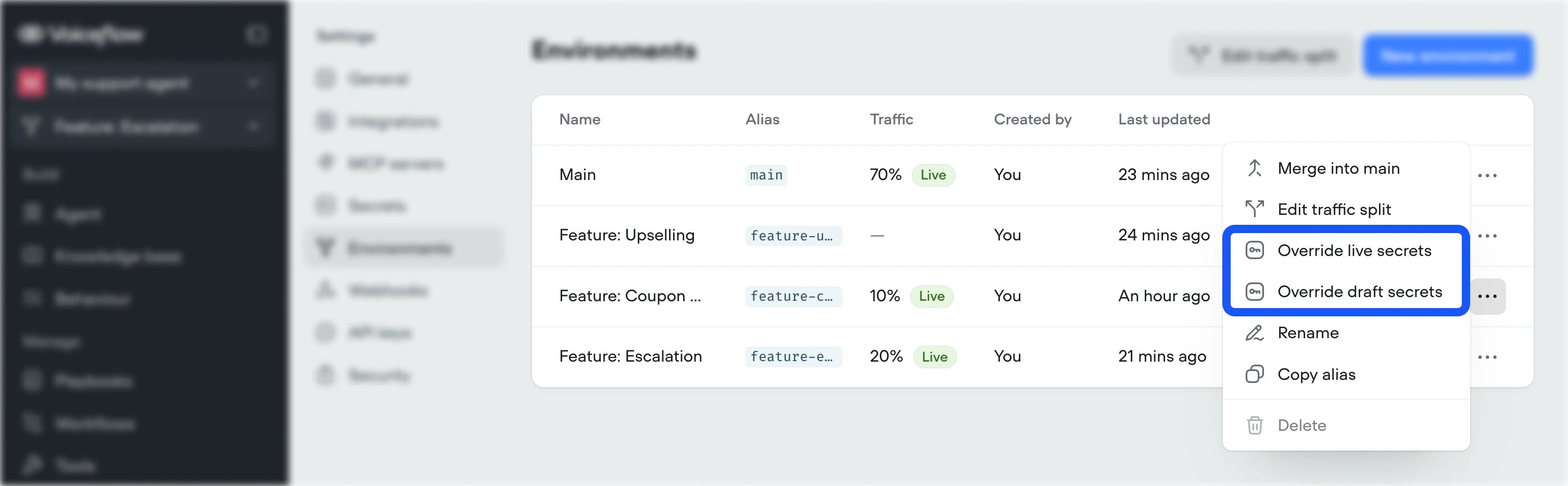
To give one environment a different value, set a per-environment override. Open Settings → Environments, open the ... menu next to the environment, and select Override live secrets or Override draft secrets. An override applies only to that environment’s draft or live version. It never changes the project-wide default or affects any other environment, and secrets without an override fall back to the default.
Overrides and merging
Because merges replace the content ofMain, when you merge an environment to main, its secret overrides are also applied to Main. If you’ve been testing with non-production credentials, such as a development API key, we recommend you remove the live secrets override prior to merging to prevent your live agent being connected to non-production APIs.
To give one environment a different value, set a per-environment override. Open Settings → Environments, open the ... menu next to the environment, and select Override live secrets or Override draft secrets. An override applies only to that environment’s draft or live version. It never changes the project-wide default or affects any other environment, and secrets without an override fall back to the default.