

Model & reasoning
Default model
The LLM that powers your agent. Select your primary model, temperature, and max token limit. These can be overridden at the playbook level.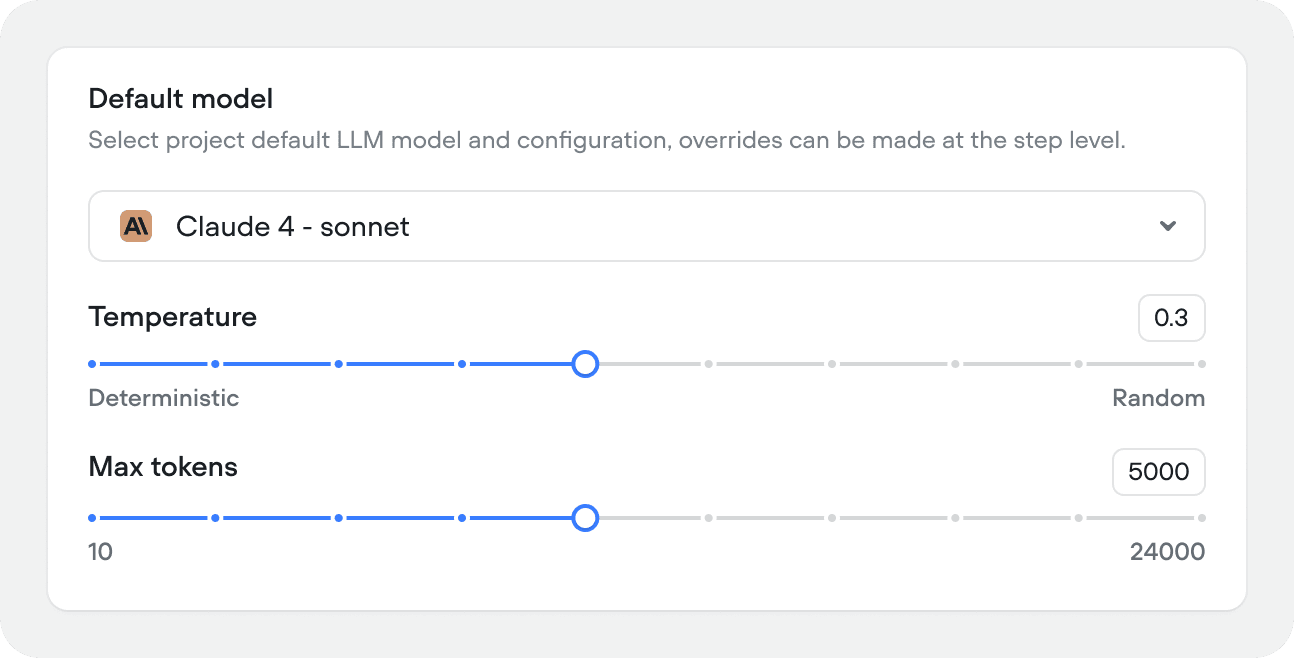
- Model - your primary LLM (eg: Claude 4.6 Sonnet, Gemini 2.0 Flash)
- Temperature - controls how creative or deterministic responses are. Lower values (closer to 0) produce more consistent output, higher values (closer to 1) introduce more variation.
- Max tokens - maximum response length per turn
Memory
How many conversation turns the agent keeps in context (10-100, default 50). Higher values give the agent more history to work with but increase latency and token usage. Memory is stored in the{vf_memory} variable. Most agents work well between 25-50 turns. If you’re hitting token limits or noticing slow responses, try reducing this value.
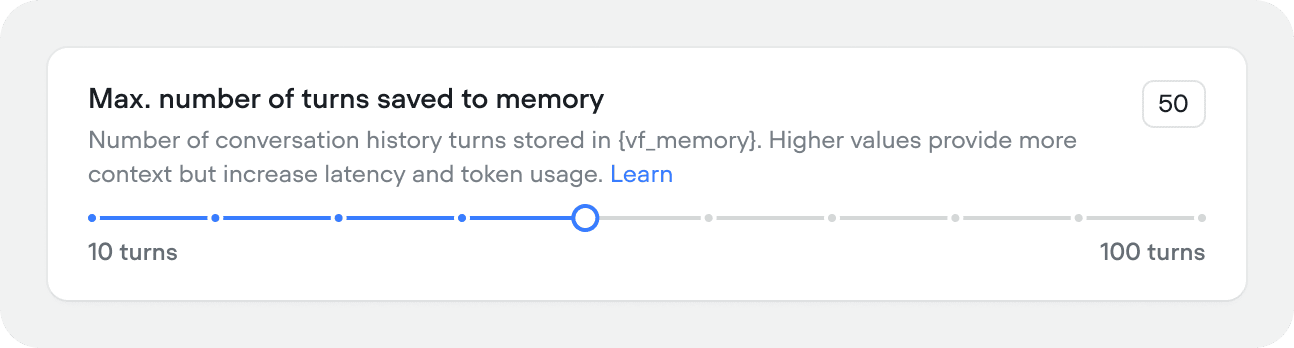
Conversation memory that exceeds this turn count isn’t forgotten completely. Rather it’s condensed and summarized so your agent still has access to critical information, while keeping its context window small for optimal performance.
Faster processing
Enables faster processing for supported models. Uses more credits. Off by default. When on, you can check any model dropdown in Voiceflow to see supported models.
Outage protection
Voiceflow automatically detects model provider outages and allows you to switch to a fallback LLM provider if your primary provider goes down. Configure a fallback for each provider independently - for example, route OpenAI failures to Claude, and Anthropic failures to GPT-4.1.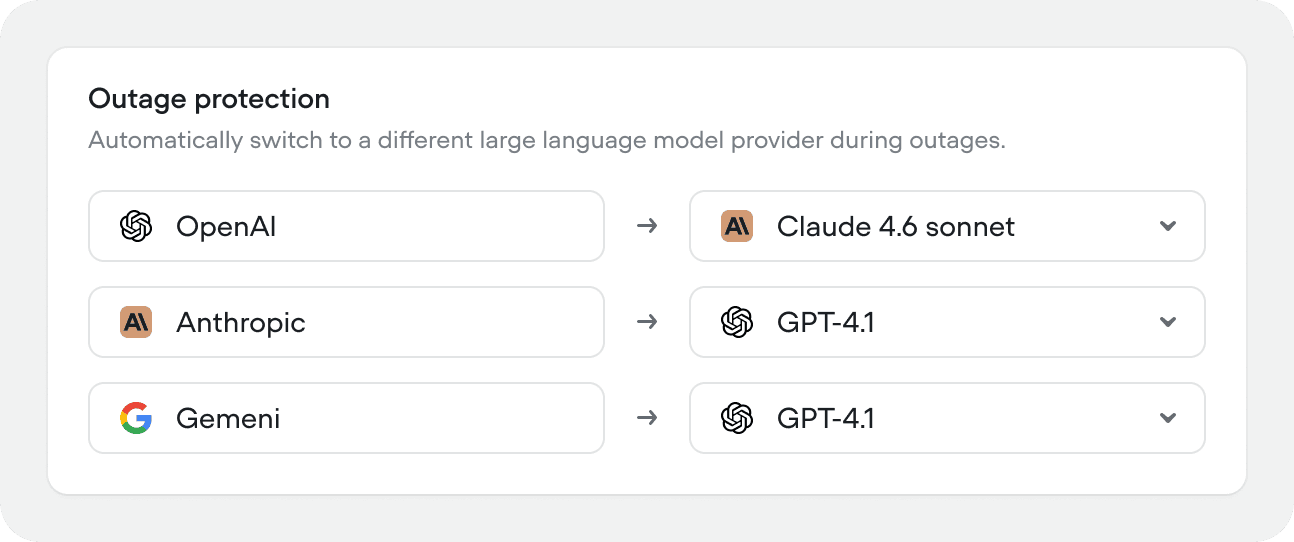
Timezone
Sets the timezone for the{vf_now} and other built-in time variables, and any time-aware behavior.
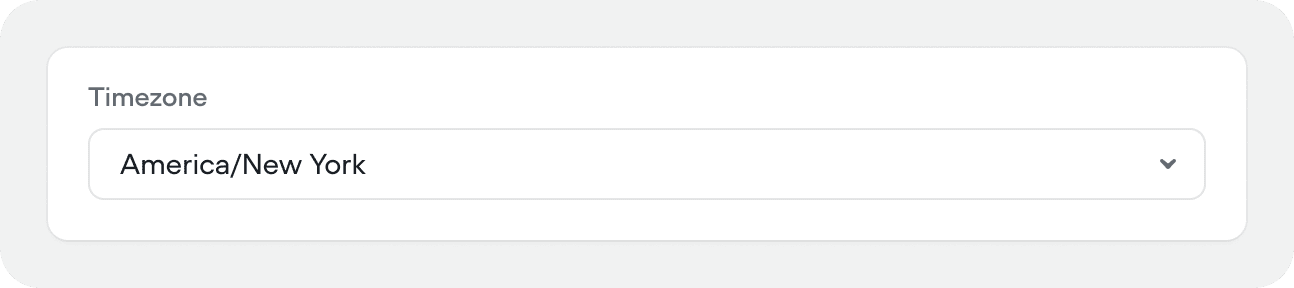
You can think of this as your agents internal clock. You also have access to the built-in variable
{vf_user_timezone}.Voice output
Voice output is also available in chat projects as Voiceflow’s chat widget handles multi-modal usecases with voice mode.
Provider, voice, and model
Select your TTS provider (eg: ElevenLabs, Cartesia, Rime, Google Chirp, Amazon, Microsoft), choose a voice, and pick the synthesis model. You can also connect a custom voiceID from ElevenLabs if you have one.Sync audio and text output
Streams TTS in real time, keeping audio synced with the text output. Off by default.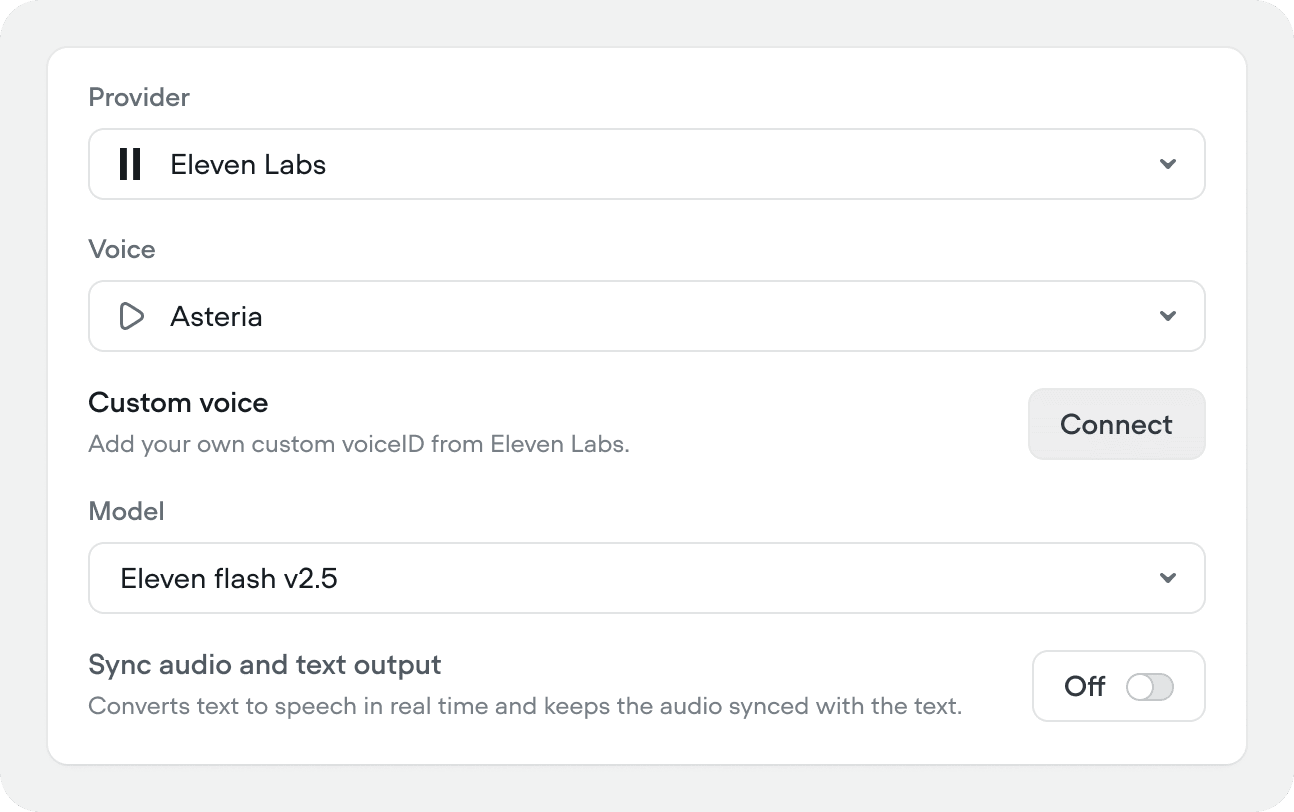
Voice tuning
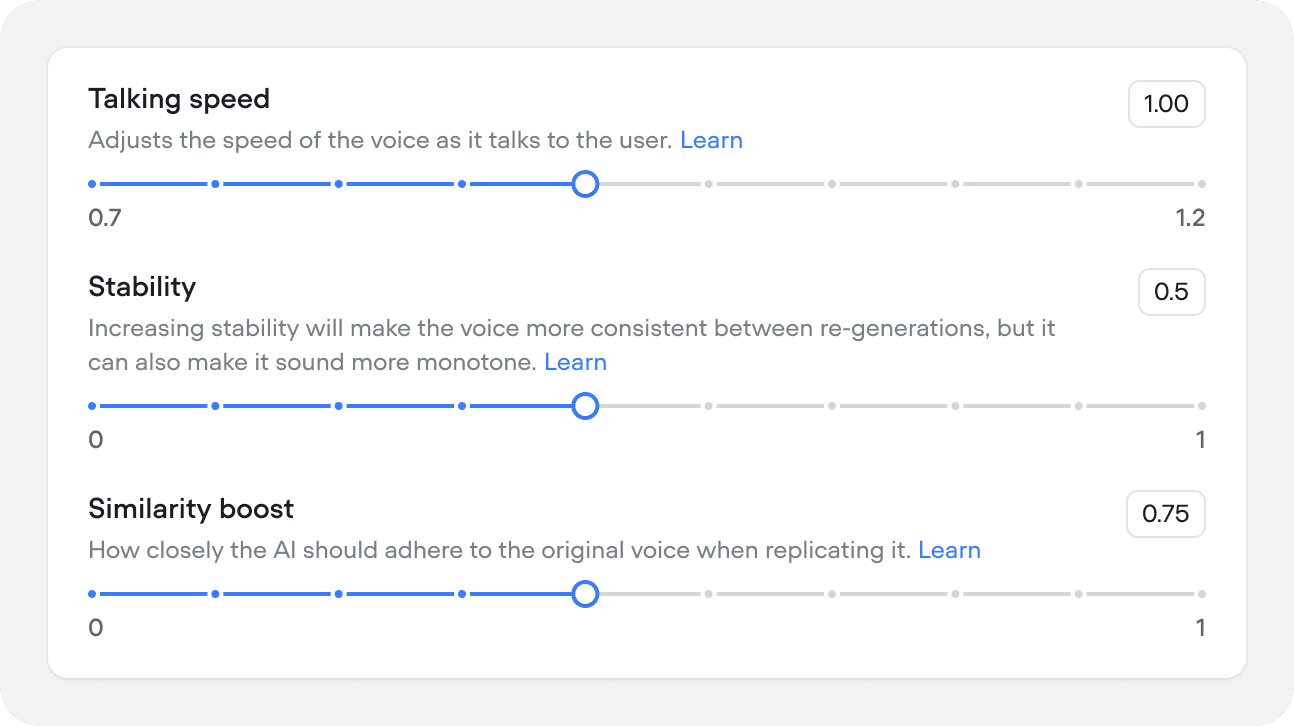
Fine-tune how the voice sounds:- Similarity boost (0-1, default 0.75) - how closely the output adheres to the source voice. Higher values are more accurate but may reduce naturalness.
- Talking speed (0.7-1.3, default 1.00) - playback speed of the voice.
- Stability (0-1, default 0.50) - higher values produce more consistent output across regenerations but can sound more monotone.
Pronunciation dictionary
The pronunciation dictionary rewrites words or phrases in your agent’s responses before they’re sent to text-to-speech. This ensures correct pronunciation of names, places, or technical terms:- enforce brand pronunciations (
nginx→engine x) - expand abbreviations (
Dr.→Doctor) - spell out acronyms (
TTS→Text to Speech) - normalize locale spellings (
colour→color)
to field.
- Cartesia uses a proprietary IPA syntax
<<phoneme|phoneme|...>>(guide) - ElevenLabs (Turbo v2 / Multilingual v2 only) uses SSML
<phoneme>tags with either IPA or CMU Arpabet (guide)

Background audio and audio cues
Audio cues is also available in chat projects as Voiceflow’s chat widget handles multi-modal usecases with voice mode.
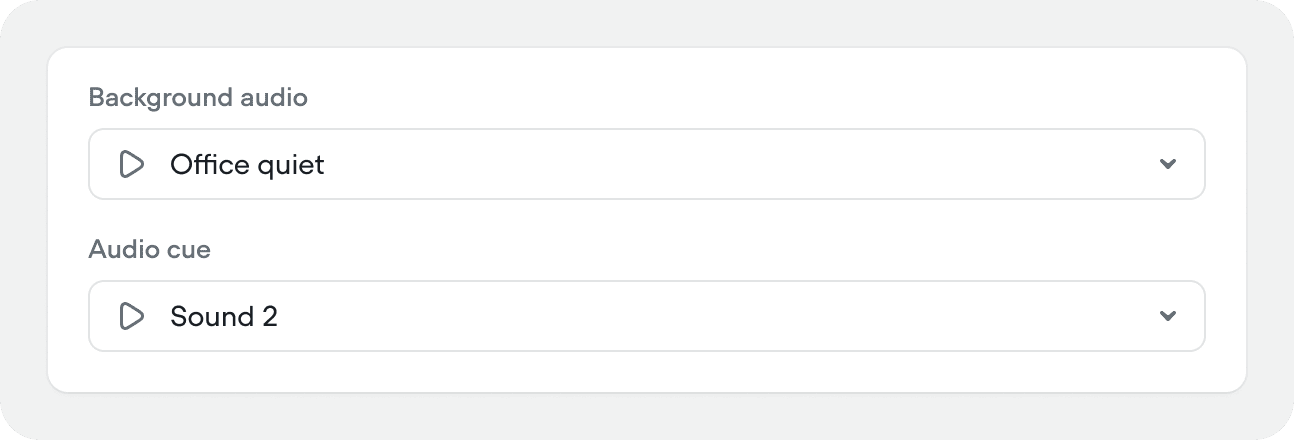
- Background audio - ambient audio that plays in the background for the duration of a call
- Audio cue - a subtle sound effect that plays when the agent starts thinking
Voice input
Voice input is also available in chat projects as Voiceflow’s chat widget handles multi-modal usecases with voice mode.
Provider, model, and language
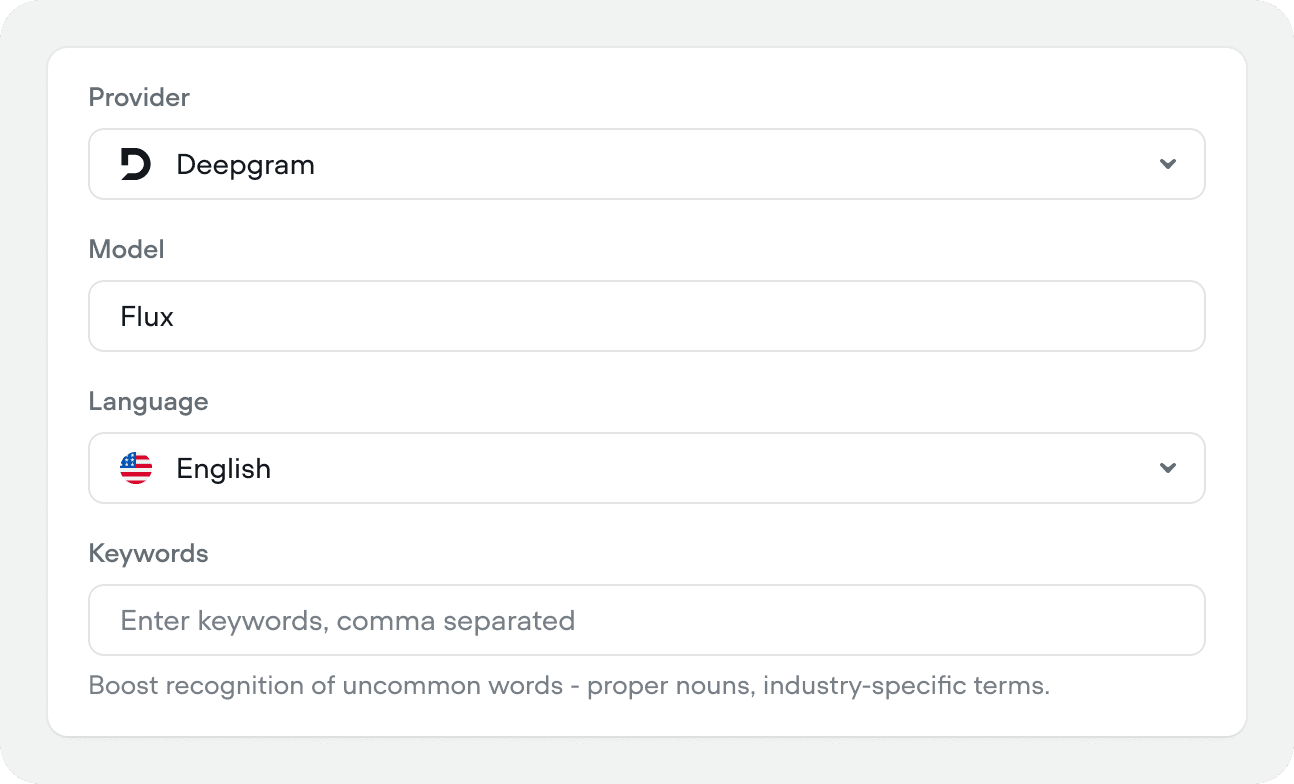
Select your STT provider (eg: Deepgram, Gladia, Cartesia, AssemblyAI, Google), transcription model (eg: Flux), and language.We highly recommend using the Deepgram Flux model. It’s incredibly strong at understanding when the user is done talking, which can massively reduced the perceived latency of voice conversations.
Keywords
Comma-separated list of words to boost recognition for - proper nouns, product names, or industry-specific terms that standard transcription might miss. Good keyword examples:- Product and company names: Brand names, service names, competitor names
- Industry-specific terminology: Medical terms (
tretinoin,diagnosis) - Multi-word phrases: Common phrases in your domain (
account number,customer service) - Proper nouns: Names, brands, titles with appropriate capitalization (
Deepgram,iPhone,Dr. Smith)
End-of-turn detection
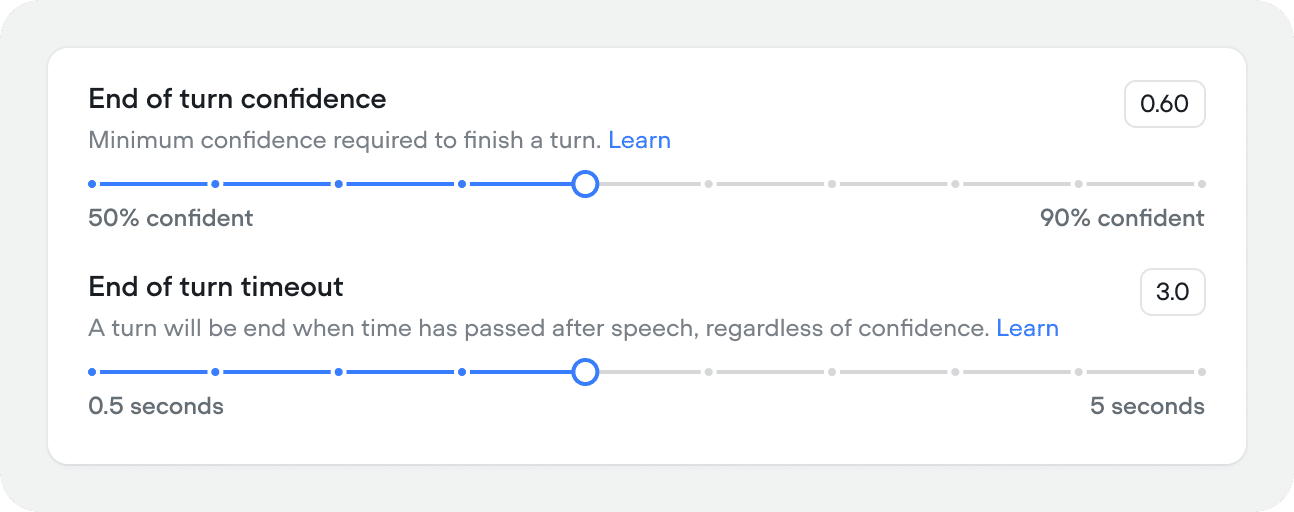
Controls when the agent decides the user has finished speaking:- End-of-turn confidence (0.5-0.9, default 0.60) - minimum confidence score required to close a turn. Lower values make the agent more responsive, higher values wait for more certainty.
- End-of-turn timeout (0.5-5s, default 0.60s) - how long to wait after the user stops speaking before closing the turn, regardless of confidence. Increase this if users are getting cut off mid-sentence.
Keypad input
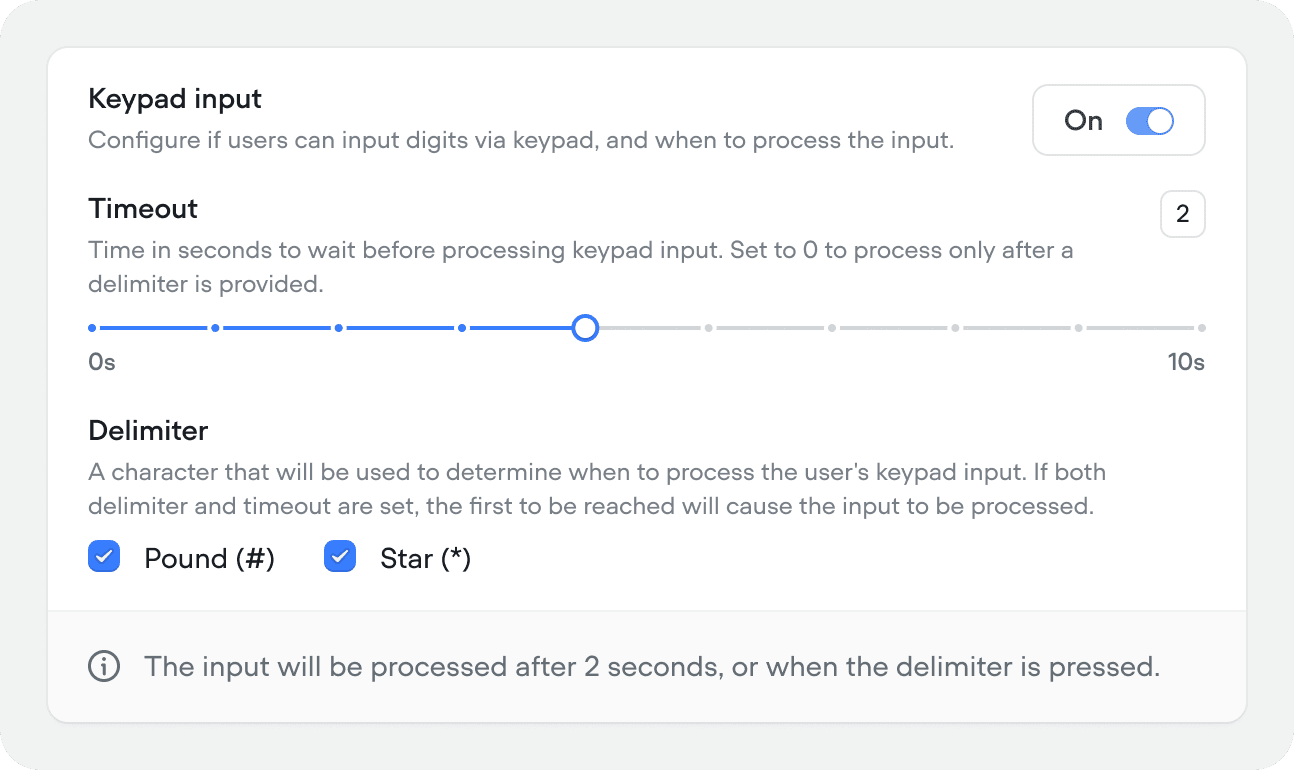
Allow users to input digits via keypad (DTMF) during a call. When enabled, configure:Keypad input is only available in voice projects.
- Timeout (0-10s, default 2) - how long to wait before processing the input. Set to 0 to process only after a delimiter is pressed.
- Delimiter - the key that signals input is complete. Options: Pound (#) or Star (*). If both a delimiter and timeout are set, whichever comes first triggers processing.
Session & timeout
Session timeout (Chat projects)
Time in minutes before an inactive chat session ends (1-2,880 min (2 days), default 15 minutes). Toggle off to keep sessions alive indefinitely.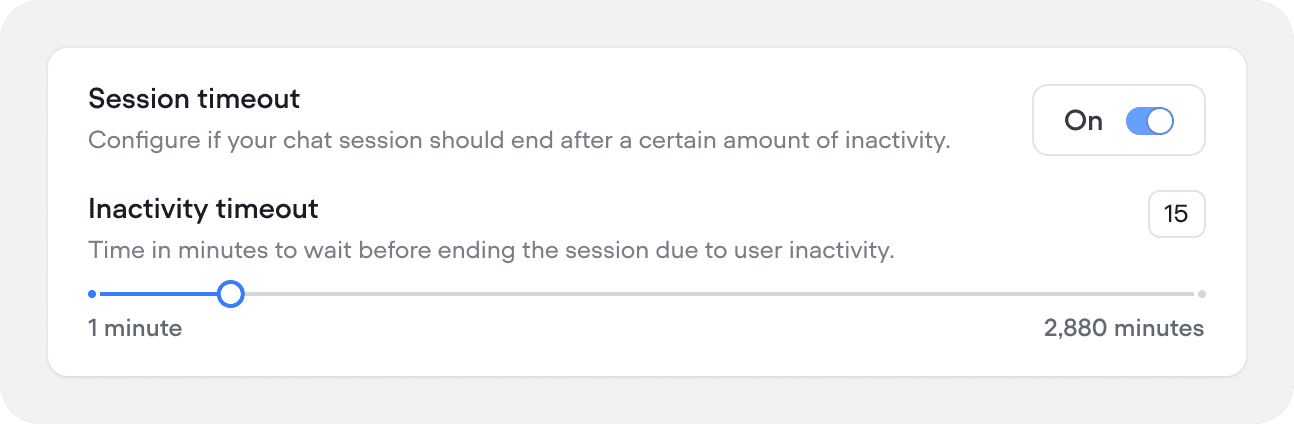
Session timeout (Voice projects)
How long to wait before a call is automatically ended due to inactivity (10-300 seconds, default 60).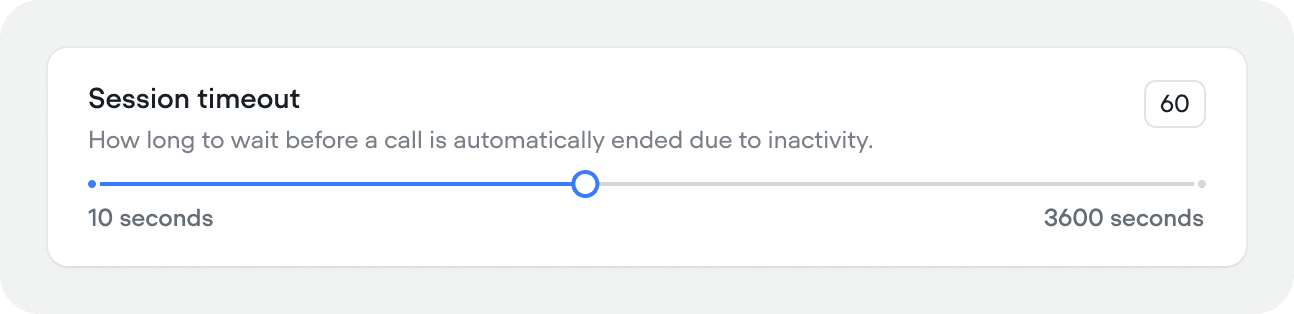
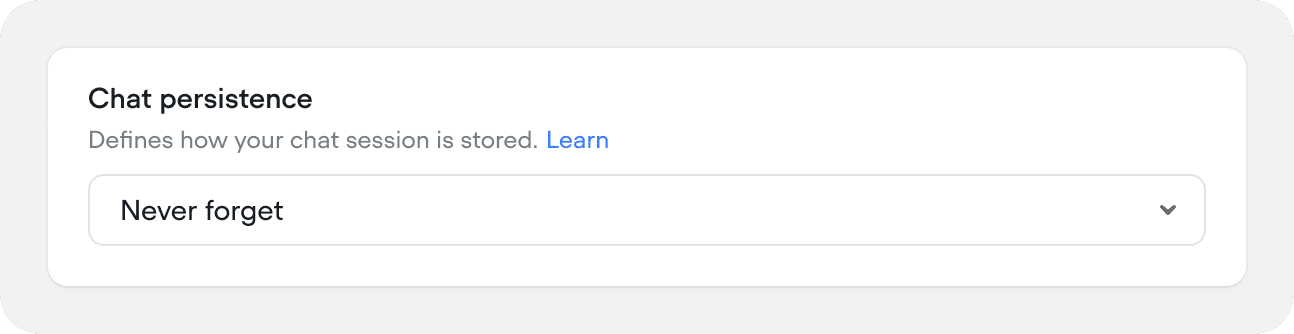
Chat persistence
Controls how and whether chat history is stored between sessions.Chat persistence is only available in chat projects.
- Never forget - conversation history persists indefinitely. The user can return at any time and pick up where they left off.
- Forget after all tabs are closed - history is cleared when the user closes all browser tabs with the chat widget. Reopening starts a fresh session.
- Forget after page refresh - history is cleared every time the page reloads. Each page visit is a new conversation.
Events
Events let you trigger agent behavior from outside the conversation - a webhook, a CRM update, a system alert, or any external signal your application sends.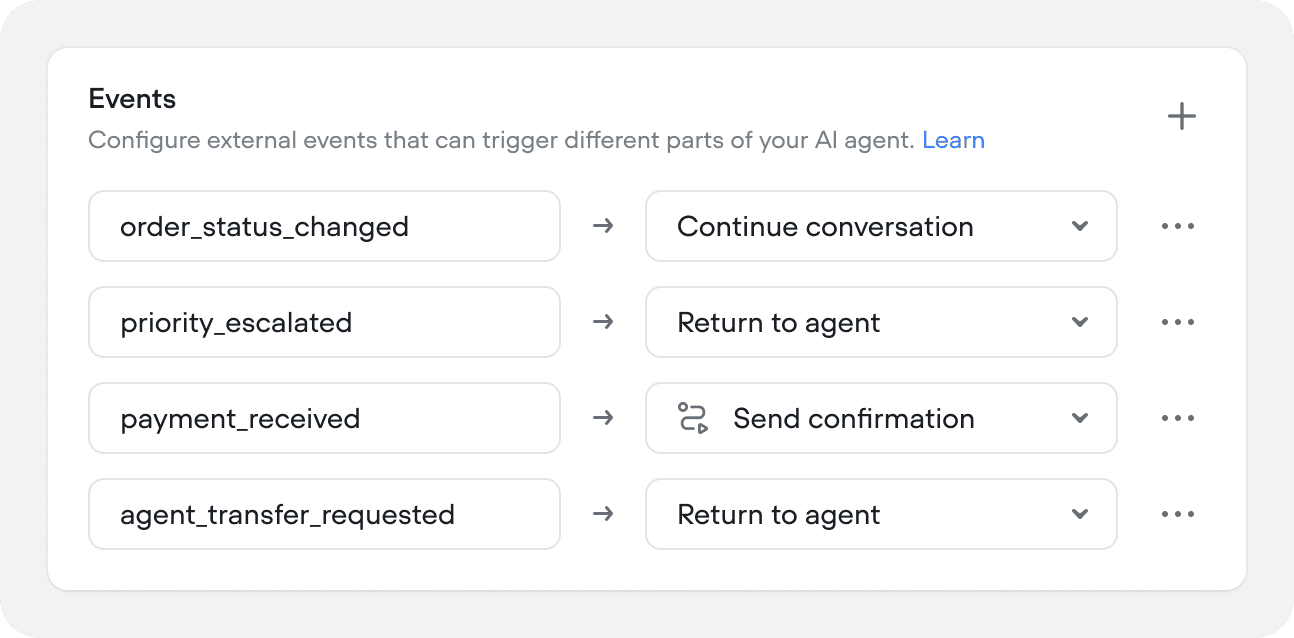
Fallback
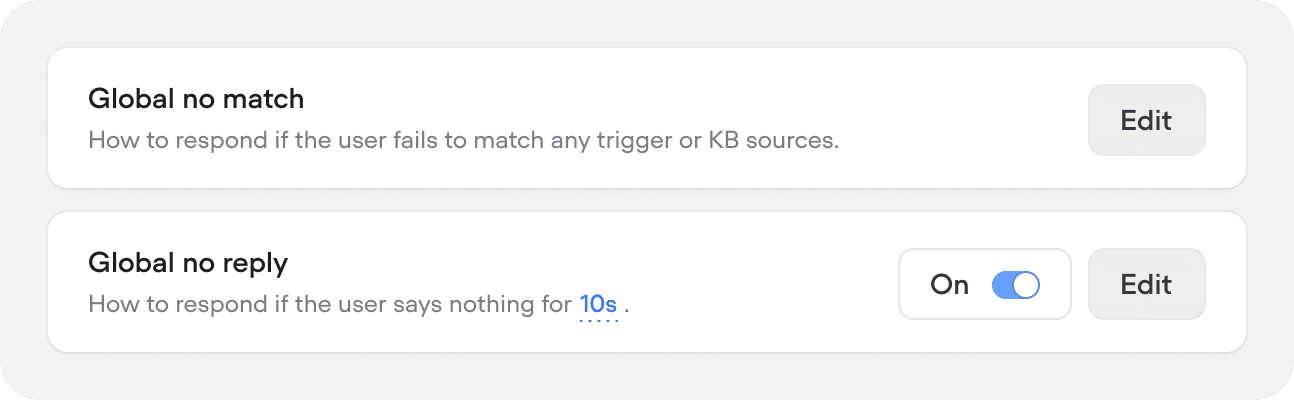
Global no-match
How the agent responds when it can’t match any skill, user intention, or knowledge base result. Click Edit to configure:- Generative - provide a prompt that tells the agent how to handle the situation. The agent generates a response dynamically based on your instructions.
- Scripted - write a fixed response that’s sent every time. Use this when you want exact control over the wording.
If you’re building a fully agentic project, you don’t need to worry about this behaviour setting. It’s really for experiences that don’t rely on an agent to handle un-happy path dialogs.
Global no-reply
How the agent responds when the user says nothing. Off by default. When enabled, click Edit to configure:- Generative - provide a prompt for how to re-engage the user (eg: “Ask them if they’re still there, or nudge them toward the conversation’s goal”).
- Scripted - write a fixed follow-up message.
- Inactivity time - how many seconds of silence before the agent responds (default 10).
- Max no-reply messages per turn - how many times the agent will follow up before ending the session (default 5). For example, with 10 seconds and 5 attempts, the session ends after 50 seconds of total silence.