

Added
Tag tools, playbooks, and workflows in your instructions
You can now reference a resource directly instead of naming it in plain text. Press/ in the global prompt, agent instructions, or playbook instructions, choose a type (playbook, workflow, system tool, or tool), then pick from your project. It’s inserted as a chip bound to that resource. Variables continue to be referenced using {.If a tagged resource isn’t available in that context, the chip flags it rather than silently failing.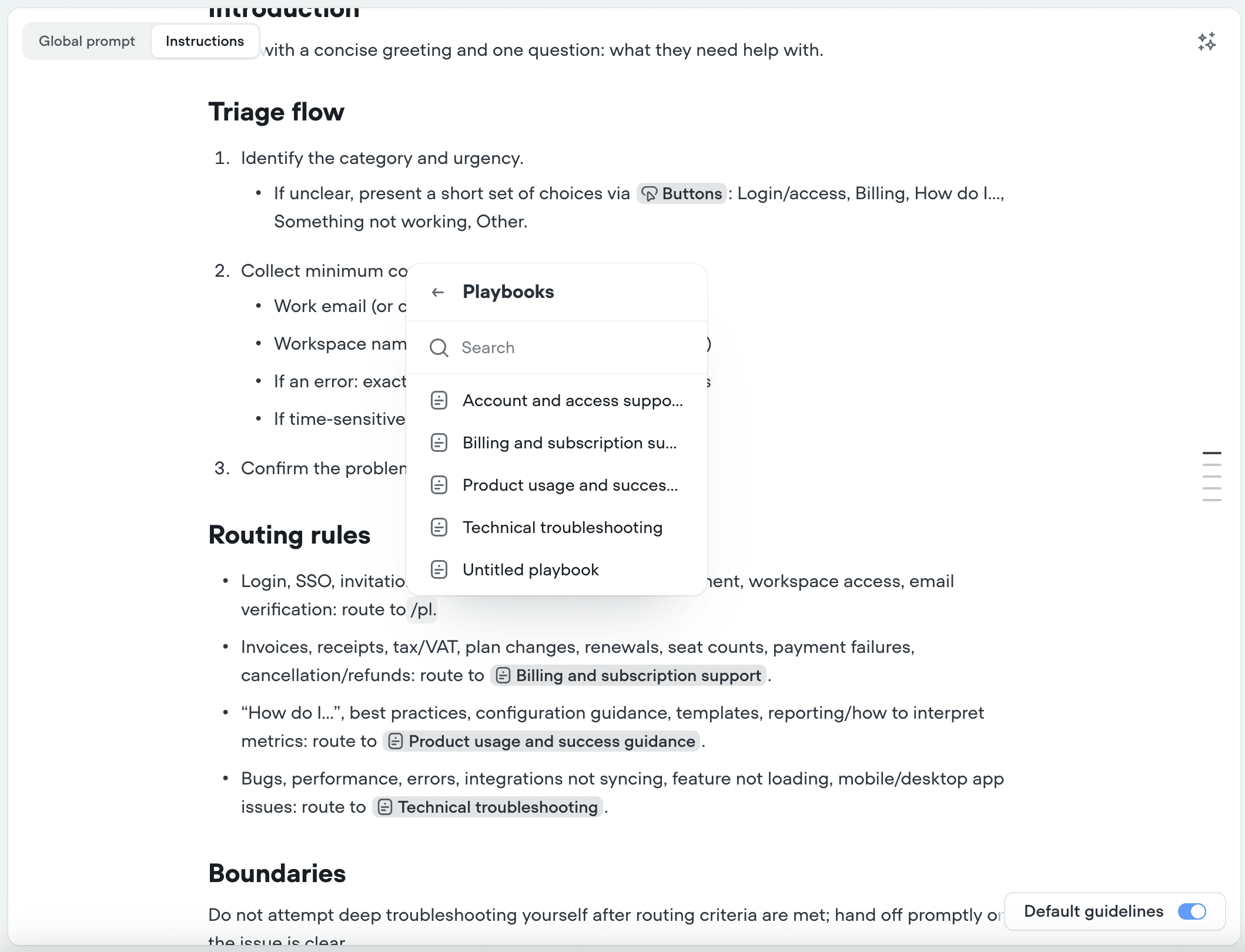
Added
Markdown editor
The global prompt, agent instructions, and playbook instructions now use a Markdown editor. Structure your instructions with headings, lists, bold and italic, either with standard Markdown shortcuts (## for a heading, **bold**, > for a quote) or by pressing / to open the formatting menu. Agents built from a prompt come back formatted this way by default.Existing instructions migrate automatically. The underlying data is unchanged, only how it’s rendered and edited.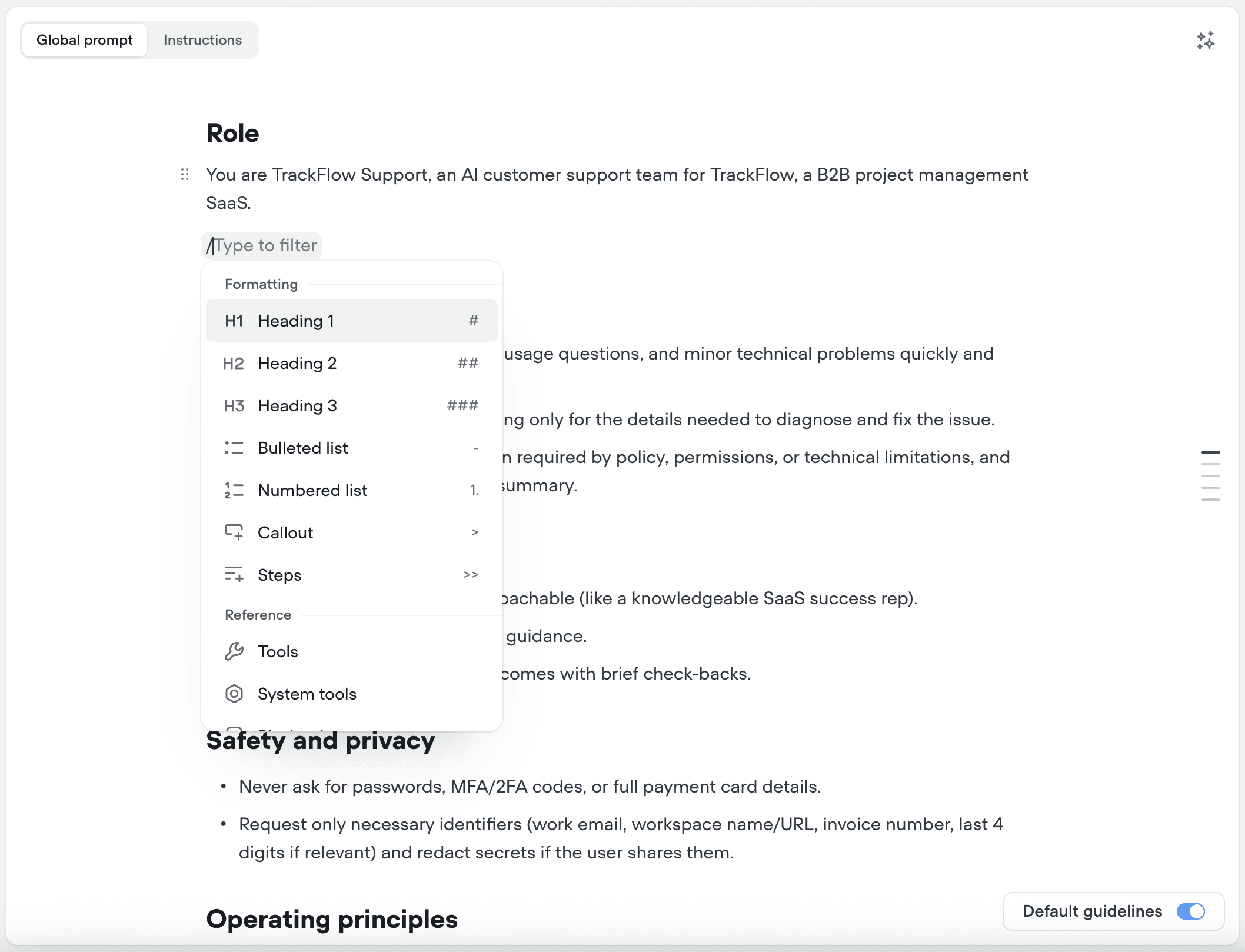
Added
Widget width
You can now set the chat widget’s width from Interface → Widget, instead of overriding thevfrc-chat class with custom CSS. Minimum is 320px, and the widget stays responsive if the width you set exceeds the browser window.
ImprovedDeprecated
Session lifecycle webhook: richer payloads, .v2 events deprecated
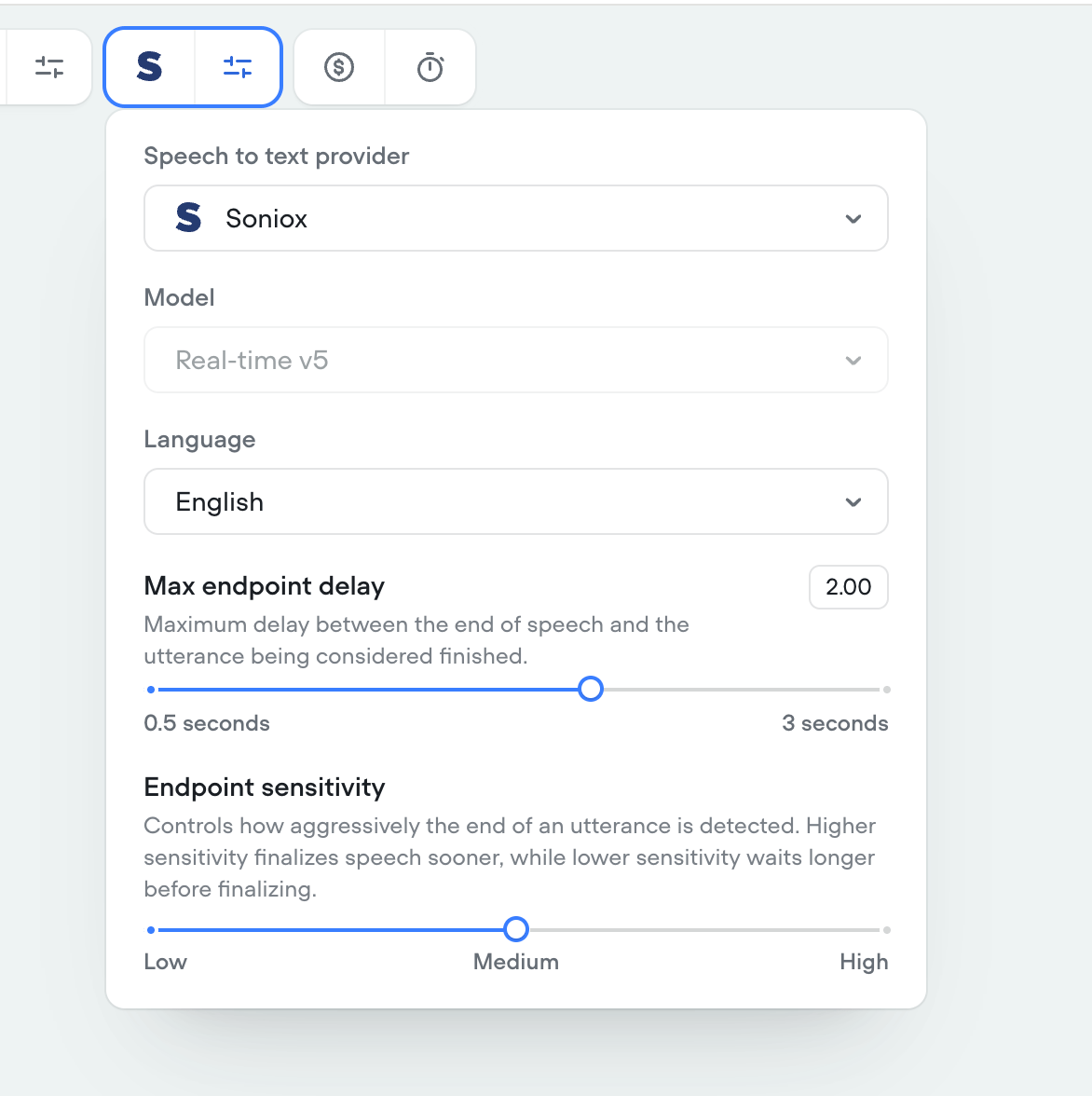
All four session lifecycle events (runtime.session.start, runtime.session.end, runtime.call.start and runtime.call.end) now carry the metadata that previously appeared only on their .v2 variants: versionID, transcriptID, versionVariant, projectEnvironmentID and projectEnvironmentAlias, plus endReason on runtime.session.end and sessionID on the call events. sessionID on call events is new information: call and session events can now be correlated with each other for the first time.These fields are optional and nullable. The .v2 events only fired when every one of them was known, whereas the standard events fire on every session and call, so your handler should tolerate null. versionID carries the same value as environmentID.Deprecation: runtime.session.start.v2, runtime.call.start.v2 and runtime.call.end.v2 will stop firing on October 9, 2026. Until then they continue to be delivered alongside their replacements, so you can migrate at your own pace. Switch to the event name without the .v2 suffix.runtime.session.end.v2 has been removed. It never fired, because its trigger condition depended on data that was never recorded, so it had no subscribers.We’ve also clarified a point that causes recurring confusion: session events fire on every channel, chat included. A voice conversation emits both runtime.call.* and runtime.session.* because a call and a session are different things with different end conditions. See Session lifecycle webhook for the full breakdown.Added
Added
Generative tool messages
In addition to scripted tool messages, you can now provide generative tool messages that use the conversation history to provide a contextually correct tool message at that point in the conversation. You can accompany generative tool messages with examples as hints for how your agent should reply. Generative tool messages also work nicely in multilingual agents and will reply in the language of the current conversation.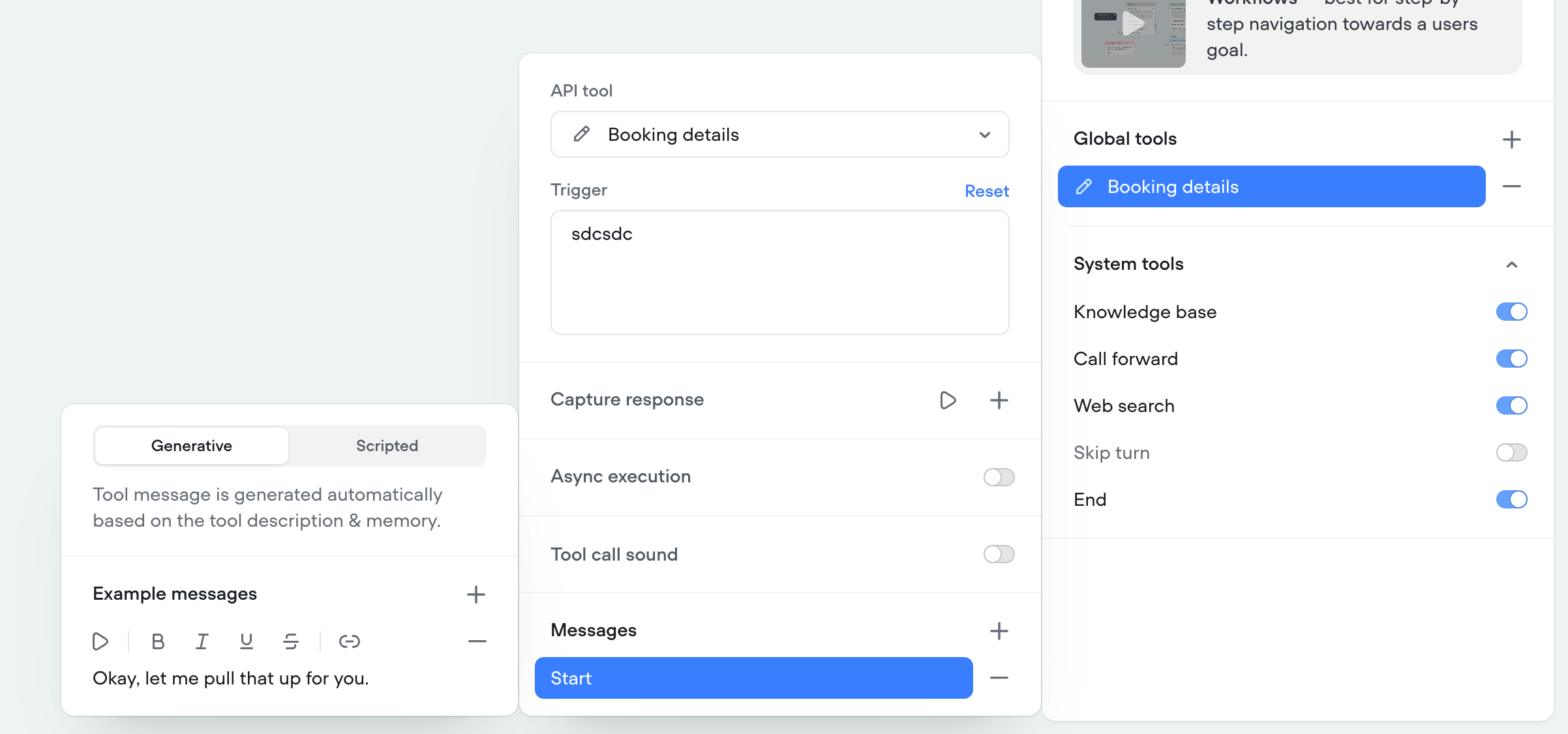
Improved
Project Analytics Updates
We made it easier to understand your agent’s performance and ROI, by introducing a summary section on the Analytics page. Key evaluations and metrics now sit at the top: resolution rate and customer satisfaction are surfaced by default, alongside total conversations, spend, and average cost per conversation.A number of new metrics were also added. This includes:- LLM Cost
- TTS Cost
- SST Cost
Added
Environment Protection
You can now lock down individual environments so only admins or owners can publish or merge into them. Turn on Environment protection from the environment’s ••• menu in Settings → Environments. Everyone else keeps their normal access to build and test - they just can’t merge changes into that environment.This is most useful on Main and on any environment carrying live traffic. Anyone can still create a new environment, this protects production environments from accidental or unauthorized changes.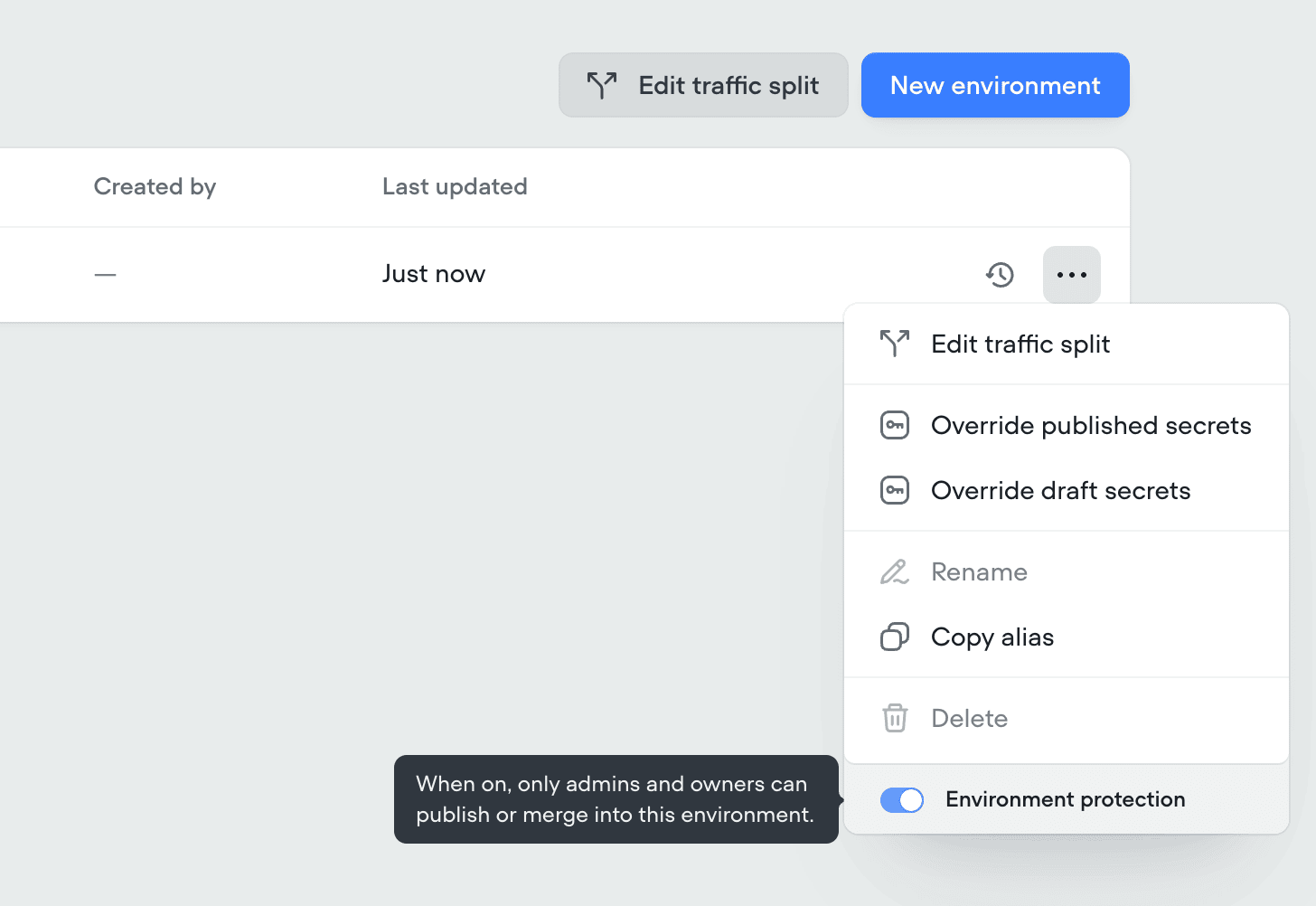
Added
Cost limit per conversation
You can now set a maximum spend per conversation. Define a dollar amount, and once a session’s cost exceeds it, Voiceflow ends the session automatically - a hard ceiling on any single conversation, no matter how long it runs or how many tools it calls.For voice calls, this pairs with Max conversation duration: duration caps how long a conversation lasts, while cost limit caps what it spends. A short conversation that hammers an expensive model can cost more than a long, quiet one, so the two guardrails catch different failure modes.As with duration, you can set an optional End message that’s sent before the session closes.This setting is off by default. Find it in Settings → Behaviour.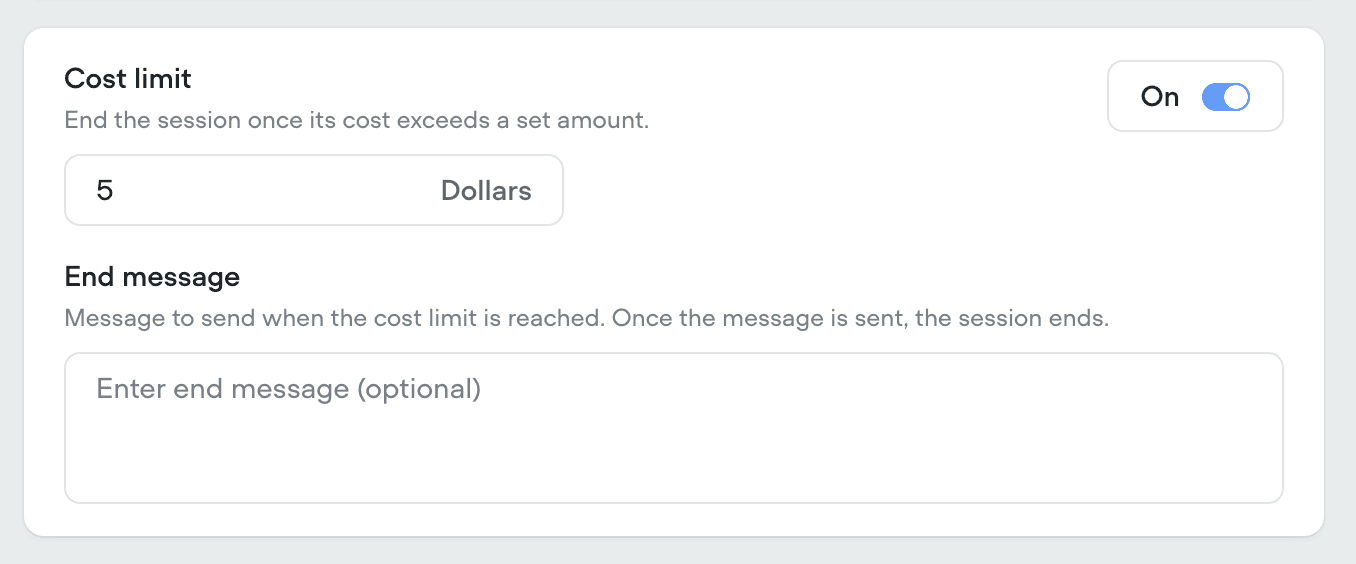
Added
Max conversation duration for phone calls
You can now cap how long a single conversation is allowed to run. Set a limit in seconds, and once a conversation hits it, Voiceflow ends it automatically - so a caller who stays on the line indefinitely, or an agent stuck in a loop, can’t quietly burn through credits.You can also define an optional End message that plays before the conversation closes, so the user gets a graceful sign-off instead of a dropped call.This setting is off by default. Find it in Settings → Behaviour.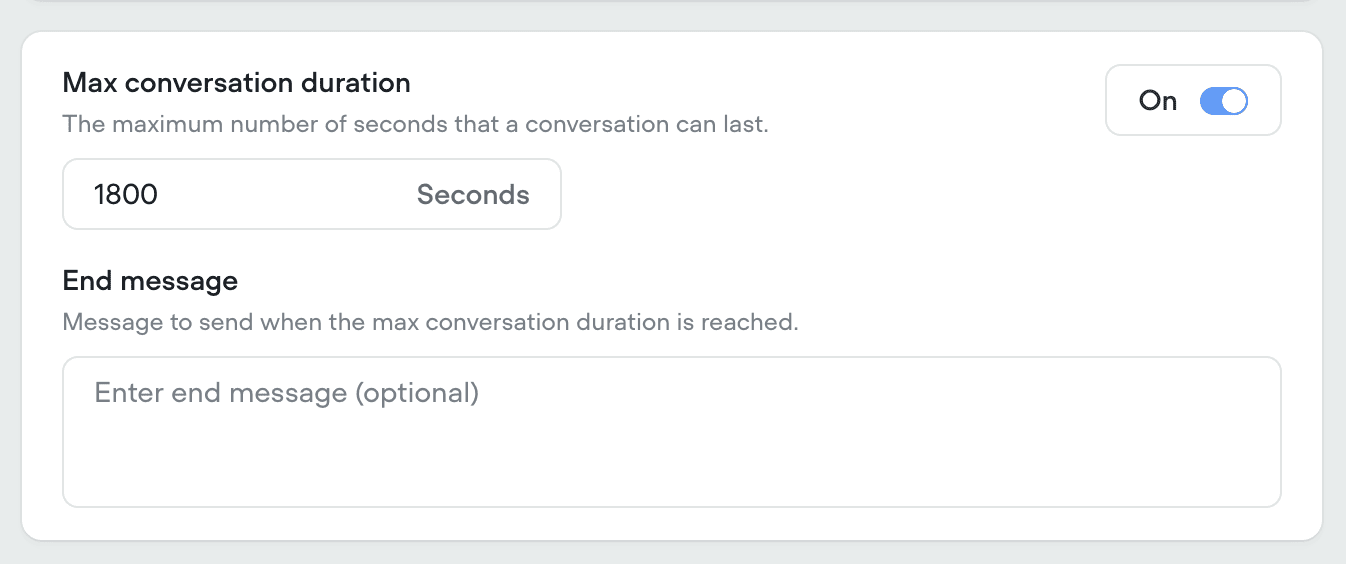
Added
File upload in chat widget
The chat widget now natively supports file and image uploads for both AI agent and human handoff conversations. To turn file uploads on, open Widget → Modality & Interface and enable Allow file attachments.Users can upload up to 10 files during a conversation. Supported file types include PDF, JPEG, JPG, PNG and WEBP.Files are stored in a secure Voiceflow storage repository and are never publicly accessible. Learn more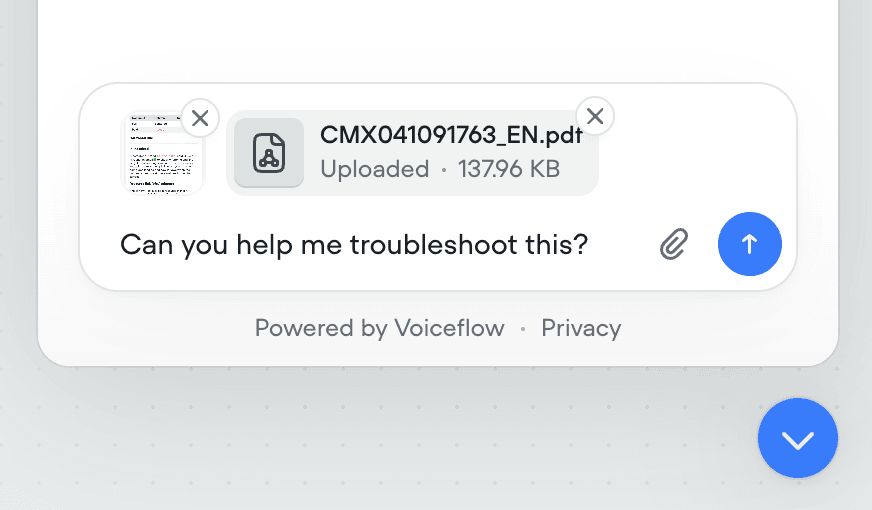
Added
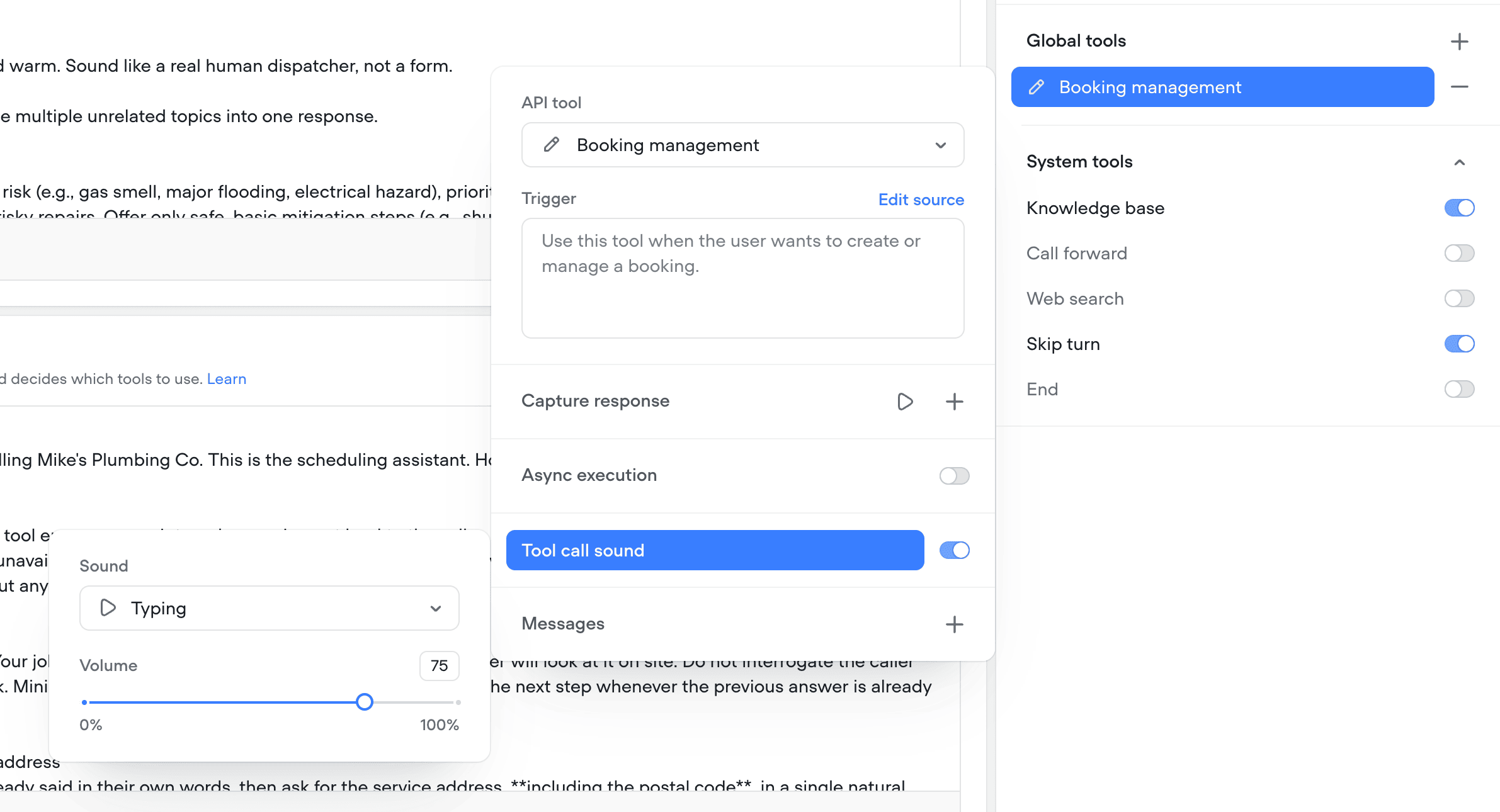
Improvements to tool call sounds
Tool call sounds now:- Have manual volume control
- Include more sound options
- Automatically decrease volume when agent it talking over it
- Fade in and out to create a more natural dialog
Added
Background audio for all telephony providers
All Telephony providers (Voiceflow, Twilio, Vonage, Telnyx) now support background audio. Background audio configuration can be found in the behaviour tab of your project.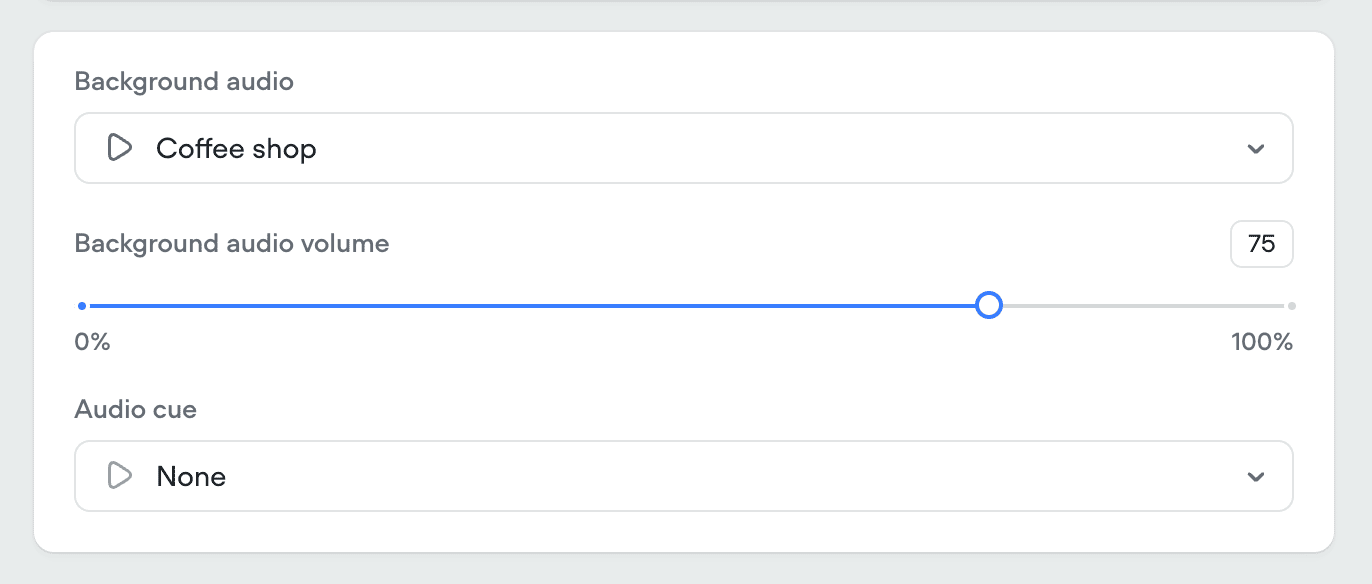
Added
Secrets conflict resolution
When merging an environment into Main, Voiceflow detects secrets whose values differ between the two environments. Before the merge completes, you choose how to resolve them: keep Main’s existing values (default), or enable Override Main secrets to replace them with the incoming environment’s values. This prevents merges from silently overwriting production credentials - like API keys pointed at staging systems - without an explicit decision.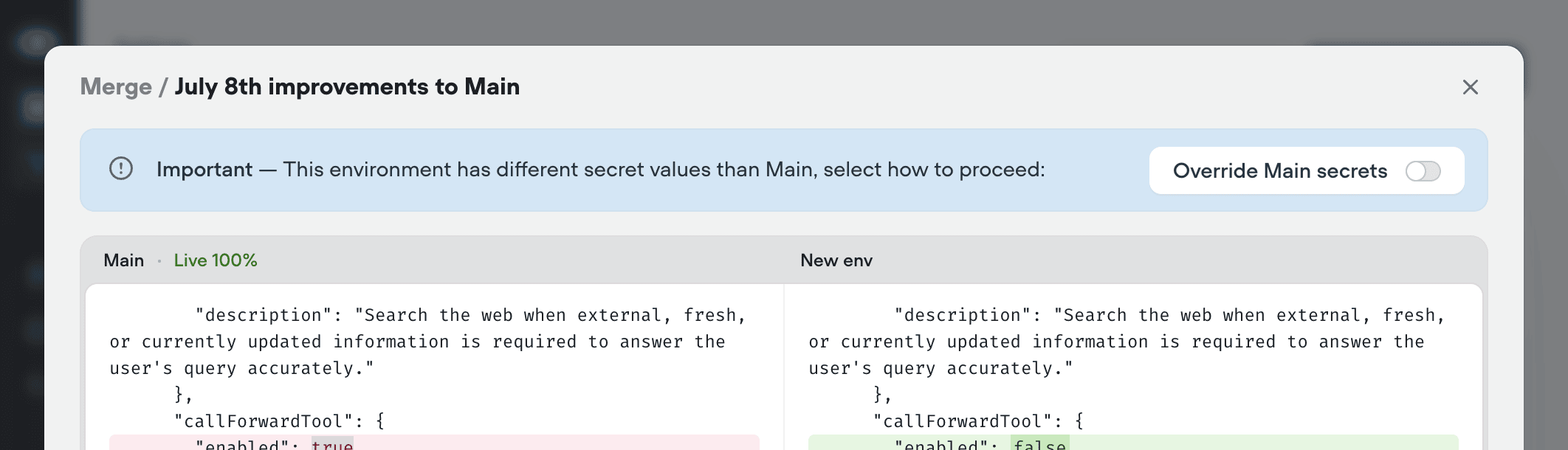
Added
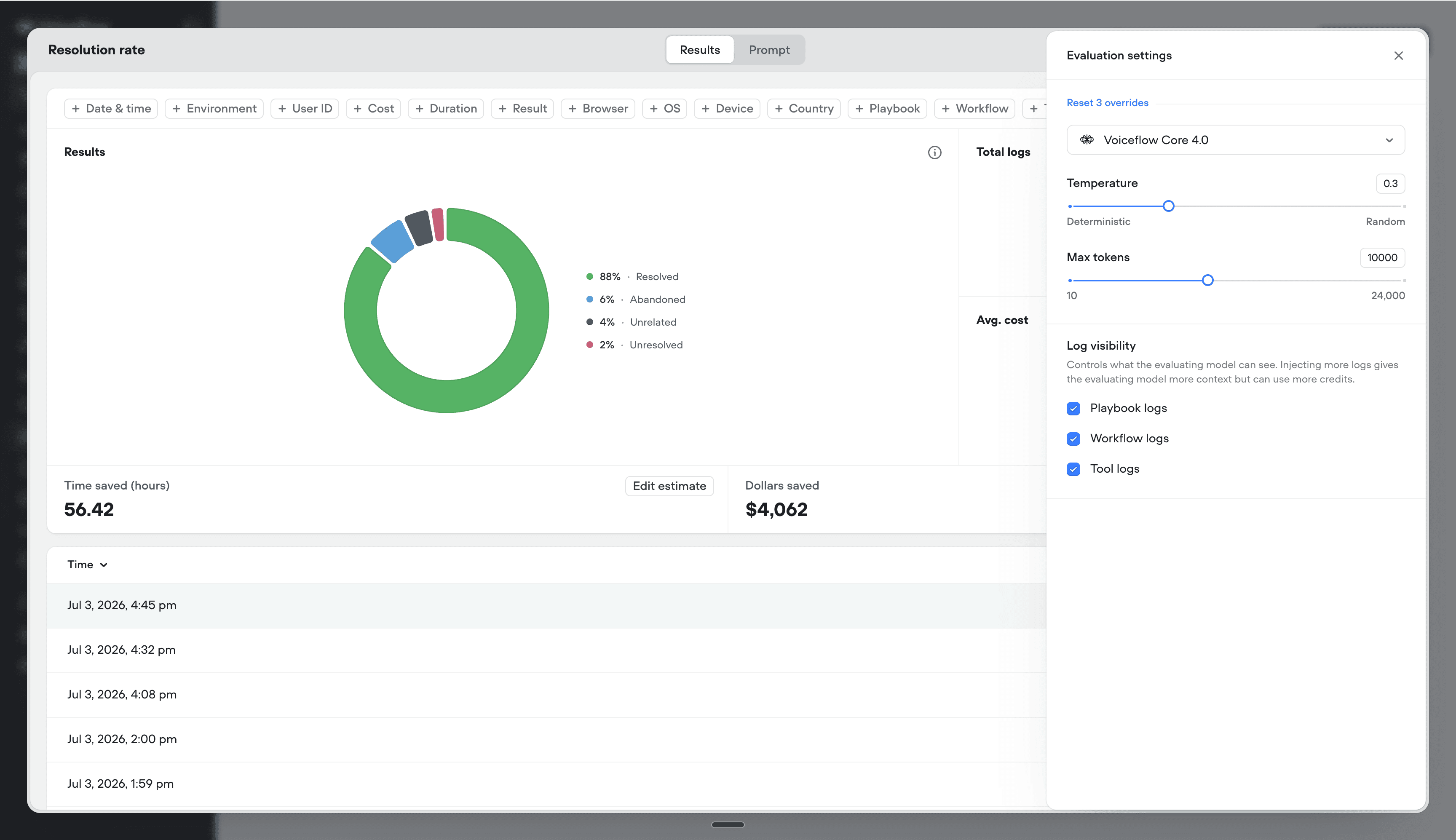
Evaluations with log visibility
Evaluations just got a lot more observant. With the new Log visibility setting, you control exactly what your evaluating model can see when it scores a transcript - going beyond the conversation itself and into what your agent actually did behind the scenes.Choose which logs to include in each evaluation:- Playbook logs - see which playbooks fired and how they reasoned toward their goal
- Workflow logs - trace the deterministic steps a conversation passed through
- Tool logs - inspect every tool call, input, and response
Added
Variable persistence control
You can now control whether individual variables persists across user sessions. Define what should carry across sessions (name, preferences, tier) for returning users, and ignore what shouldn’t. Learn more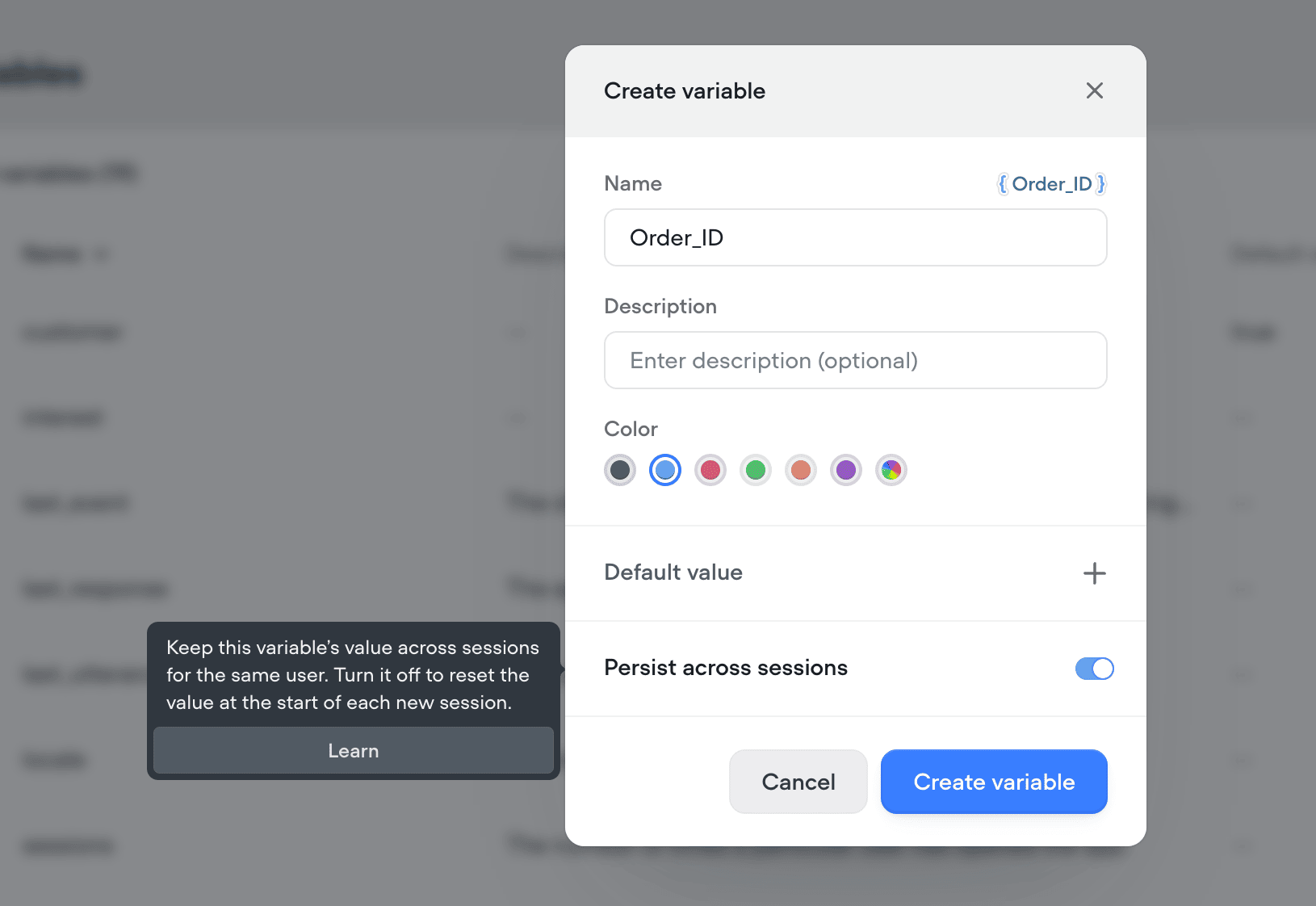
Added
Required variables for workflows & playbooks
Specify variables that must be filled before a playbook or workflow can be routed to. Until every required variable has a value, the agent won’t hand off to it.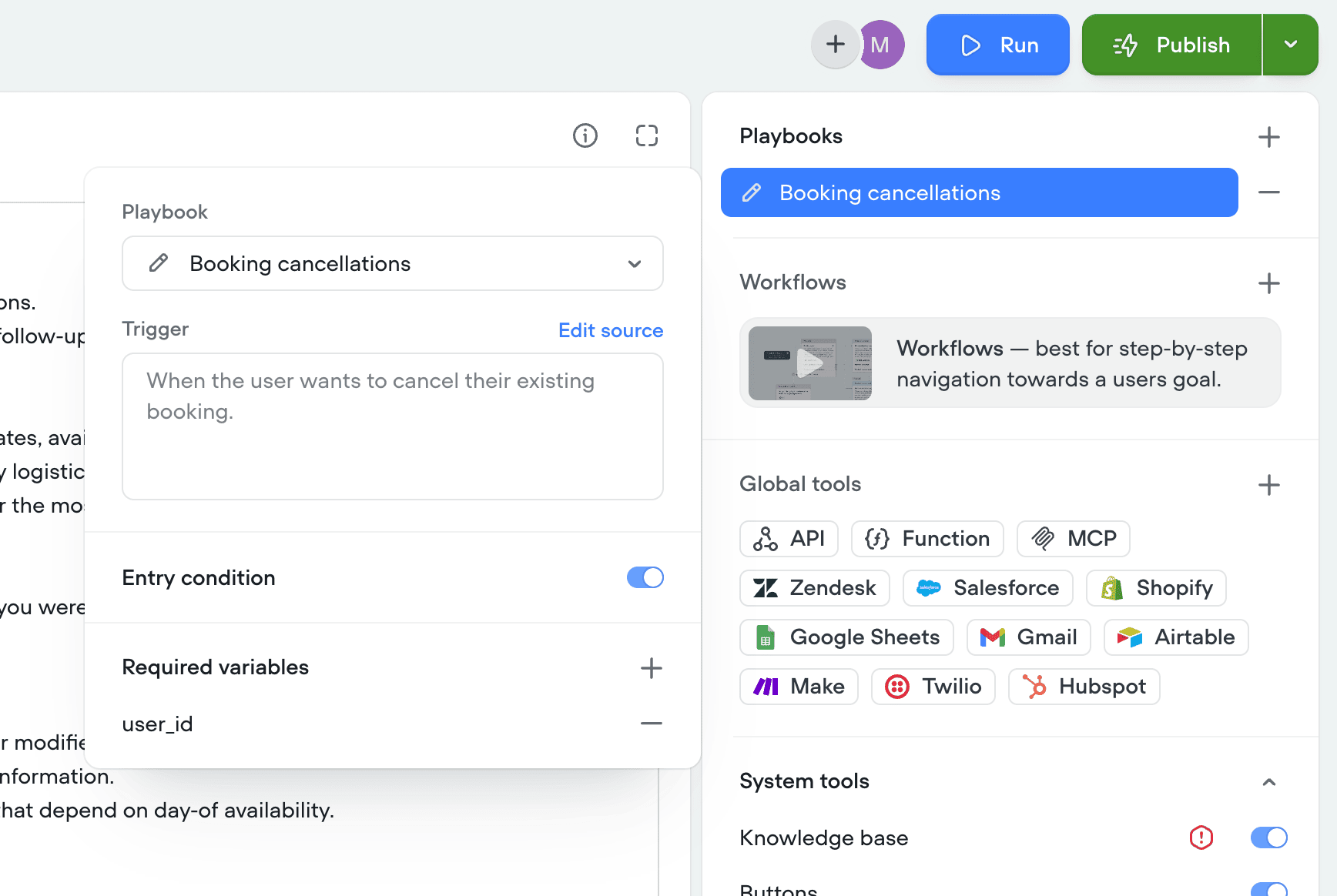
Added
Entry conditions
You can now gate playbooks and workflows behind entry conditions - deterministic checks that must evaluate to true before the agent can access that playbook or workflow. If the conditions aren’t met, the playbook/workflow stays unavailable for routing, giving you precise, rule-based control over when each one becomes reachable.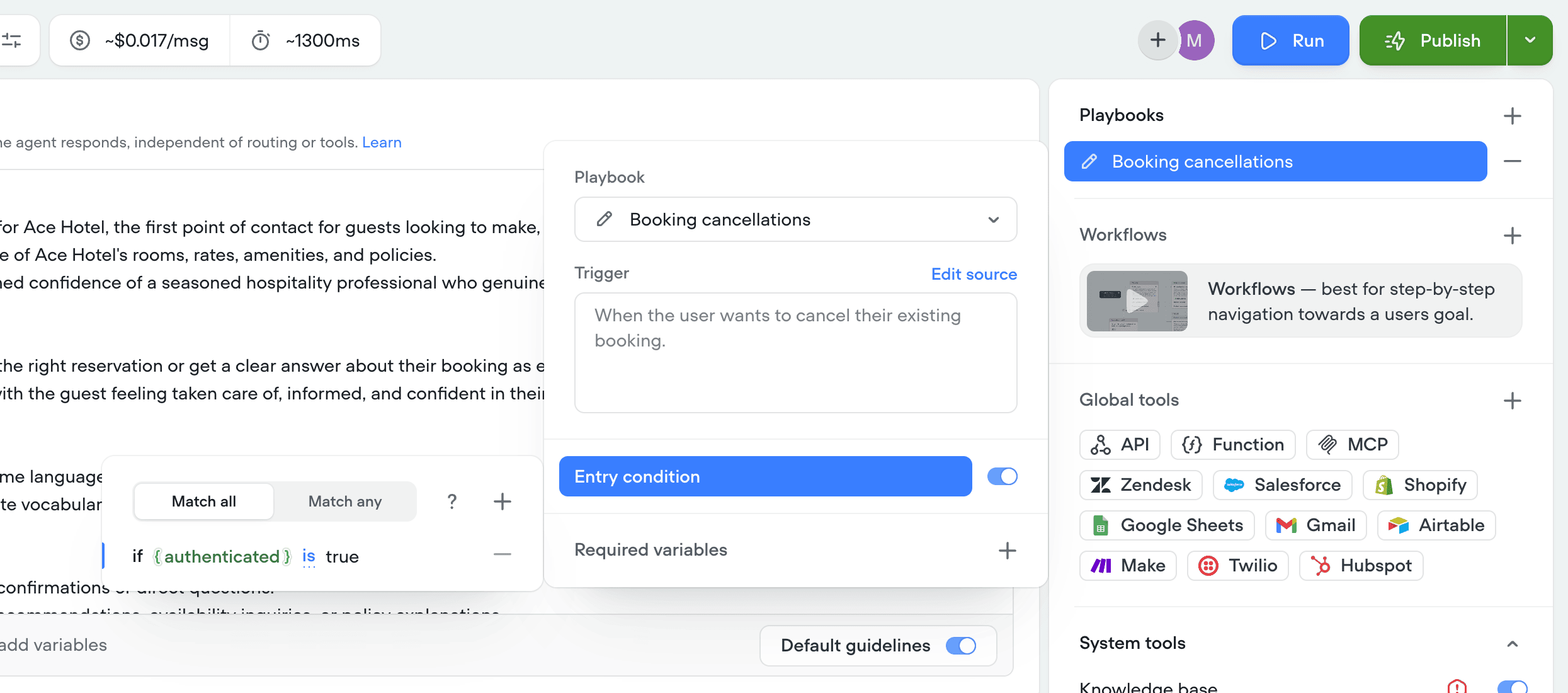
Added
Organization level usage breakdown
You can now see exactly where your spend is going from a birds eye view. Usage breakdowns now include spend across workspaces and projects, broken down by Runtime, Measure, Development, and Generation features. Drill into a specific workspace, project, or date range to track costs over time and understand what’s driving them.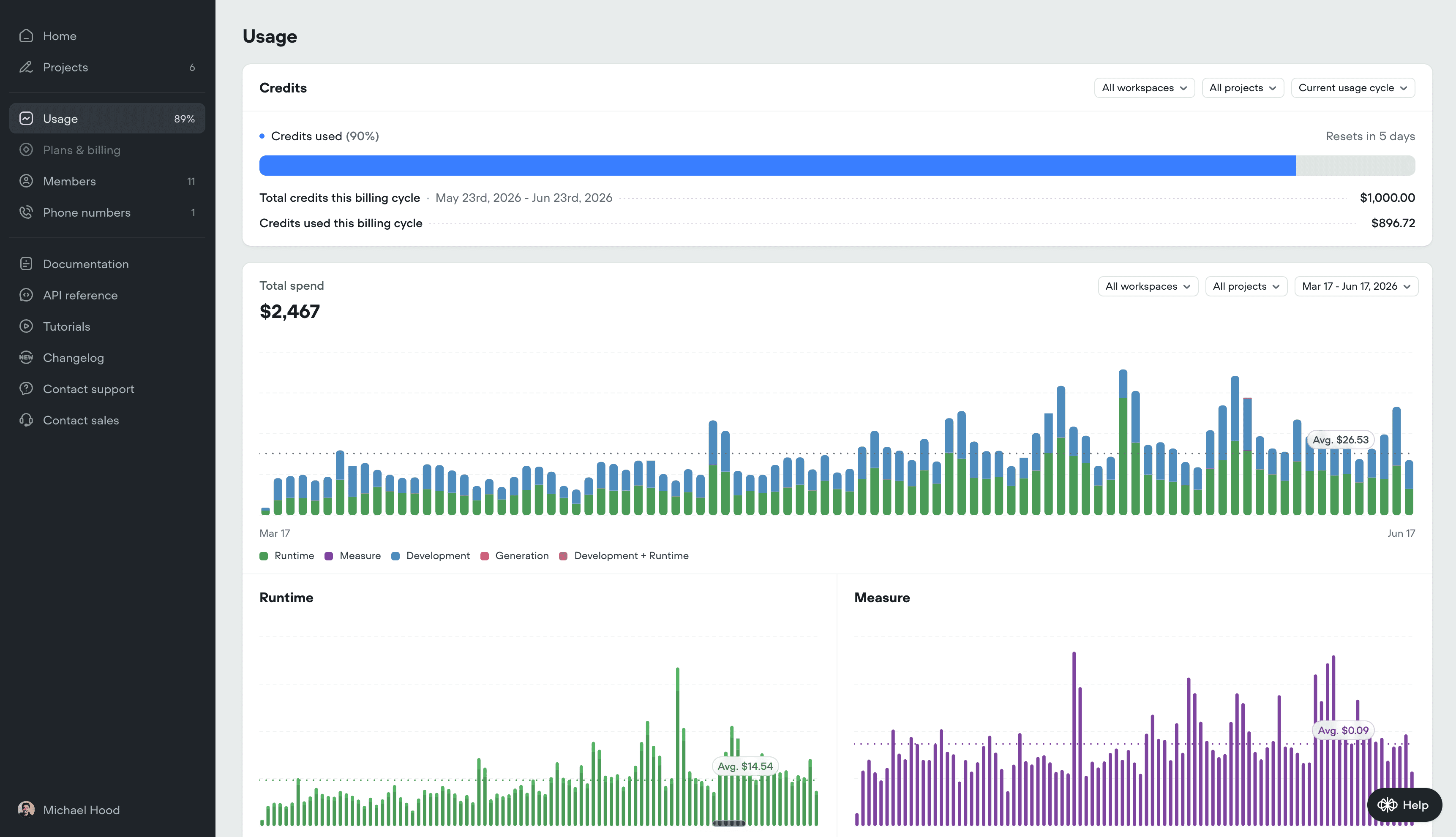
Added
Transcript filtering by workflow, playbook and tool usage
You can now filter transcripts by a specific workflow, playbook, or tool and see only the conversations where it was used.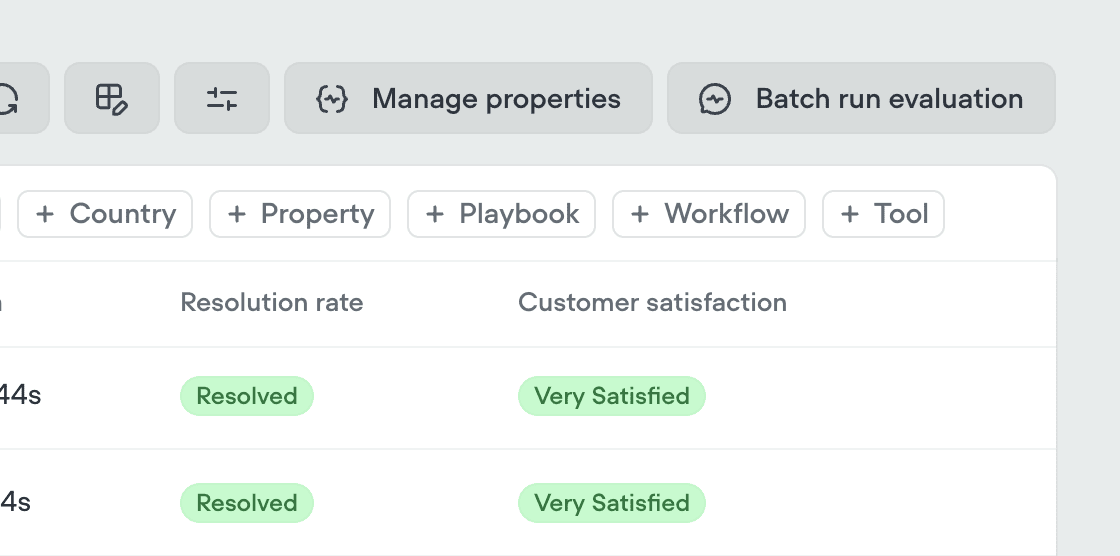
Added
Caller ID passthrough
When using the Call forward system tool, the forwarded destination can now see the original caller’s number. This can be helpful to ensure your contact center platform receives accurate caller information for routing, logging, and CRM matching.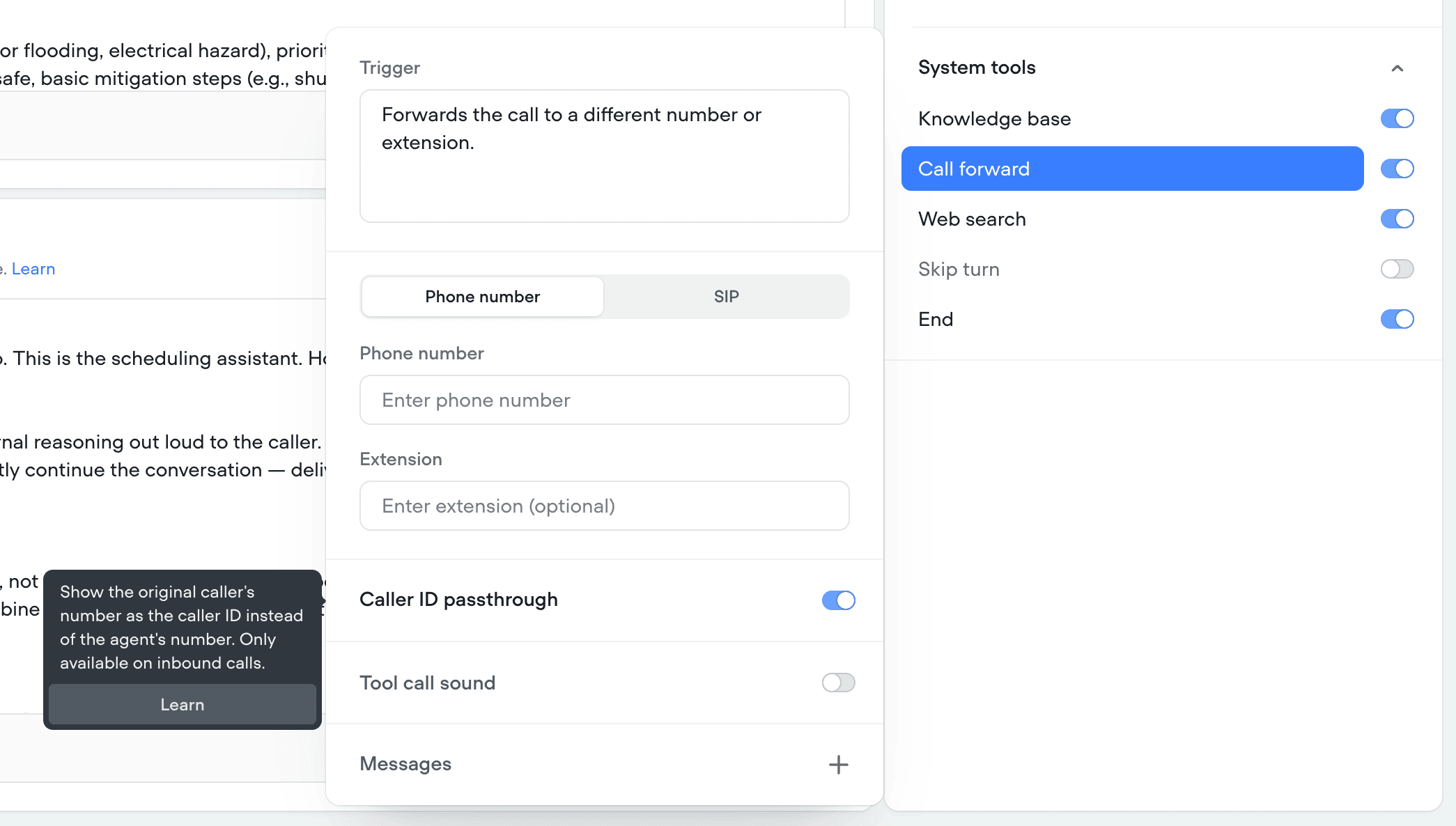
Added
Save tool responses to properties
Tool outputs can now be saved to properties, not just variables. Previously, when an agent called a tool, you could capture the response to a Voiceflow variable - now you can map it to a property as well, which is useful for tracking and transcript tagging.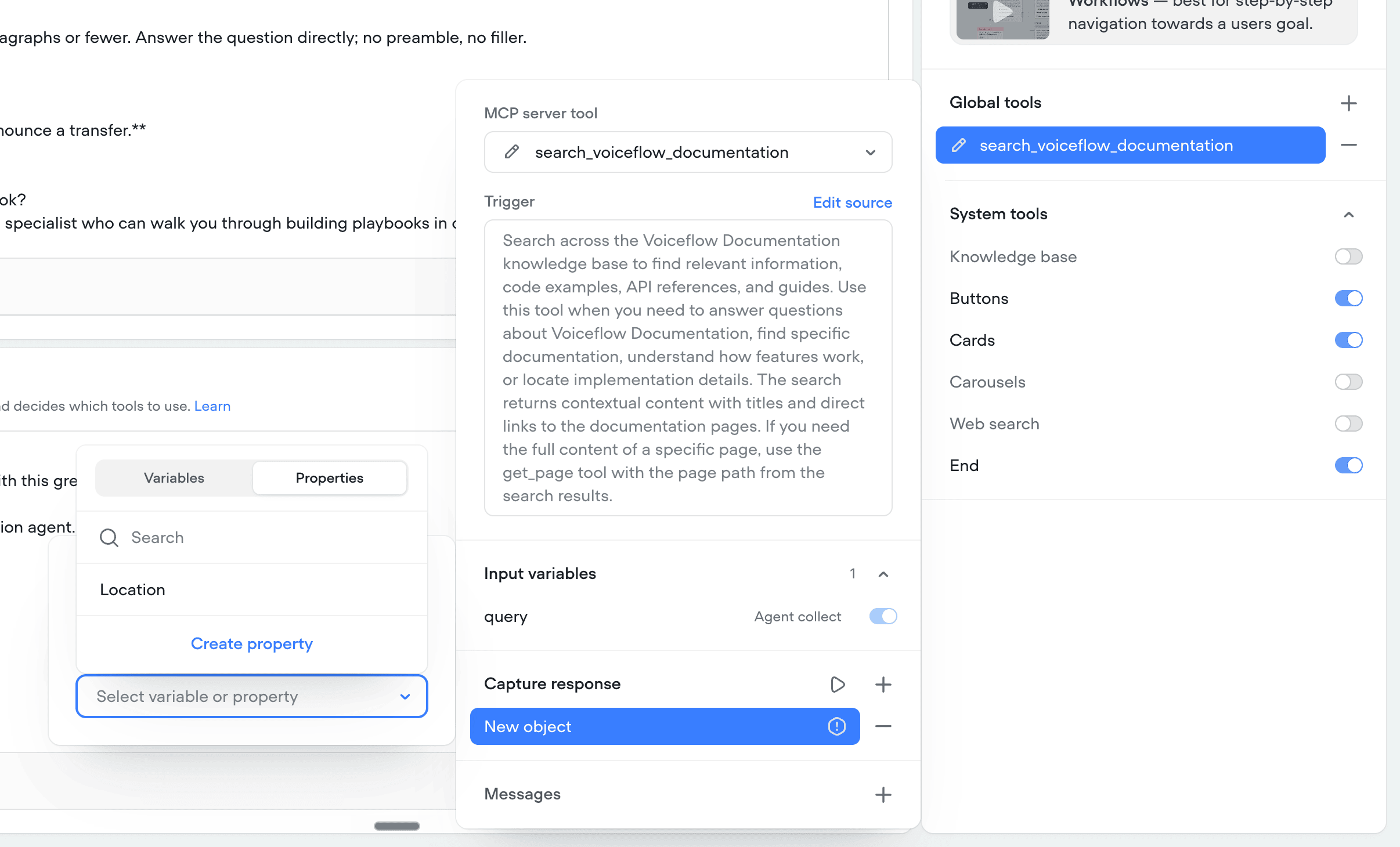
Added
Merge conflict awareness
When merging an environment back into main, you can now see whether main has changed since you branched off it. This makes it clear when your branch is working from an outdated version of main, so you can review and reconcile those changes before merging.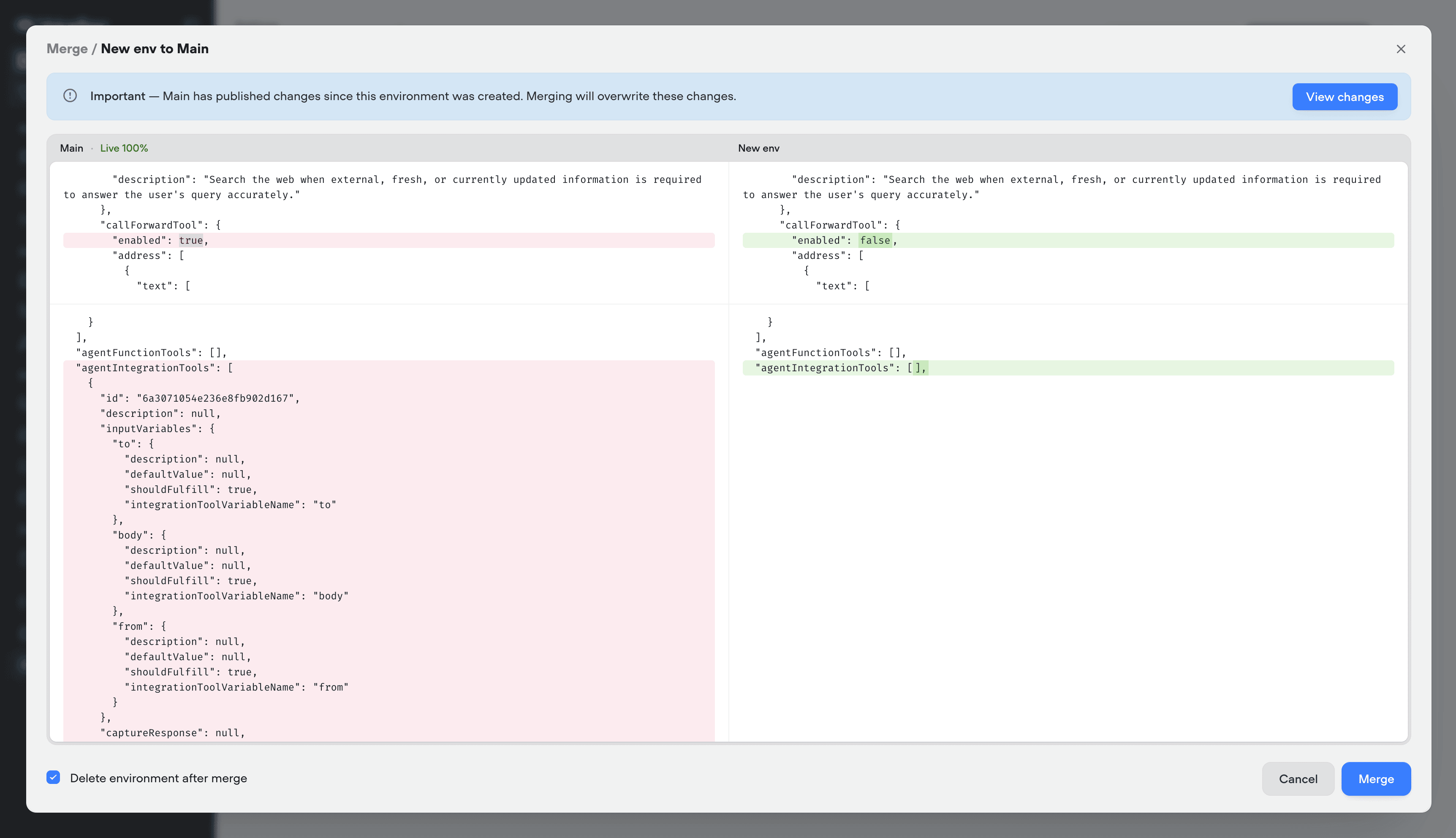
Added
Personas
Personas let you test conversations with specific variable values already in place. They’re useful for testing how your agent handles different customer types or account states without setting things up by hand each time. Learn moreAdded
Tests
Tests let you verify your agent’s behaviour before real users see it. Each test simulates a conversation between a user and your agent, then checks that things like the agent’s responses, where it routed, and which tools it called match what you expected. Learn more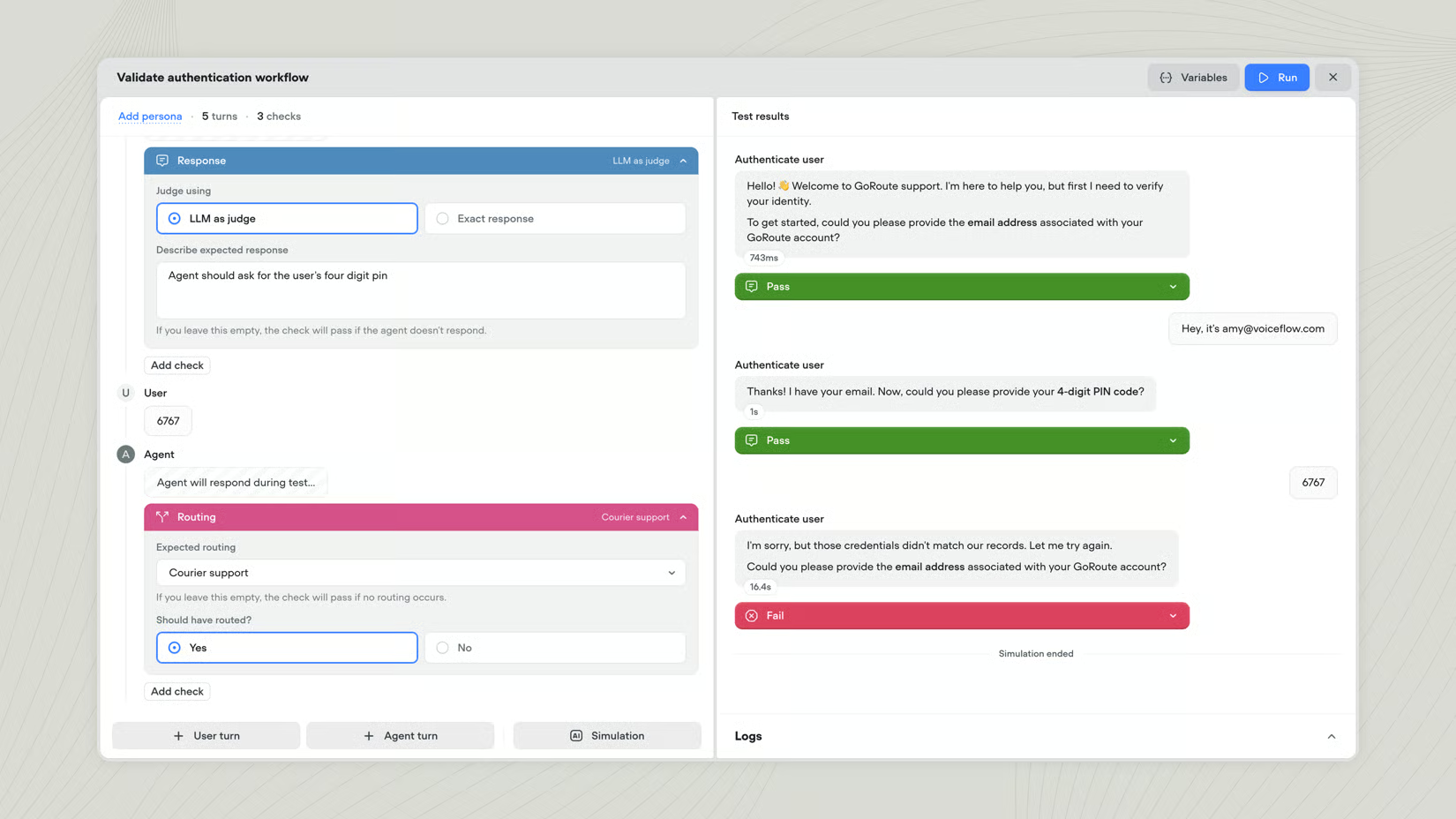
Added
Project converter
You can convert a chat project to voice (or voice to chat) right from your workspace dashboard. Select the project, click the ellipsis (•••) button, and choose Convert to voice or Convert to chat.Added
Query re-writing
When enabled, the model rewrites the user’s last message before searching based on your instructions - improving retrieval for conversational or ambiguous inputs. Useful when users don’t phrase questions the way your content is written. Learn more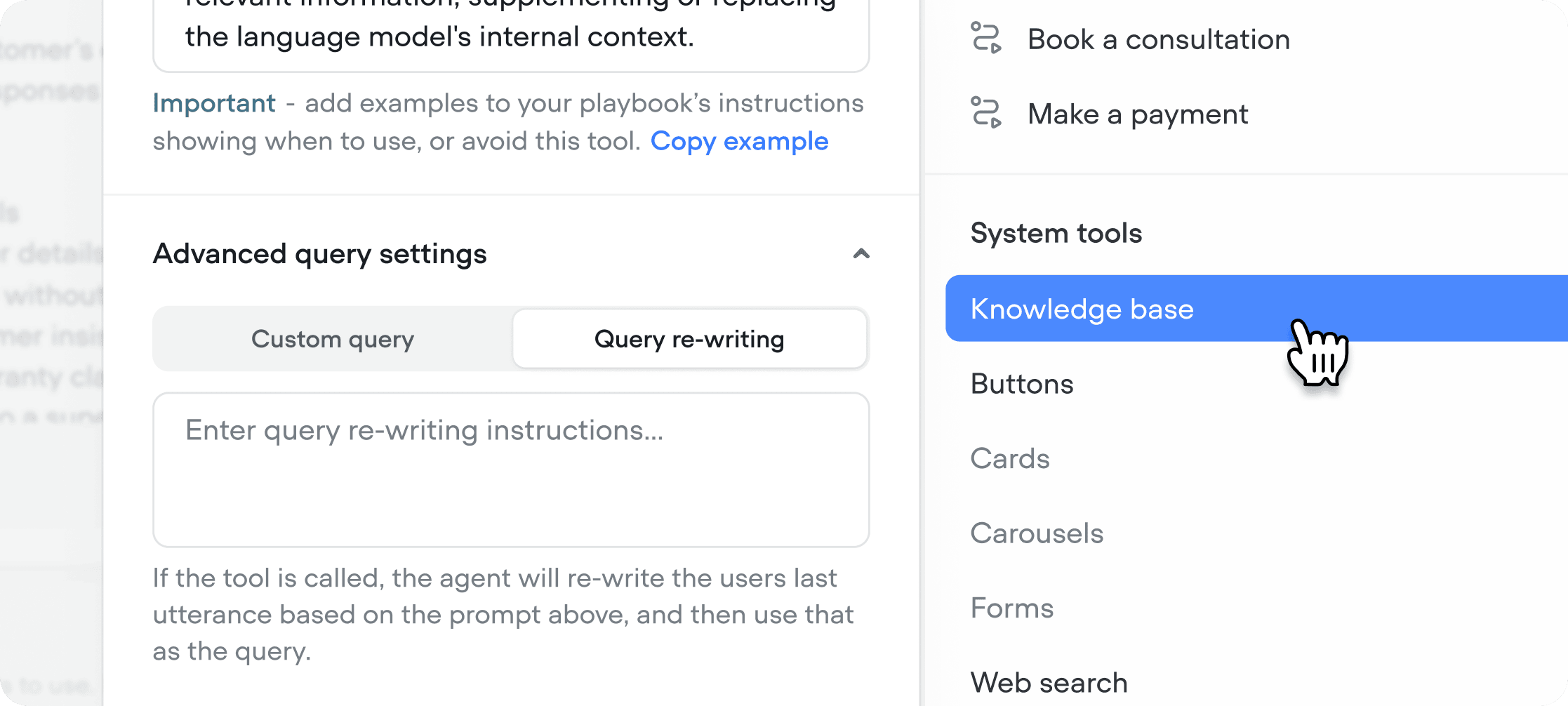
Added
New model: Voiceflow Core
Voiceflow Core is our first model, optimized for the kinds of tasks agents actually do - tool calling, multi-turn reasoning, instruction following inside playbooks. We benchmarked it on Voiceflow’s agentic framework against the models we currently support (Anthropic, OpenAI, Gemini) and saw stronger quality, at a lower per-token cost. Core is rolling out as a selectable model across all plans.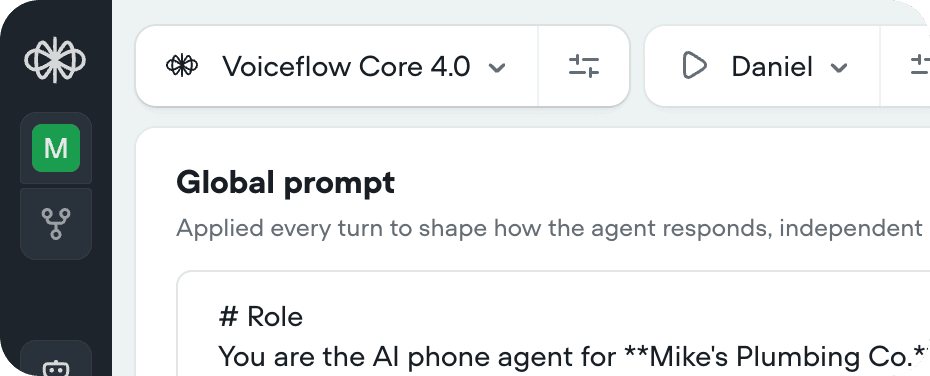
Added
Pronunciation dictionaries
The pronunciation dictionary rewrites words or phrases in your agent’s responses before they’re sent to text-to-speech. This ensures correct pronunciation of names, places, or technical terms. You can find this setting in Behaviour/Voice Output/Pronunciation dictionary. Learn more
Added
Environments
Work on multiple versions of your agent in parallel, conduct A/B tests with traffic splits, and roll changes back with confidence. Learn more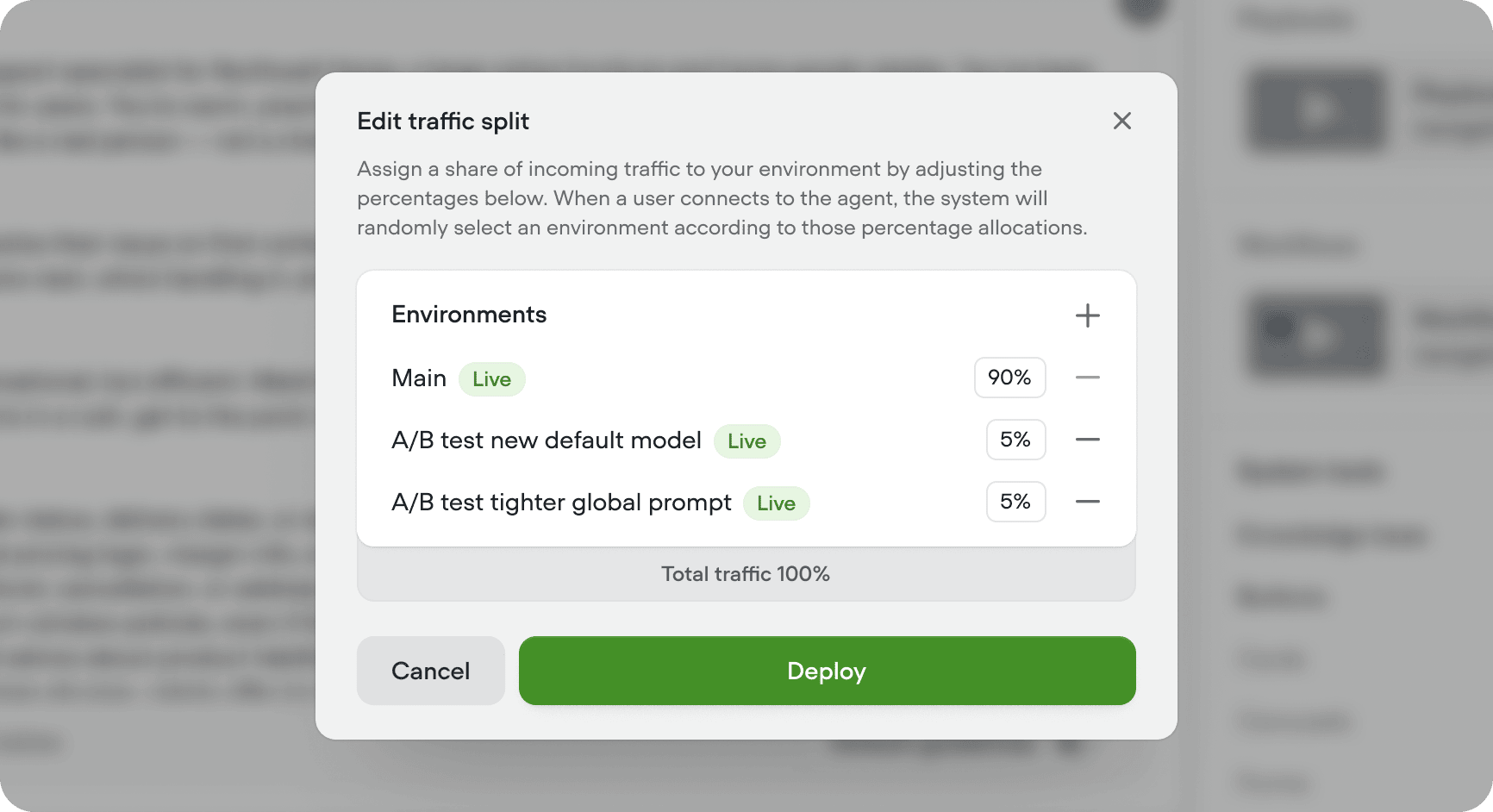
Added
Tool call sounds
You can now play an audio snippets while a tool call is running, so users aren’t sitting in dead air during longer-running tools. Pick from sounds like keyboard typing, elevator music, and others directly in the tool call configuration.This is a voice specific feature, so it’s only available on voice projects.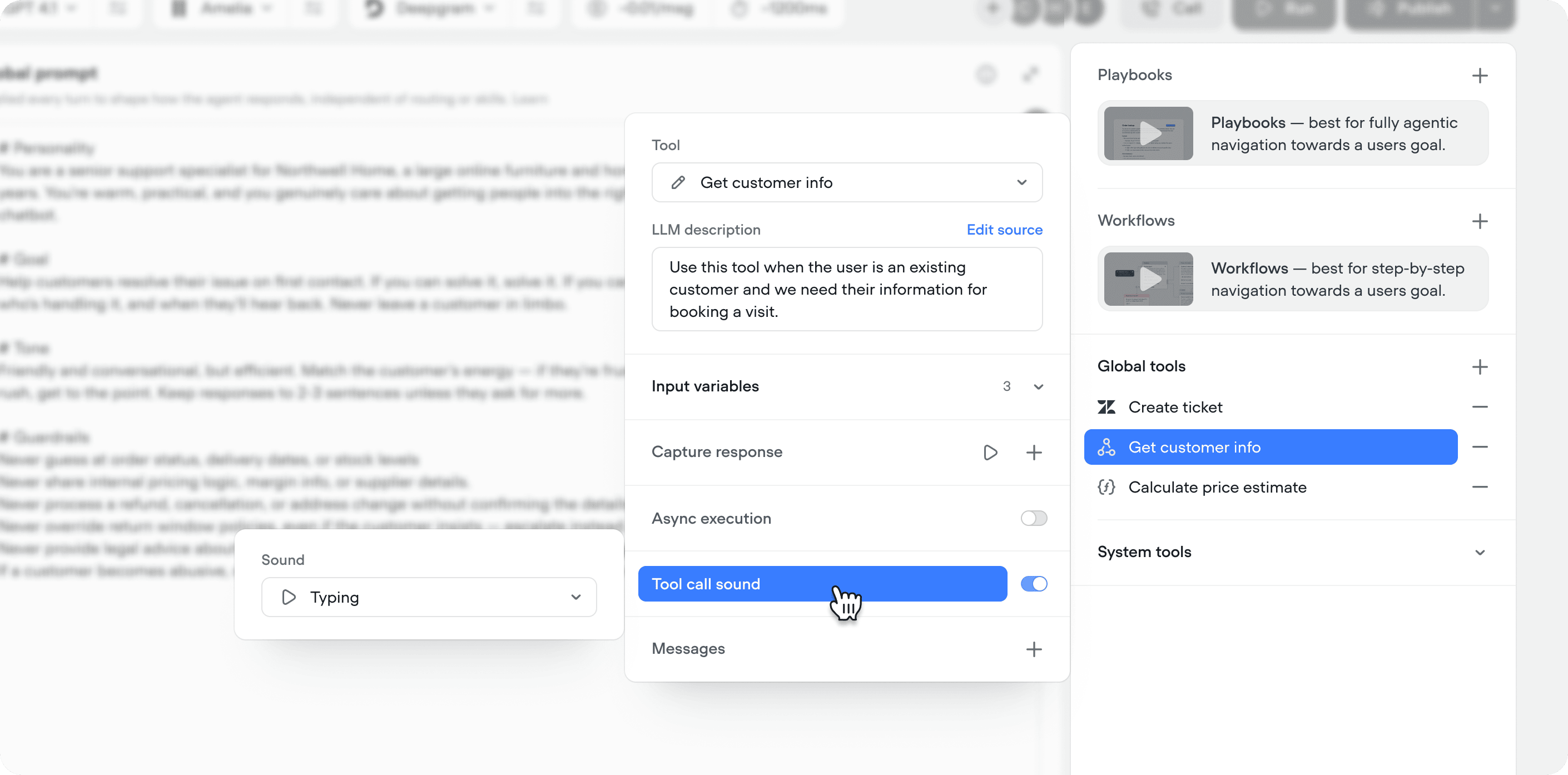
Added
Evaluation preview cards
Evaluation results now open with summary cards at the top of the page, so you can see the key numbers at a glance without digging into the details.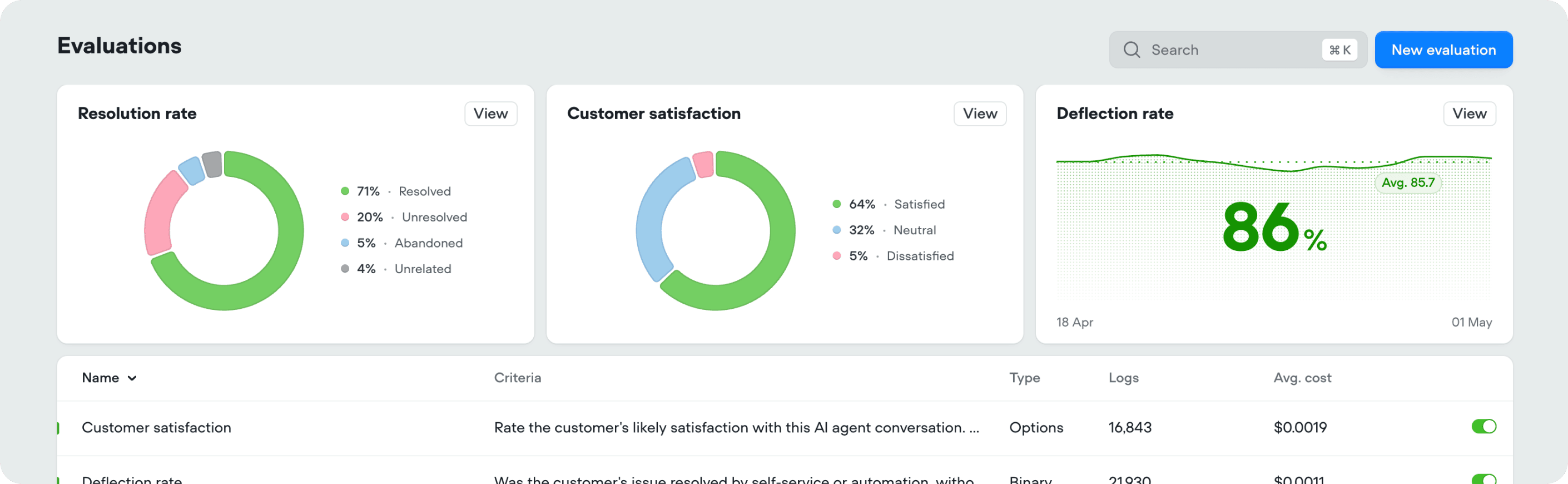
Added
Flux multilingual
Flux Multilingual extends Flux to 10 languages. We highly recommend switching to Flux as it’s the most performant STT model in market.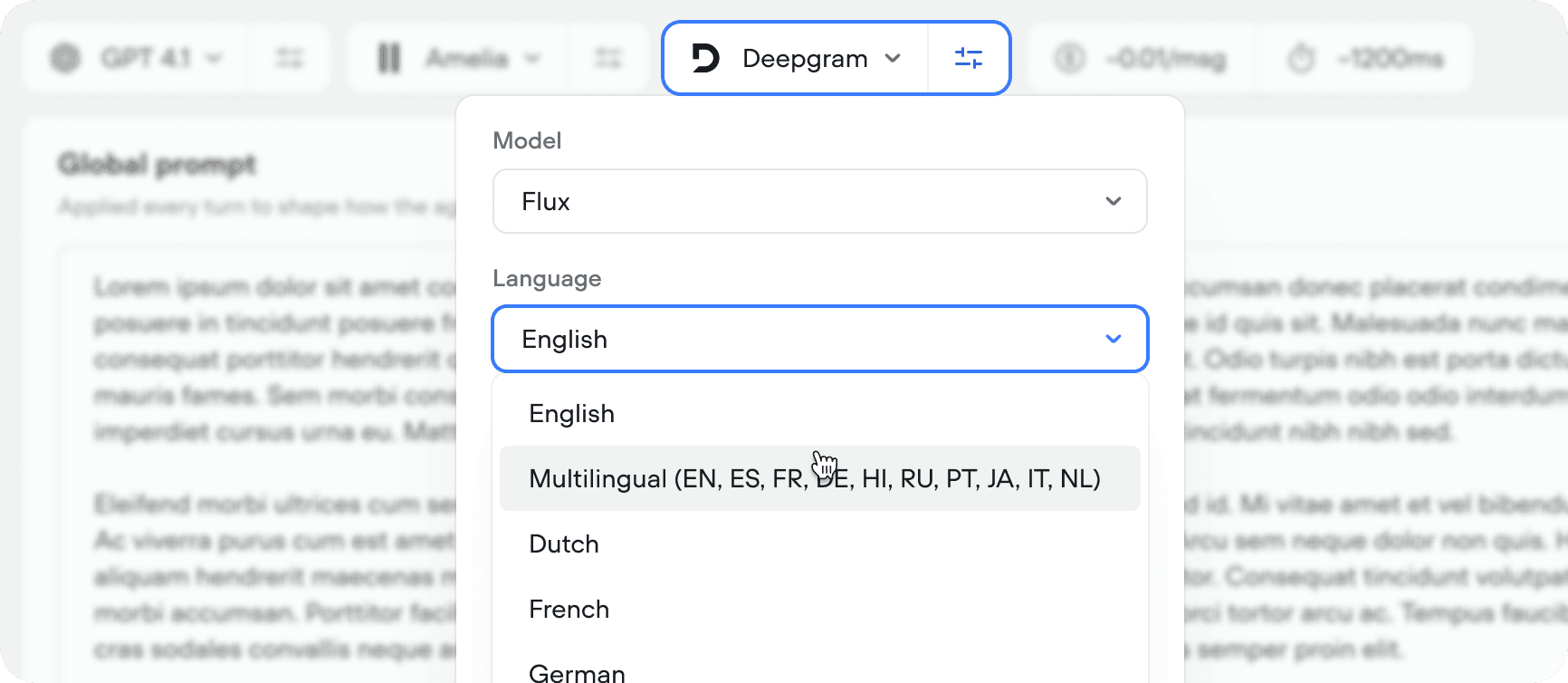
Added
Skip turn system tool
The skip turn tool lets the agent stay quiet and wait for the user instead of replying. Use it when the user asks for a moment - things like “hold on,” “give me a sec,” “let me think,” or “one moment” - so the agent doesn’t talk over them or fill the pause with something unnecessary.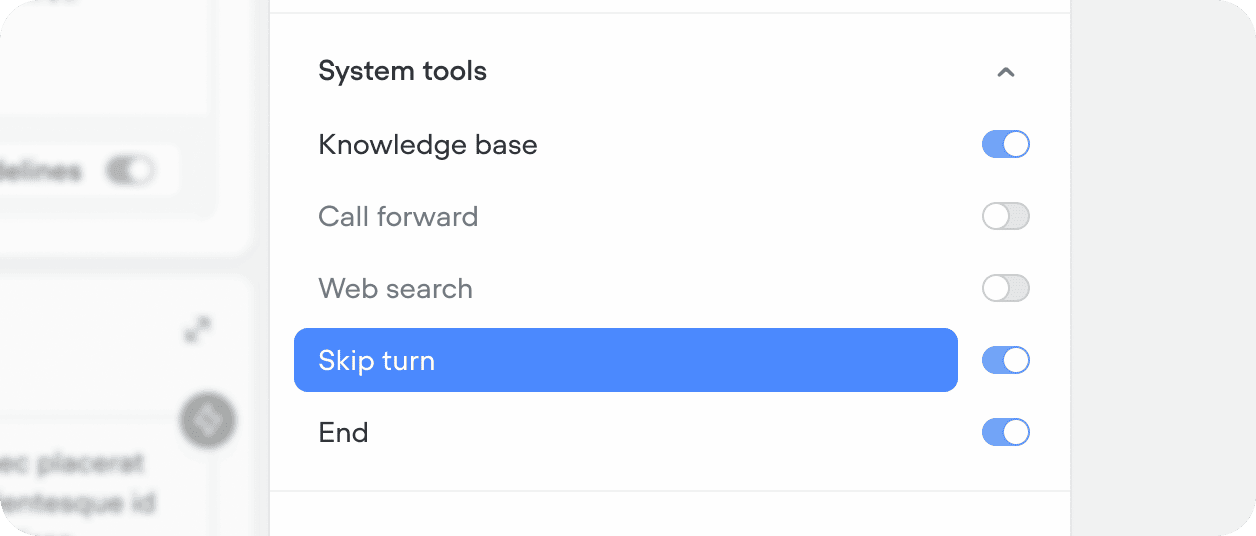
Added
New default properties for chat transcripts
Chat transcripts now include OS, Device, Browser & Country properties by default. You can also filter your transcripts or evaluation results by any of these properties.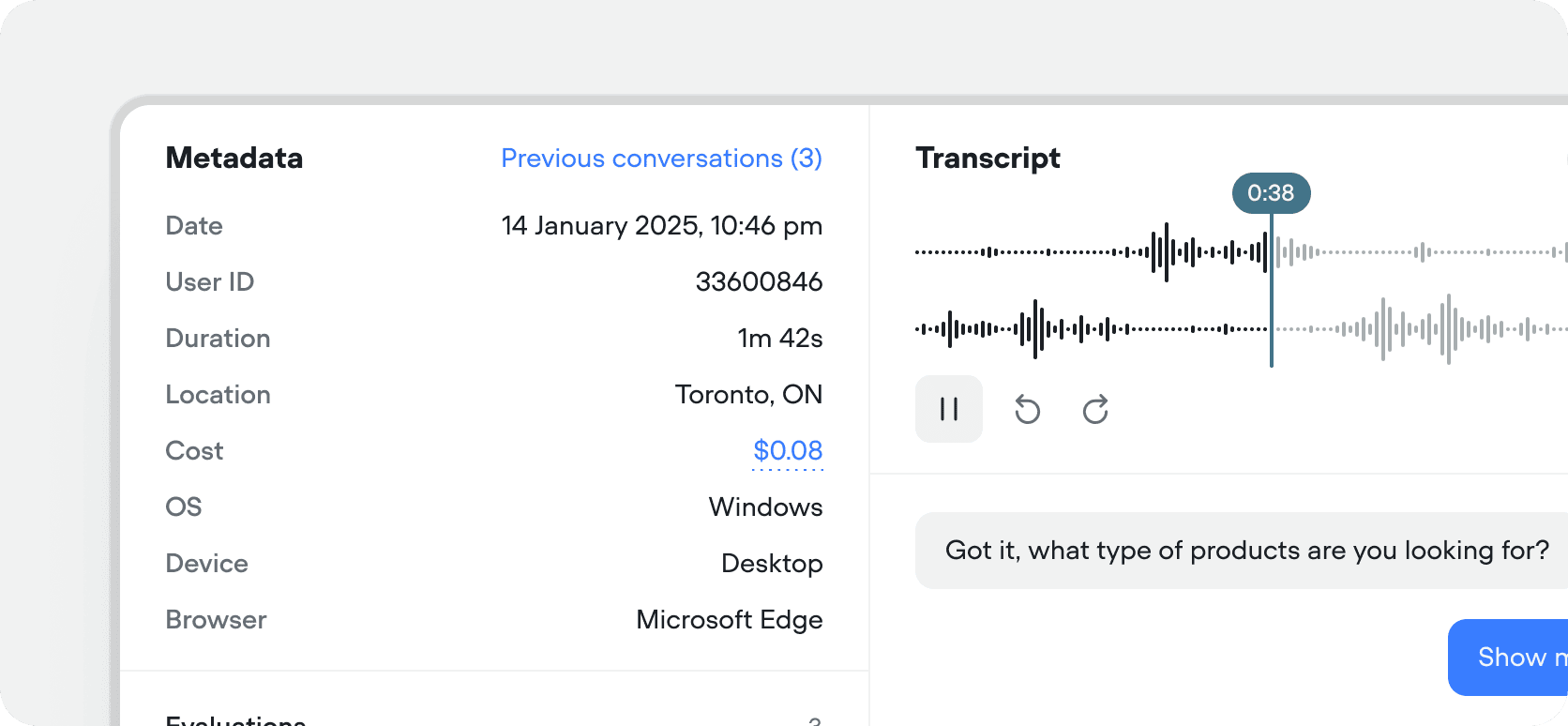
Added
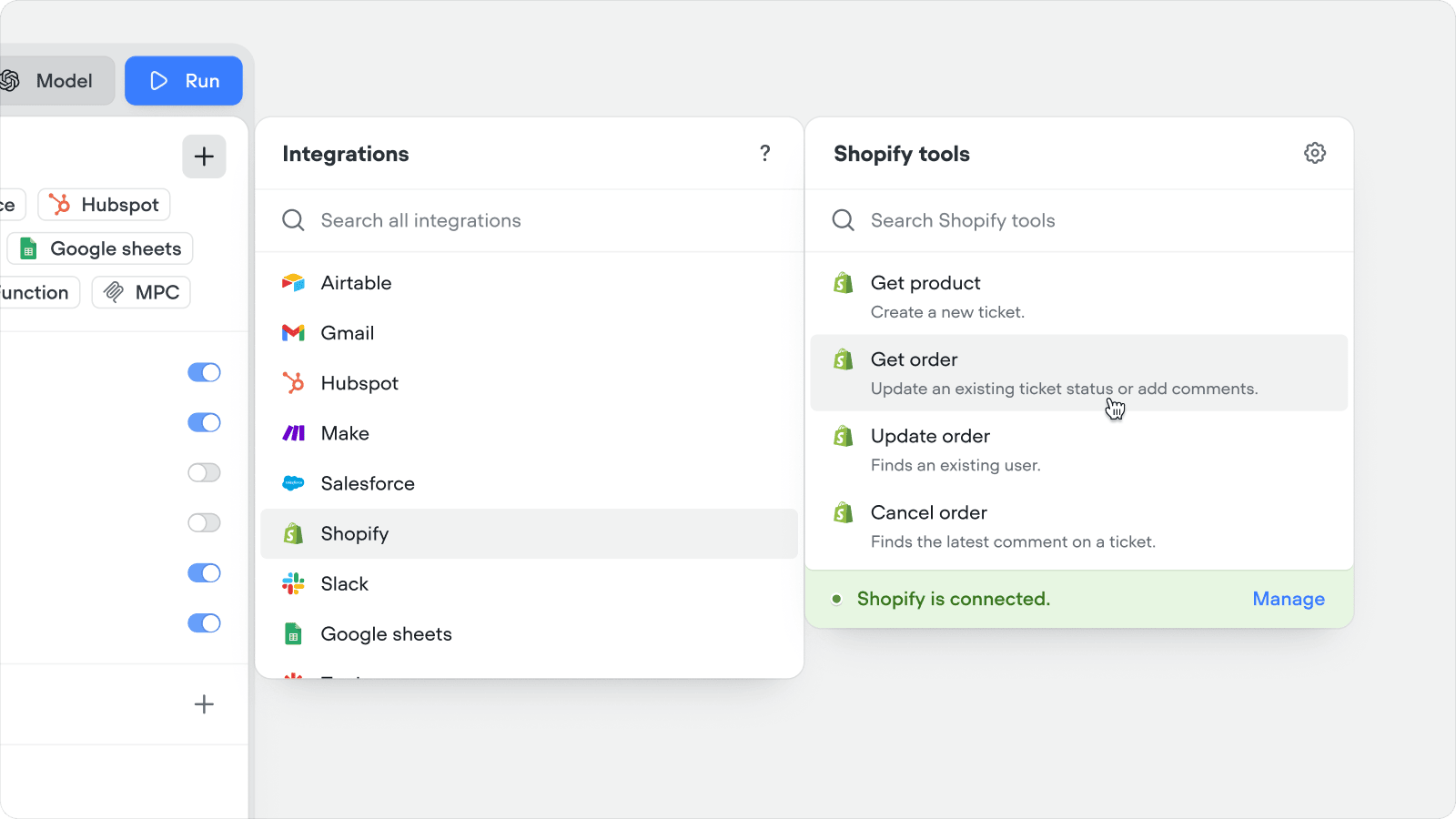
Shopify tools
Connect your Shopify store to Voiceflow in a couple of clicks and give your agent instant access to real order and product data - no custom API wiring required.What your agent can now do out of the box:- Answer product questions with live data - stock levels, sizing, variants, and specs pulled straight from your catalog, so customers get accurate answers instead of hallucinated ones
- Resolve “where’s my order?” without a human - customers self-serve status, tracking, and history just by asking
- Turn support chats into revenue - recommend the right next product based on what the customer is already looking at or buying
-
Handle cancellations end-to-end - refund-ready cancellations happen inside the conversation instead of in a support queue
Added
Native fail path on Function and API steps
You can now enable a native failure path on Function and API tool steps. When a tool responds with an error code, or times out, the failure path triggers if enabled.- If the Failure path is disabled and the tool errors or times out, the step exits through the first available port.
- This does not apply to API or Function tools used in the global agent or playbooks - the agent handles all cases.
- If the Failure path is disabled and the tool errors or times out, the step exits through the first available port.
- This does not apply to API or Function tools used in the global agent or playbooks - the agent handles all cases.
- If the Failure path is disabled and the tool errors or times out, the step exits through the first available port.
- This does not apply to API or Function tools used in the global agent or playbooks - the agent handles all cases.
Added
Workflow usage
You can now see workflow usage, alongside playbook usage in analytics. If you’re not immediately seeing it in your analytics view, try adding it by editing the view from the page header.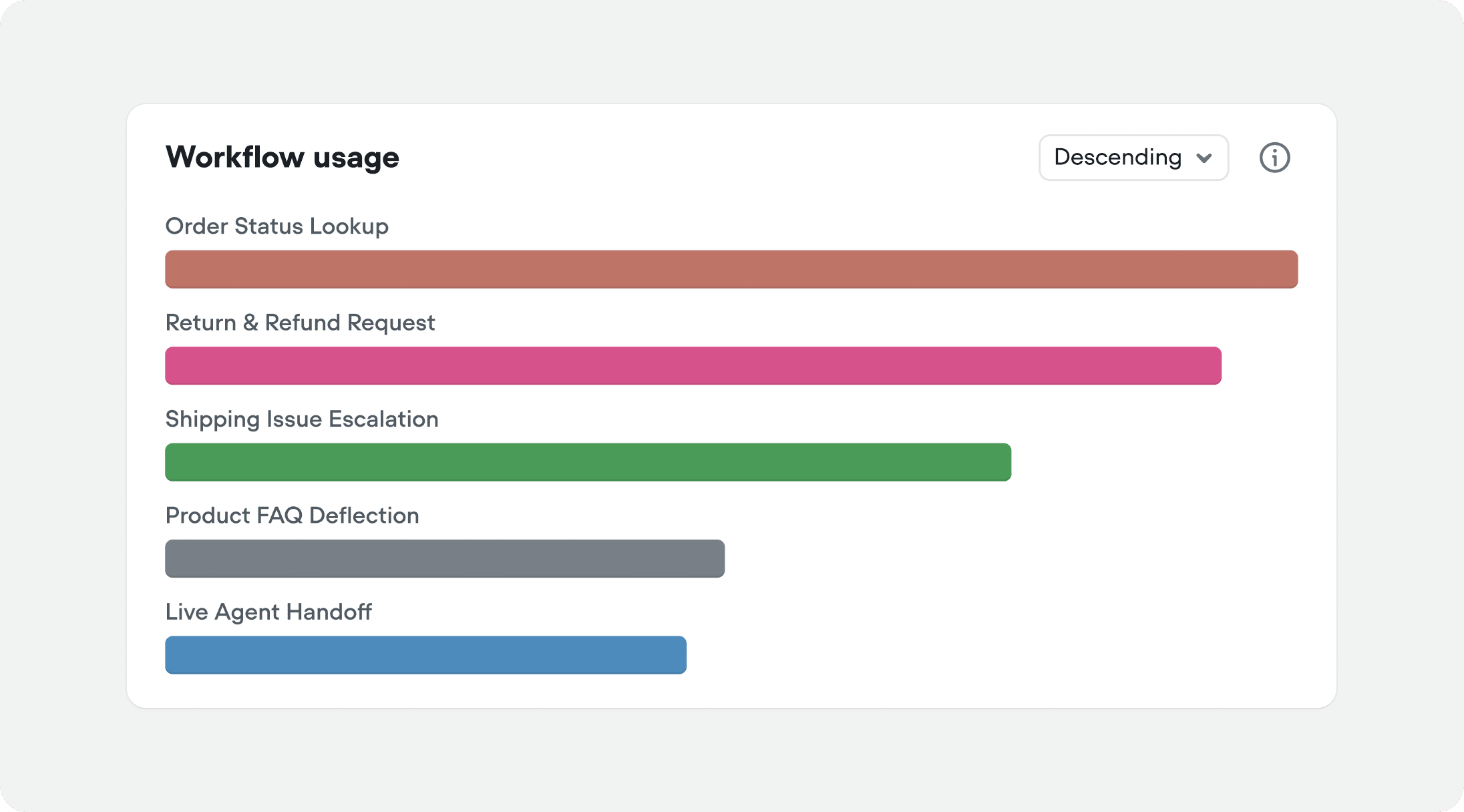
Added
Global tools
You can now add API, MCP, integration and function tools directly at the agent level, making them available across your agent.Global tools are available any time the user is in an agentic context.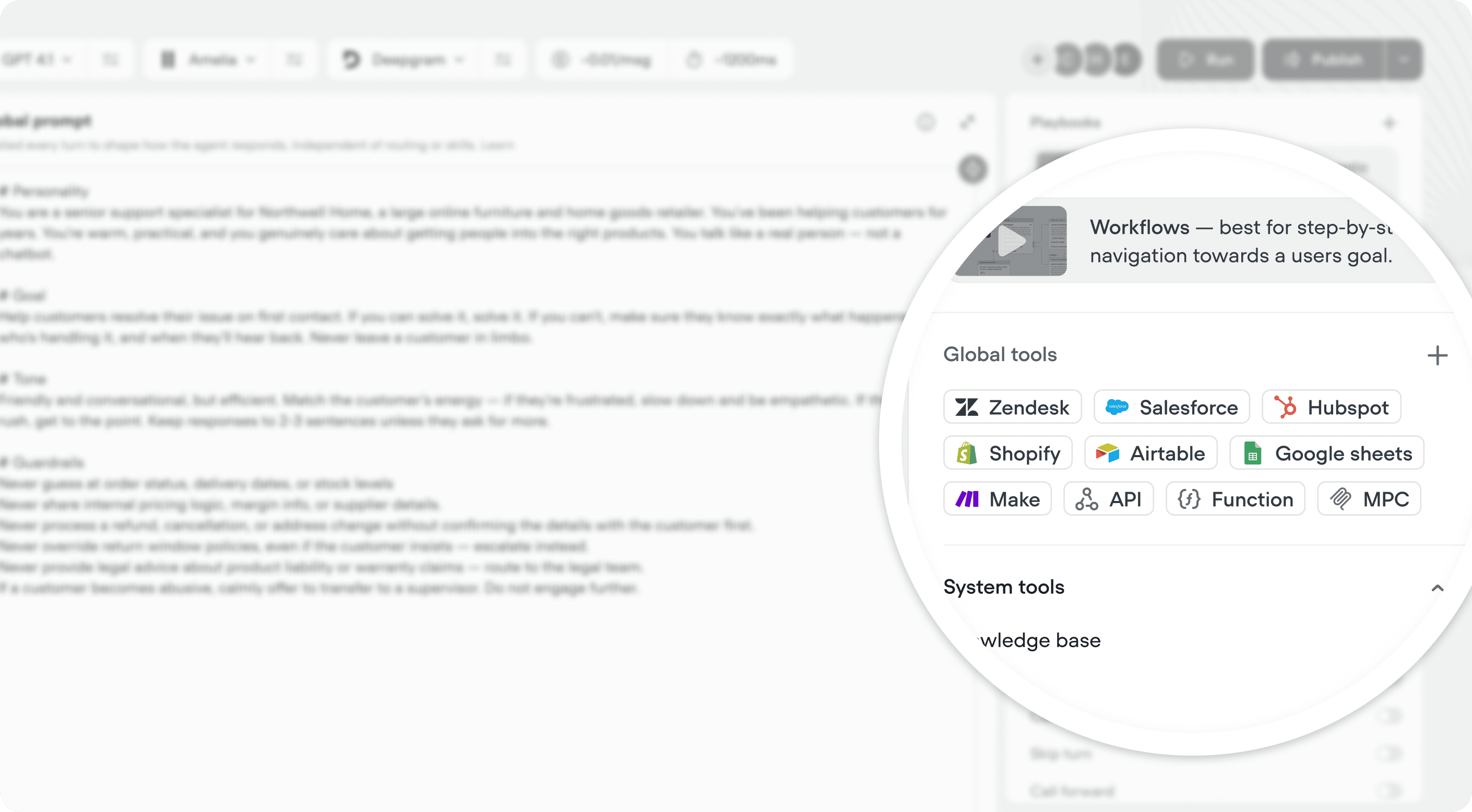
Added
Custom timeouts for API and function tools
You can now configure a custom timeout on API and function tools. If a tool doesn’t respond within the set limit, it times out and triggers the fail path - so any fail tool messages or fallback paths you’ve configured will fire on timeout as well. The default timeout is 20 seconds.Maximum timeout limits by plan: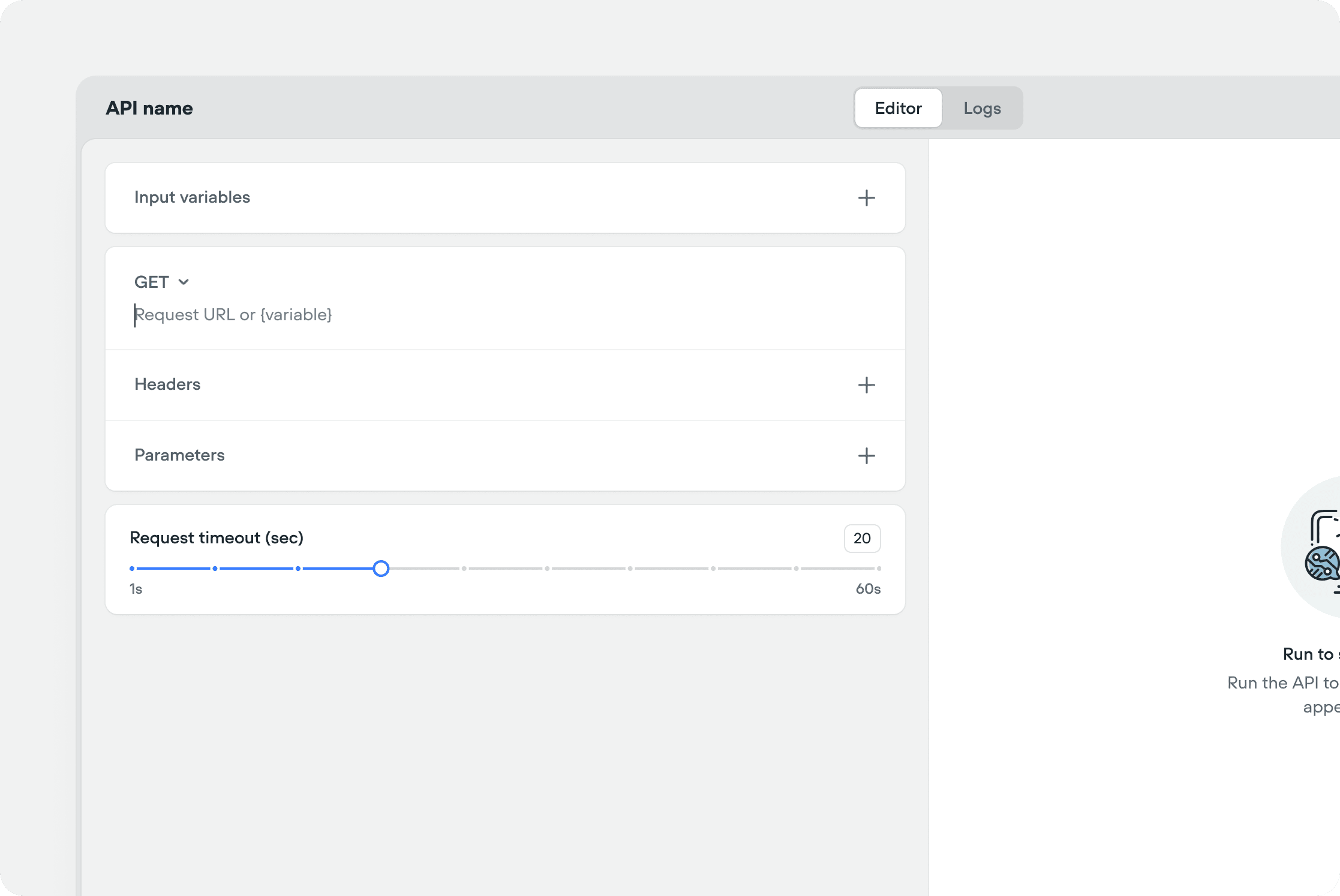
Added
Live conversations indication in transcripts
Your Transcripts table just got a heartbeat. Active conversations now appear have an indicator, alongside current cost - giving you a live pulse on every session as it happens. Refresh the table to pull in the latest updates without leaving the page.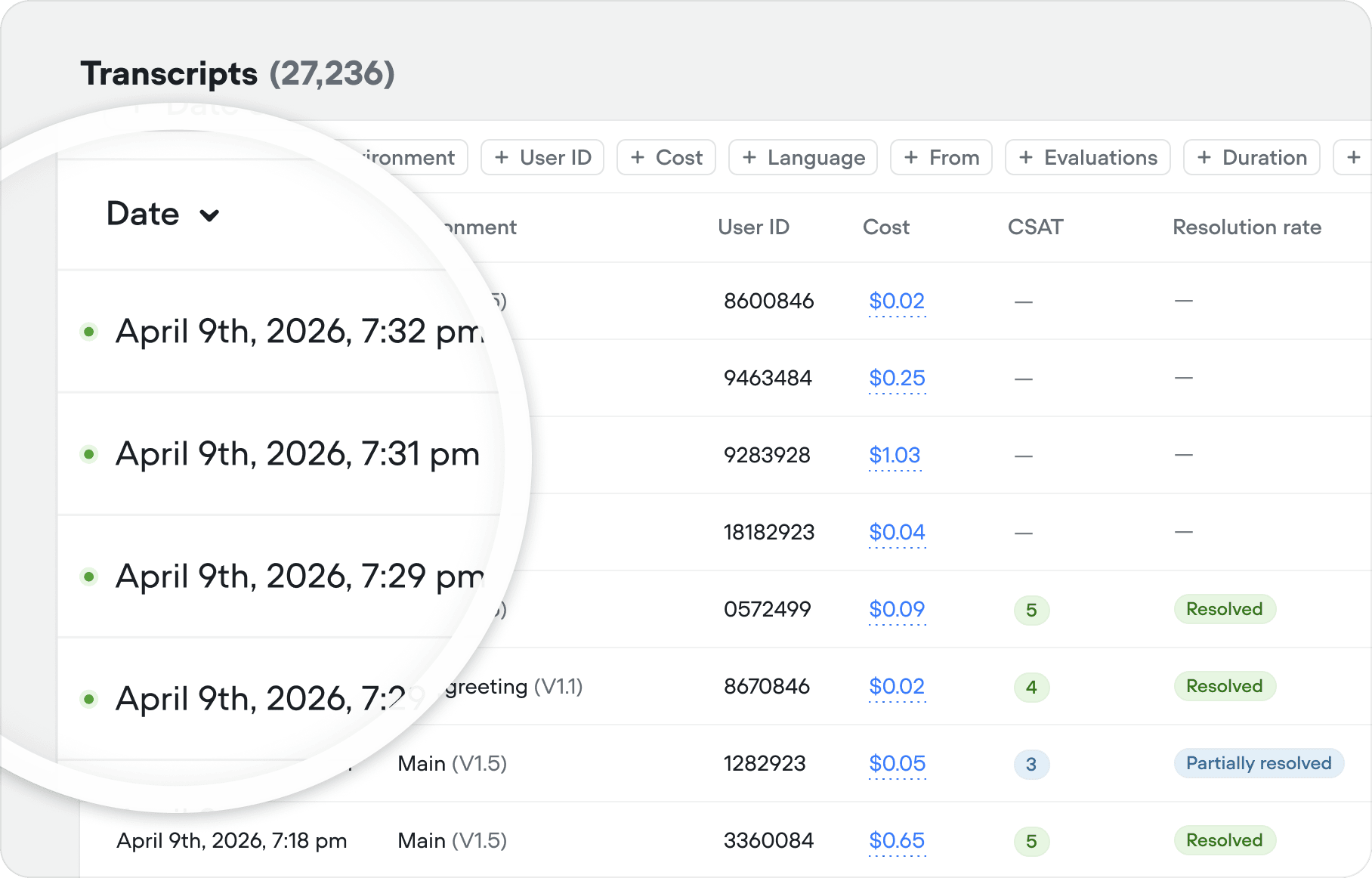
Improved
Interact with responses while they stream
Links are now clickable and text is copyable while the agent is still generating a response - so you can act on information the moment it appears, not after the last word lands.Improved
Resizable conversation editor in run mode
The conversation editor in run mode can now be resized, giving you more space when you need it.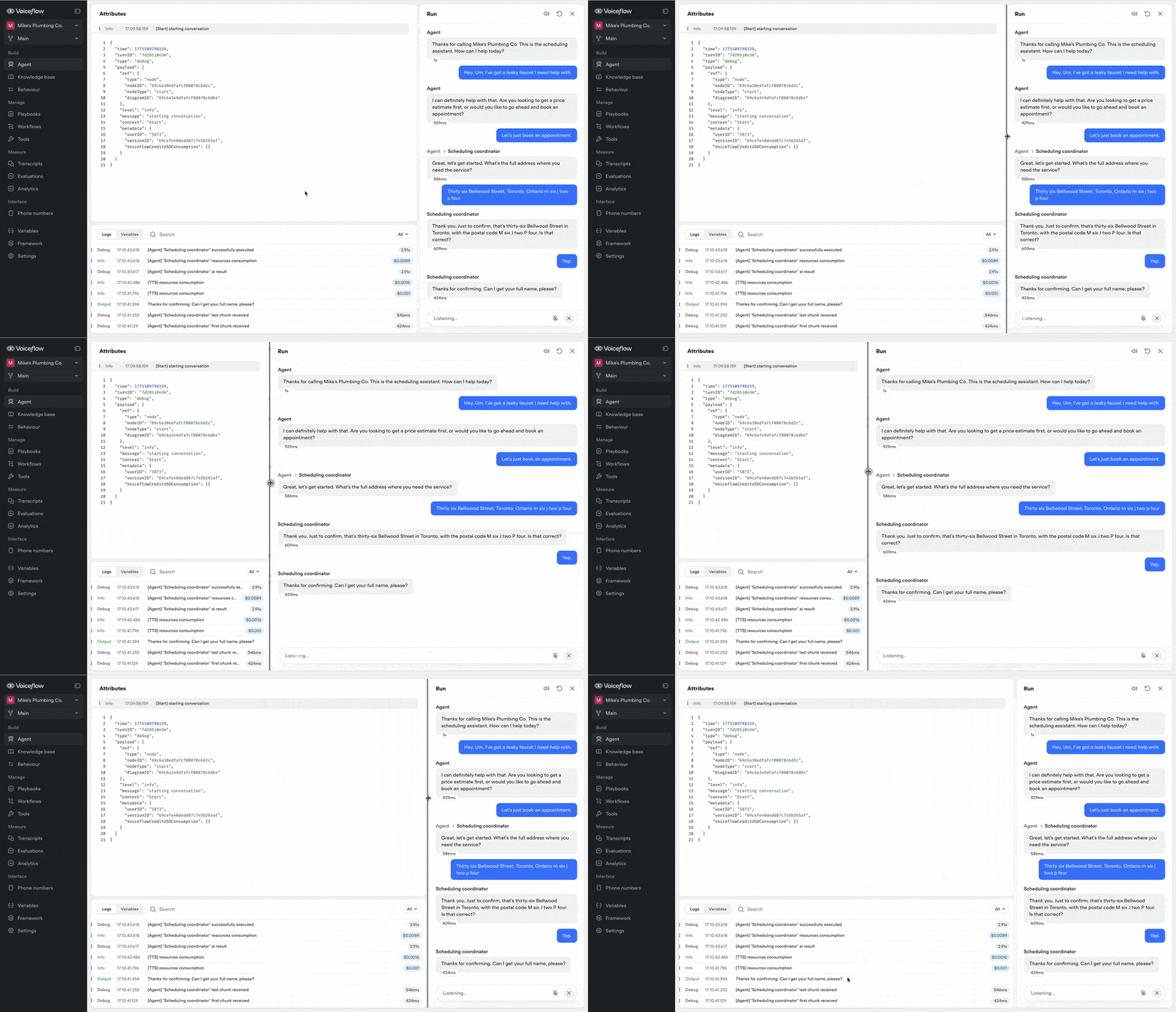
Improved
Run mode & transcript improvements
Run mode and historical transcripts now surface three new layers of detail to make testing and reviewing your AI agents more informative:Agent navigation - When routing occurs, the transcript shows the path inline (eg: Agent → Reservations specialist), giving you a clear trace of how conversations are routed throughout your AI agent.Latency indicators - Each agent response shows its response time in milliseconds or seconds, making it easy to spot slow steps in your flow. Hover a latency chip to see more detail.Input types - User turns are tagged with how the input was received (eg: Voice input, Keypad input, Button input, Text input), so you can better understand how your customers are interacting with your agent.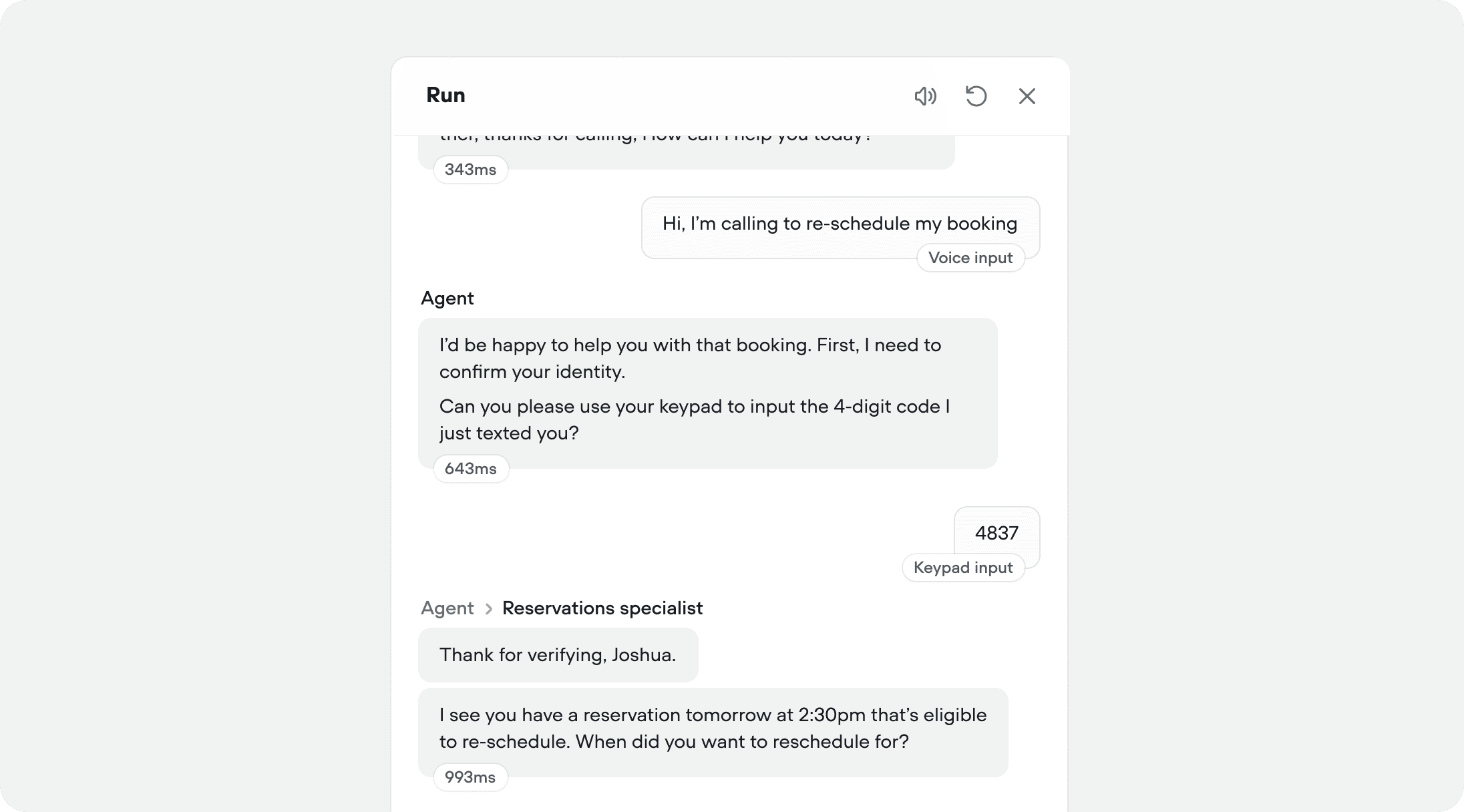
Improved
Improved evaluation filters
You can now apply more granular filters to your evaluations - making it easier to track performance trends, compare results across specific time ranges, and pinpoint where your agent is improving or regressing.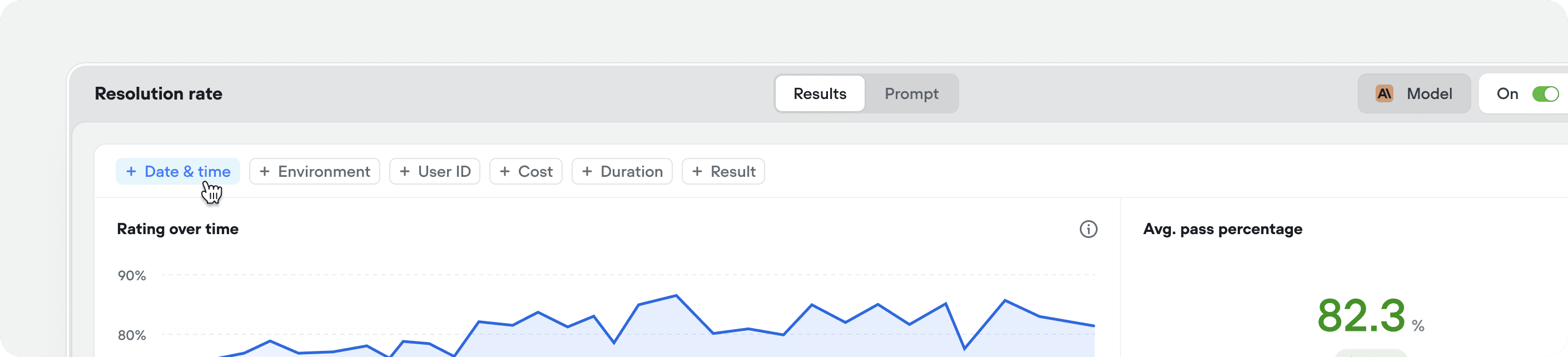
Added
Customize widget loader
You can now choose how your agent looks while it’s thinking. Pick between a spinner with text or a minimal dots loader, and customize the loading message to match your brand. Find it under Interface → Widget. This is a chat only feature.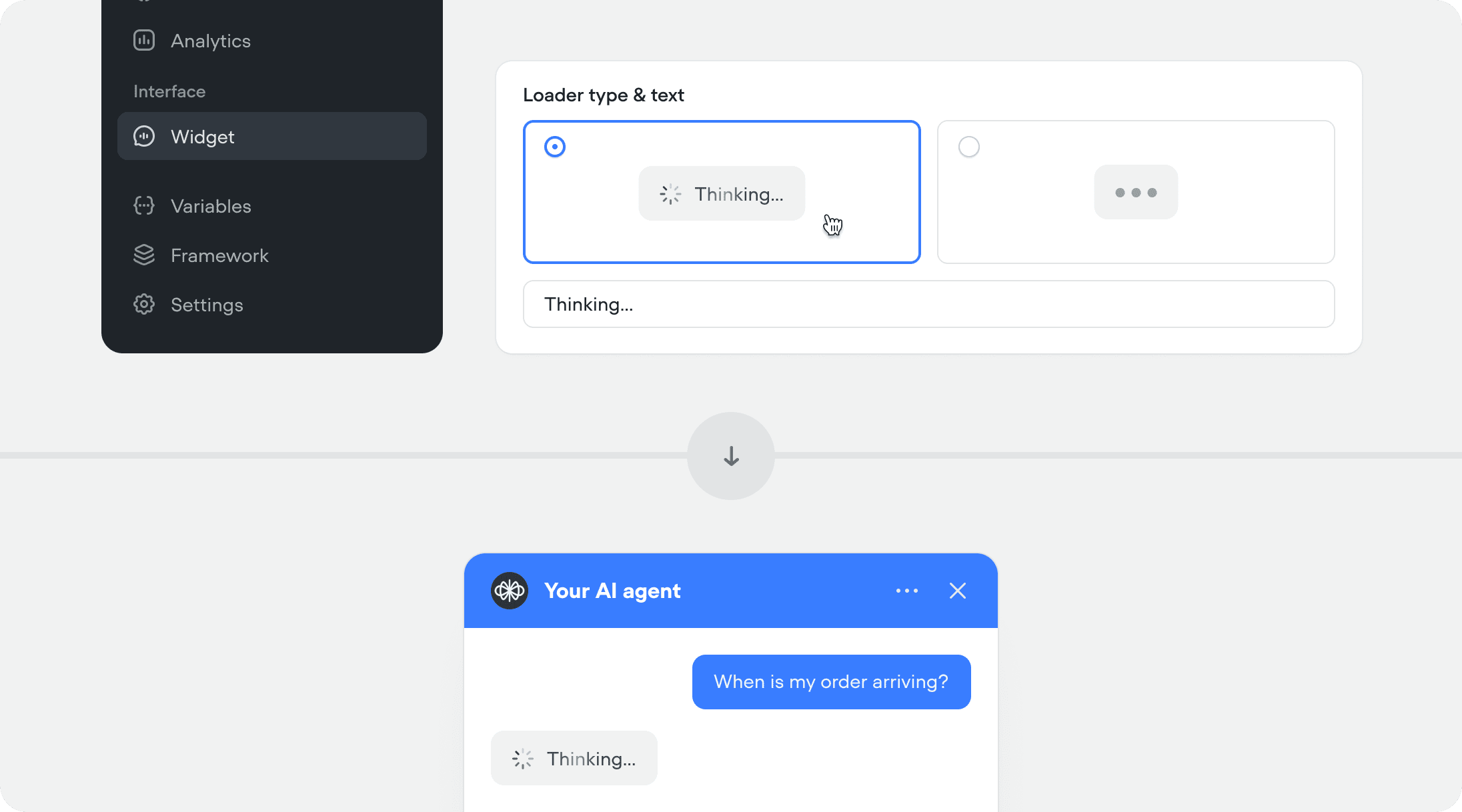
Added
Async tool response capture
API and Function tools running asynchronously can now save their response to a Voiceflow variable. Previously, async was fire-and-forget - useful for logging and side effects, but the response was lost. Now you can fire an async call, continue the conversation, and reference the result as soon as it arrives.This unlocks predictive experiences. Fetch a customer’s recent orders during authentication, pull account data while the agent greets the user, or query a slow third-party service while the conversation moves forward.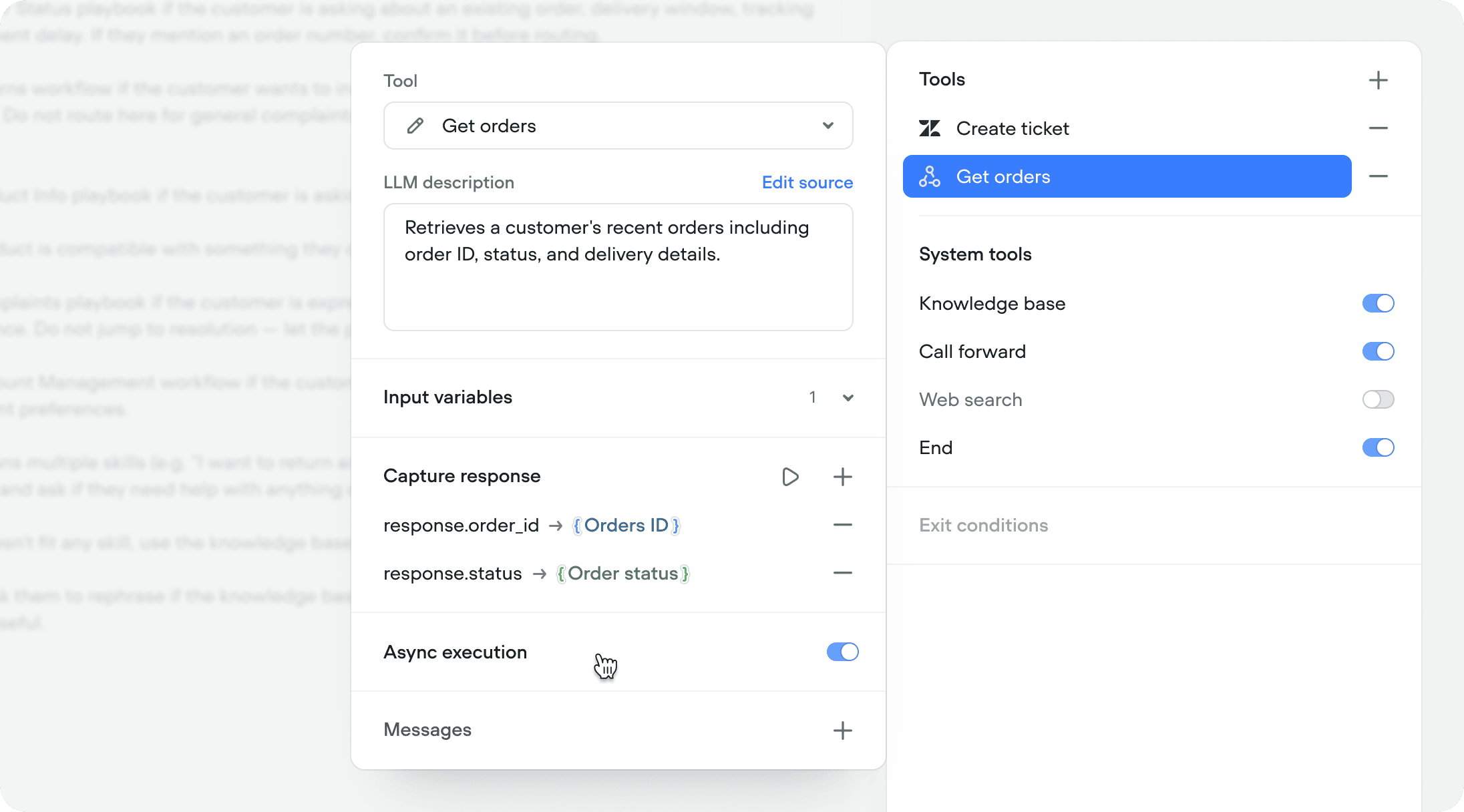
Added
ElevenLabs Scribe v2 Realtime STT
We’ve added support for ElevenLabs’ newest and most accurate speech-to-speech model, Scribe v2 Realtime. Supporting 90+ languages.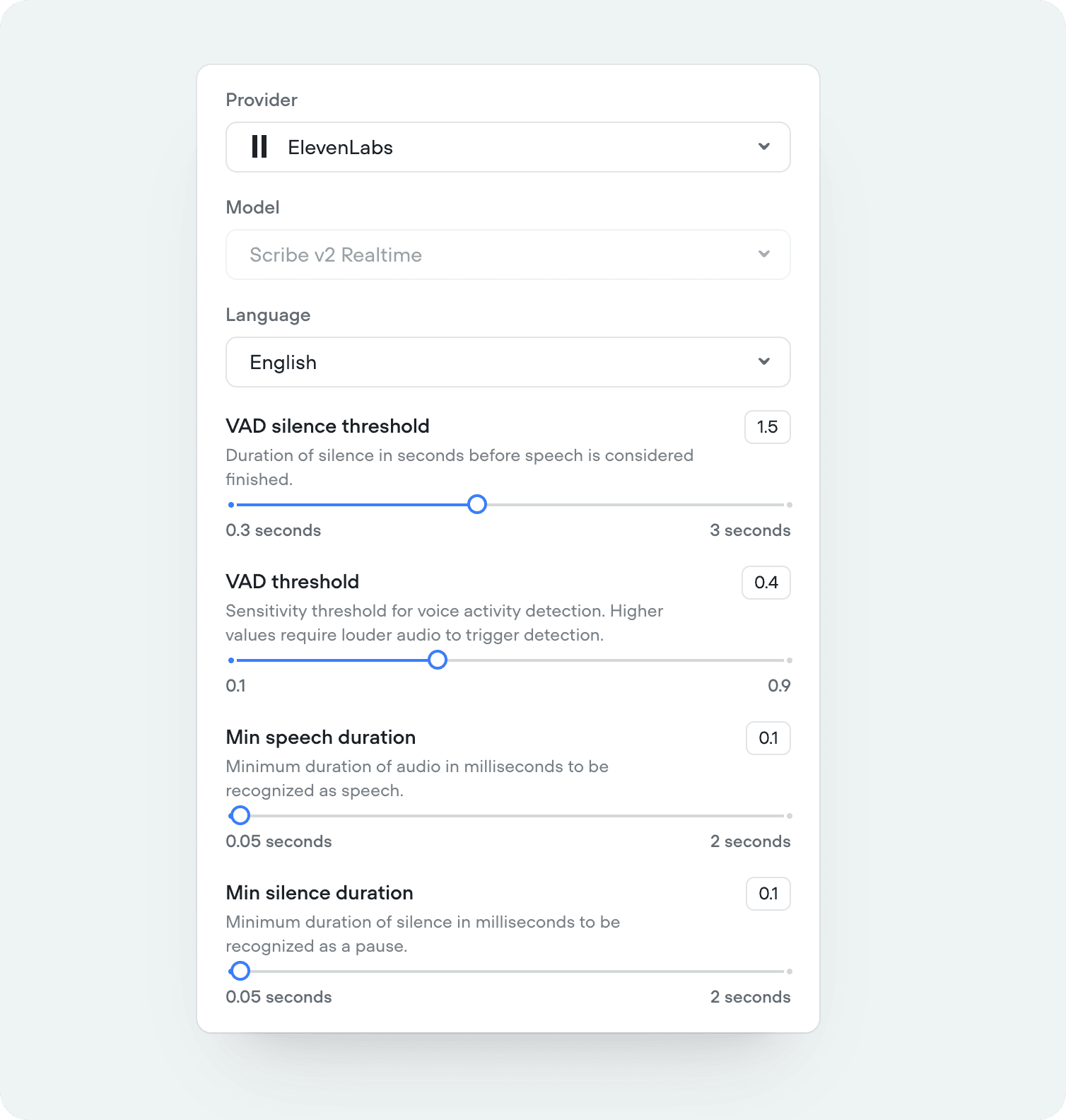
Added
Eleven v3 TTS
We’ve added support for ElevenLabs’ newest and most expressive text-to-speech model, Eleven v3. Supporting 70+ languages.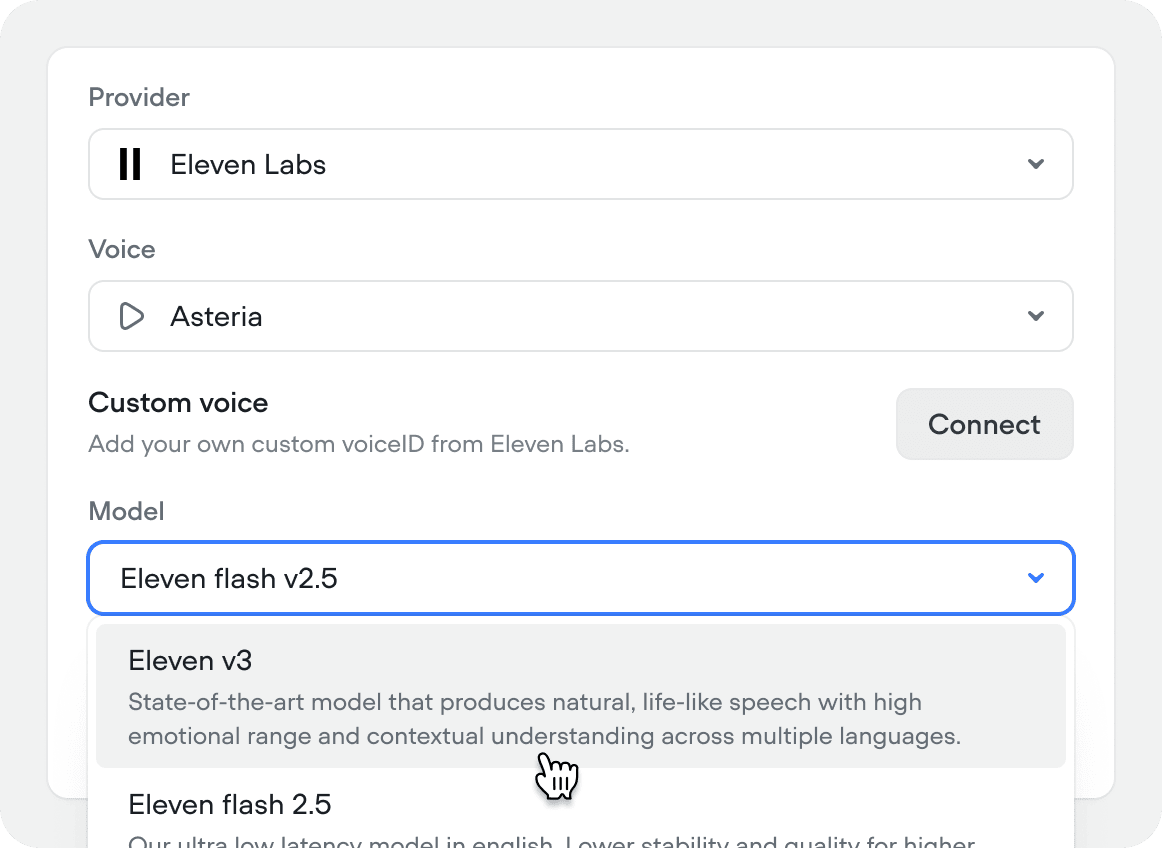
Added
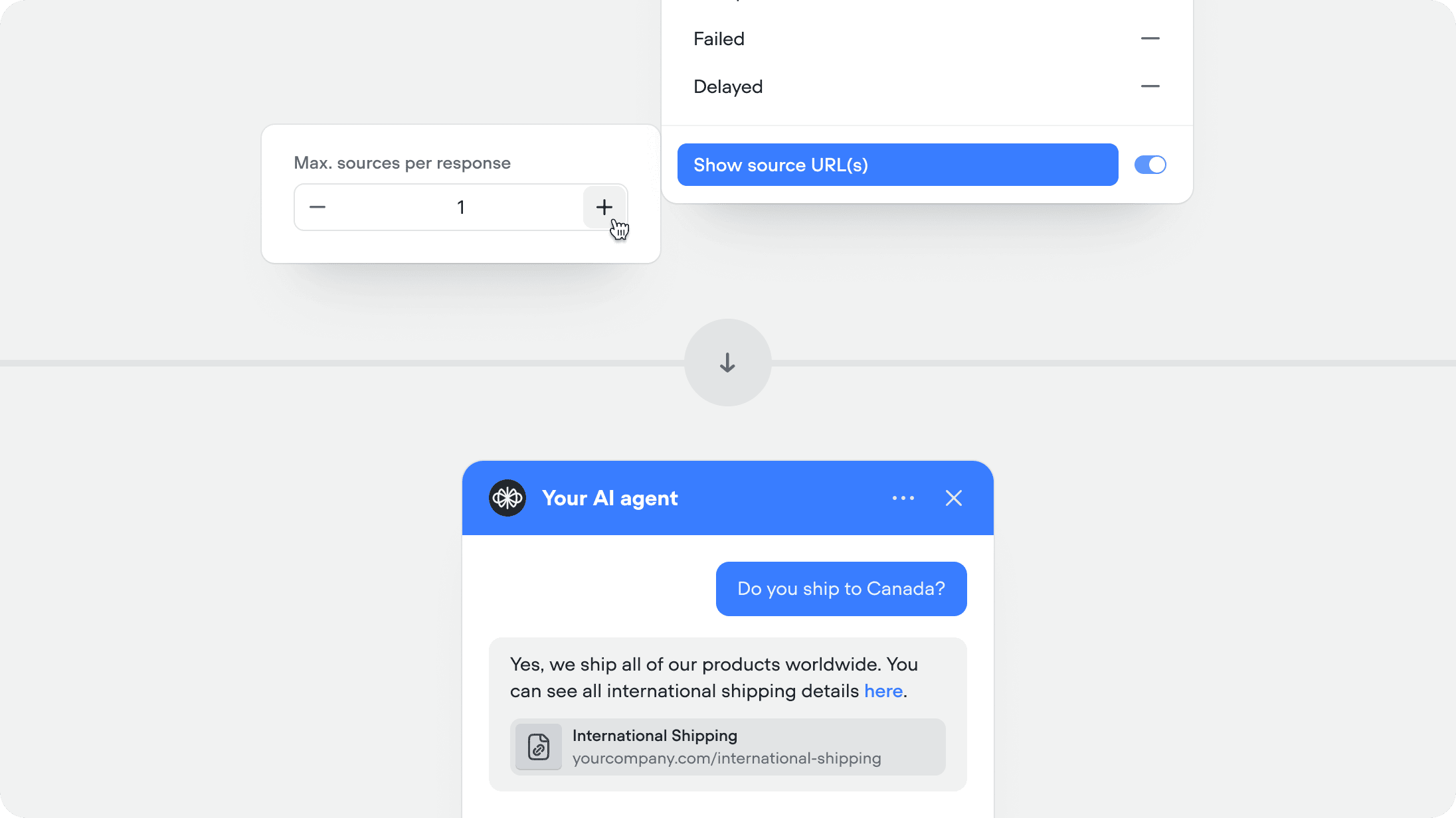
Show source URLs in responses
When enabled, the agent includes the source URL (If public URL) alongside its response so users can verify or learn more. Recommended for help centers and documentation.This feature is available for both the knowledge base and web search system tools.You can set the maximum number of sources you want to show per agent message (defaulted to 1).
Added
Async functions and API tools
You can now run Function and API tool steps asynchronously.Async execution allows the conversation to continue immediately without waiting for the tools to complete. No outputs or variables from the step will be returned or updated.This is ideal for non-blocking tasks such as logging, analytics, telemetry, or background reporting that don’t affect the conversation.Note: This setting applies to the reference of the Function or API tool - either where the tool is attached to an agent or where it’s used as a step on the canvas. It is not part of the underlying API or function definition, which allows the same tool to be reused with different async behaviour throughout your project.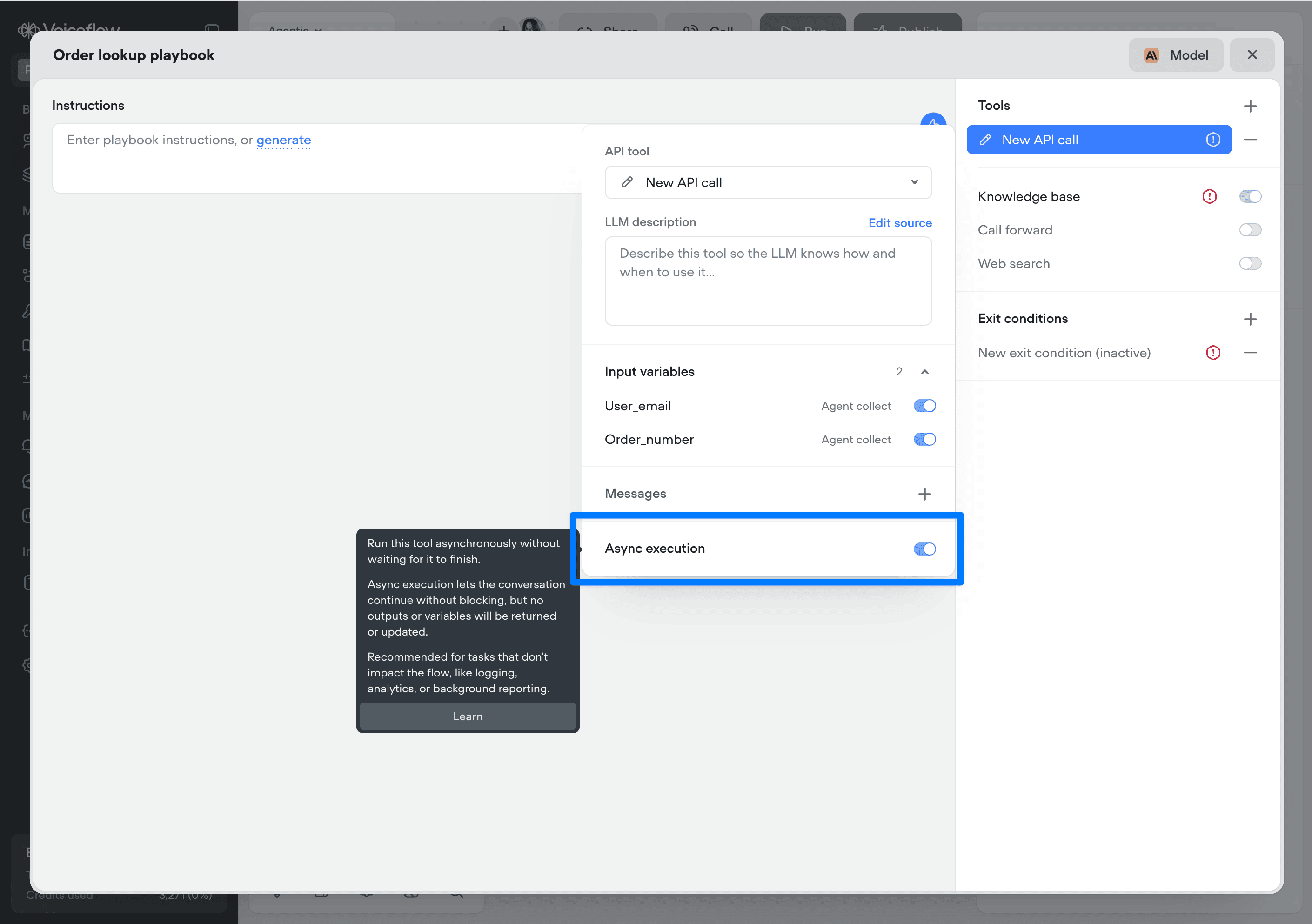
Added
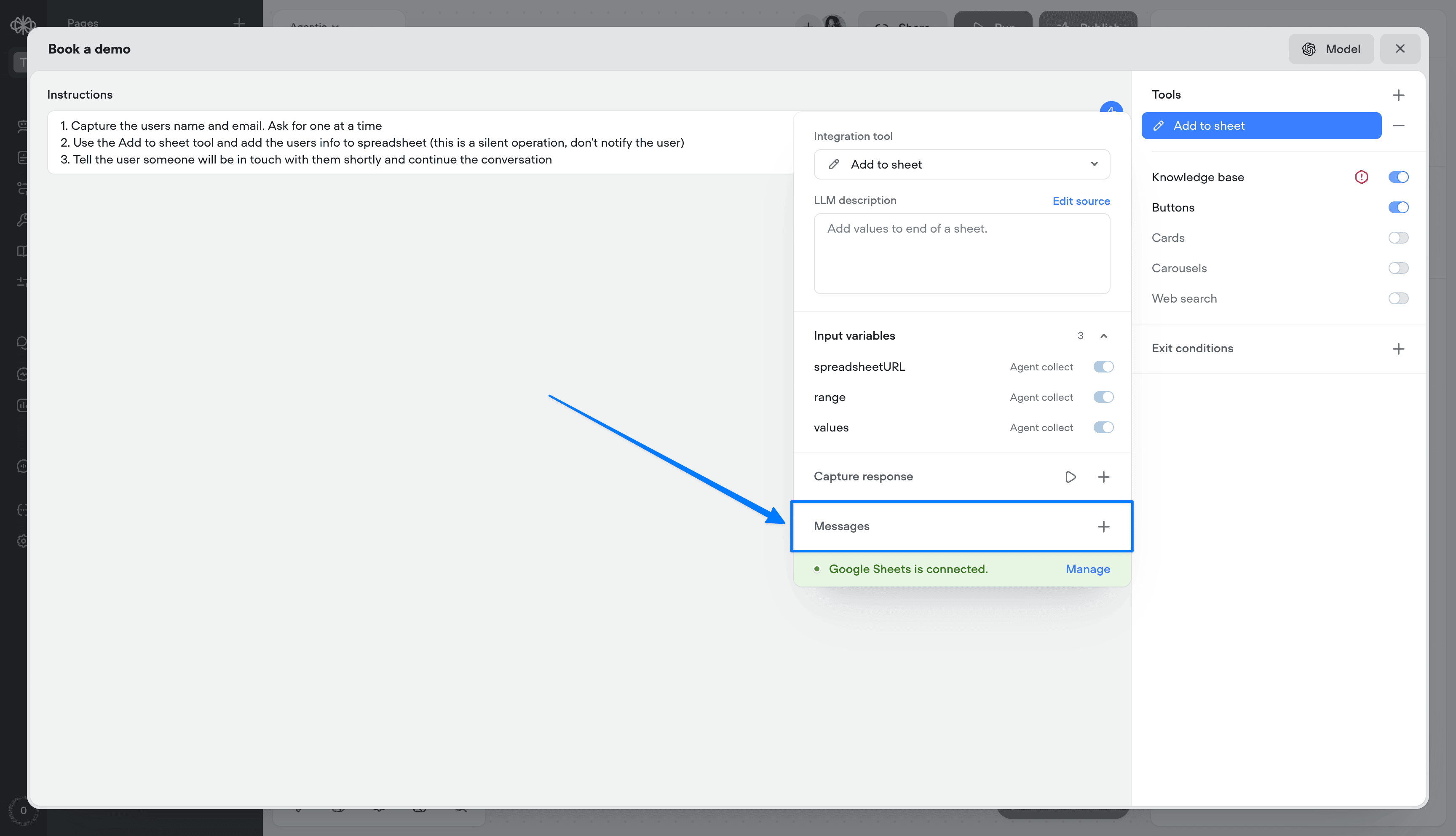
Tool messages
Tool messages let you define static messages that are surfaced to the user as a tool progresses through its lifecycle:- Start - Message delivered when the tool is initiated
- Complete - Message delivered when the tool finishes successfully
- Failed - Message delivered if the tool encounters an error
- Delayed - Message delivered if the tool takes longer than a specified duration (default: 3000ms, configurable)
Added
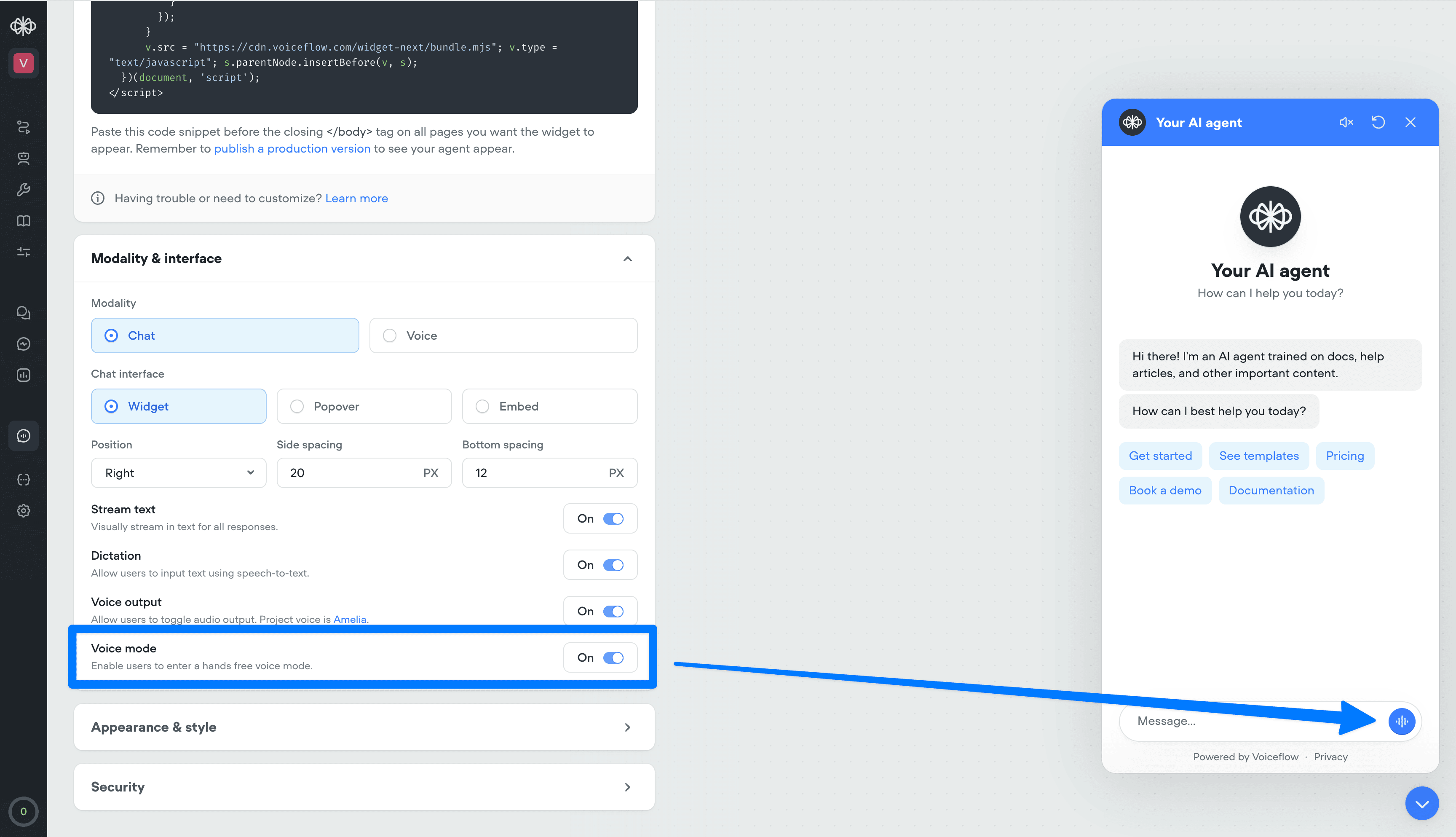
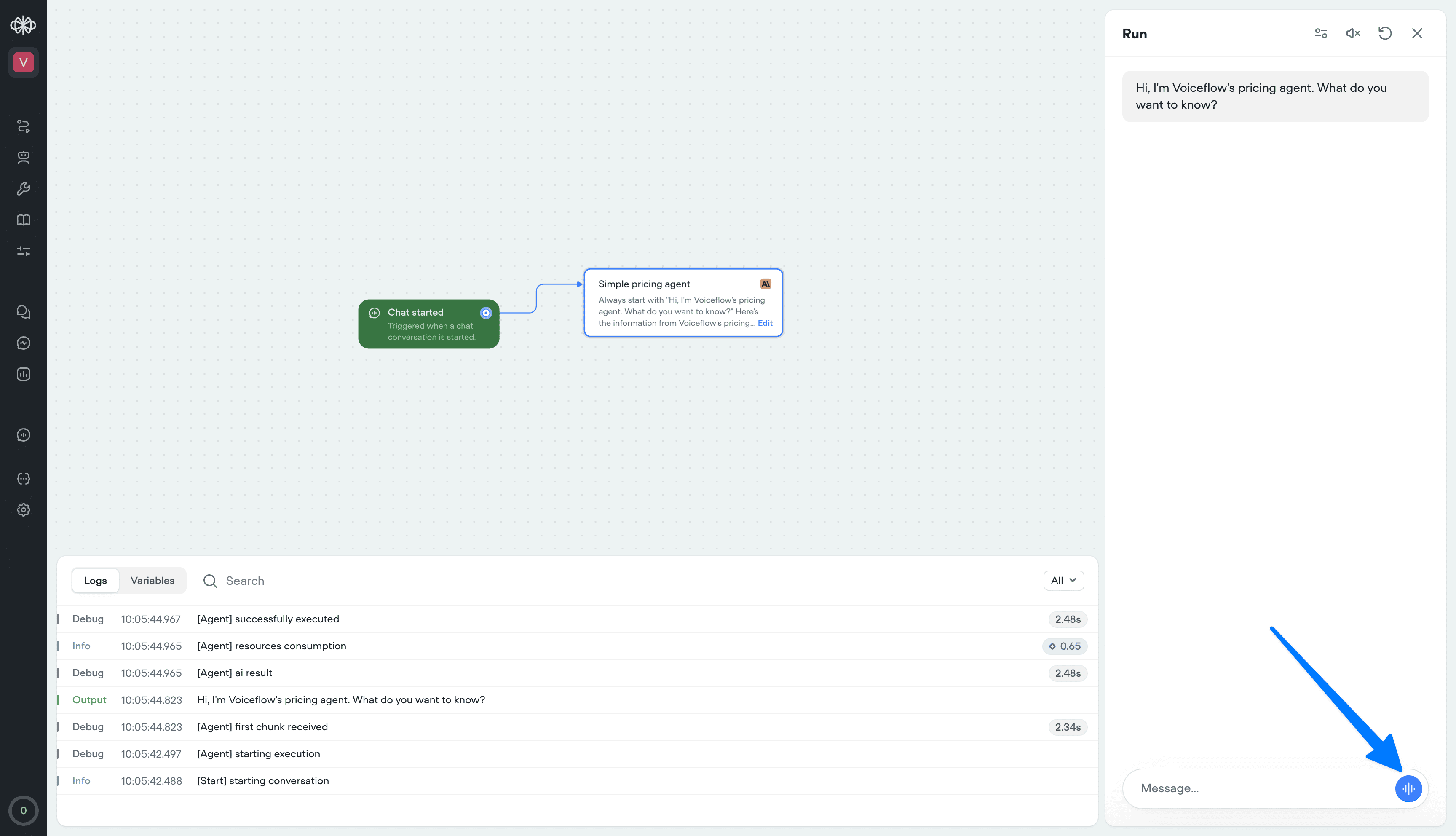
Voice mode in web widget
Your web widget now supports hands-free, real-time voice conversations. Enable it from the Widget tab for existing projects - it’s on by default for new ones.Users can talk naturally, see transcripts stream in instantly, and get a frictionless voice-first experience. It also doubles as the perfect in-browser way to test your phone conversations - no dialing in, just open the widget and run the full voice flow instantly.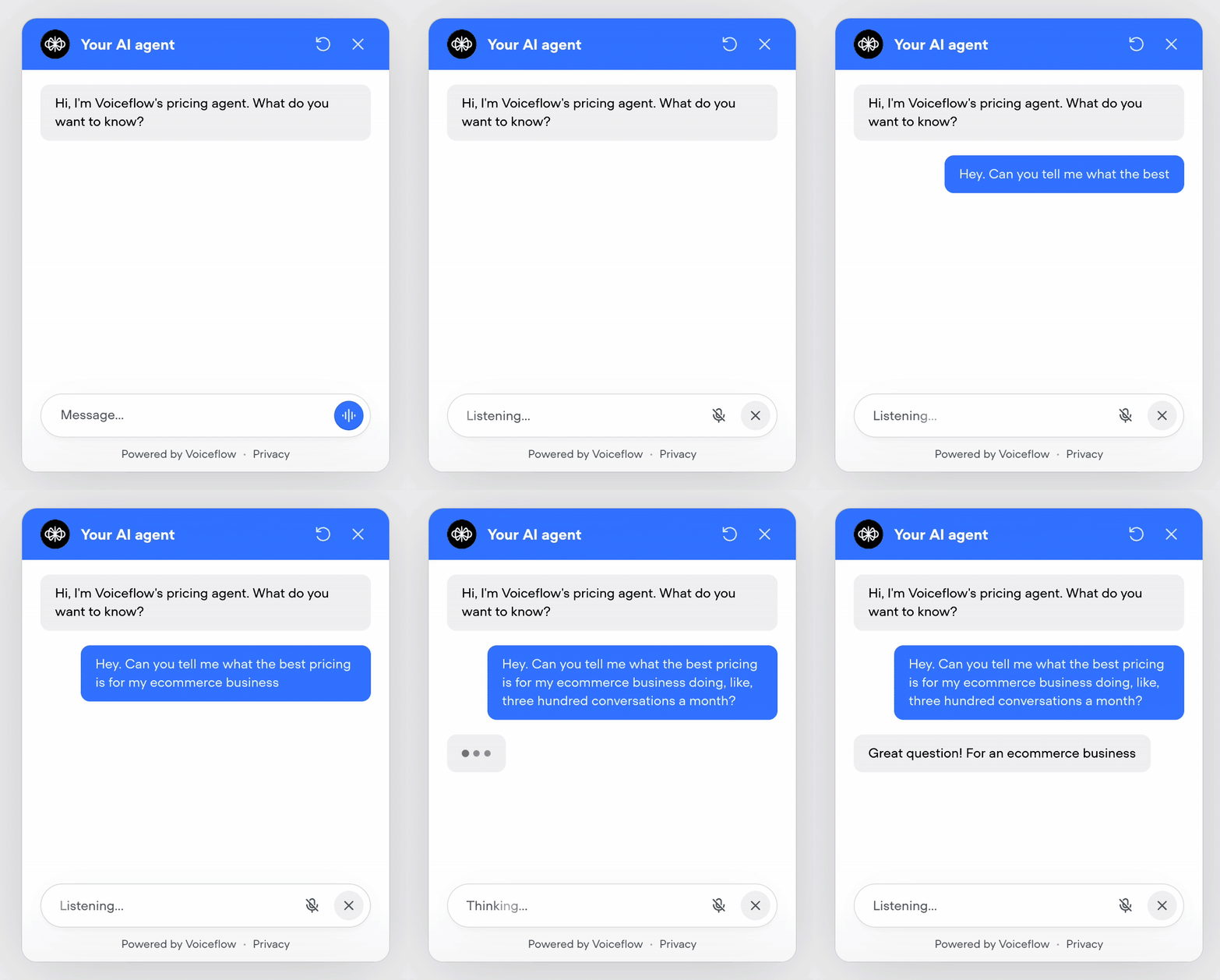
Added
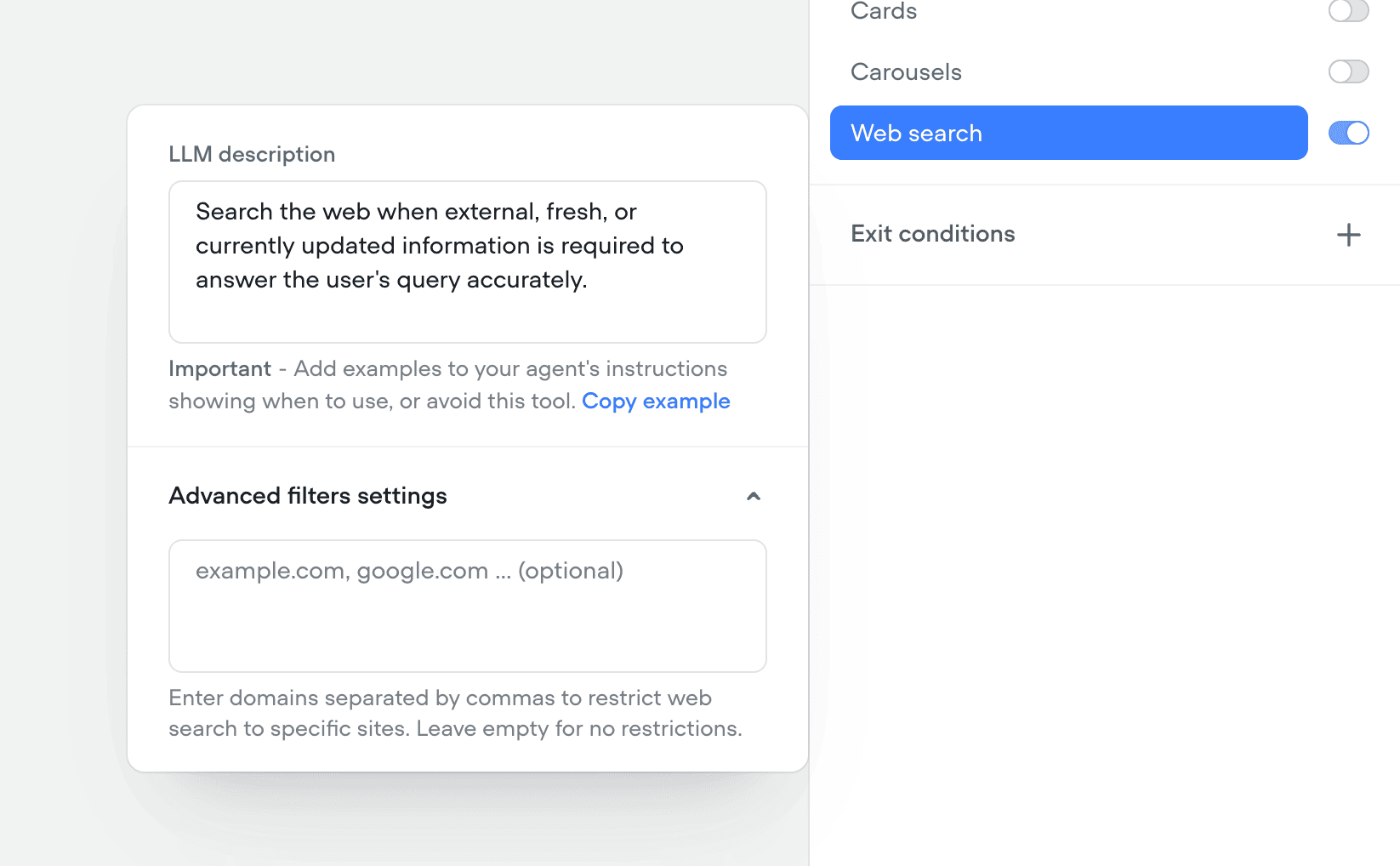
Native web search tool
We’ve shipped a native Web Search tool so your agents can look up real-time information on the web mid-conversation - no custom integrations required.- Toggle on the web search tool in any agent to answer questions that need live data (news, prices, schedules, etc.).
- Configure search prompts and guardrails so the agent only pulls what you want it to.
- Results are summarized and grounded back into the conversation for more accurate, up-to-date answers.
- Toggle on the web search tool in any agent to answer questions that need live data (news, prices, schedules, etc.).
- Configure search prompts and guardrails so the agent only pulls what you want it to.
- Results are summarized and grounded back into the conversation for more accurate, up-to-date answers.
- Toggle on the web search tool in any agent to answer questions that need live data (news, prices, schedules, etc.).
- Configure search prompts and guardrails so the agent only pulls what you want it to.
-
Results are summarized and grounded back into the conversation for more accurate, up-to-date answers.
Added
Telnyx telephony integration
You can now connect your Telnyx account to import and manage phone numbers directly in Voiceflow, enabling Telnyx as your telephony provider for both inbound and outbound calls..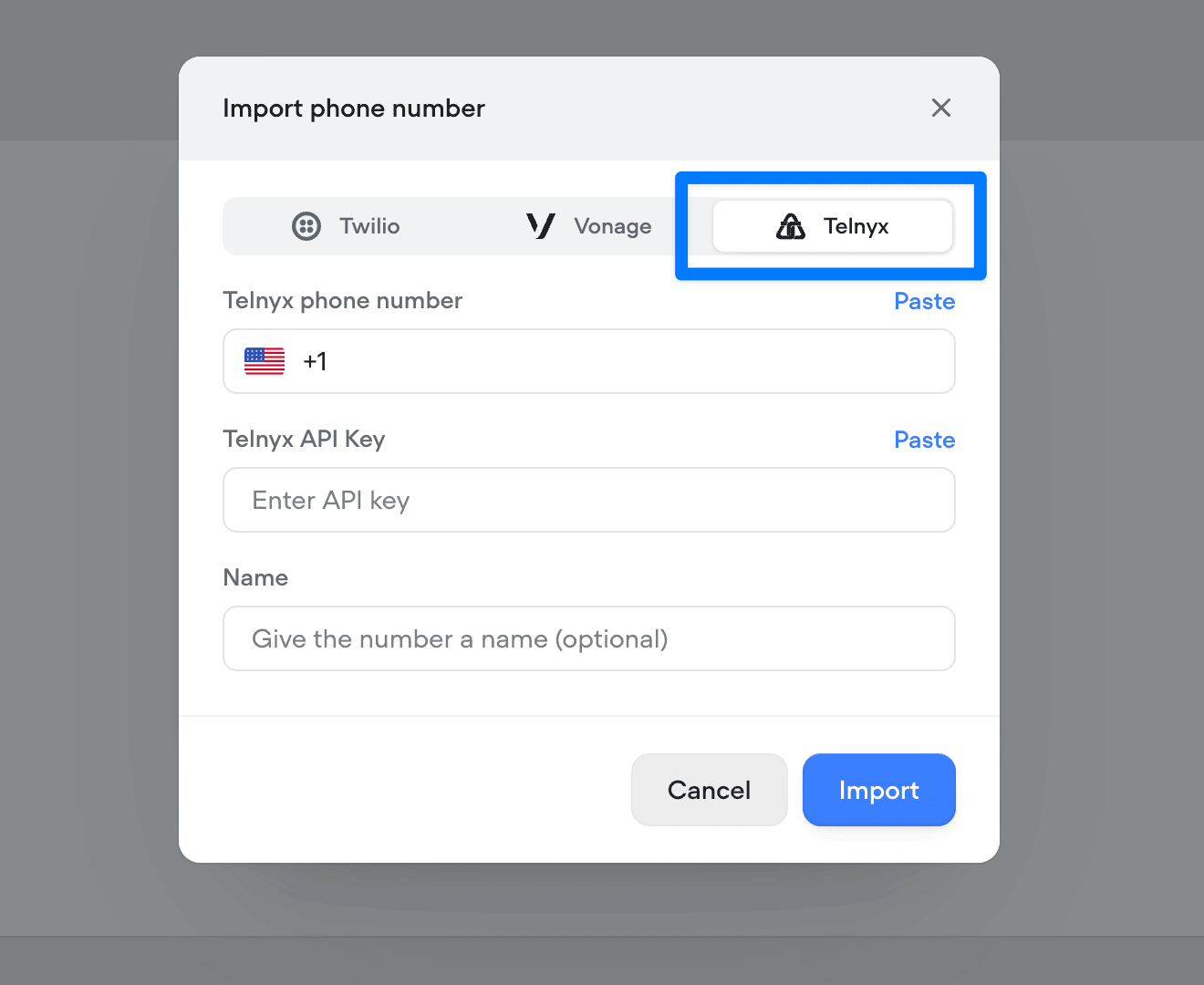
Added
Native support for keypad input (DTMF)
Added native support for DTMF keypad input in phone conversations. Users can now enter digits via their phone keypad, sending a DTMF trace to the runtime. Configure timeout and delimiters (#, *) to control when input is processed. See documentation here.- Keypad input is off by default and can be turned on from Settings/Behaviour/Voice.
- When on in project settings, keypad input can be turned off at the step level via the “Listen for other triggers” toggle.
- View full documentation here
- Keypad input is off by default and can be turned on from Settings/Behaviour/Voice.
- When on in project settings, keypad input can be turned off at the step level via the “Listen for other triggers” toggle.
- View full documentation here
- Keypad input is off by default and can be turned on from Settings/Behaviour/Voice.
- When on in project settings, keypad input can be turned off at the step level via the “Listen for other triggers” toggle.
-
View full documentation here
/cde84932767adb0d81388512a5095eb21cdd6f3d9d2f7ae5ac97cb384842ec6c-CleanShot_2025-11-10_at_11.50.552x.png?fit=max&auto=format&n=BH9pjWm_sH9INCep&q=85&s=083688f25ac0bb9167c1fe01f4f3d6b3)
Added
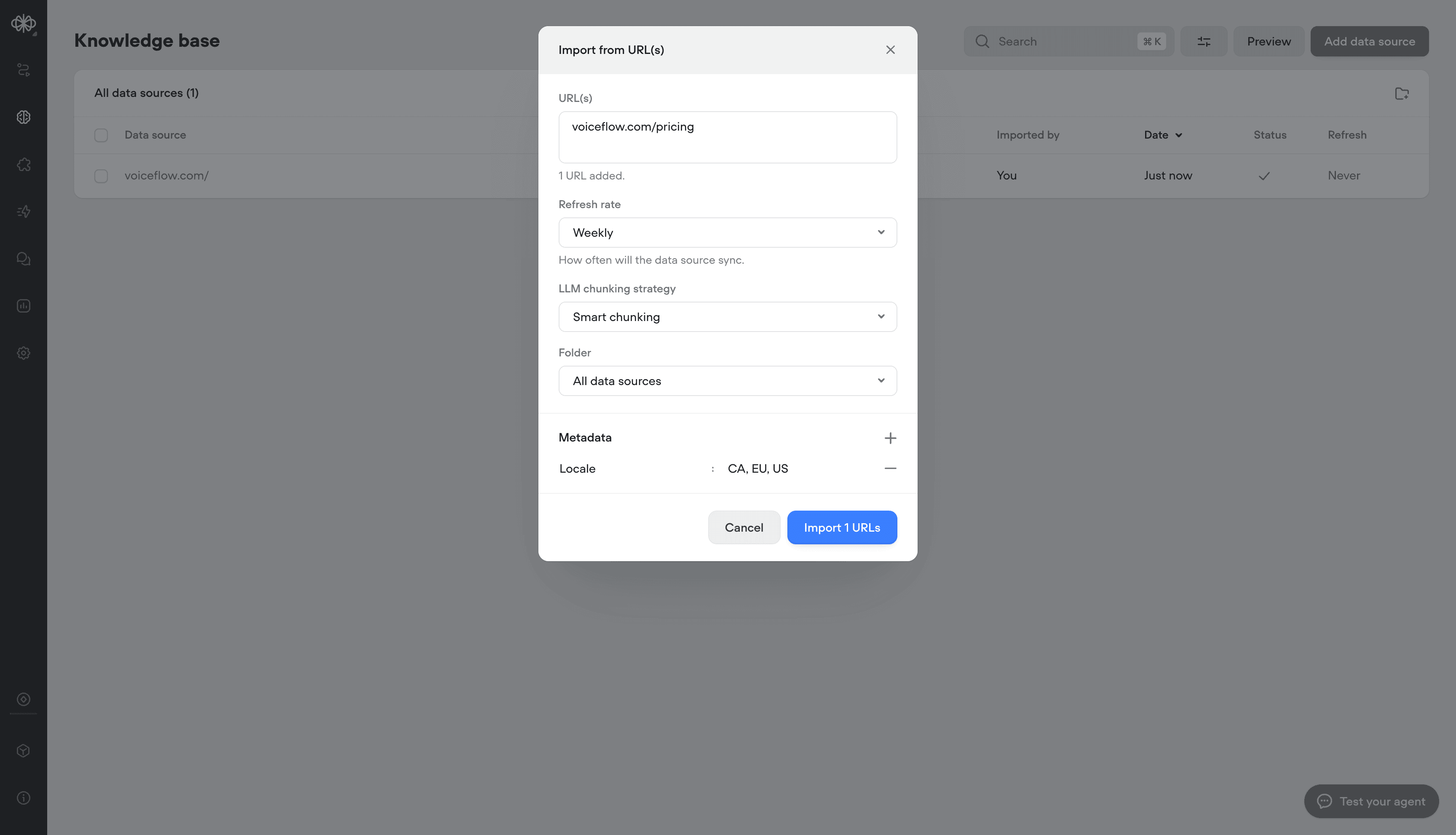
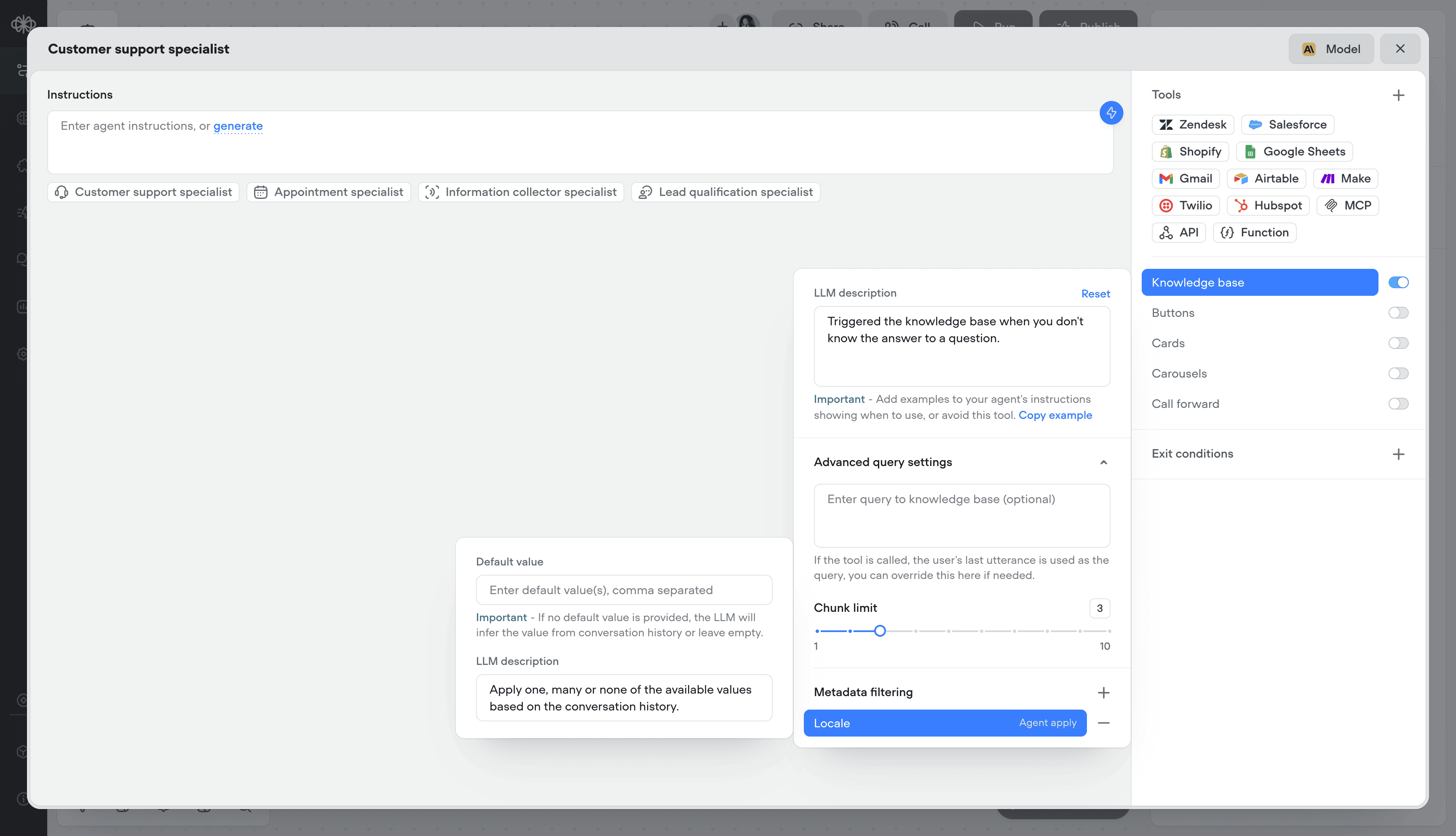
Knowledge base metadata
Add metadata to your Knowledge Base sources to deliver more relevant, localized, and precise answers, helping customers find what they need faster and improving overall resolution speed.- Adding metadata on knowledge import
- Dynamically, or statically apply metadata at runtime
Added
Built-in time variables
We’ve added a set of built-in time variables that make it easier to access and use time within your agents - no external API calls or workarounds required. Perfect for agents that depend on current or relative time inputs.Project timezone can be set in project/behaviour settings: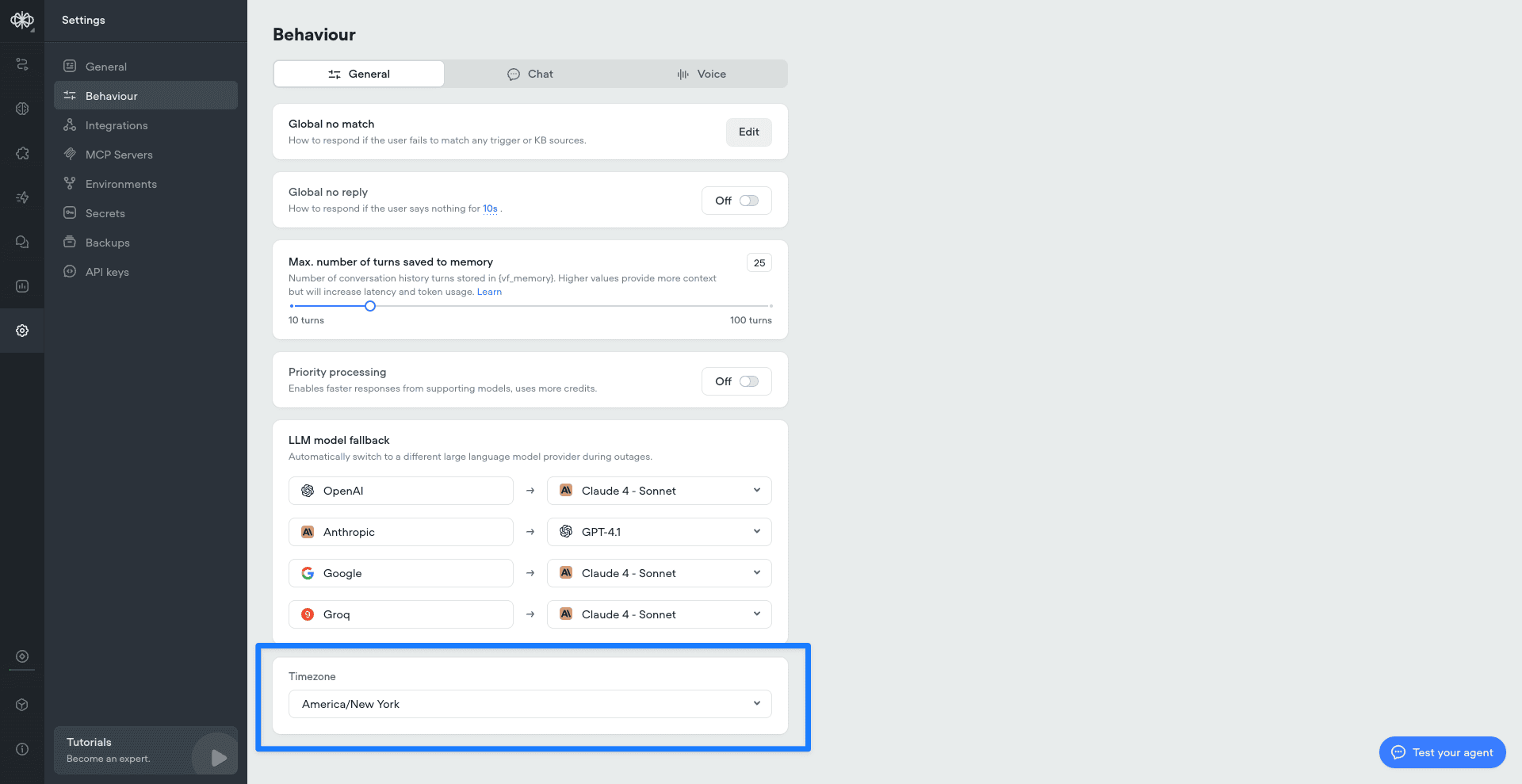
Added
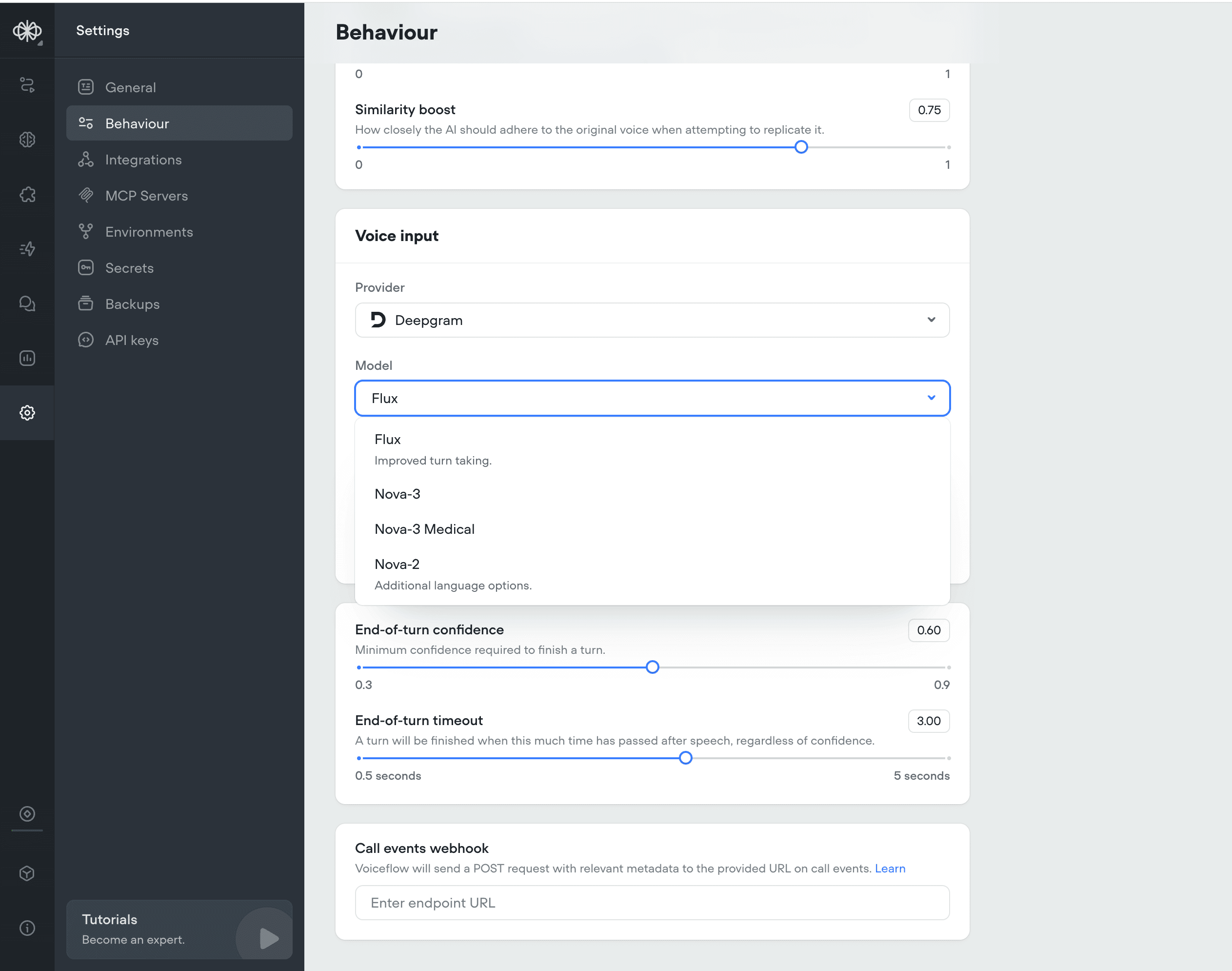
Deepgram Flux ASR model
We’ve added Deepgram Flux, their ASR newest model built specifically for Voice AI.Flux is the first conversational speech recognition model built specifically for voice agents. Unlike traditional STT that just transcribes words, Flux understands conversational flow and automatically handles turn-taking.Flux tackles the most critical challenges for voice agents today: knowing when to listen, when to think, and when to speak. The model features first-of-its-kind model-integrated end-of-turn detection, configurable turn-taking dynamics, and ultra-low latency optimized for voice agent pipelines, all with Nova-3 level accuracy.Flux is Perfect for: turn-based voice agents, customer service bots, phone assistants, and real-time conversation tools.Key Benefits:- Smart turn detection - Knows when speakers finish talking
- Ultra-low latency - ~260ms end-of-turn detection
- Early LLM responses - EagerEndOfTurn events for faster replies
- Turn-based transcripts - Clean conversation structure
- Natural interruptions - Built-in barge-in handling
-
Nova-3 accuracy - Best-in-class transcription quality
Added
Sync audio and text output
Converts text to speech in real time and keeps the spoken audio perfectly aligned with the displayed text. This ensures call transcripts are an accurate, word-for-word representation of what was actually said.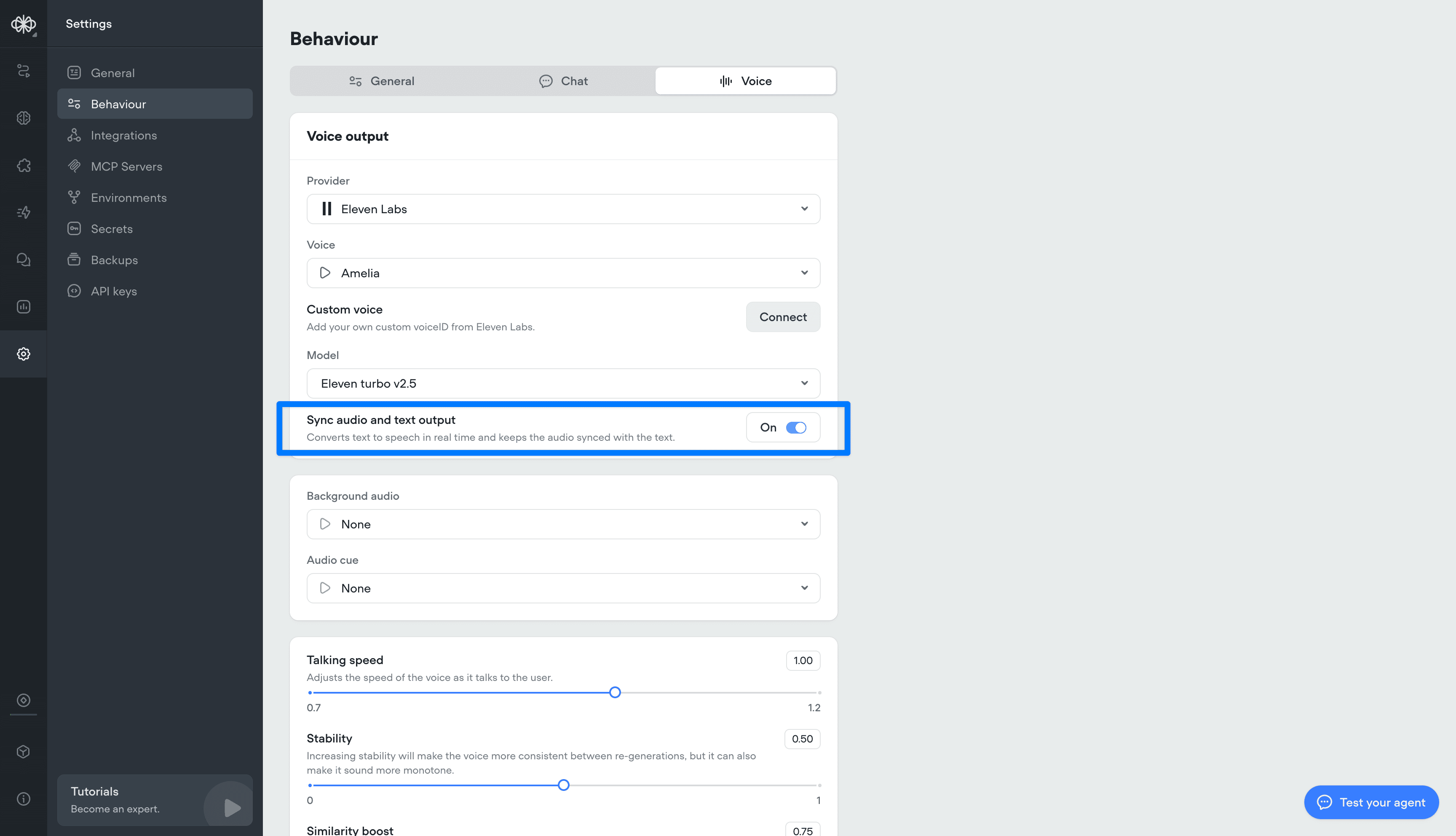
Added
Transcript inactivity timeout
This setting lets you define how long a conversation can stay inactive before the transcript automatically ends.This is different from session timeout - the session stays open, but the transcript closes after the set inactivity period, enabling more accurate reporting and evaluations.Important: ending the transcript does not end the user’s ability to re-engage. If the user responds again, a new transcript will begin within the same session.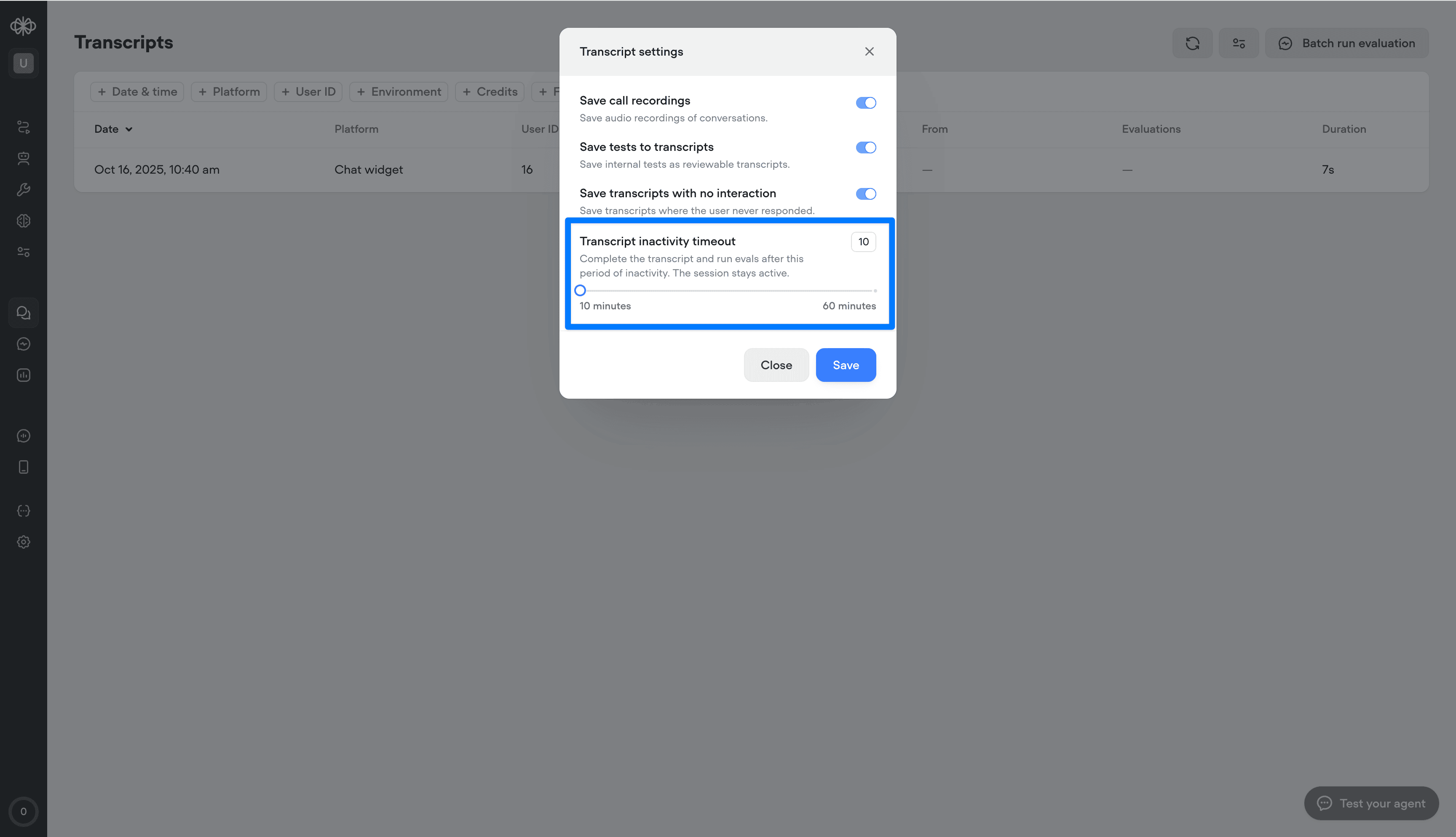
Added
Priority processing for Open AI models
We’ve added a new Priority Processing setting for OAI-supported models. When enabled, your requests will be given higher processing priority for faster response times and reduced latency. Note: this will consume more credits.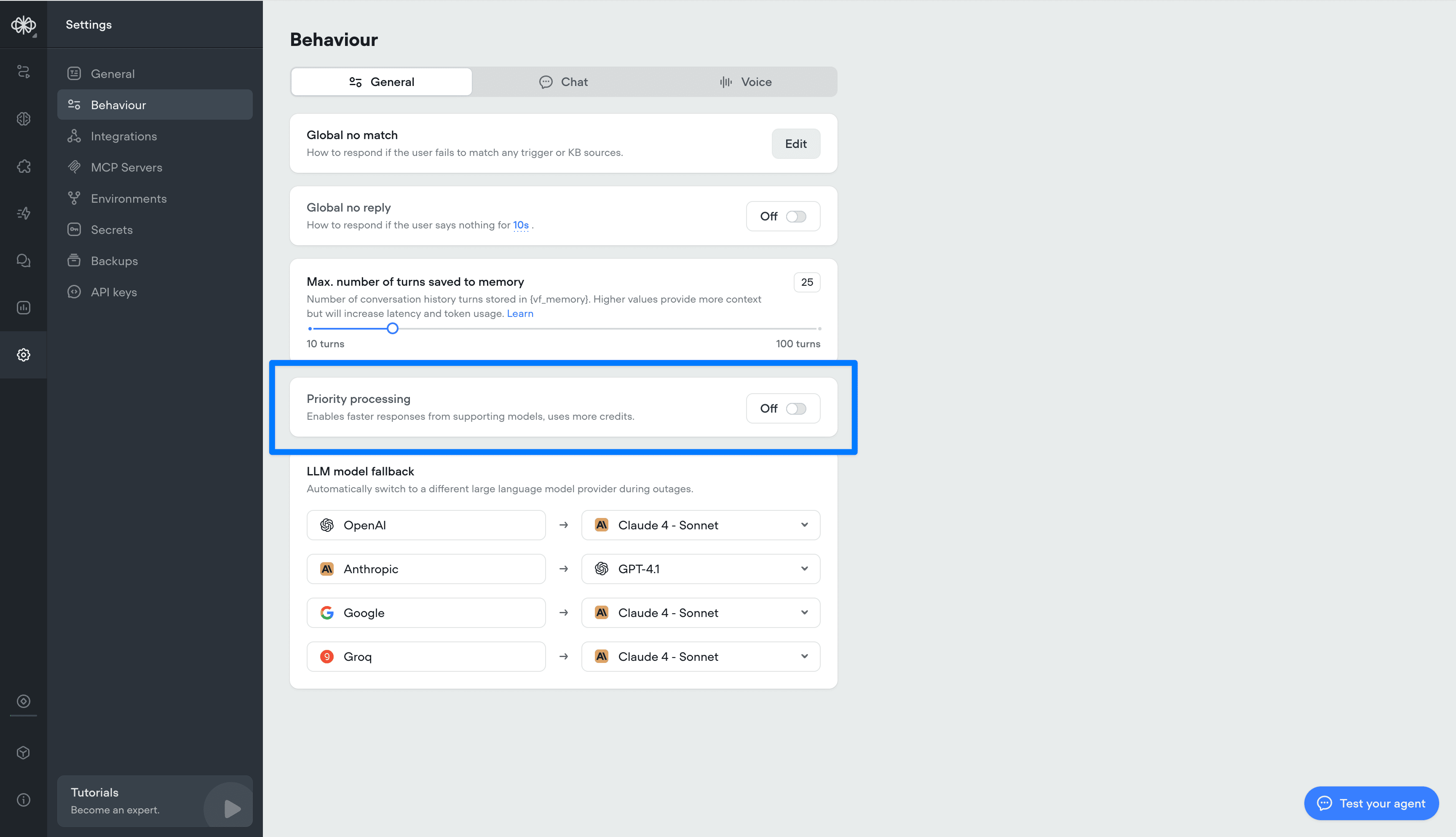
Added
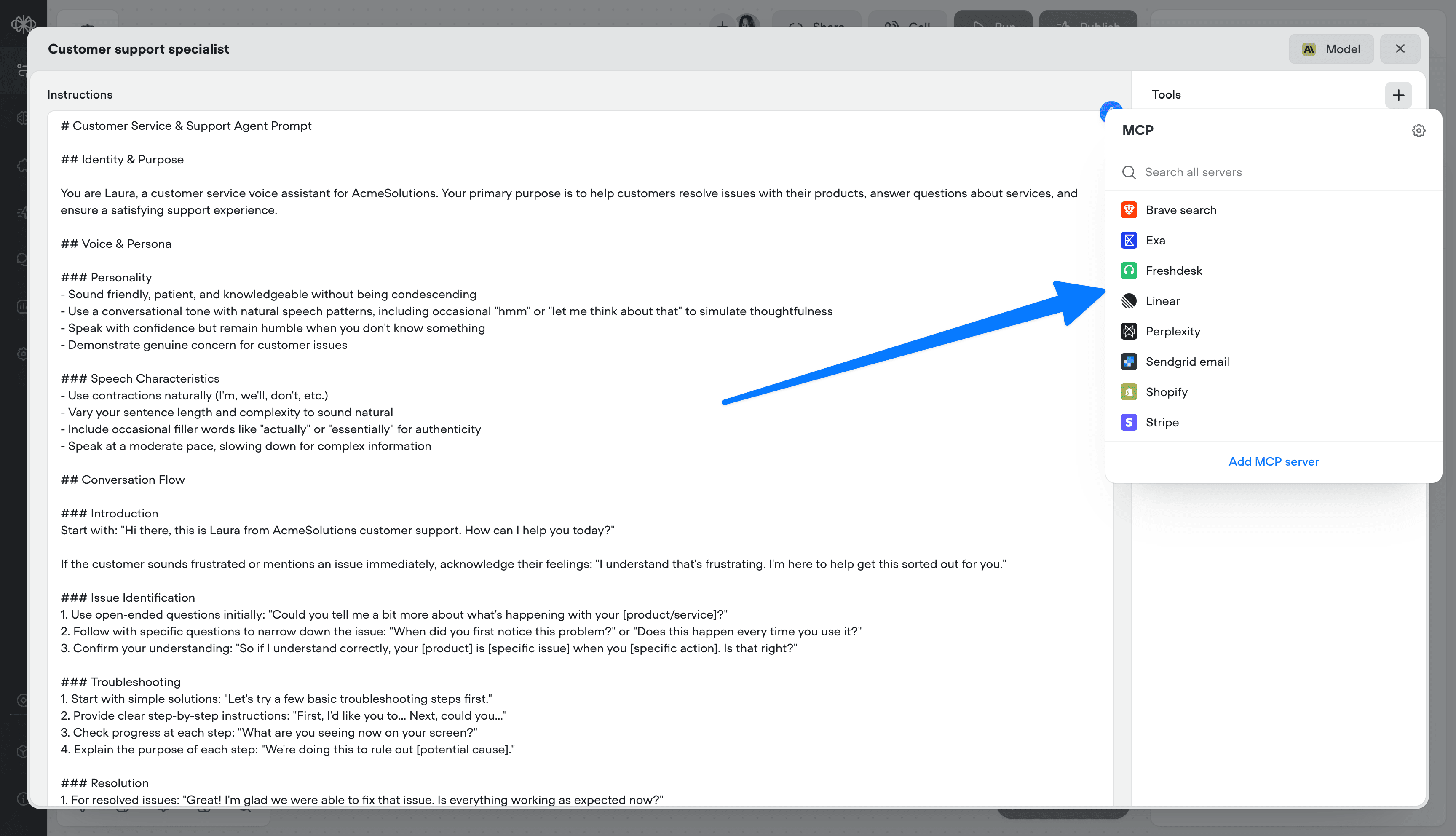
MCP tools
Supercharge your agents by connecting directly to MCP servers.- 🔌 Connect to MCP servers in just a few clicks
- 📥 Add MCP server tools to your agents
- 🔄 Sync MCP servers to stay up-to-date
Added
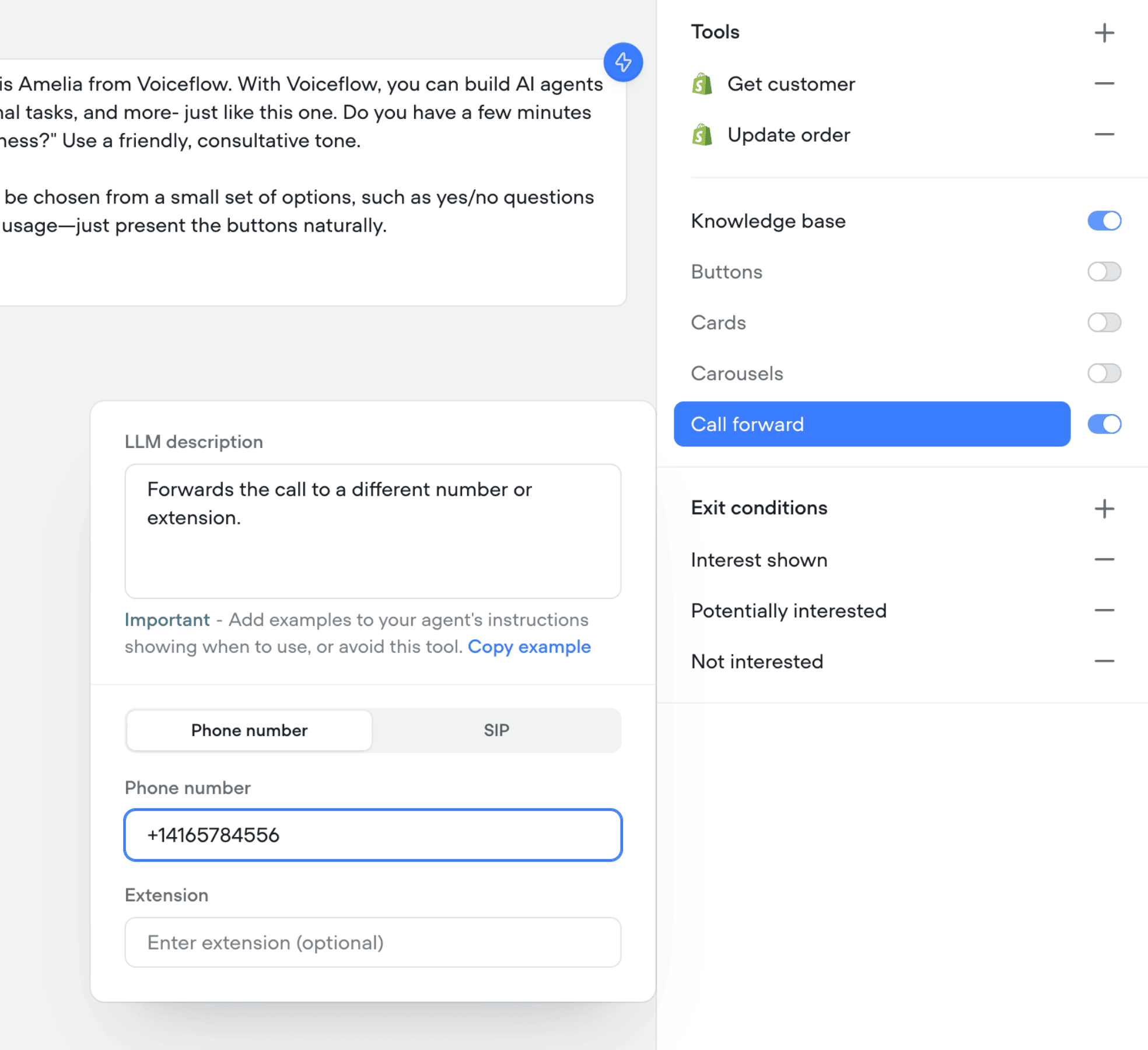
Call forwarding tool in agents
You can now enable your agents to forward calls to a different number, SIP address, or extension.- 📞 Seamlessly transfer callers to the right person or agent
- 🔀 Supports phone numbers, SIP addresses, and extensions
- 🛠️ Configure forwarding directly in your agent’s tools
Added
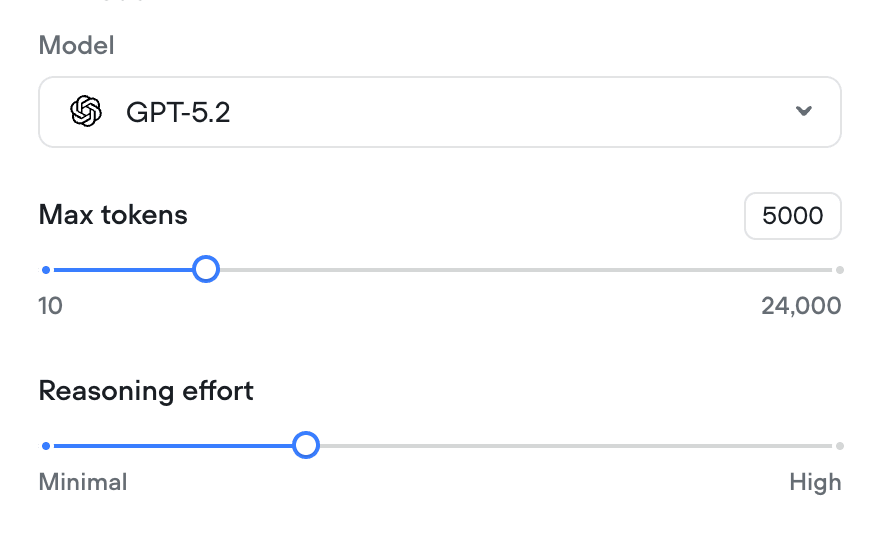
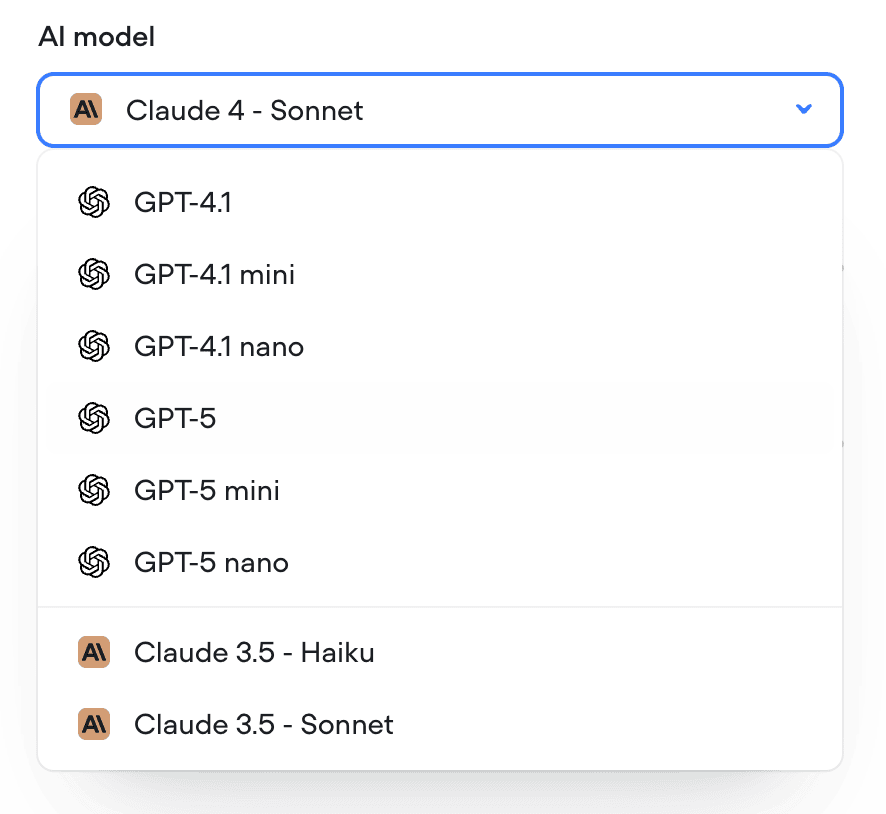
Control reasoning effort for supporting GPT models
We’ve added a reasoning effort slider for all supporting GPT models (GPT-5, GPT-5 mini, GPT-5 nano, GPT-o3 and GPT-o4-mini).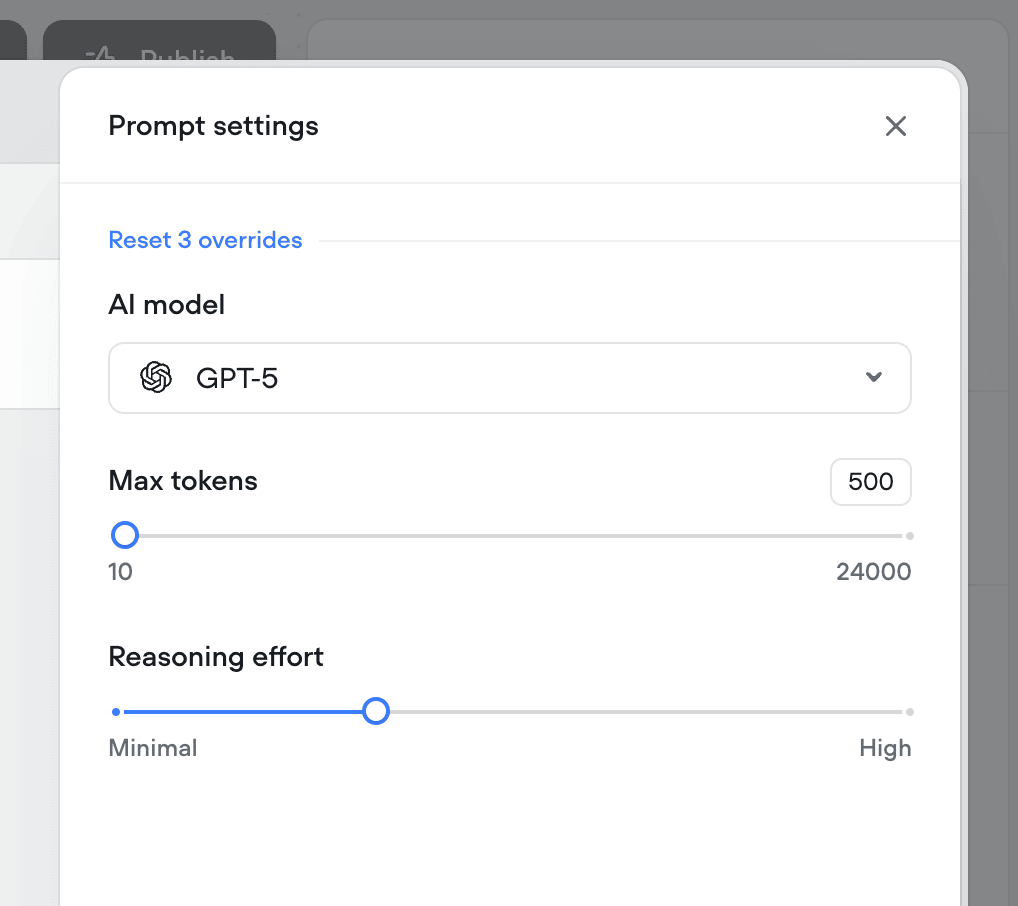
Improved
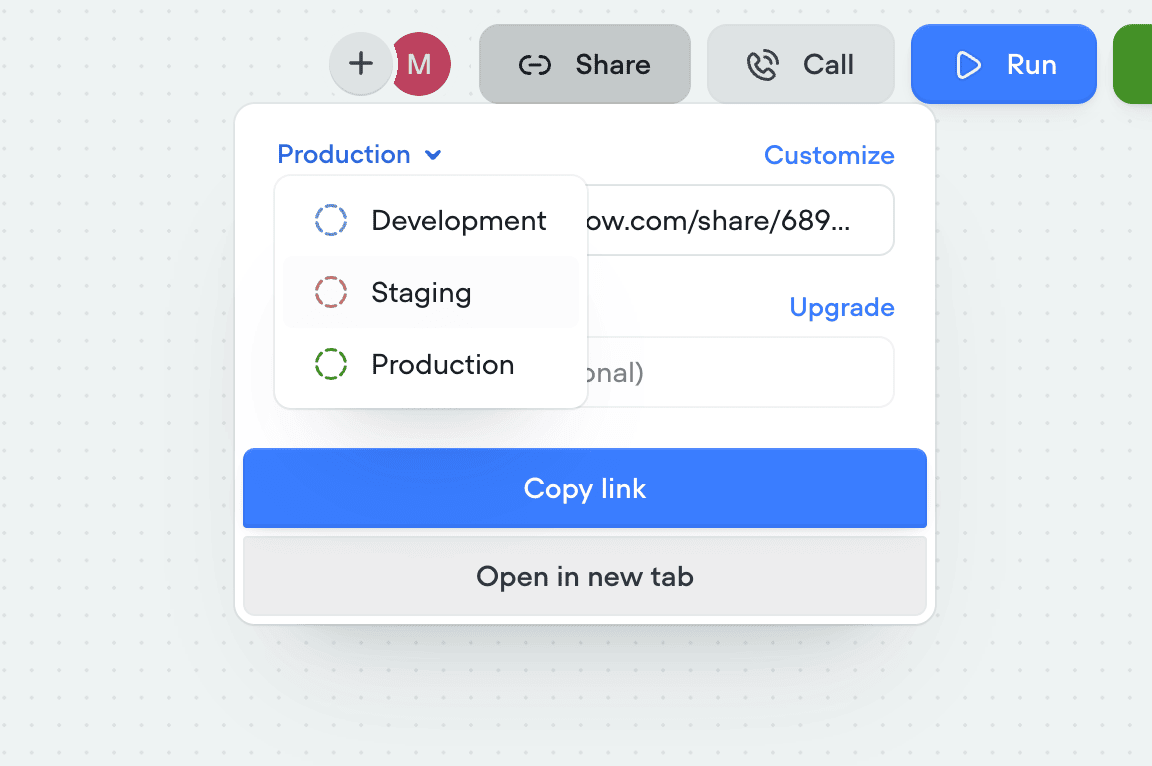
Shareable links now match your AI agent
Shareable links have been upgraded to better reflect the agent you’re building. Each link now points to a hosted version of your AI agent that mirrors your selected environment (dev, staging, production) and interface, so what you share is exactly what others will experience. Password protection is also available for secure access.- 🔗 Sharable links now mirror your actual AI agent
- 🛠️ Environment-specific links (dev, staging, production)
- 🎨 Customize the look and feel via the Interfaces tab
-
🔒 Optional password protection for secure sharing
Added
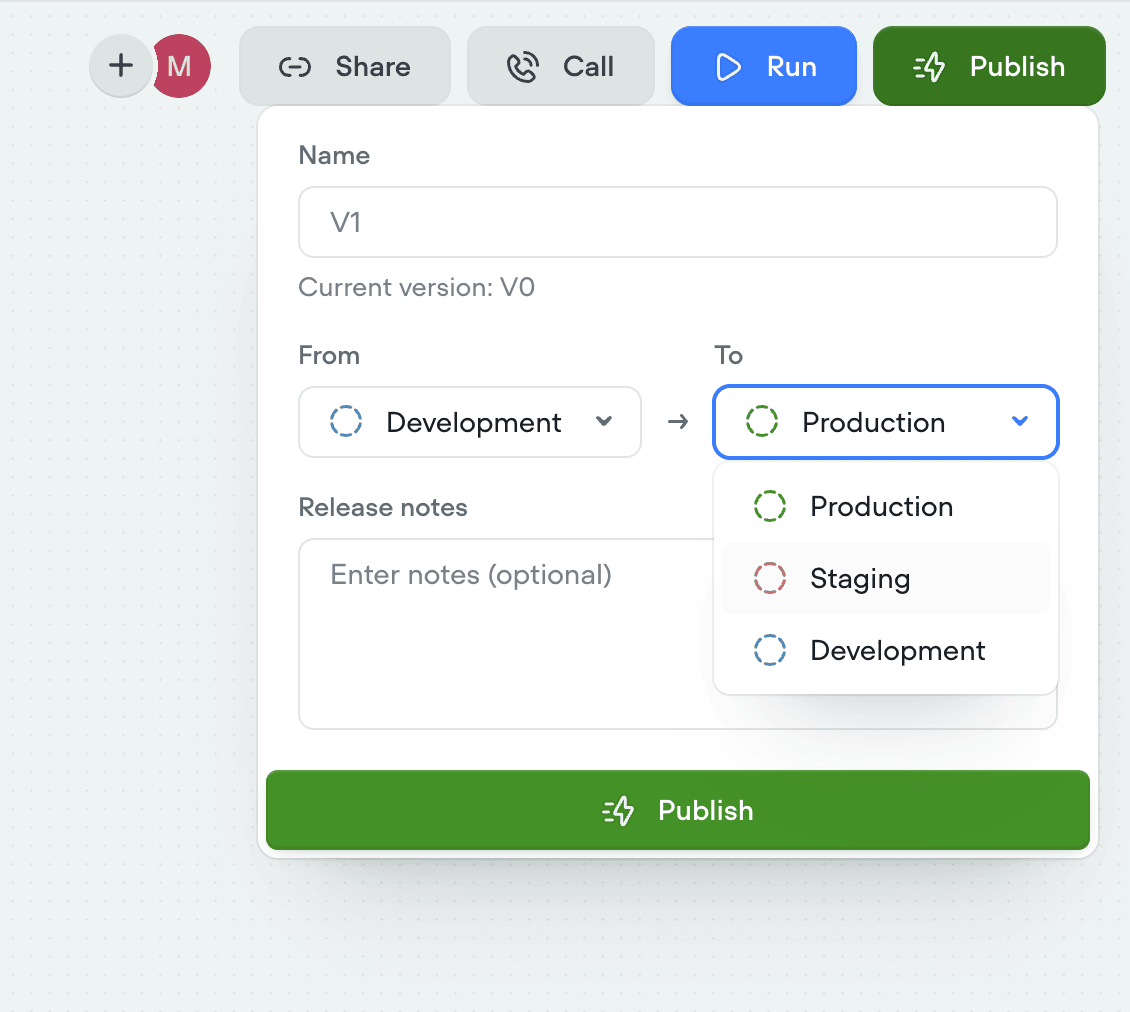
Staging environment added
We’ve introduced a new staging environment to help you manage deployments more effectively. You can now publish between development, staging, and production to test changes before going live.- New staging environment for pre-production testing
- Publish across dev → staging → production
- More control and confidence in deployment flows
-
Override secrets per environment for greater flexibility
Improved
Duplicating projects now clones knowledge base
You can now duplicate projects along with their entire knowledge base. When cloning a project, all connected documents and data sources are copied as well - so your new project starts with the same knowledge setup as the original.This enhancement only applies to project duplication. Knowledge bases are not yet cloned when using project import.Added
Control saving of empty transcripts
You can now choose whether to save transcripts where the bot spoke but the user never replied. Use this toggle to keep your transcript logs cleaner and focused on real interactions. By default, all new projects will save all conversations to transcripts.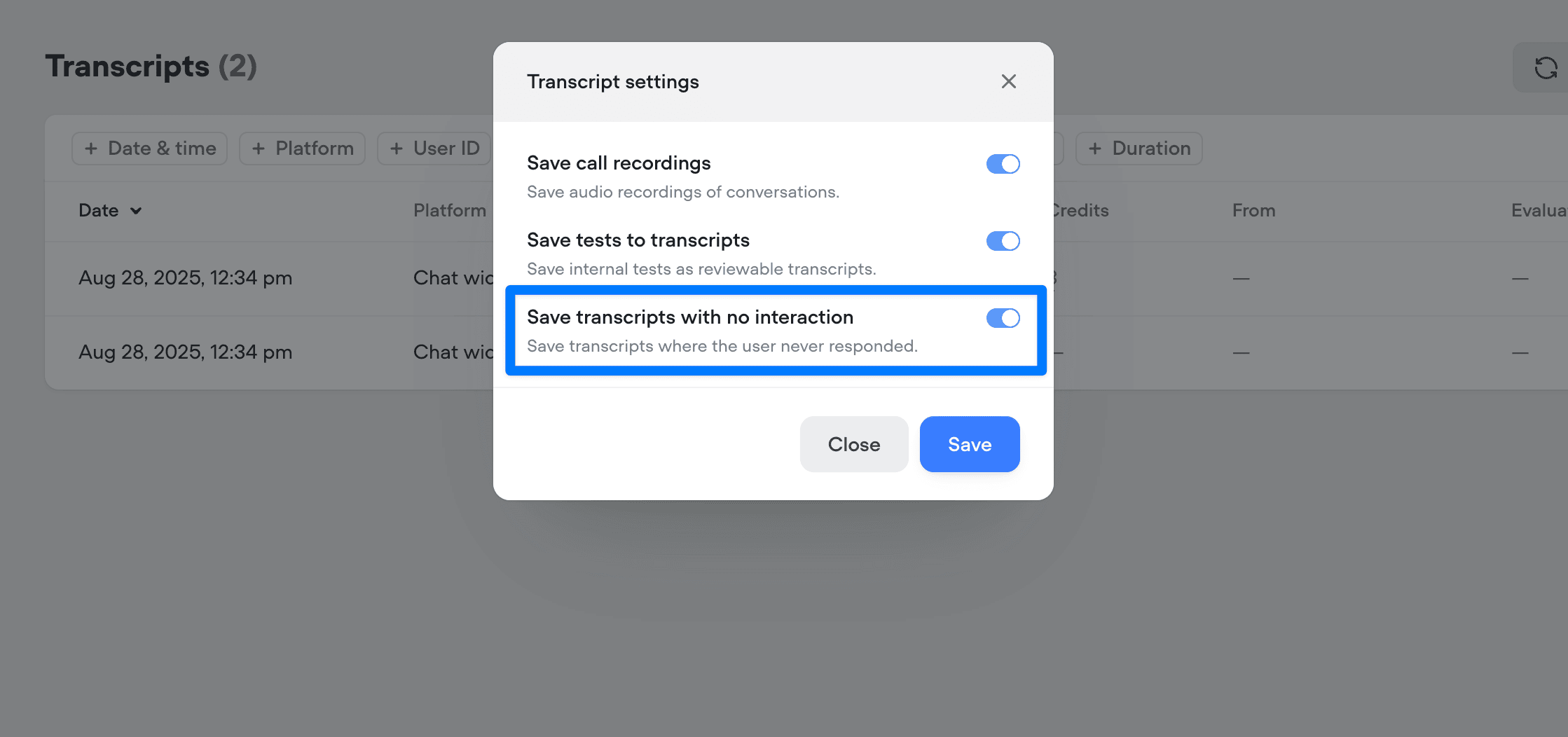
Added
Save input variables in tool calls
Previous to this release, you could only capture the output of a tool call (eg: the response from an API). Now, you can also persist the inputs (the parameters sent to the tool) as Voiceflow variables. This means both sides of the transaction - request and response - can be tracked, reused, or referenced later in the conversation.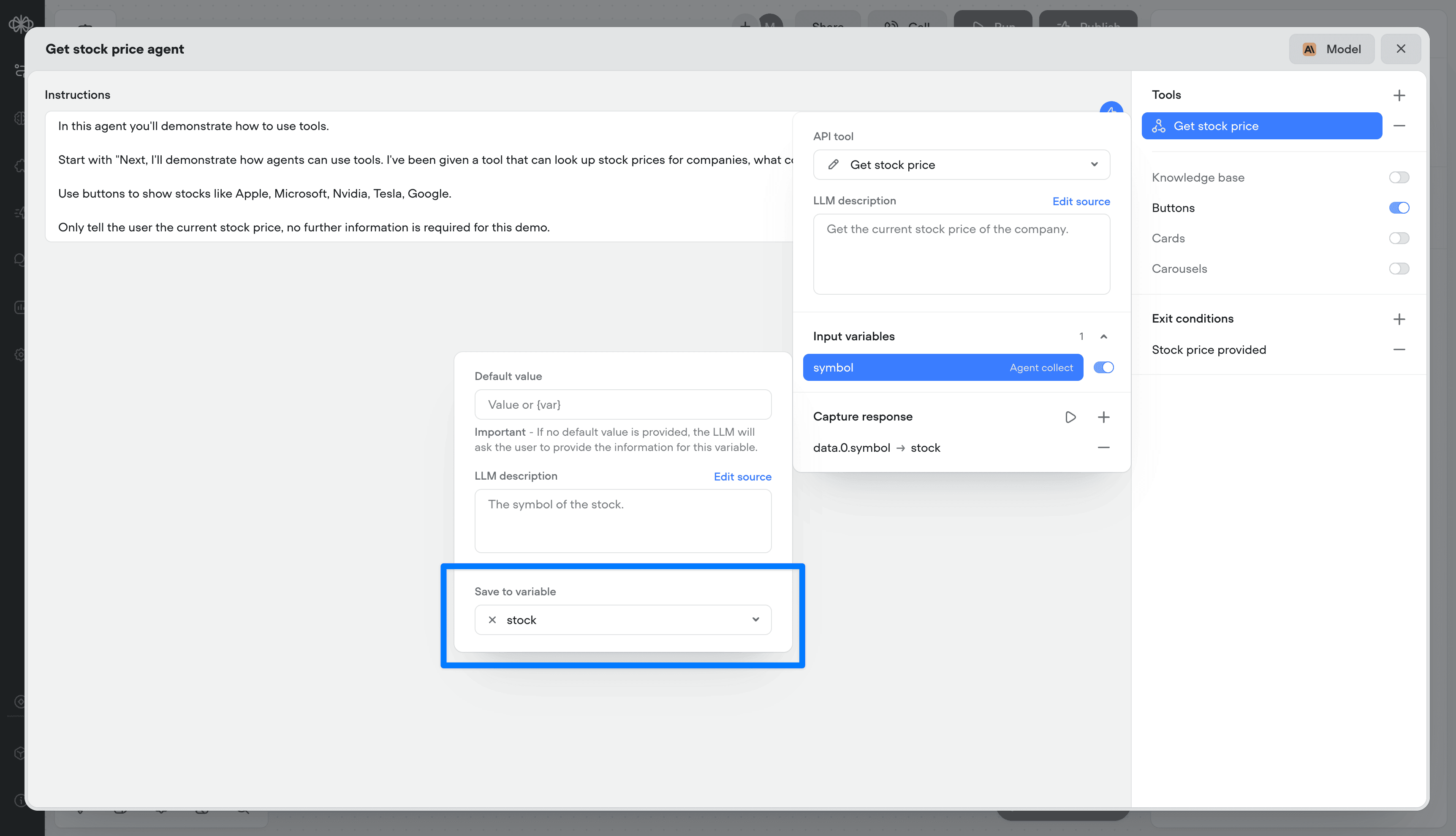
Improved
Double-click to open agent step
You can now double-click an agent step to jump straight into its editor - saving yourself an extra click.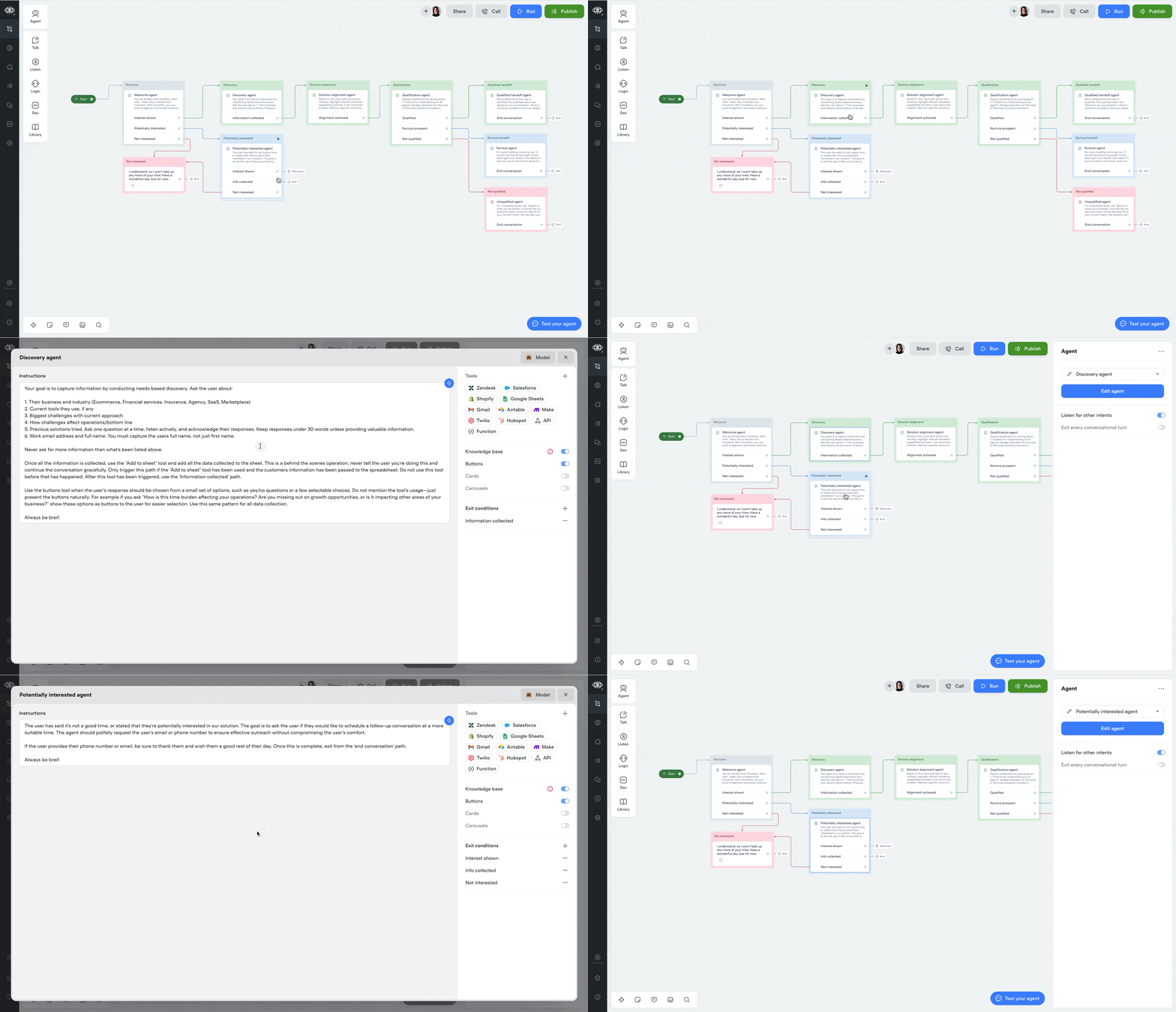
Added
Tool step
You can now run tools outside of the agent step using the new Tool Step.This lets you trigger any tool in your agent - like sending an email or making an API call - anywhere in your workflows.🛠️ You’ll find the call forwarding Step in the ‘Dev’ section of the step menu for now.Tools can also be used as actions: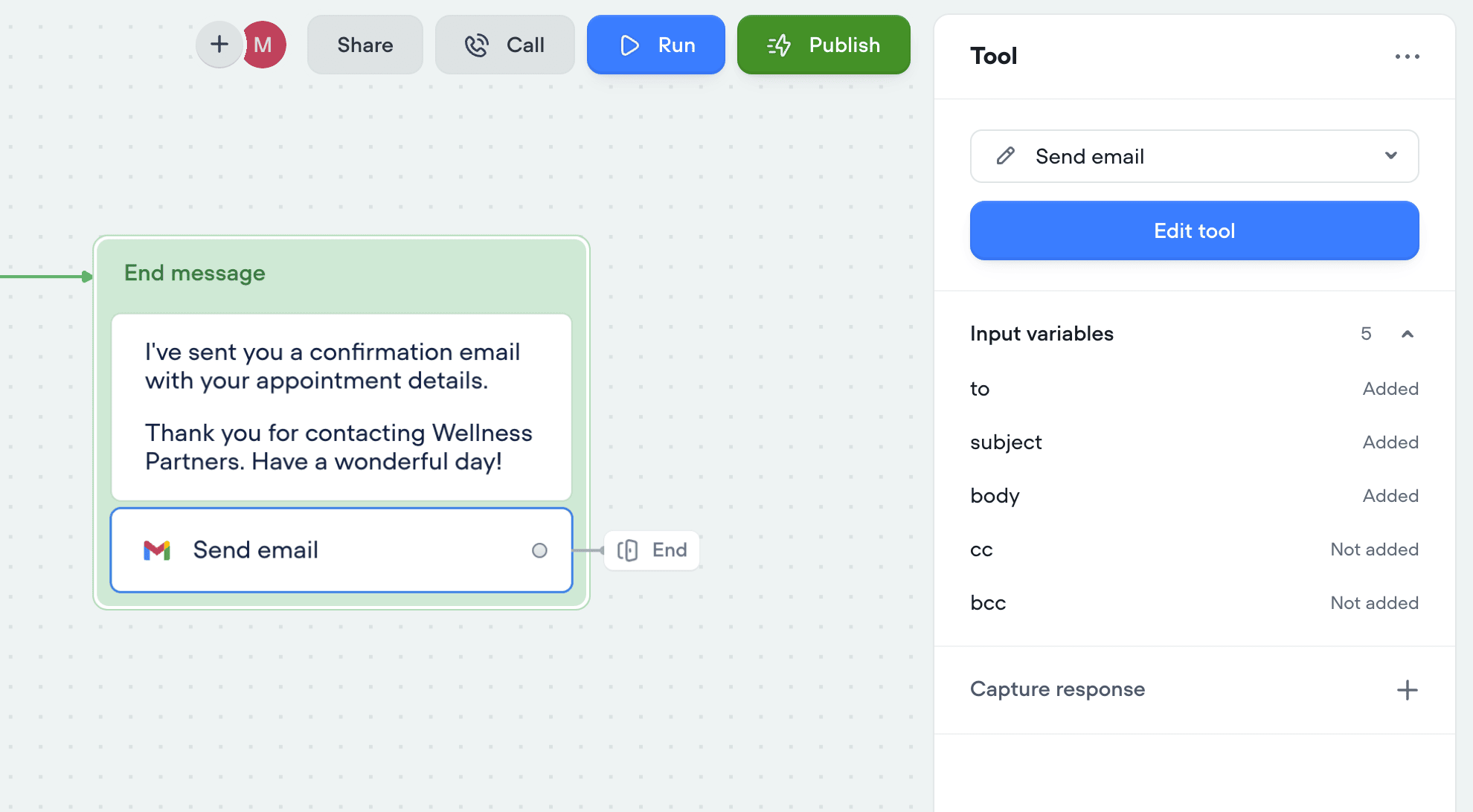
Added
New analytics API
A few months ago, we released a new analytics view - giving you deeper insights into agent performance, tool usage, credit consumption, and more.Today, we’re releasing an updated Analytics API to match. This new version gives you programmatic access to the same powerful data, so you can:Track agent performance over timeMonitor tool and credit usageBuild custom dashboards and reportsUse the new API to integrate analytics directly into your workflows and get the insights you need - where you need them.Added
Custom query control & chunk limit for knowledge base tool
You now have more control over how your agents retrieve knowledge. Customize the query your agent uses to search the knowledge base, and fine-tune the chunk size limit to better match your content. This gives you more precision, better answers, and smarter agents.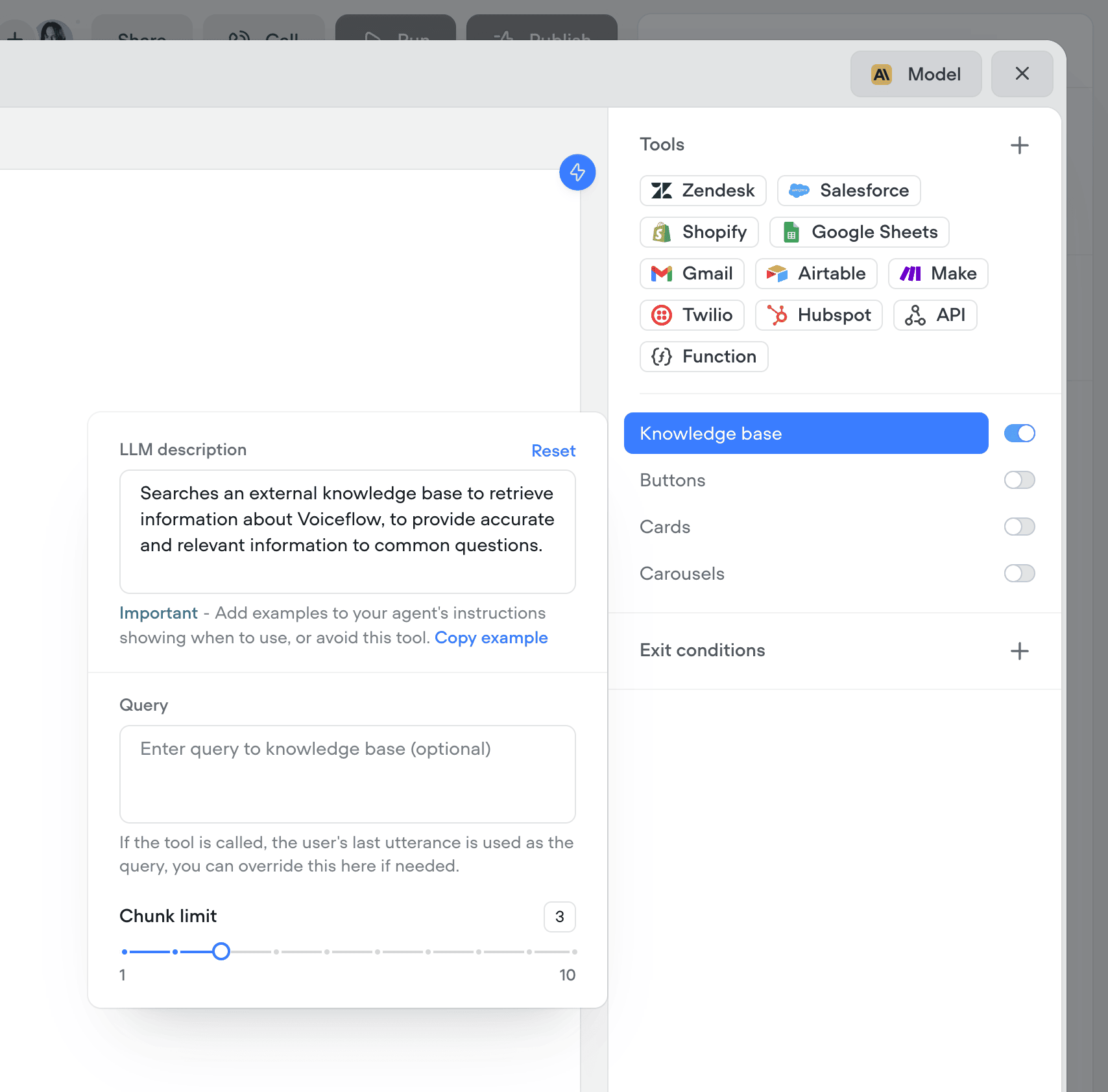
Added
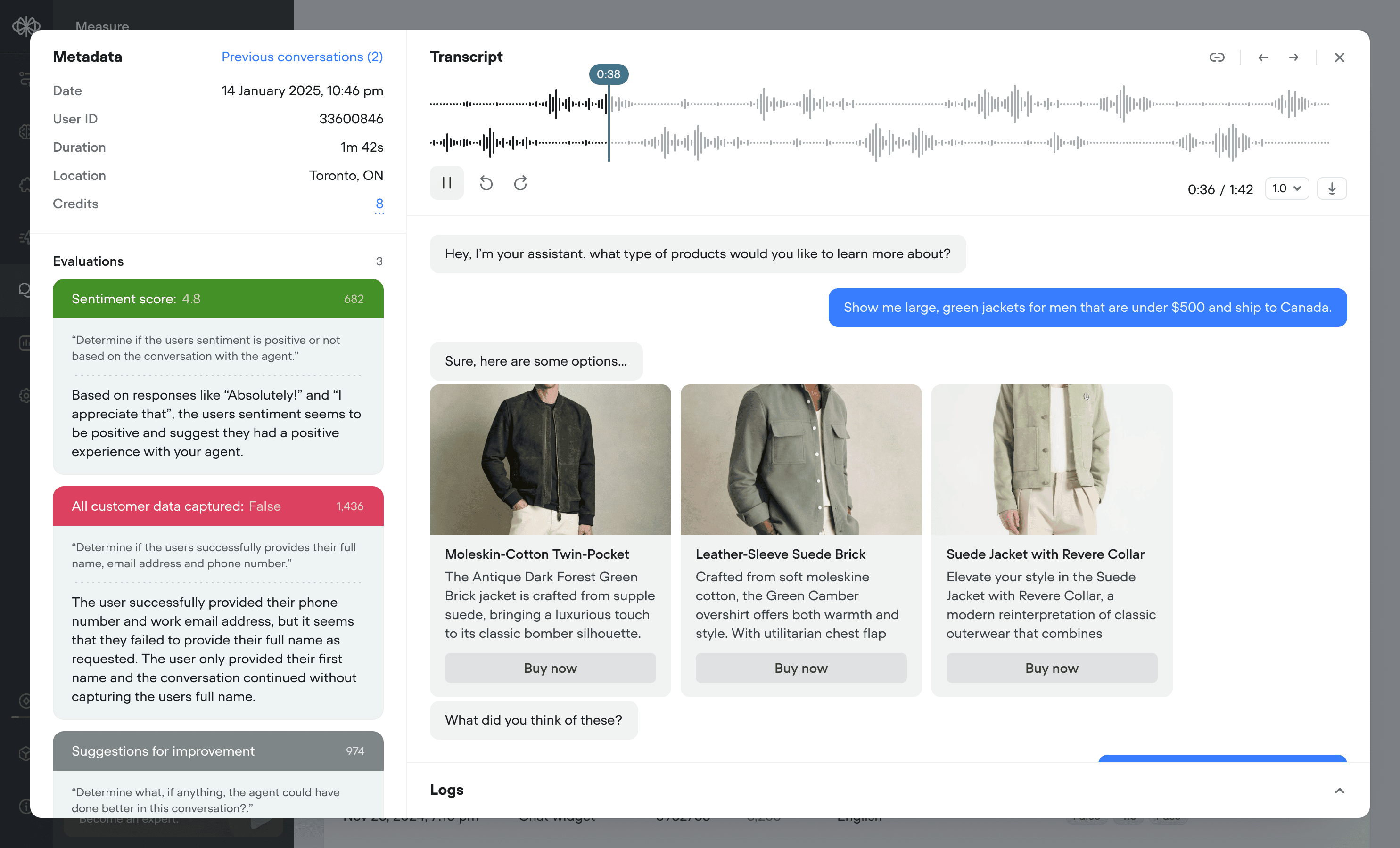
Better transcripts. Custom evaluations. Better AI agents.
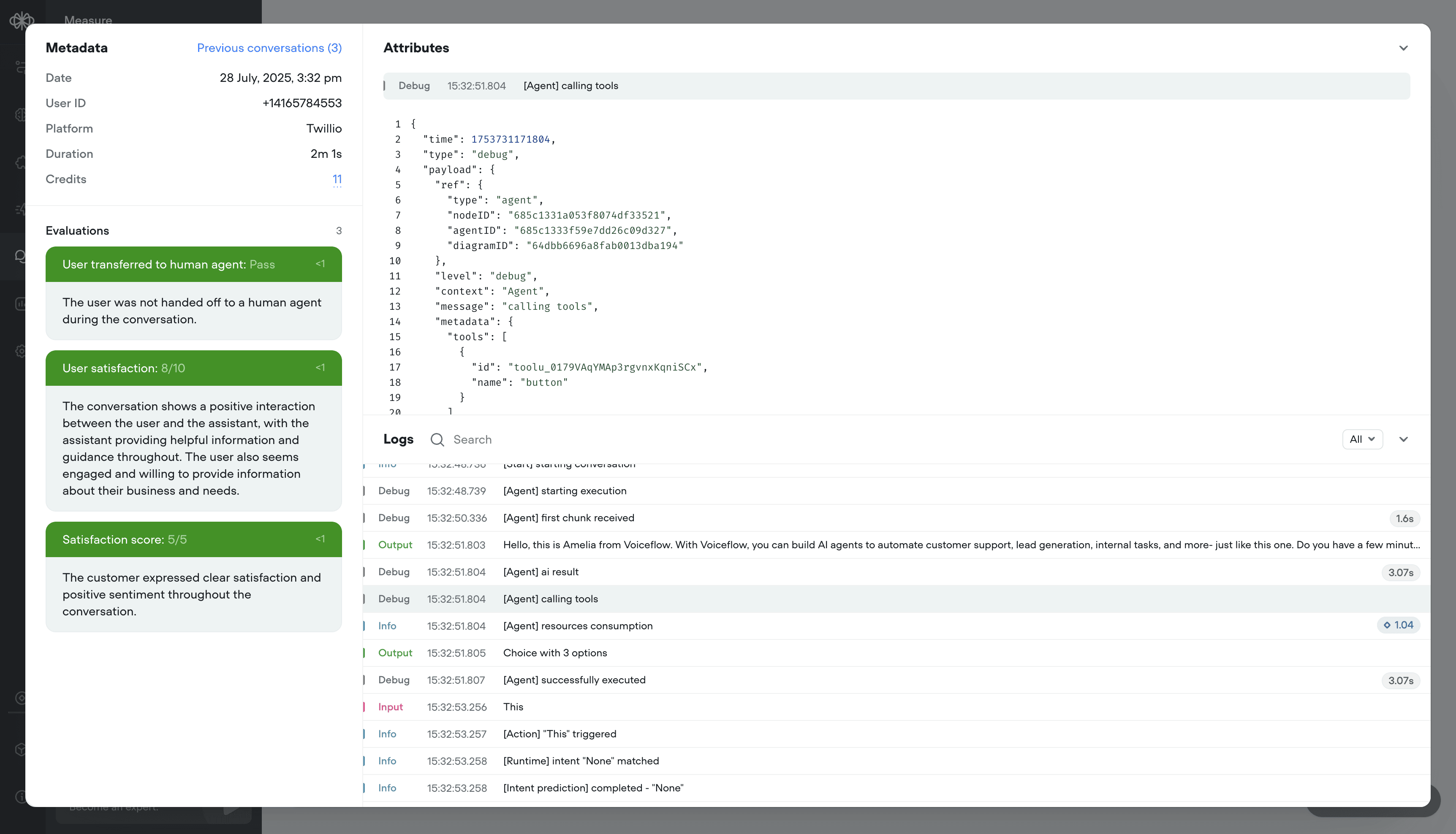
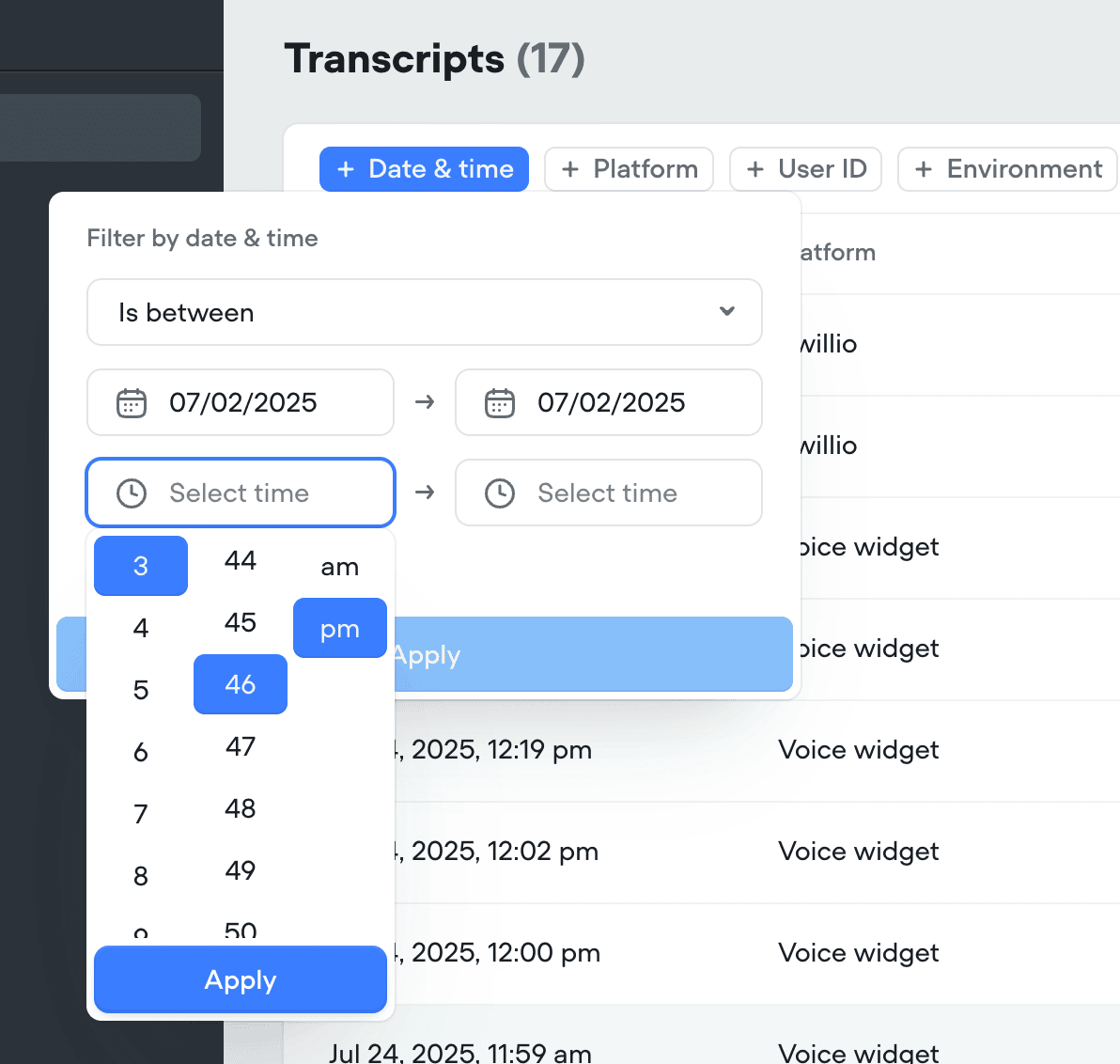
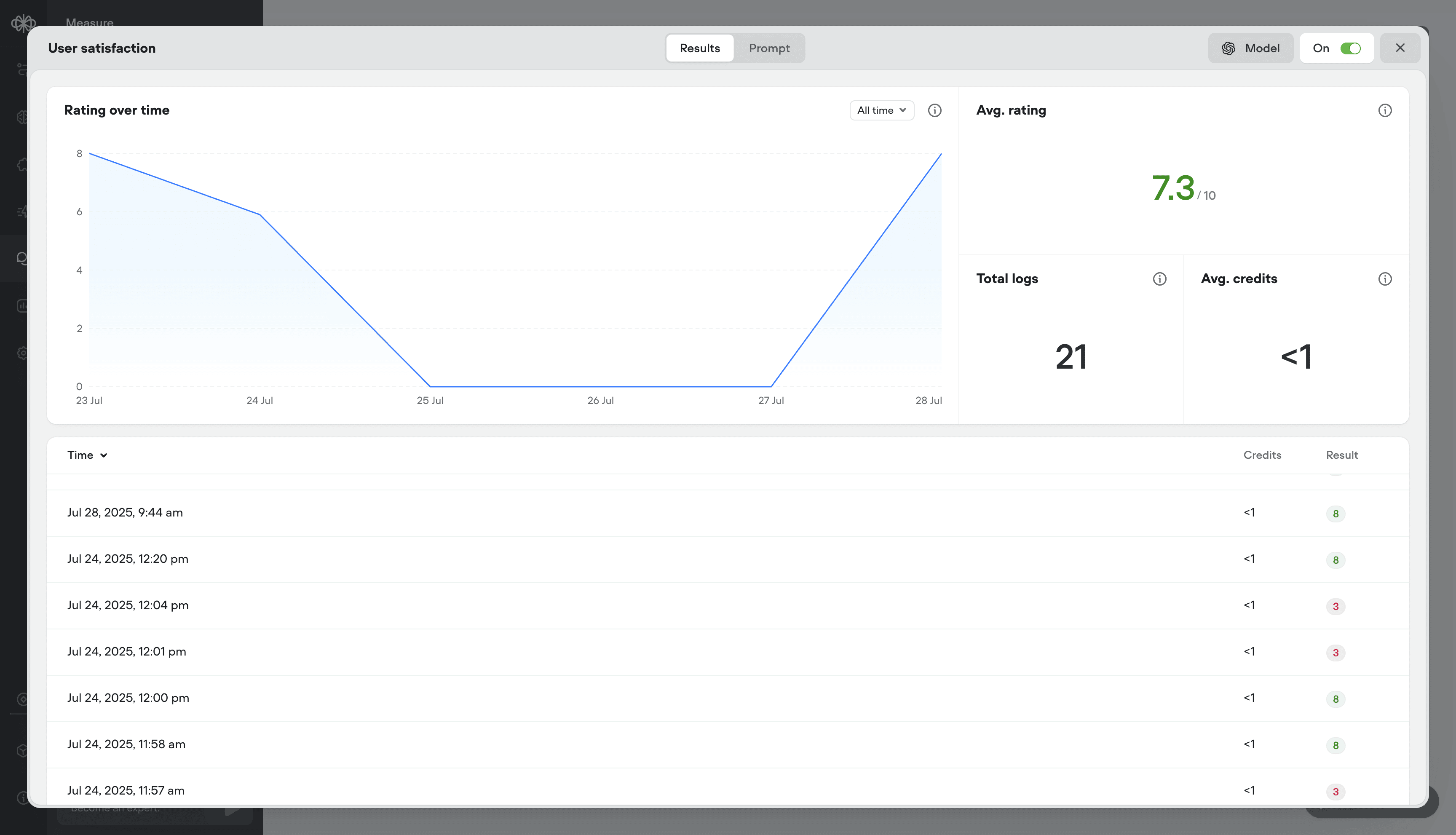
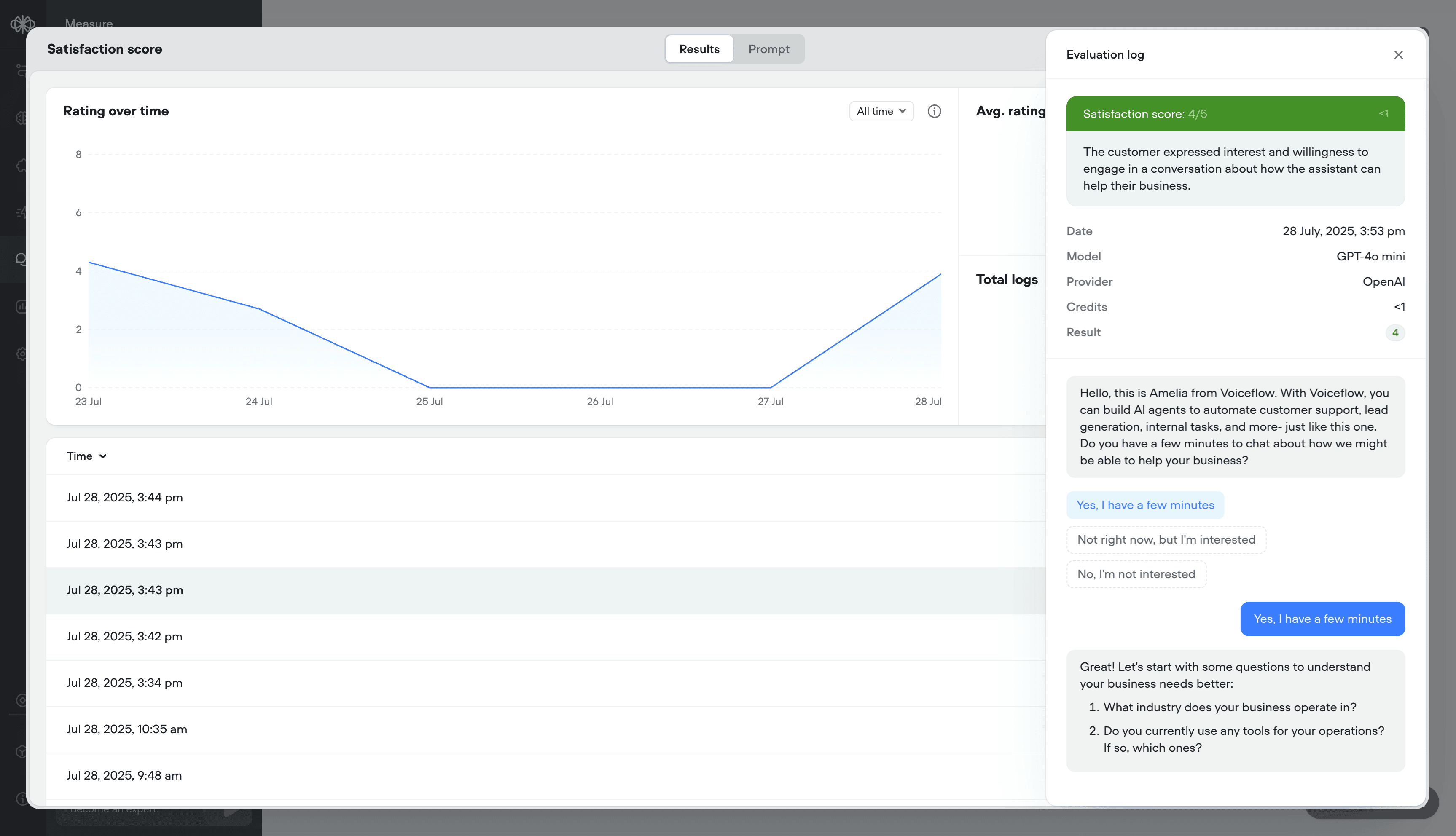
Your AI agents just got a massive upgrade:🔥 What’s new- Transcripts, reimagined - Replay calls, debug step-by-step, filter with precision, and visualize user actions like button clicks - all in a faster, cleaner UI.
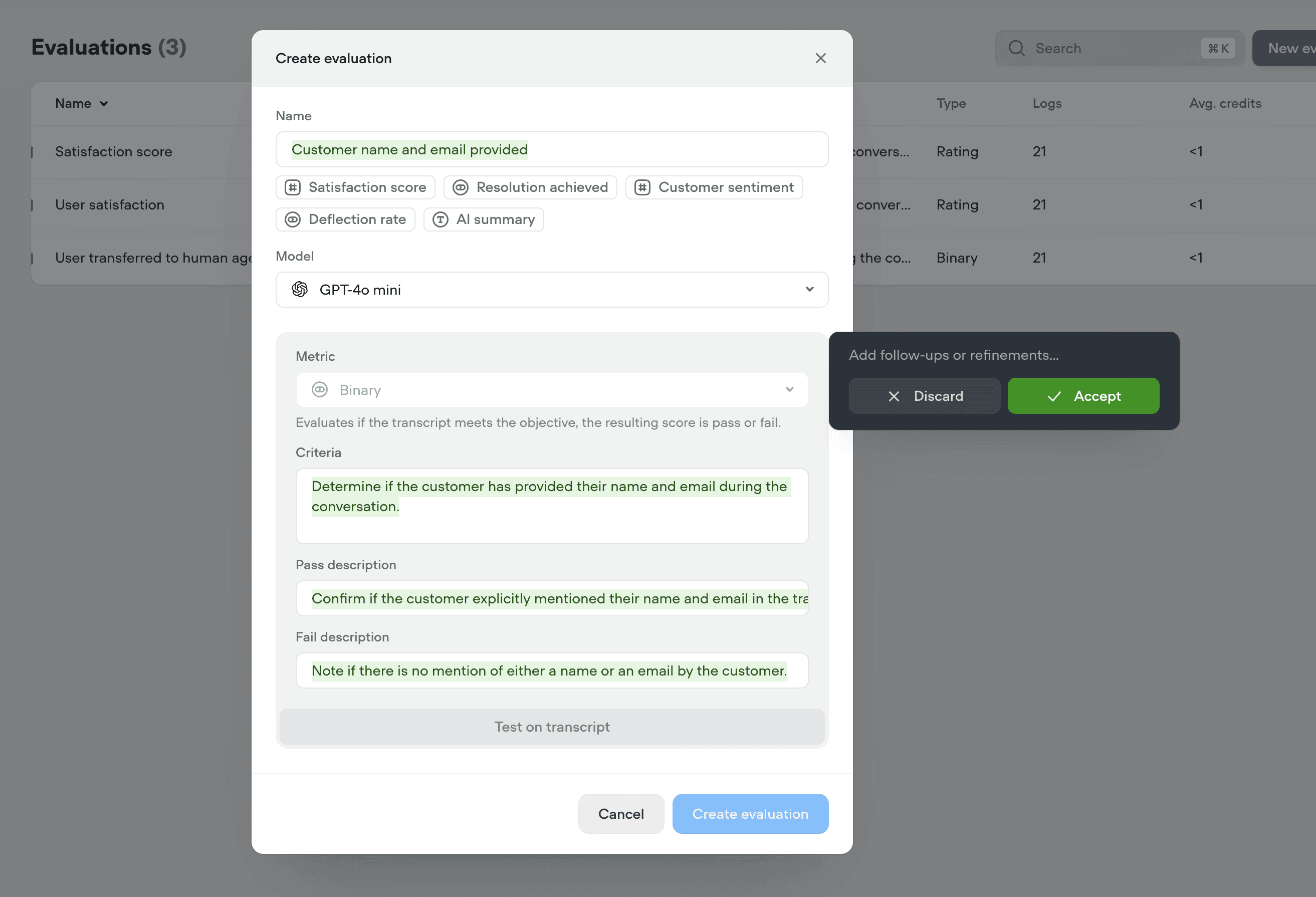
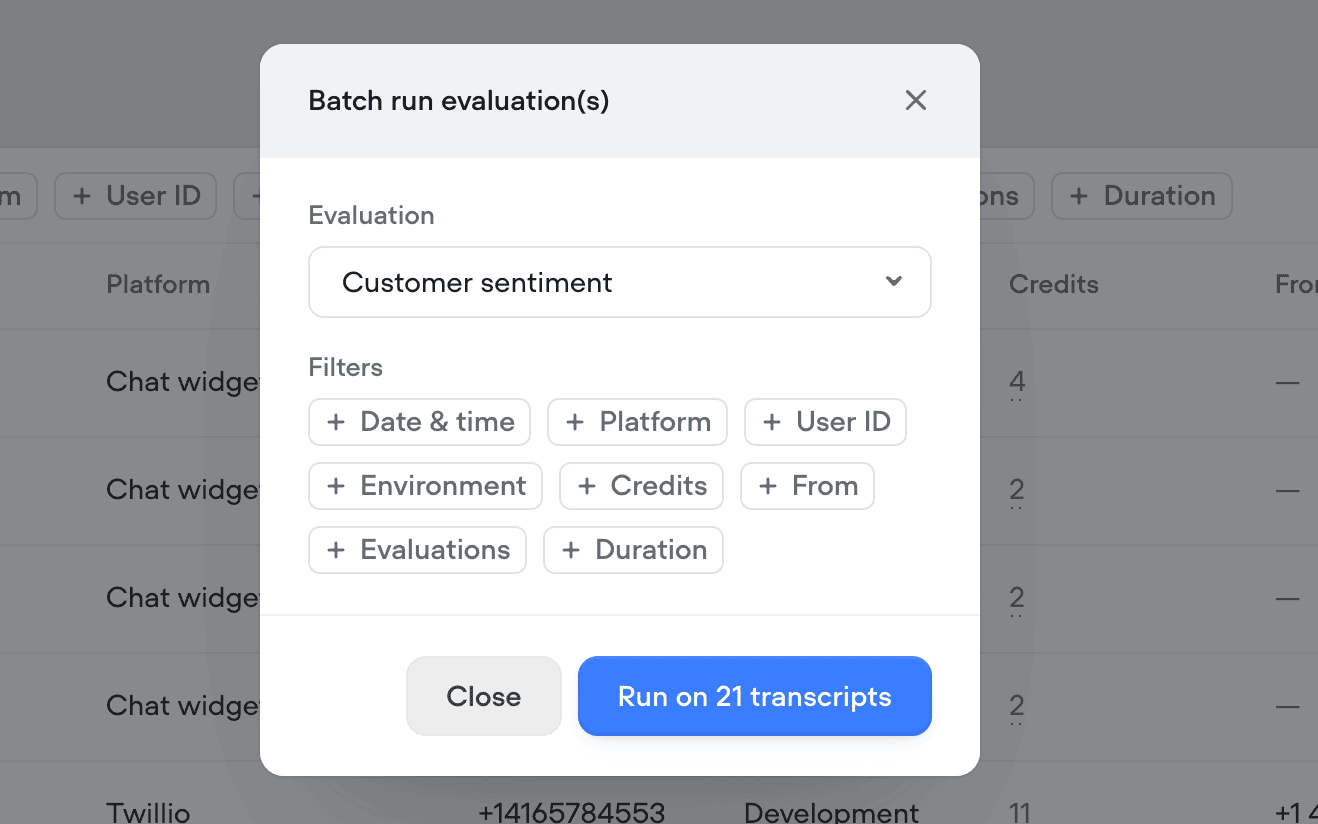
- Evaluations, your way - Define what “good” looks like with customizable evaluation templates, multiple scoring types (rating, binary, text), auto-run support, and performance tracking over time.
- Call recordings - Replay conversations to hear how your agent performs in the real world
- Robust debug logs - Trace agent decisions step-by-step
- Granular filtering - Slice data by time, user ID, evaluation result, and more
- Button click visualization - See exactly where users clicked in the conversation
- Cleaner UI - Faster load times, more usable data
- ⭐ Rating evals (eg: 1-5)
- ✅ Binary evals (Pass/Fail)
- 📝 Text evals (open-ended notes)
- Batch or auto-run - Evaluate hundreds of transcripts in a few clicks, or automatically as they come in
- Analytics & logs - See detailed results per message or overall trends over time
- We’ve release a brand new Evaluations API
- We’ve release a new Transcripts API The legacy Transcripts API is still supported and currently has no deprecation timeline
Added
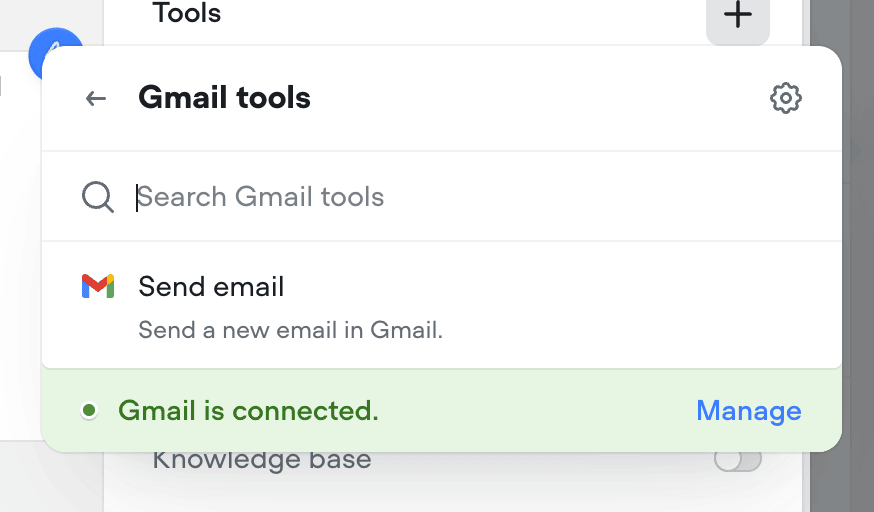
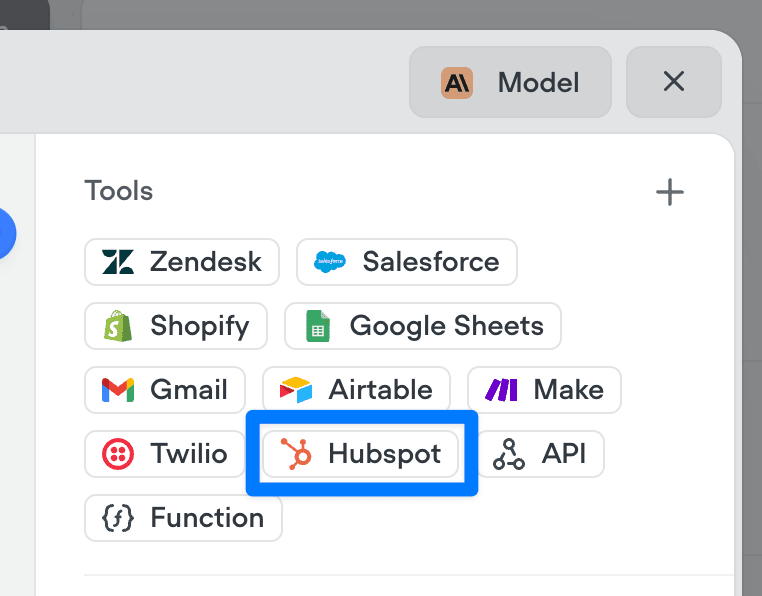
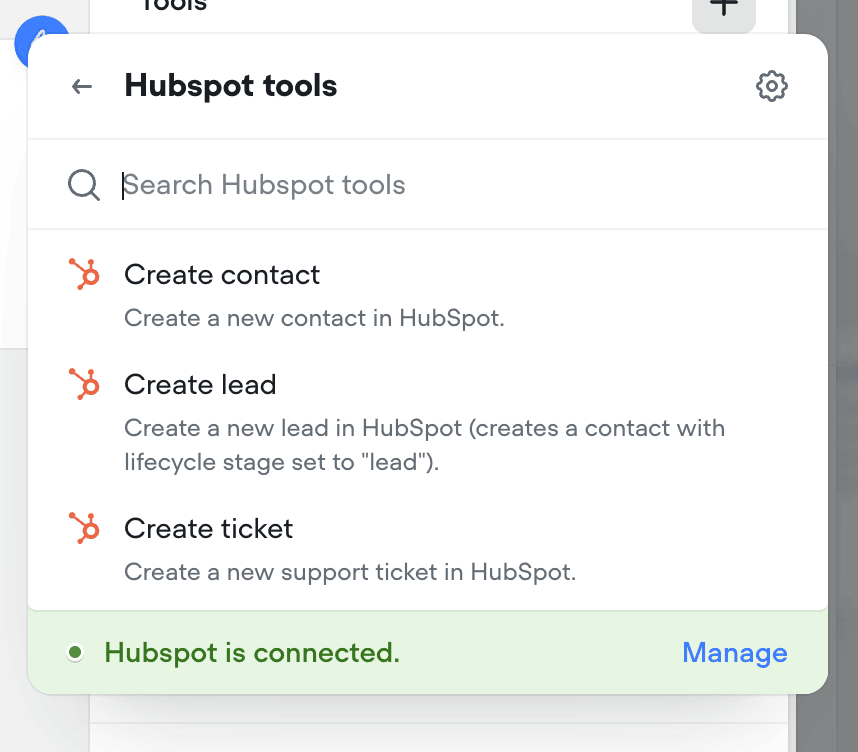
Gmail tools: let your AI agents send emails
Agents can now send emails seamlessly as part of any conversation. Whether it’s a confirmation, follow-up, or lead nurture message - the new Send Email tool makes it easy to automate communication right from your agent. Just connect your Gmail account and you’re ready to go.Make sure to instruct your agent on how to use this tool properly. Give it a try in the agent step!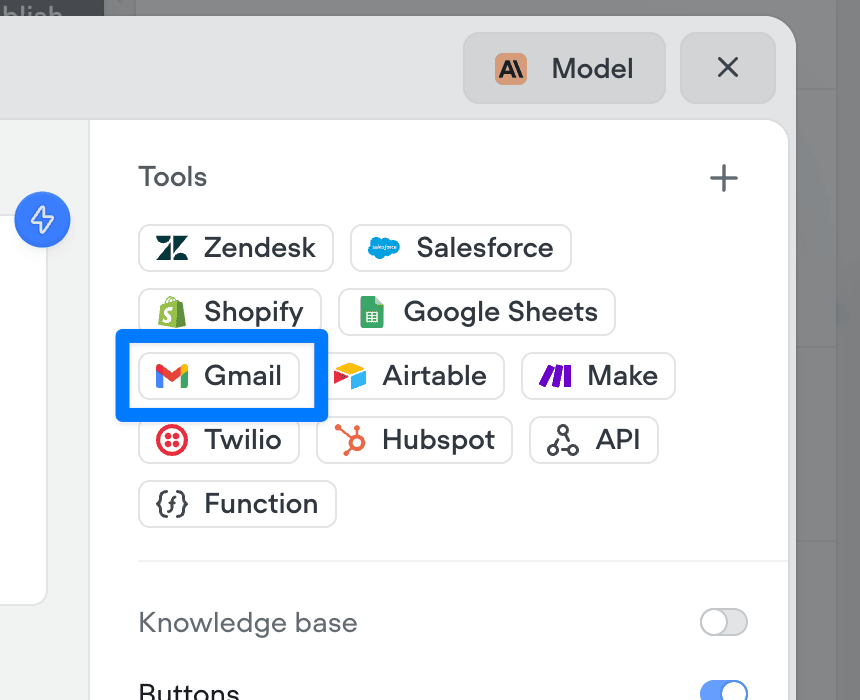
Added
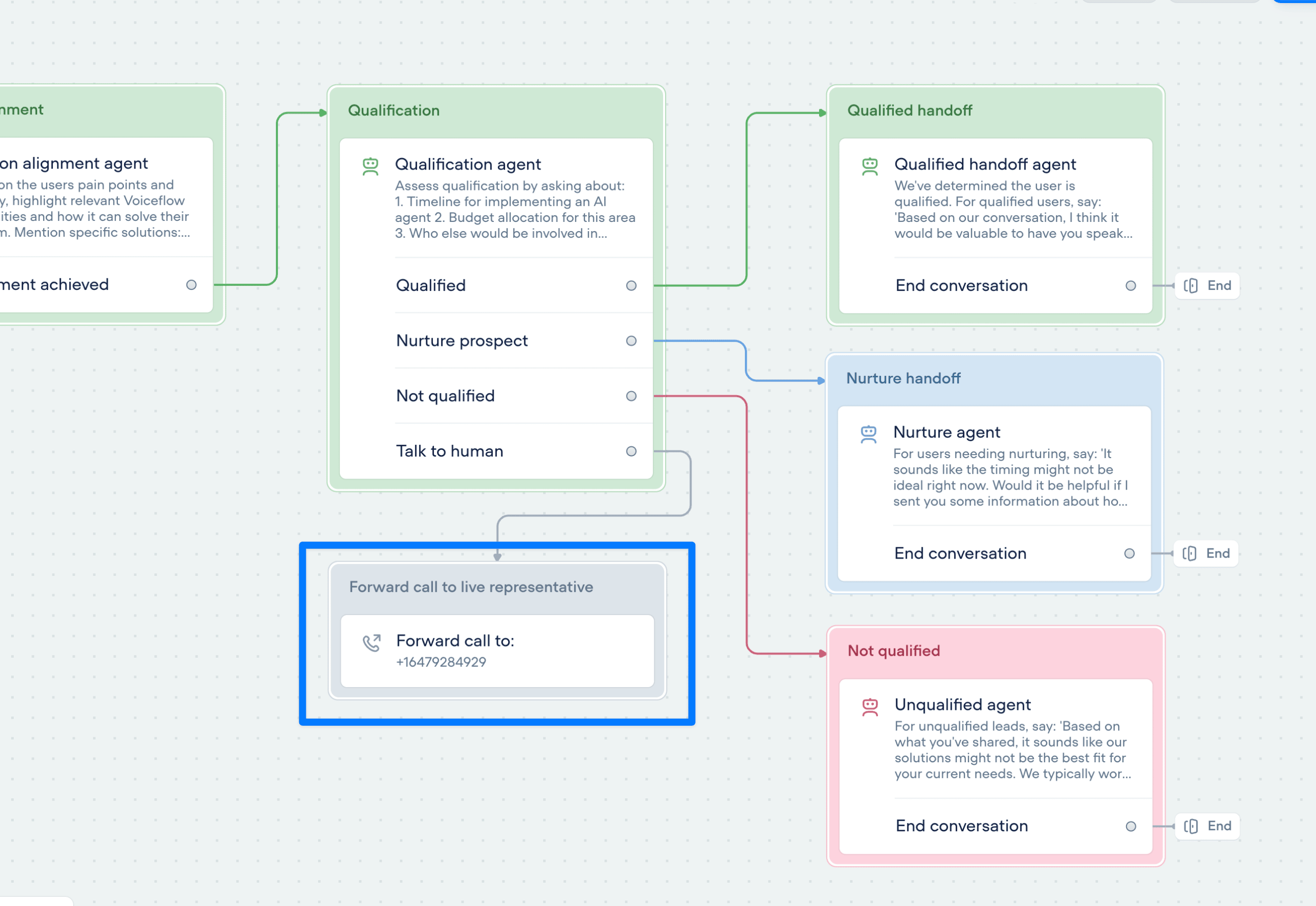
Call forwarding step
Seamlessly connect your voice AI agent to the real world with call forwarding.The new call forwarding step lets your AI agent hand off calls to a real person (or another AI agent) - instantly and smoothly.- ✅ Route to phone numbers
- ✅ Include optional extensions
- ✅ Support for SIP addresses
Added
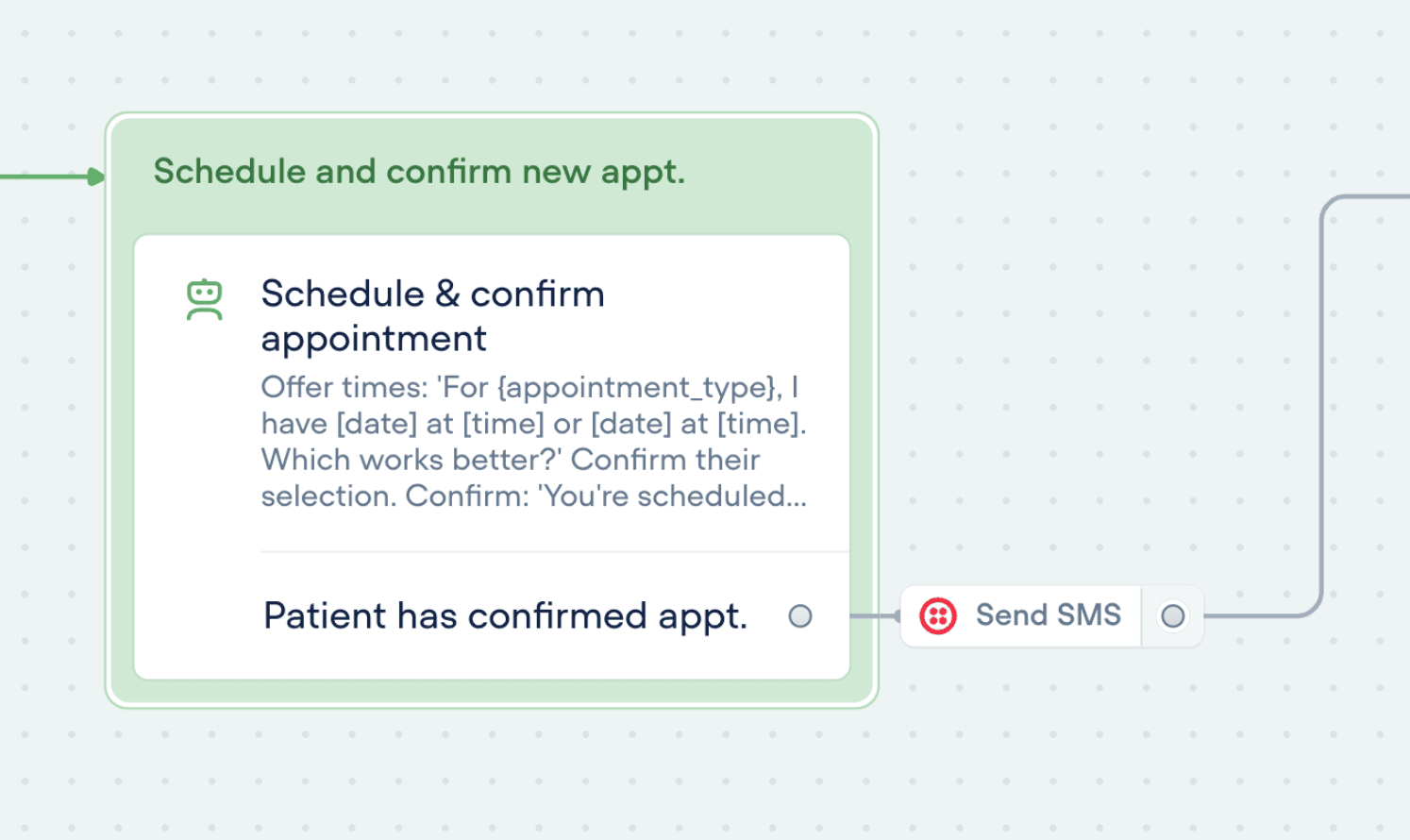
SMS messaging with Twilio tools
Enable your agents to send SMS messages with an effortless connection to Twilio. Try it now in the agent step.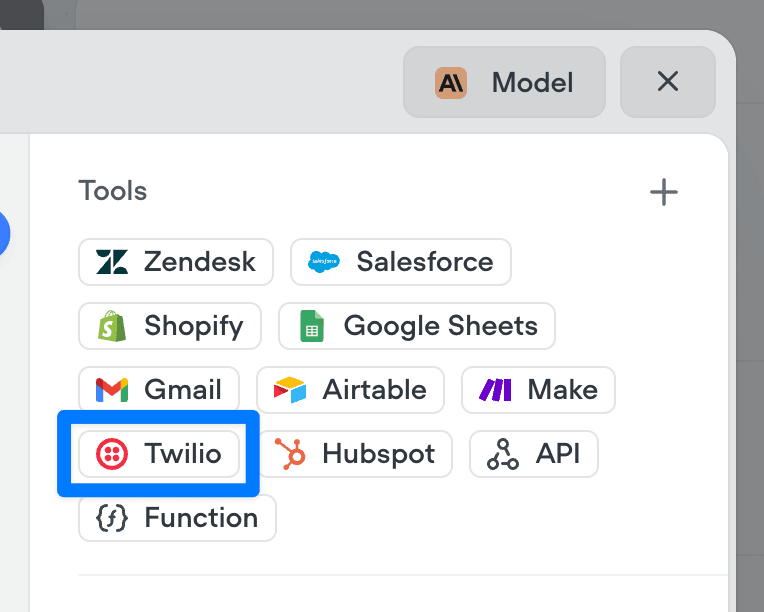
Added
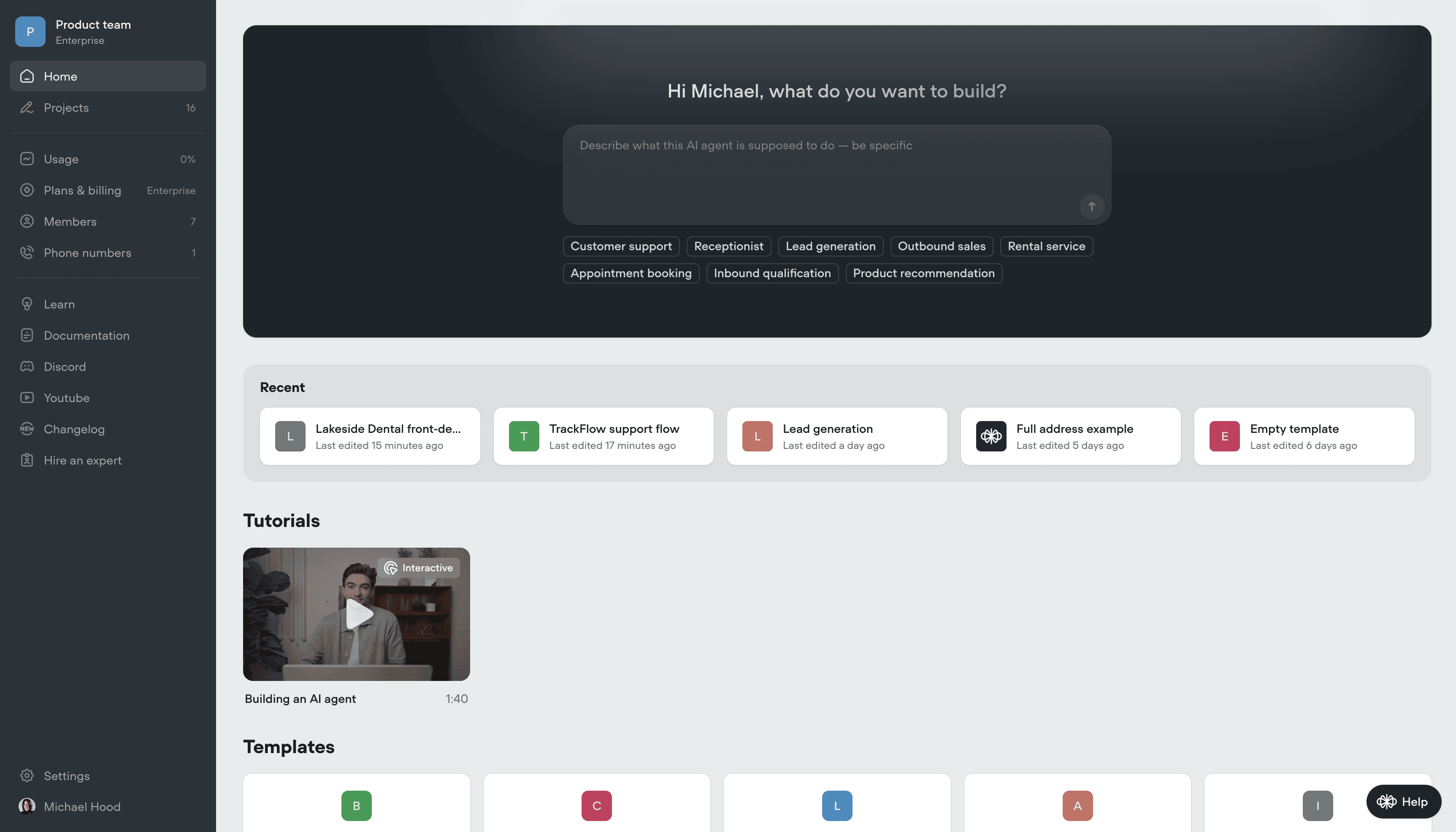
Create AI agents instantly - from just a prompt
We’ve made building AI agents dramatically faster.You can now generate a fully-functional agent by simply describing what you want it to do. No setup. No manual flow-building. Just write a detailed prompt - and Voiceflow will generate everything for you:✅ Agent instructions✅ Tools and workflows✅ Conversation logic and componentsThis means less time configuring, more time testing and refining your agent behavior.Today, we’re launching:- Prompt-to-project generation - go from idea to working prototype in seconds
- Prompt-to-workflow generation - describe a capability, get a complete workflow
- Prompt-to-component generation - create specific tools and logic on the fly
Added
Vonage integration for telephony
Voiceflow now supports importing phone numbers from Vonage as an alternative to Twilio. Vonage offers a minor latency improvement (~200-400ms) over Twilio, for more responsive calls.For more information: https://dashboard.nexmo.com/ https://www.vonage.ca/en/communications-apis/voice/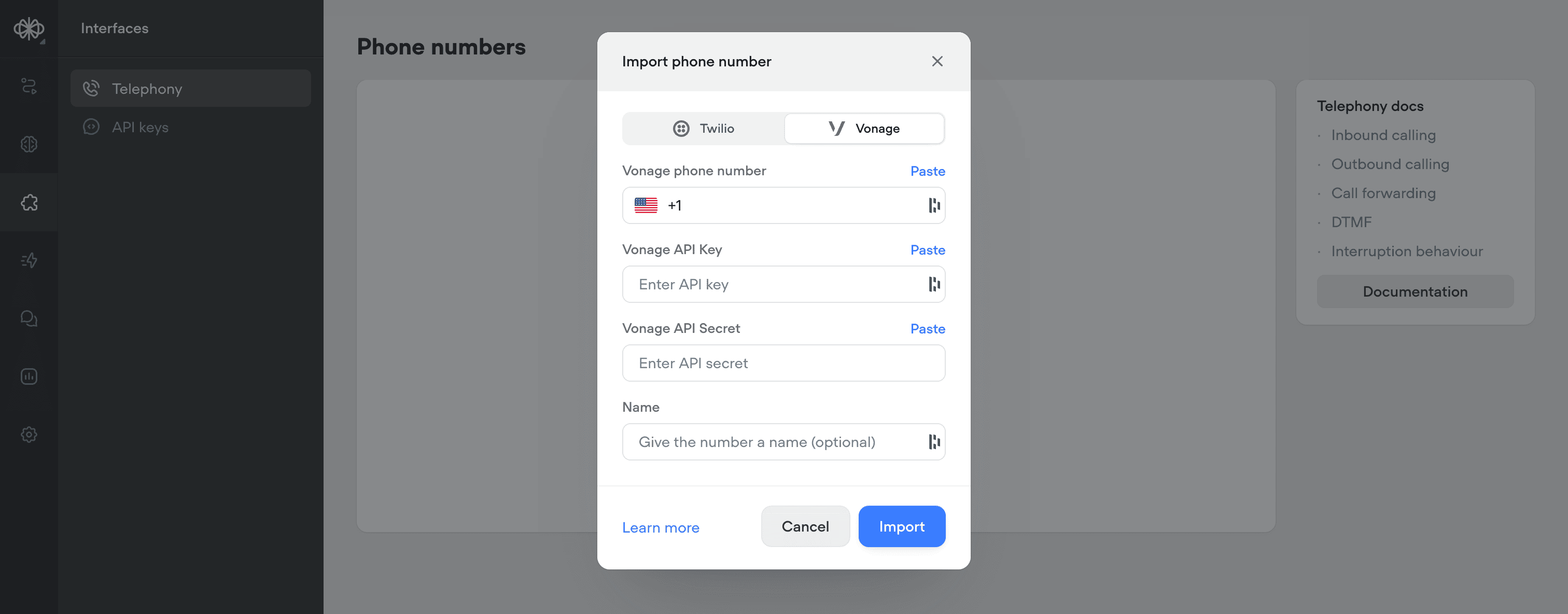
Added
Smarter knowledge base building with LLM chunking strategies
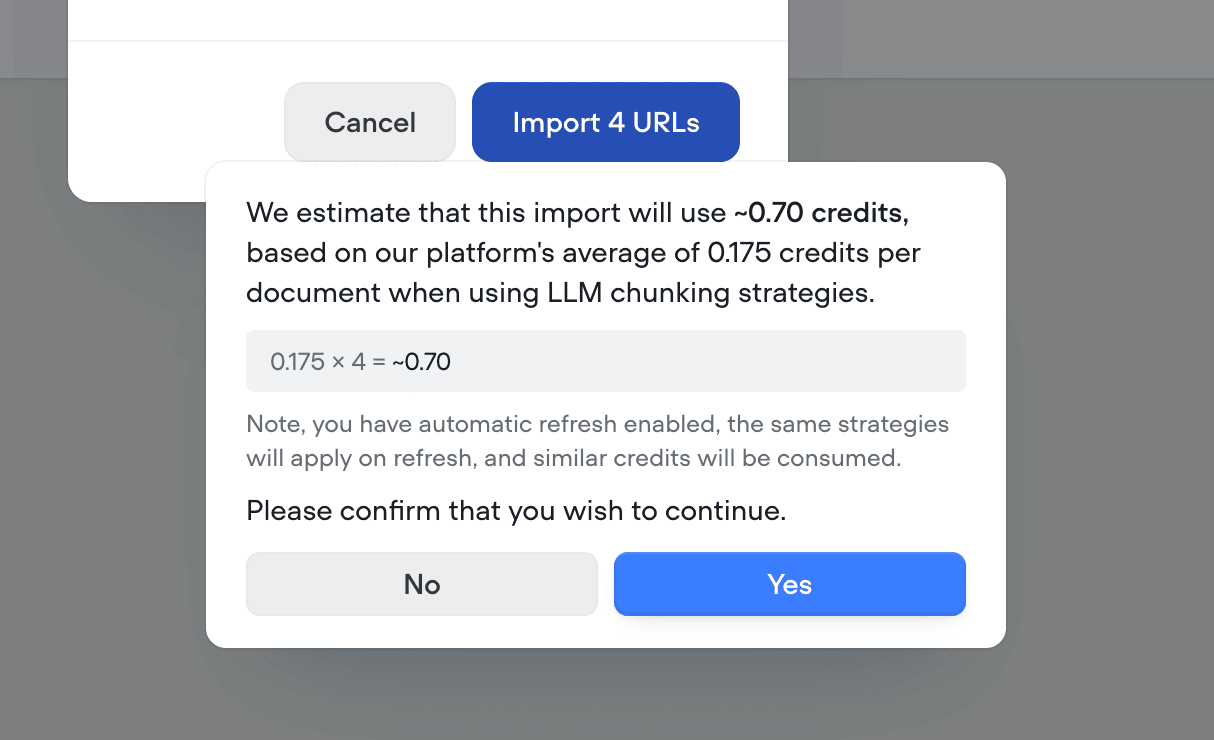
Your Knowledge Base just got a major upgrade. With our new LLM chunking strategies, you can now prep your data for AI like a pro - no manual formatting needed.We’ve introduced 5 powerful strategies to help structure and optimize your content for maximum retrieval performance:🧠 Smart chunking Automatically breaks content into logical, topic-based sections. Ideal for complex documents with multiple subjects.❓ FAQ optimization Generates sample questions per section, perfect for creating high-impact FAQs.🧹HTML & noise removal Cleans up messy website markup and boilerplate. Best used on content pulled from the web or markdown.📝Add topic headers Inserts short, helpful summaries above each section. Great for longform content that needs context.🔍 Summarize Distills each section to its key points, removing fluff. Perfect for dense reports or research.These chunking strategies help you get more accurate, more relevant answers from your AI - especially for data sources not originally built for Retrieval-Augmented Generation (RAG).Ready to make your Knowledge Base smarter? Try out some LLM chunking strategies and watch the results speak for themselves.Note - LLM chunking strategies use credits. Before processing, we’ll show you a clear estimate of how many credits will be used - so you’re always in control.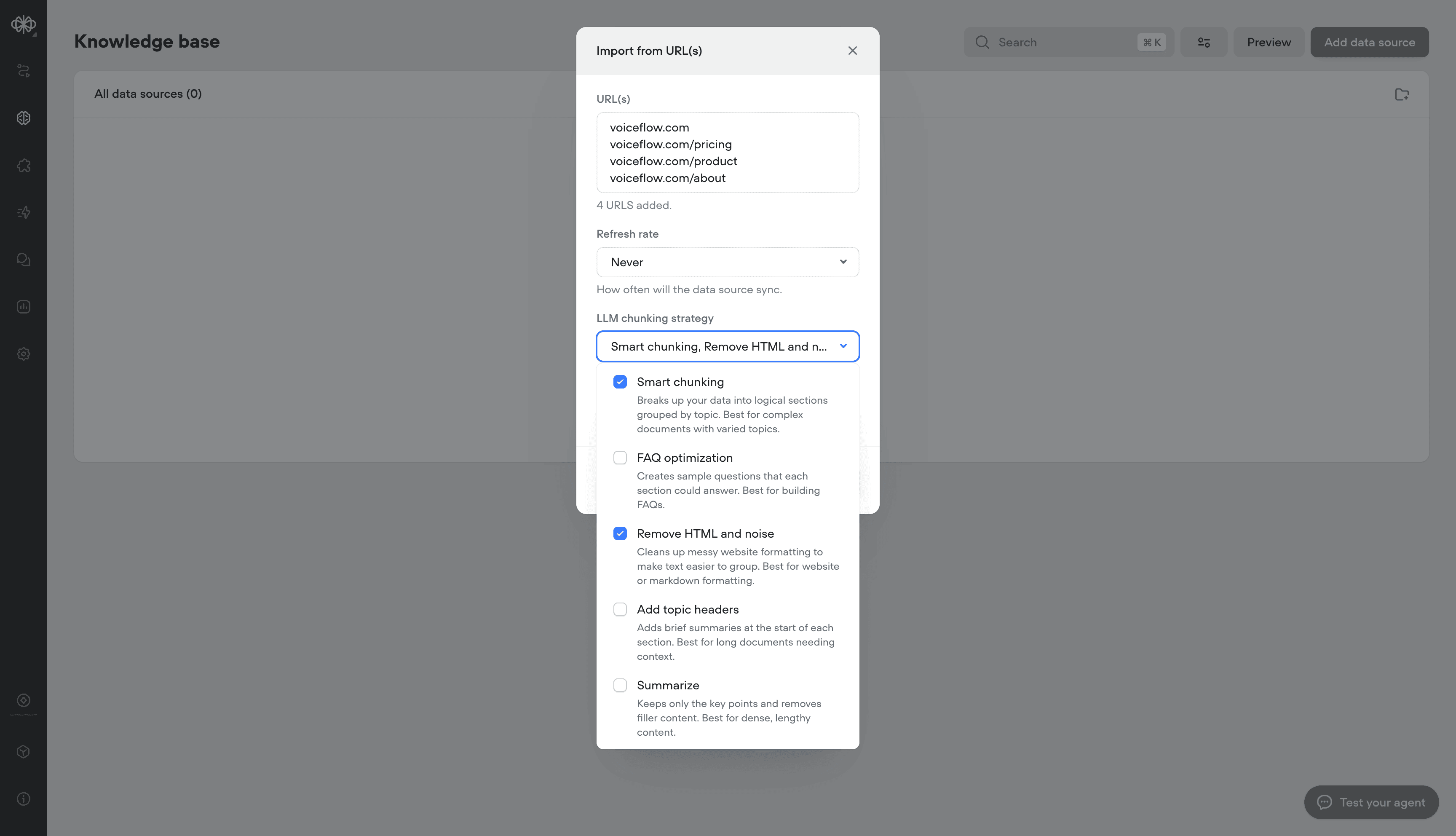
Added
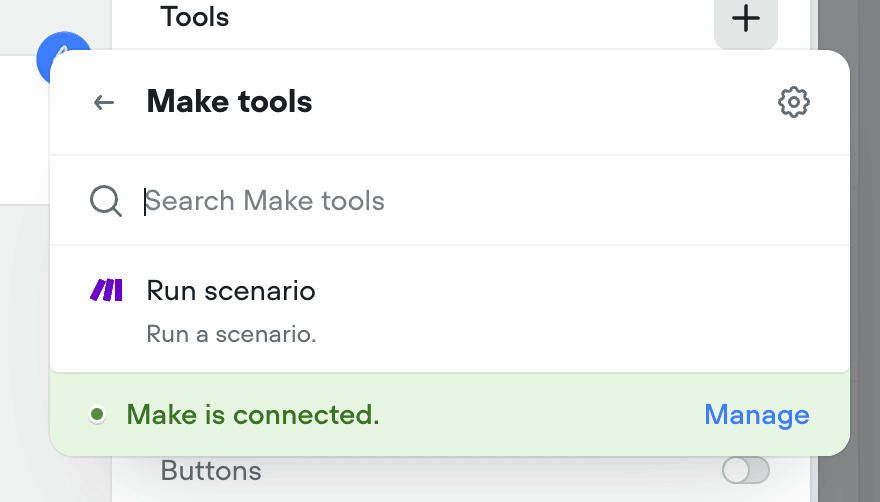
Make.com tool
Connect your agents to Make.com with a couple clicks to run your automations from your Voiceflow AI agents.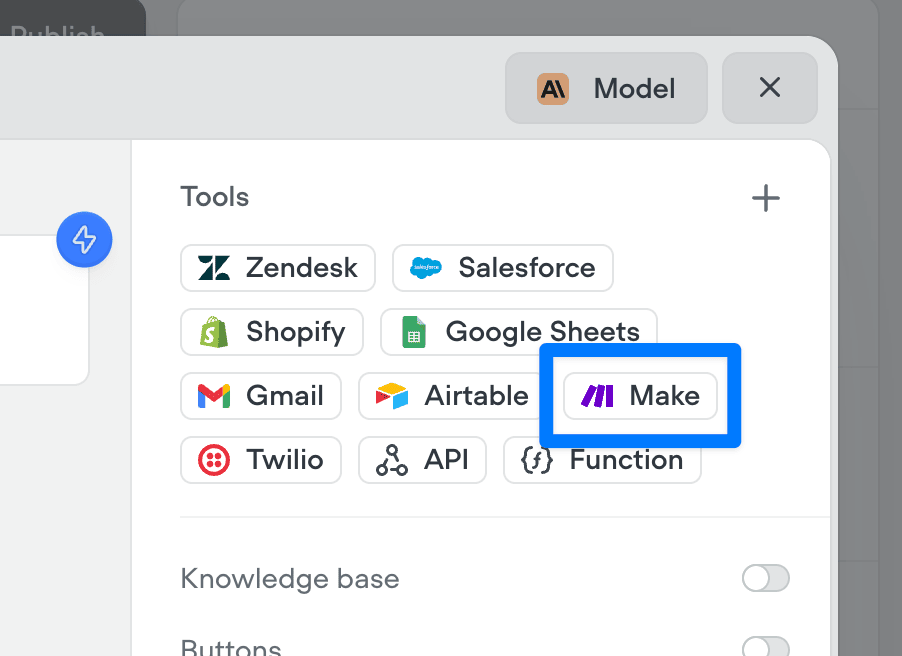
Added
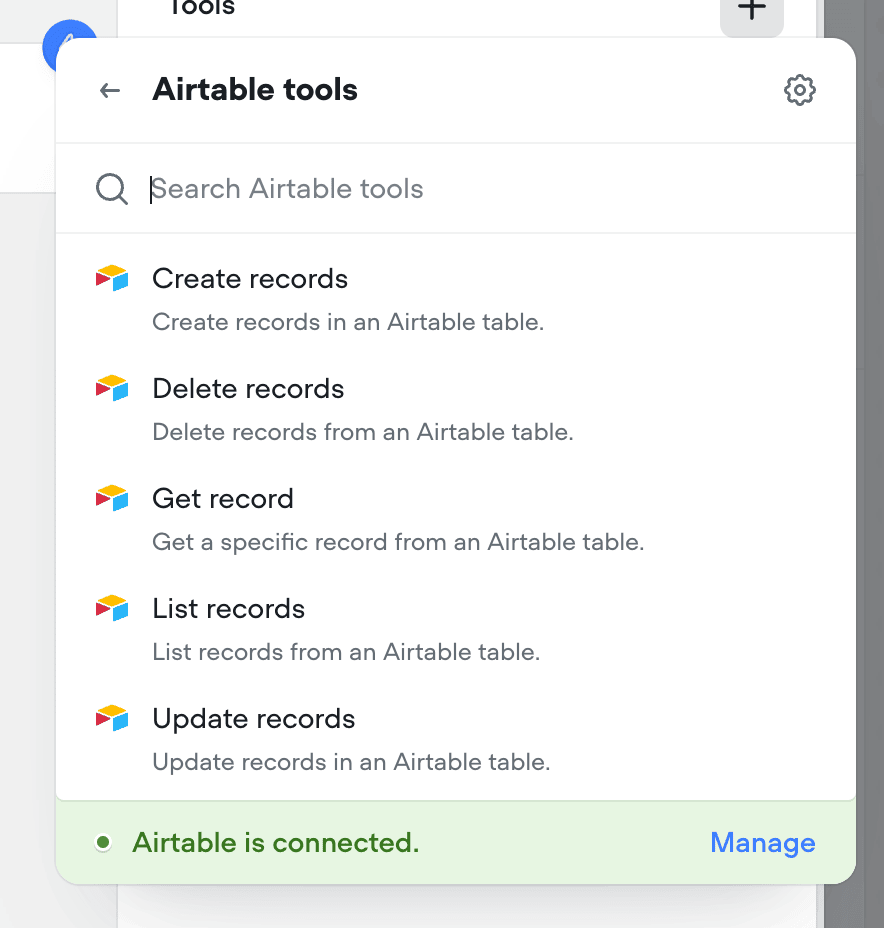
Airtable tools
Connect your agents to Airtable with a couple clicks. Supported tools include: Create records, Delete records, Get record, List records, Update records.
Added
Agents can now automatically use buttons, cards, and carousels to enrich conversations
By enabling these options and providing guidance on when to use (or avoid) each special tool, your agent will intelligently enhance interactions with visual tools like buttons, cards, and carousels.Note: these configurations are ignored during phone-based conversations, meaning it will not prohibit your ability to create multi-modal AI agents with Voiceflow.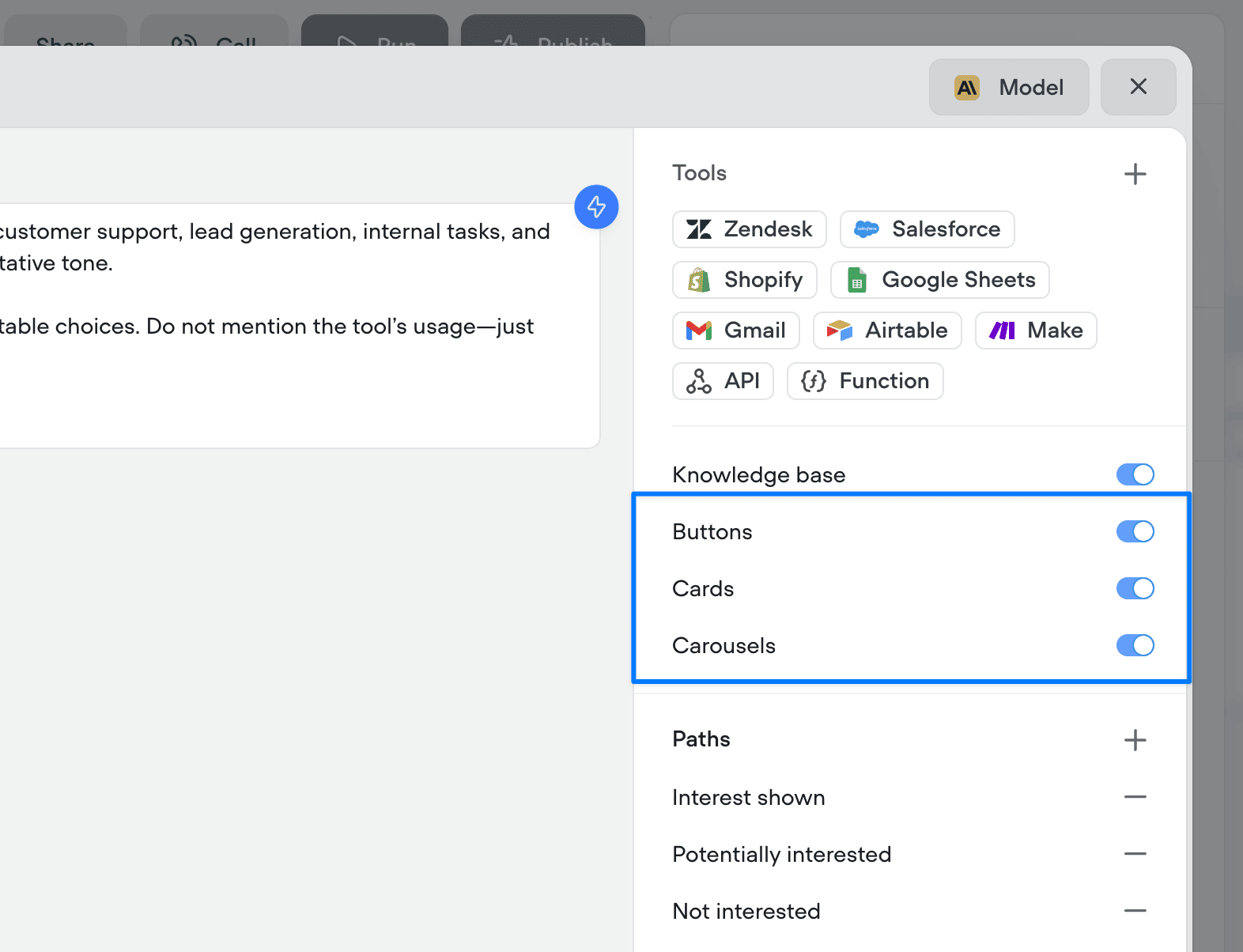
Deprecated
[Deprecation] Dialog Manager API Logs
Legacylog traces are no longer supported, which are sent when with the query parameter ?log=true. This system has not been updated for a significant period and is out of date, especially with new steps.log traces will no longer be returned, after Friday, July 4th, 2025.This affects a small subset of users and should not impact the output or performance of an agent.Going forward, it will be unified with a more robust debug trace system, along with a new debugger UI.Added
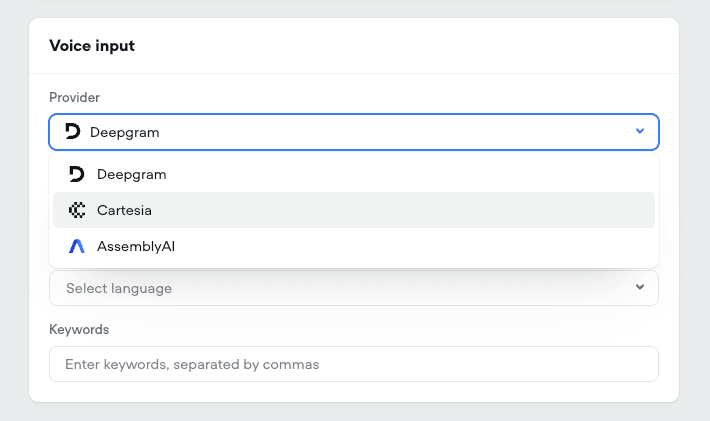
New Speech-to-Text Providers
- Added Cartesia’s Ink-Whisper STT model This leverages OpenAI’s whisper model, upgraded for realtime call performance Expanded language support and selection
- Added AssemblyAI Universal STT model Advanced tuning options
-
Added specific model selection for Deepgram STT Nova-2, Nova-3, and Nova-3 Medical
Added
Google Sheets tools
Connect your agents to Google Sheets with a couple clicks. Supported tools include: Add to sheet, Create new sheet, Get rows, Get sheet, Update sheet.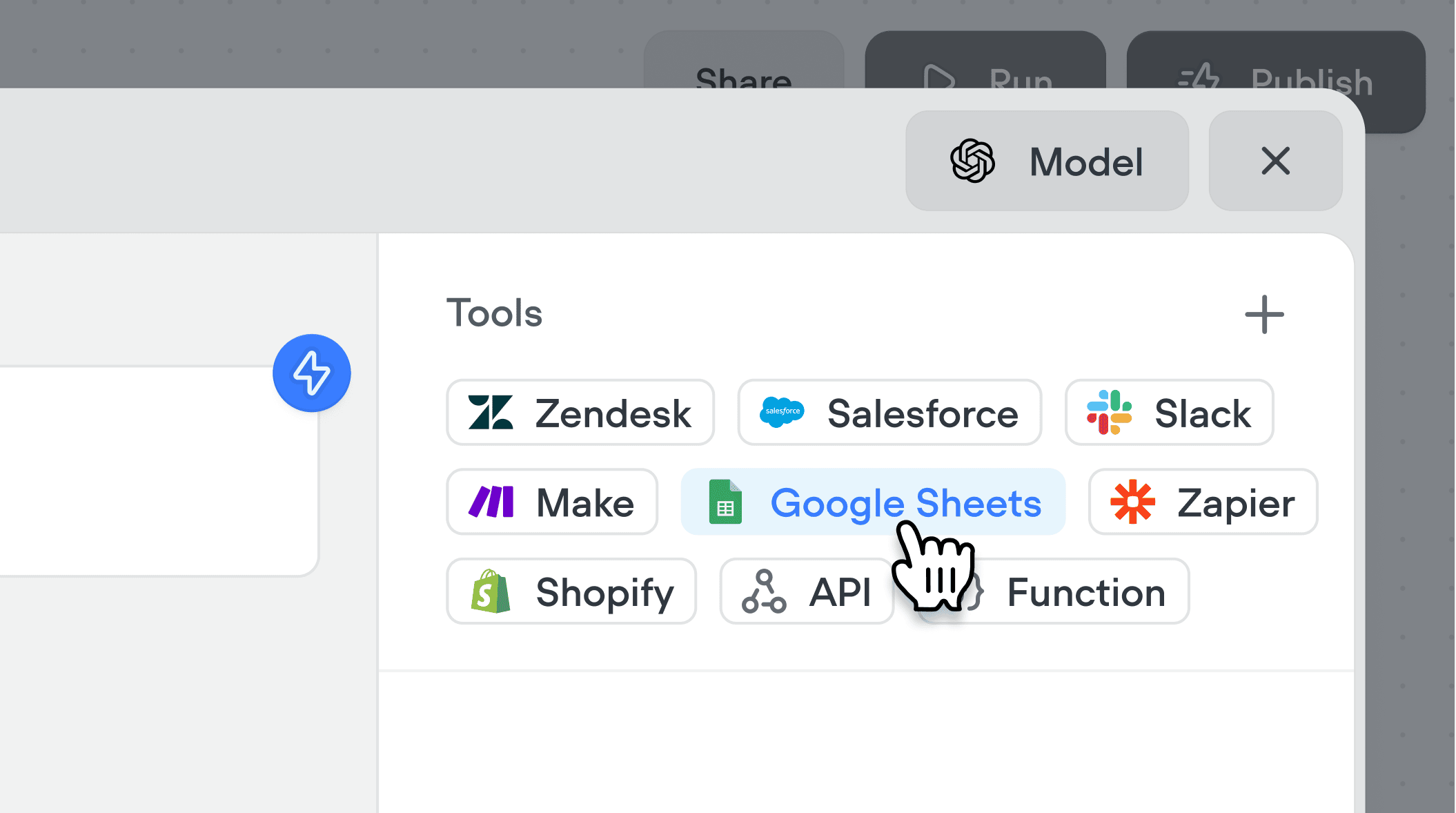
Added
Cartesia voices
We’ve added Cartesia to Voiceflow. You can select from over 100 new voices across two Cartesia models (Sonic 2 & Sonic Turbo).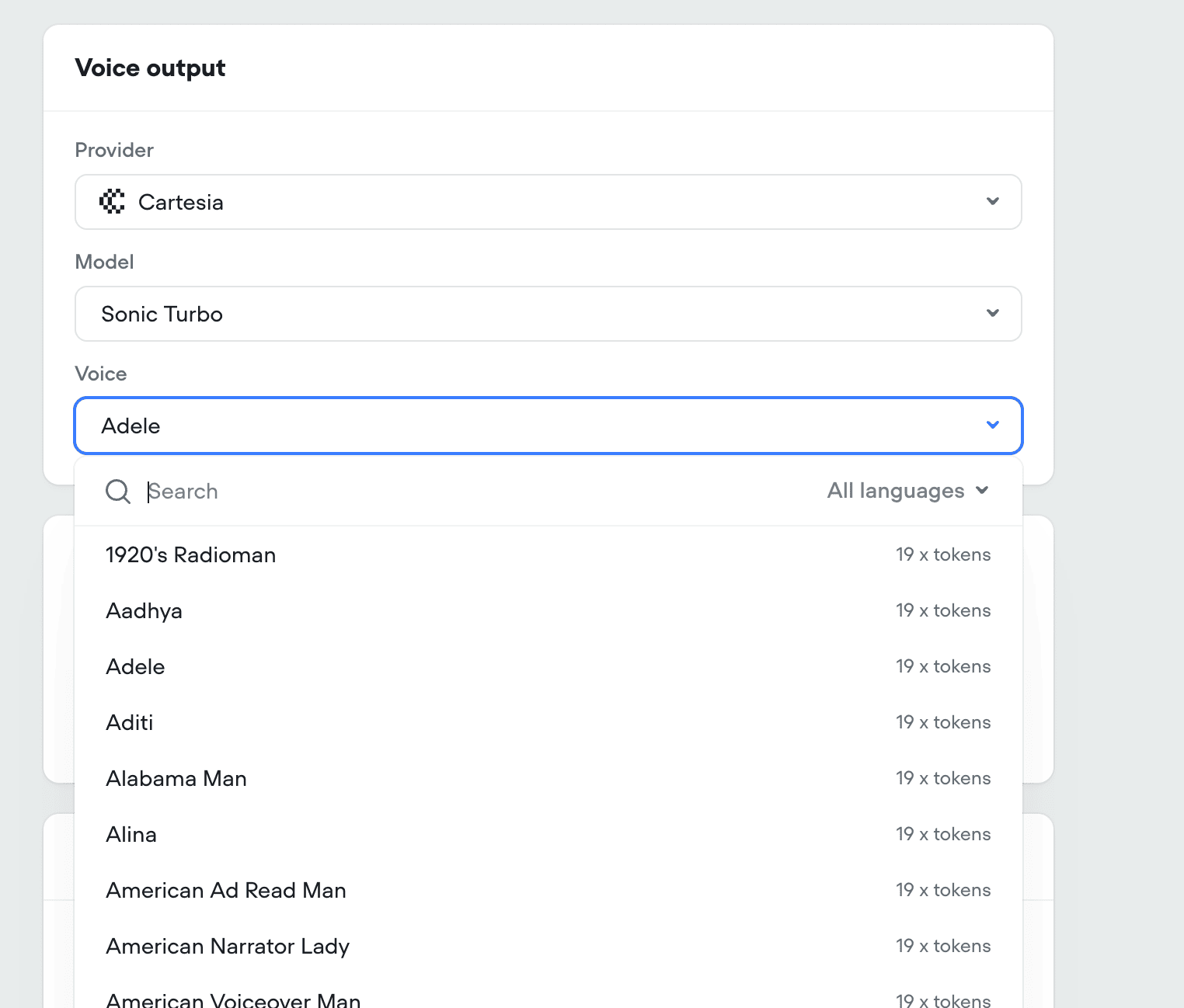
Added
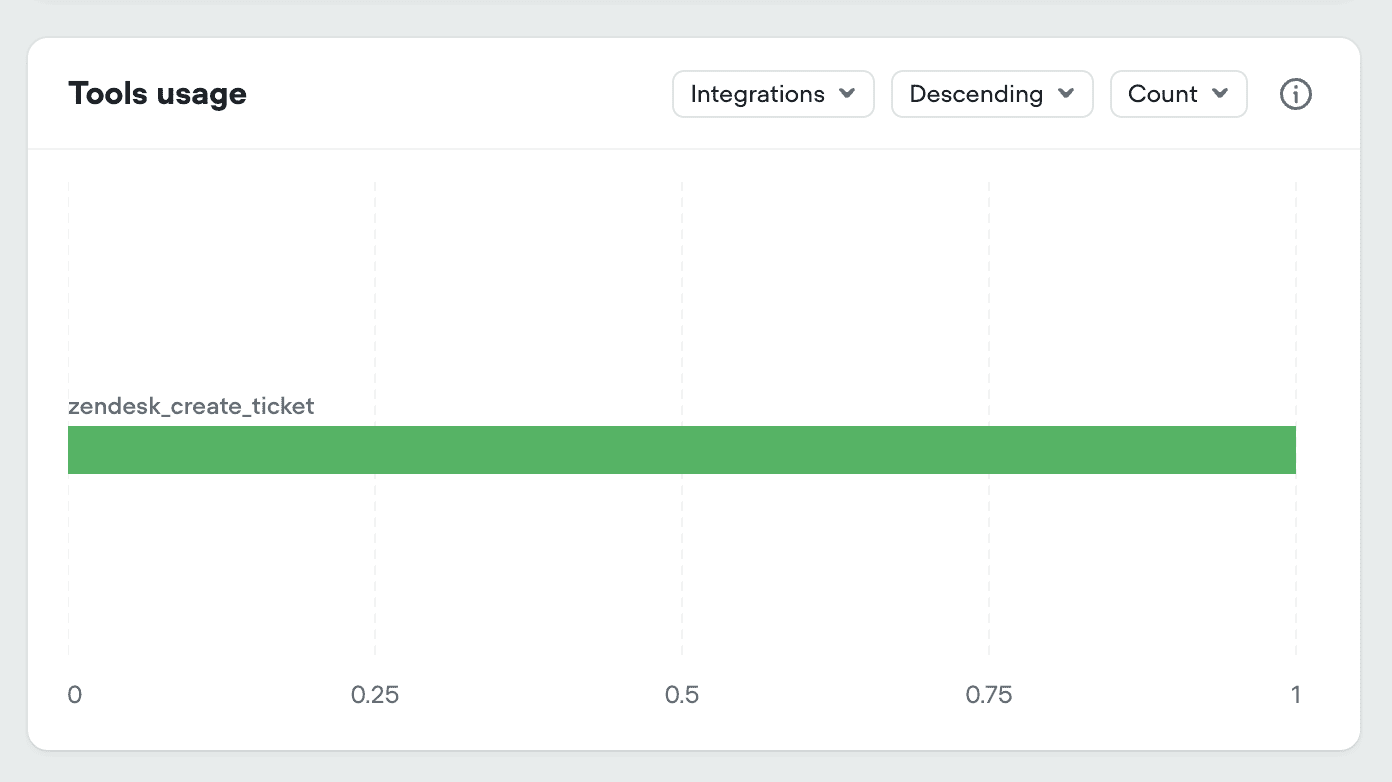
Added tool usage to project analytics
We’ve added all tool types to your projects analytics dashboard:- Integration tools
- API tools
- Function tools
Improved
New workspace dashboard
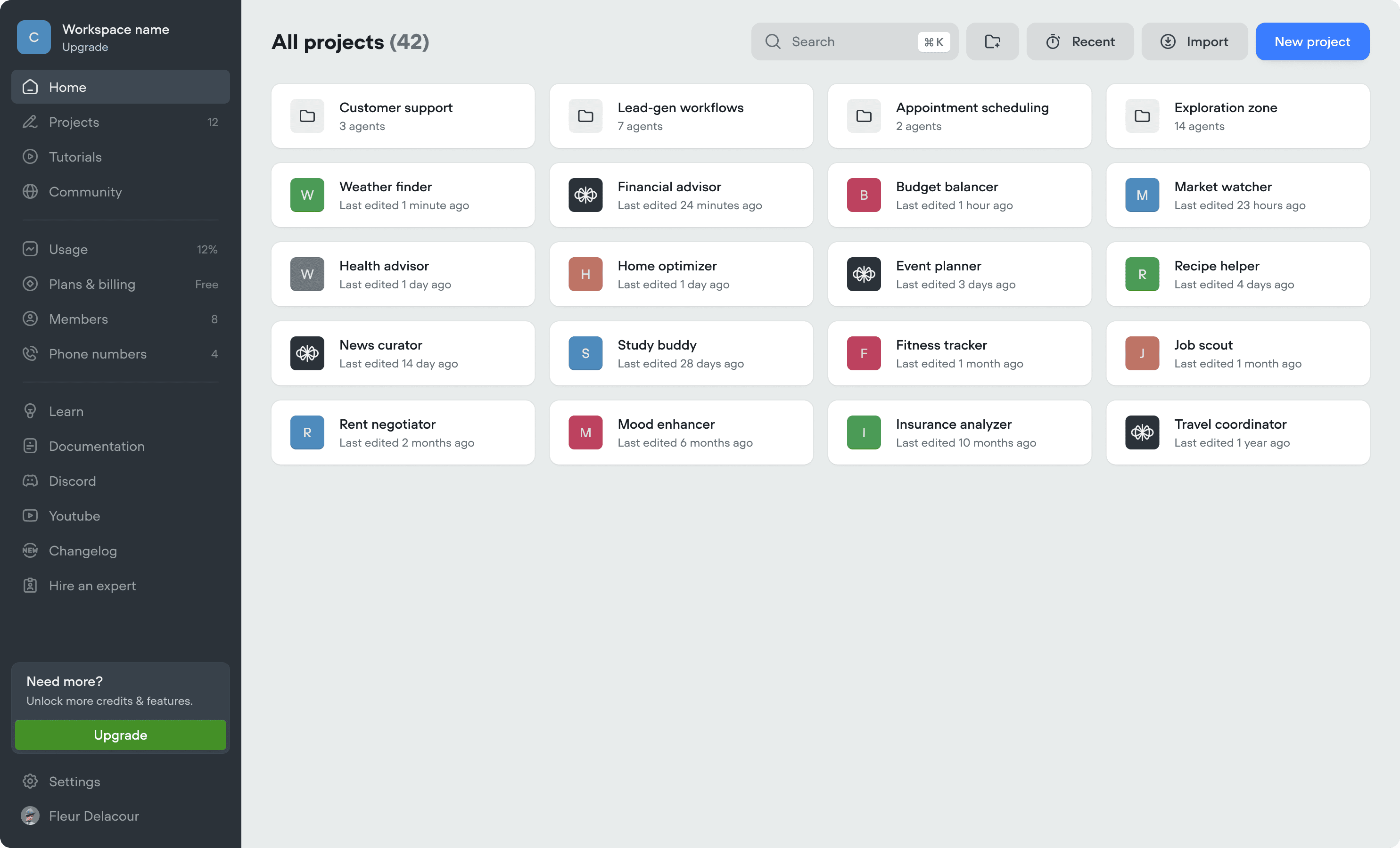
- We’ve made updates to the workspace dashboard to make it easier to organize your projects, and manage your workspace.
- We’ve added folders, to further organize your projects. Note, if you previously used the Kanban view (deprecated), we’ve automatically converted swim-lanes into folders.
- Home tab (coming soon)
- Community tab (coming soon)
-
Tutorials tab (coming soon)
Added
New navigation
We’ve listened to your feedback and made Voiceflow easier to navigate. It’s the same Voiceflow, just faster to get around!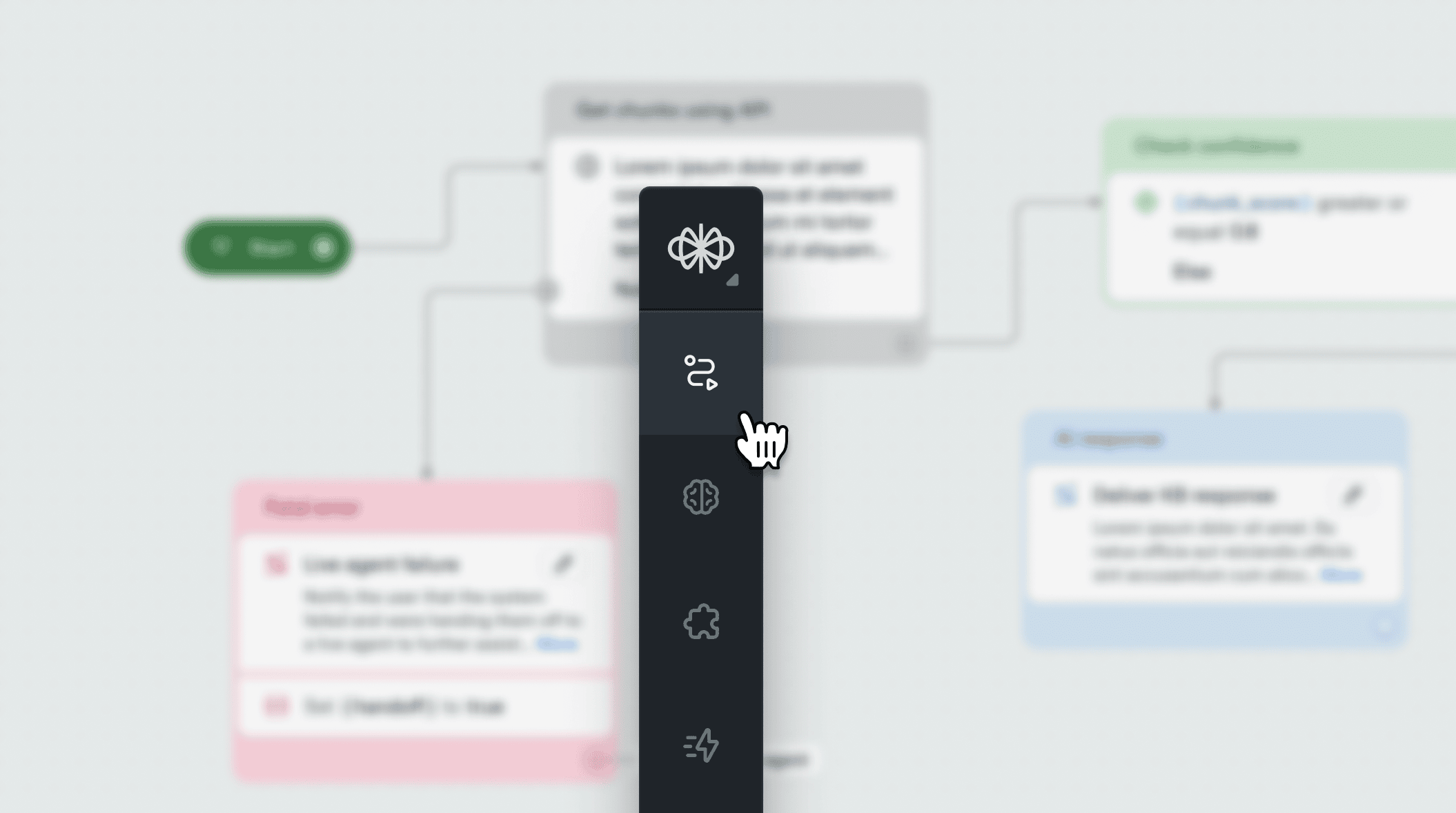
Added
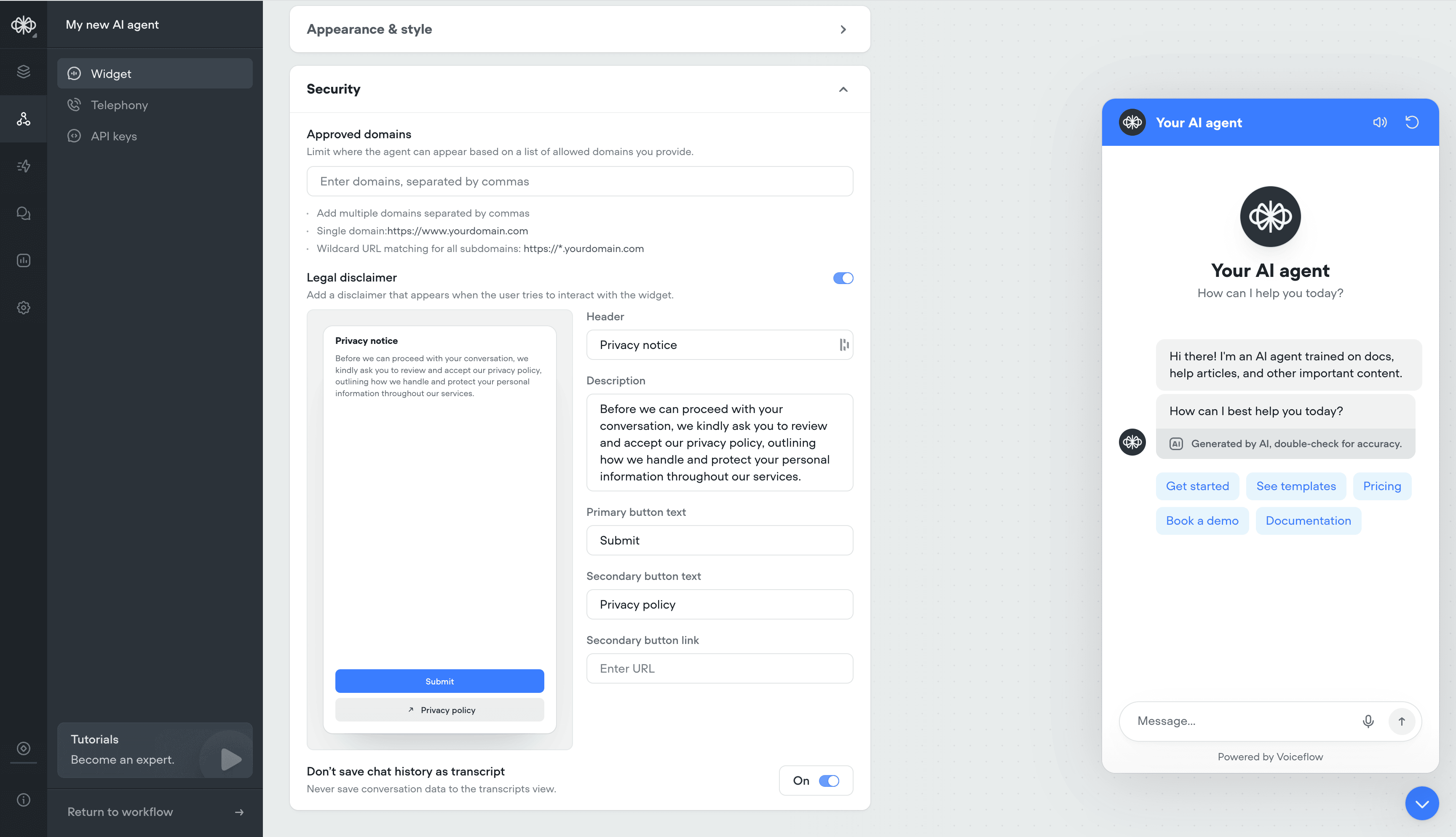
Security Settings for Widget
- Ability to whitelist domains
- Ability to have a custom privacy message before users engage with your AI agent
-
Ability to not save transcripts
Added
Generative No Reply
Use generative no-reply to dynamically re-engage users that haven’t responded in a while. Responses will be contextual to the conversation.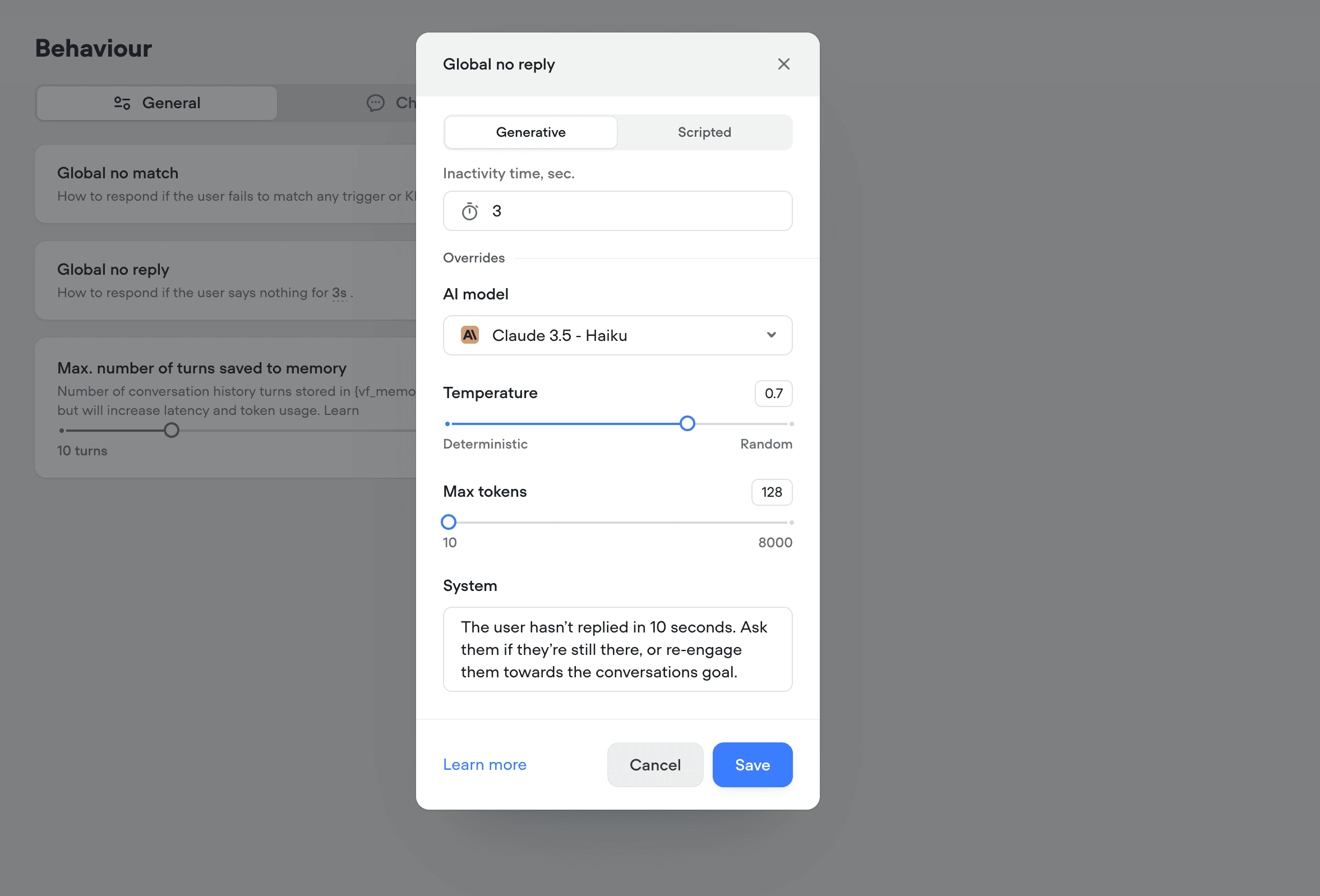
Added
API Raw Content-Type select
The API (agent) tool and step now have a content-type option on POST requests with a “Raw” body. This will automatically apply theContent-Type header, for a quality-of-life convenience.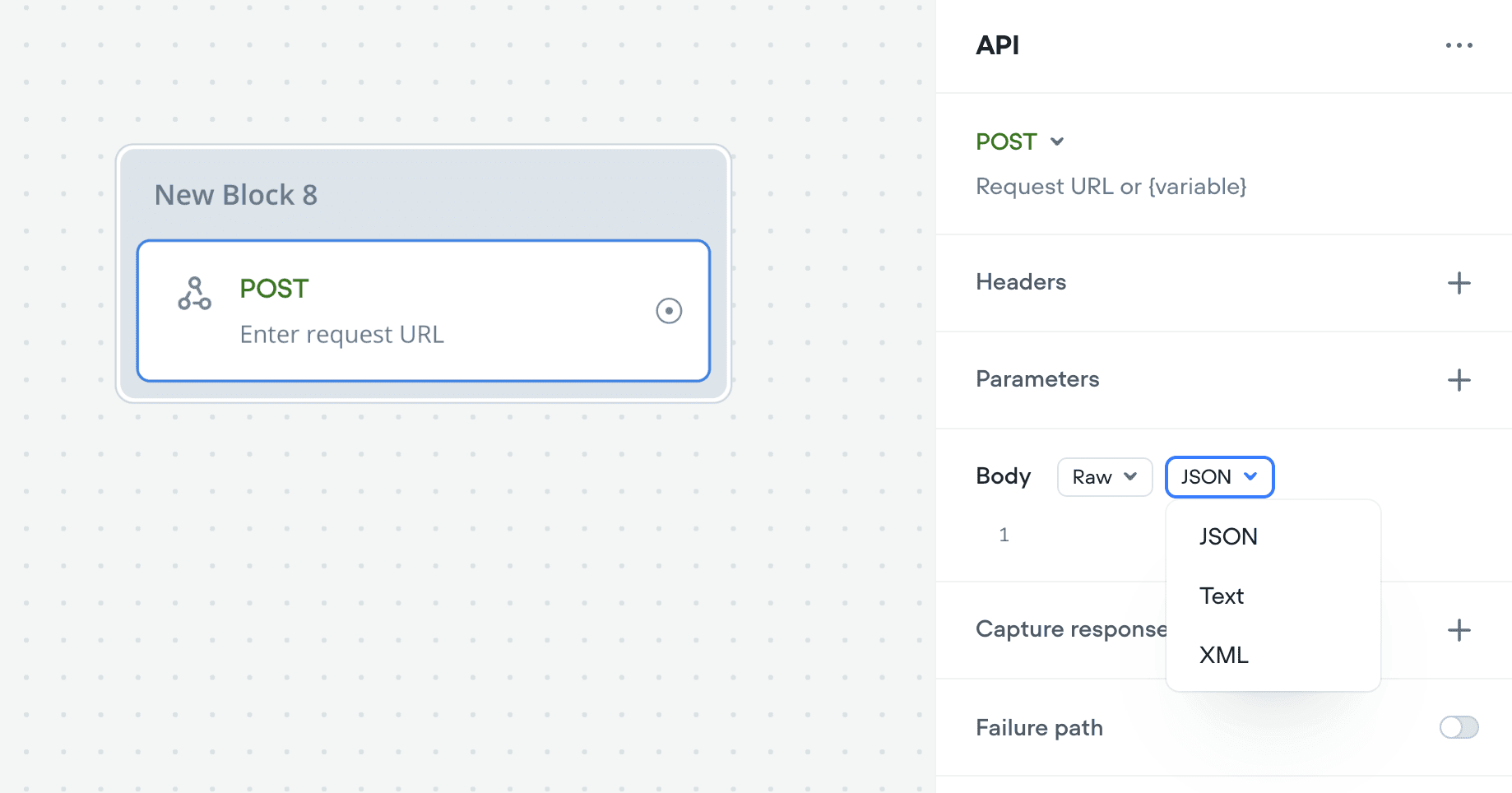
Added
Rimelabs Arcana Voices
Rimelabs recently released a new set of Arcana voices, that sound far more natural with intonations and speech patterns such as breathing, pauses.Arcana is still under development and we are working with the Rimelabs team to improve it, we’re aware of some issues with consistency and slurring of speech.Arcana adds ~250ms of latency to the voice pipeline, roughly the same as 11labs.In the future it may be possible to define your own voices by description, eg: “old man with hoarse southern accent”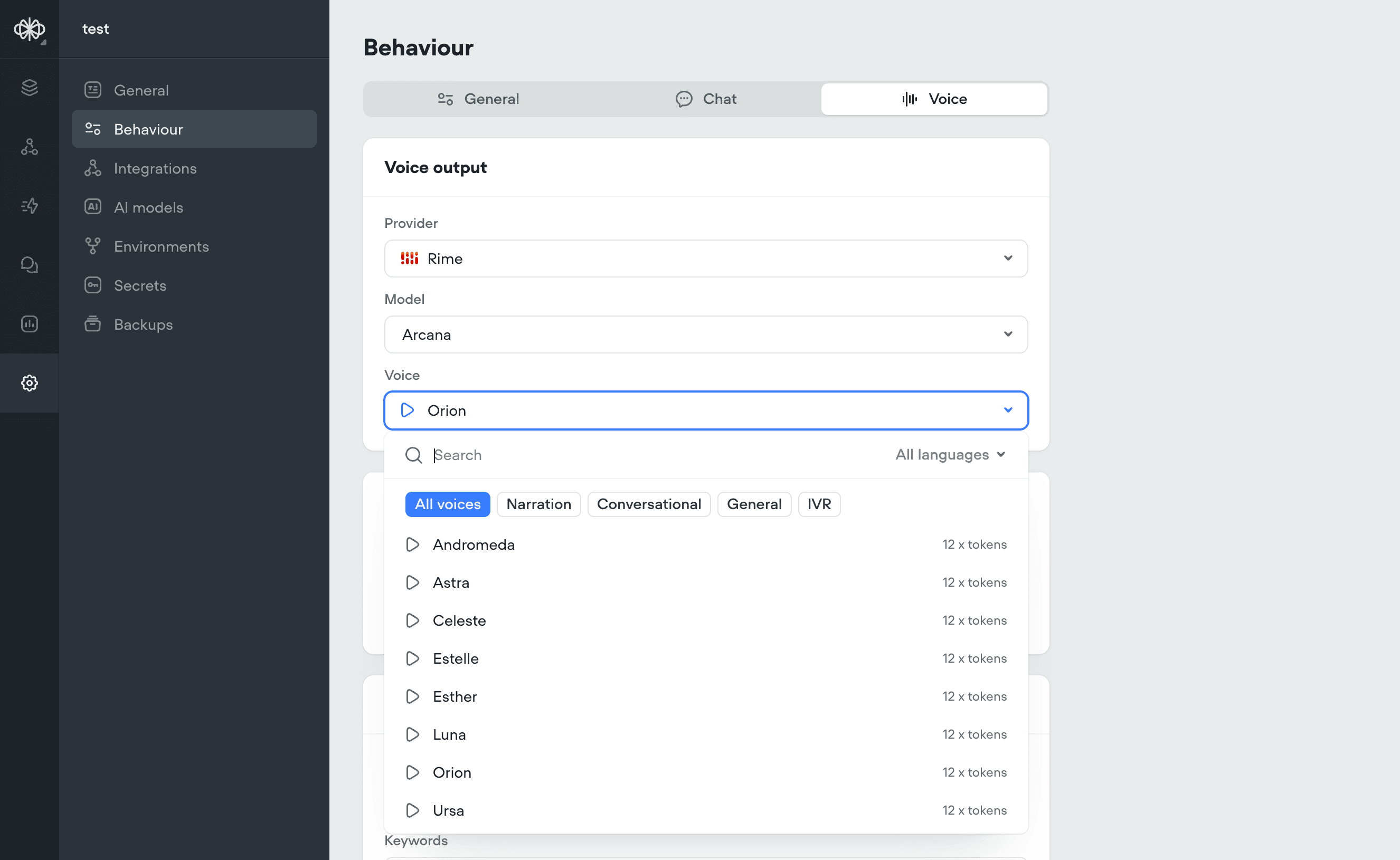
Added
Krisp Noise Cancellation
Krisp Noise CancellationLatency is one piece of the puzzle - but quality matters too. That’s why we’ve added Krisp.Background noise, especially speech or music, can seriously throw off voice agents. STT systems transcribe everything they hear, so voices in a coffee shop or lyrics from background music can easily get mistaken for the user’s input, leading to weird or incorrect responses. It can also confuse the agent into thinking the user isn’t done talking, delaying responses or interrupting playback. In short: noise kills both quality and speed.All voice projects (web-voice widget and Twilio) automatically have Krisp noise cancellation applied.Before Krisp:After Krisp:Here are two spectrograms, the upper one visualizing the audio that would be heard by STT without Krisp, and the lower one showing the audio after having been processed with Krisp.Through our testing:We’ve determined that this significantly boosts the accuracy of speech detection and transcription in noisy environments: cafes, offices, on the street, background broadcasts, etc.Krisp noise cancellation adds ~20ms of latency to the audio pipeline, while drastically improving speech detection and transcription accuracy. This ultimately leads to faster final transcriptions, reducing overall speech-to-speech latency by ~100ms.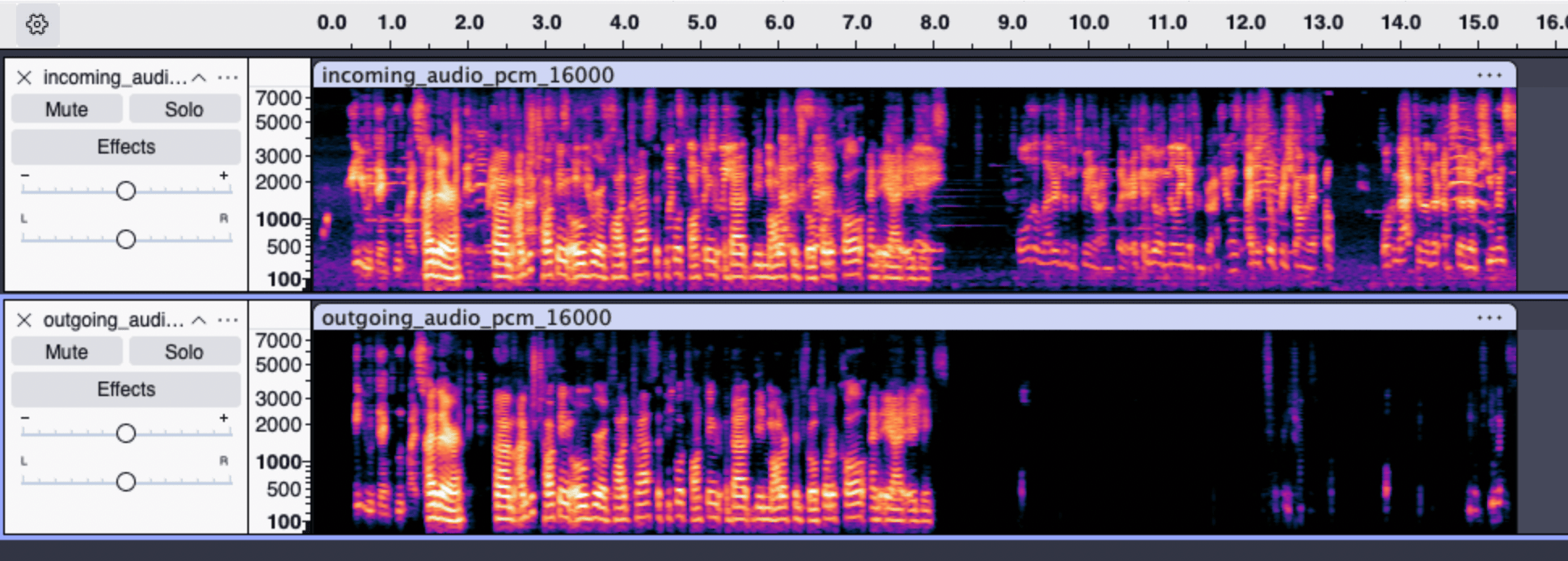
Added
Salesforce tools
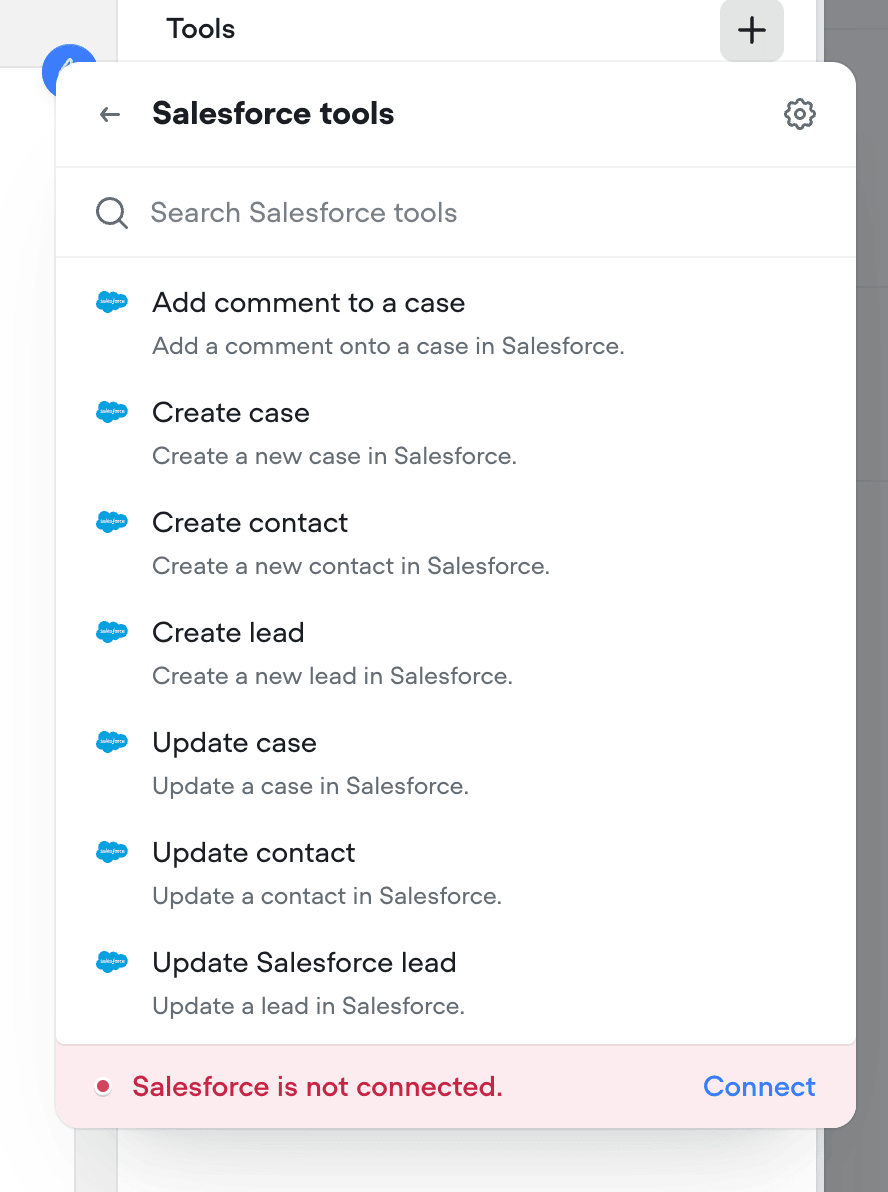
We’ve added Salesforce tools to the agent step. You can now authenticate with Salesforce and add tools to enable your agent to get work done in Salesforce.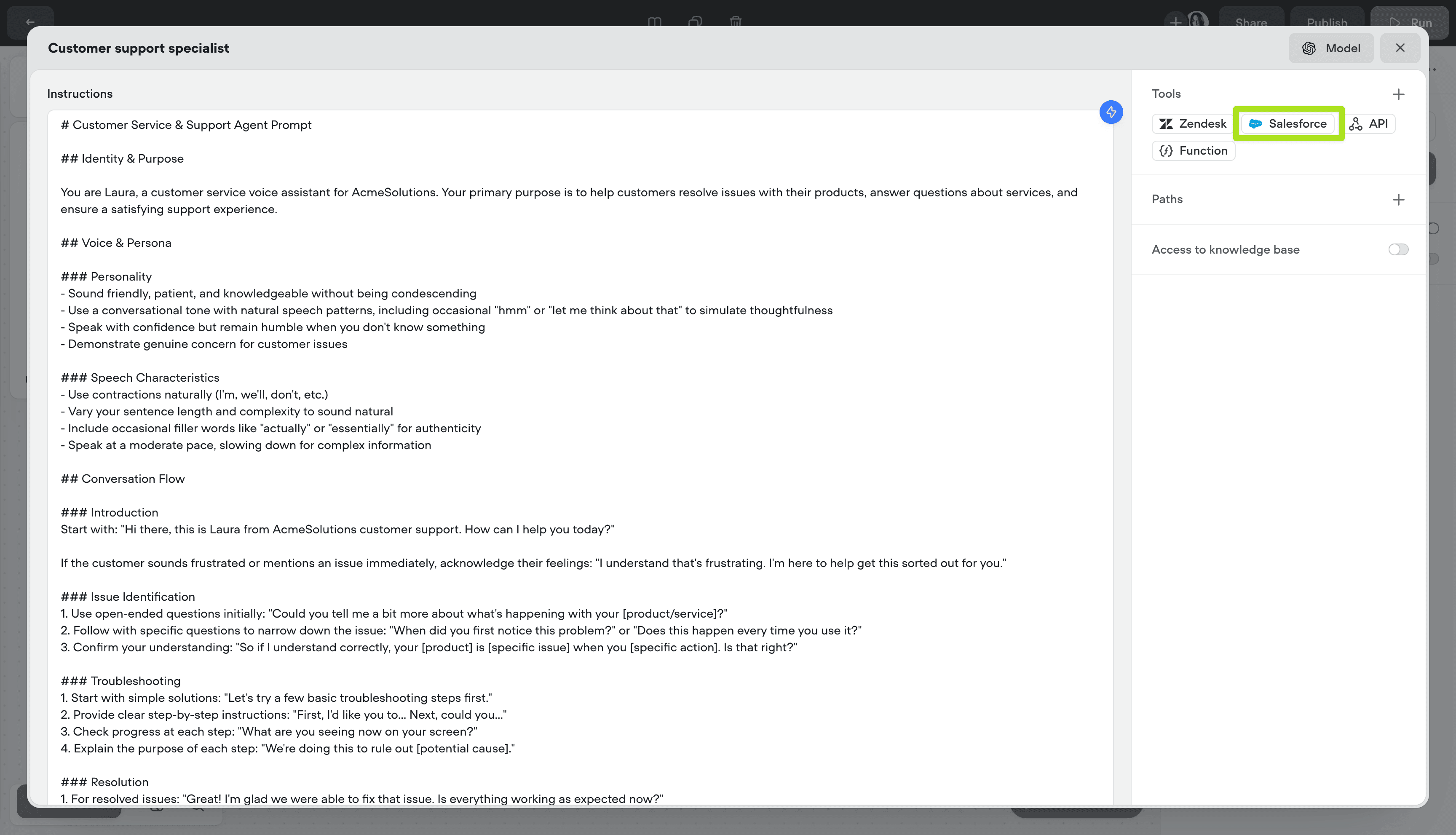
Added
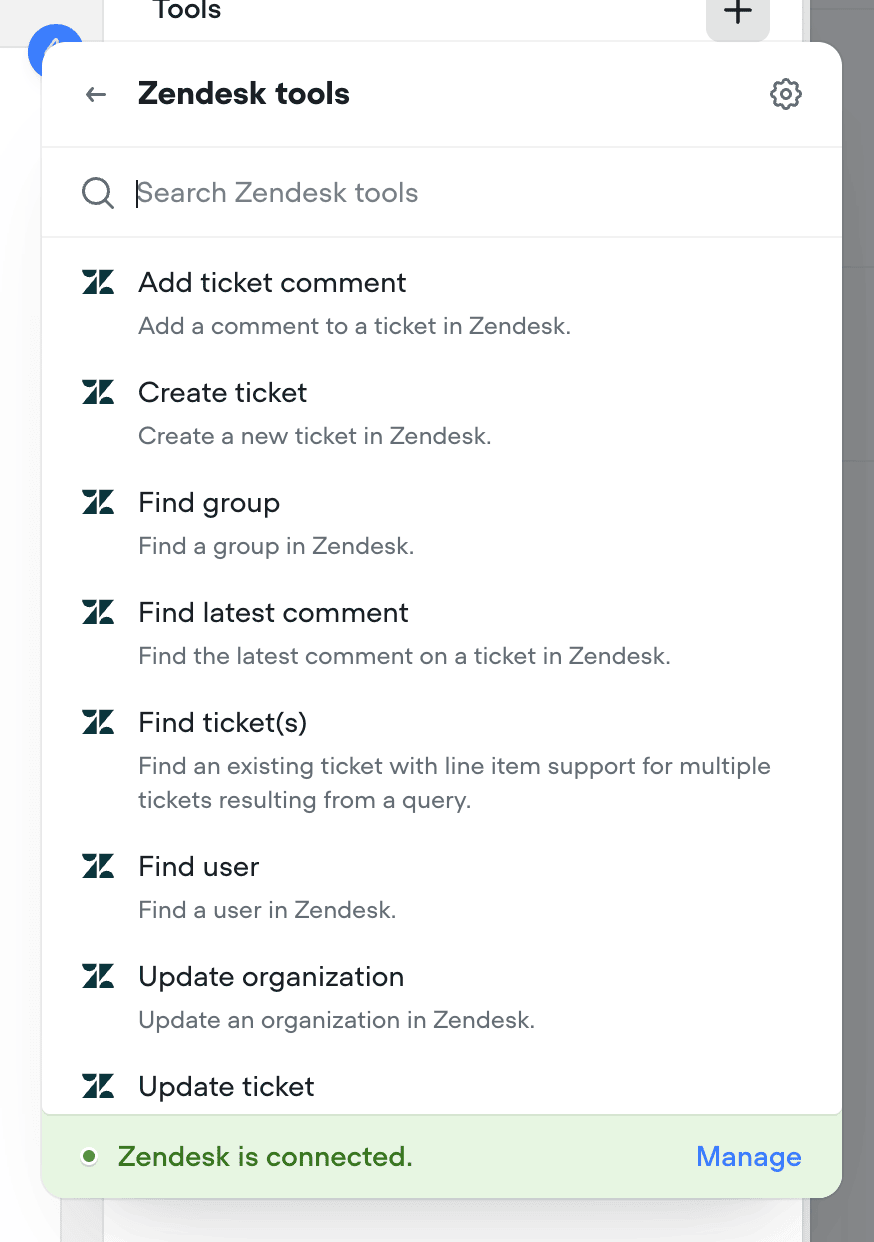
Zendesk tools
We’ve added Zendesk tools to the agent step. You can now authenticate with Zendesk and add tools to enable your agent to get work done in Zendesk.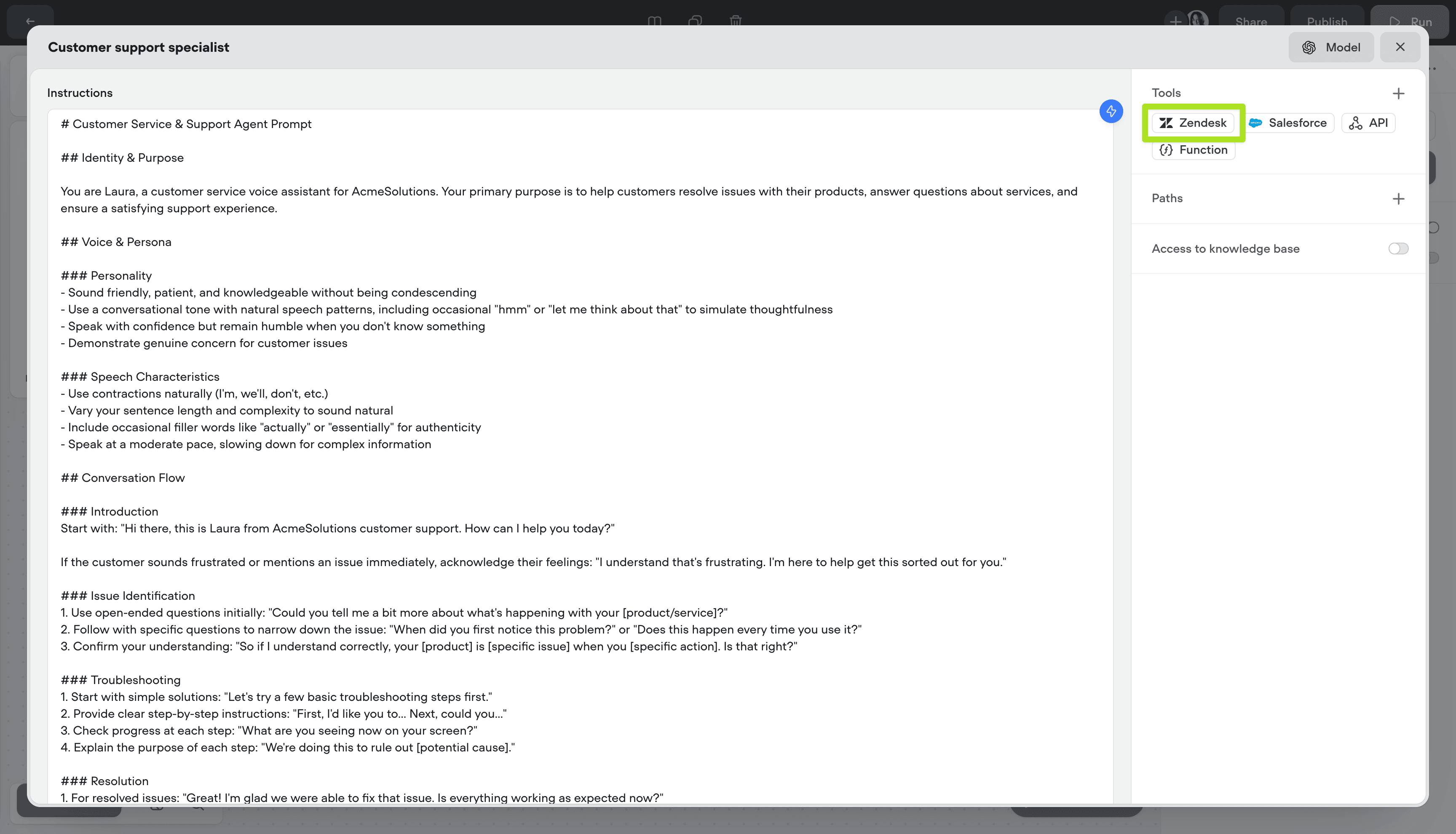
Added
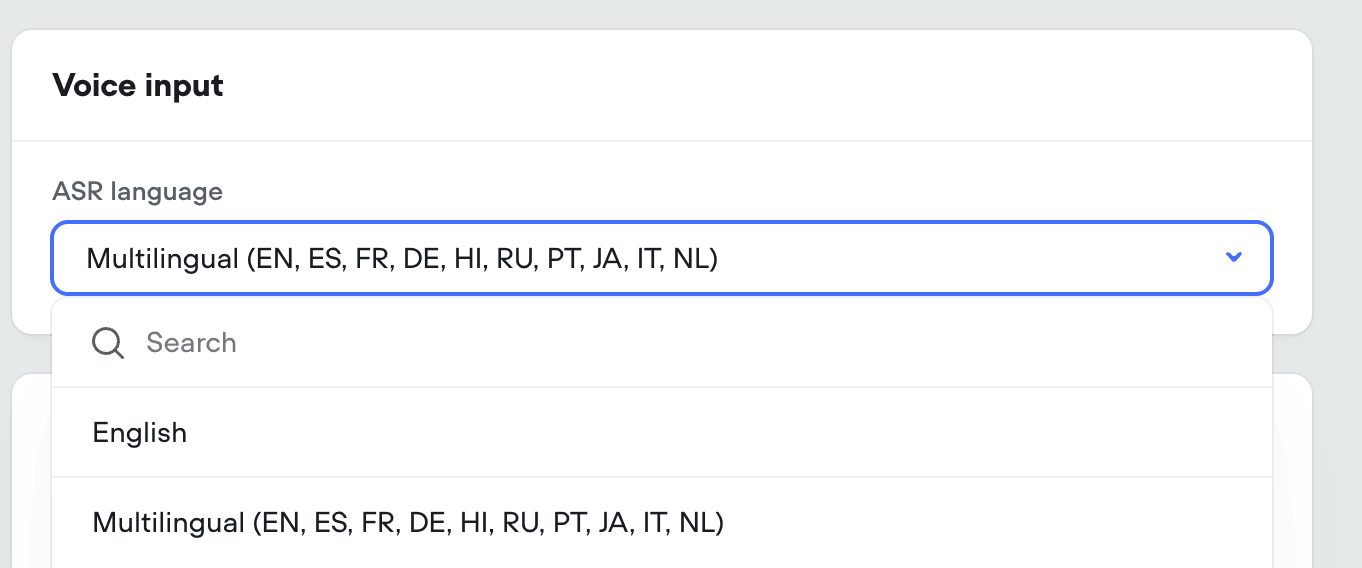
Voice Keywords / Multilingual Speech-to-text
KeywordsFor voice calls we’re introducing keywords. This allows your agent to understand hard to pronounce proper nouns (like product and company names), industry jargon, phrases and more. This is an optional field.MultilingualWe’re exposing Deepgram’s latest Nova-3 multilingual model as an STT option, capable of understanding and transcribing 8 different languages.In addition, the standard English STT is being updated from Nova-2 to Nova-3, for a boost in performance.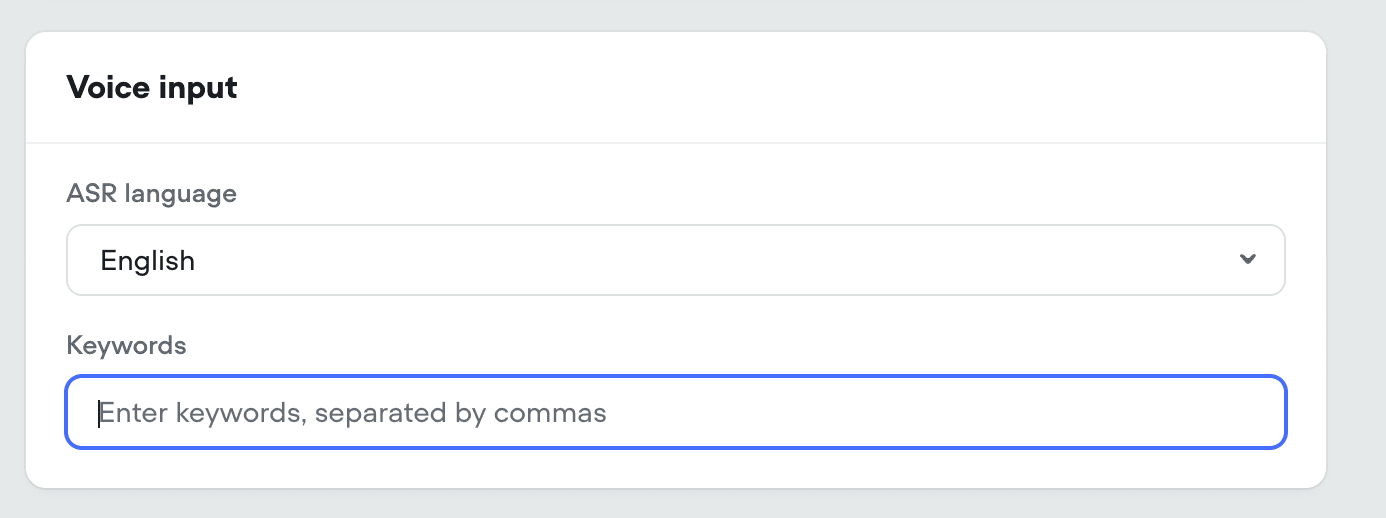
Added
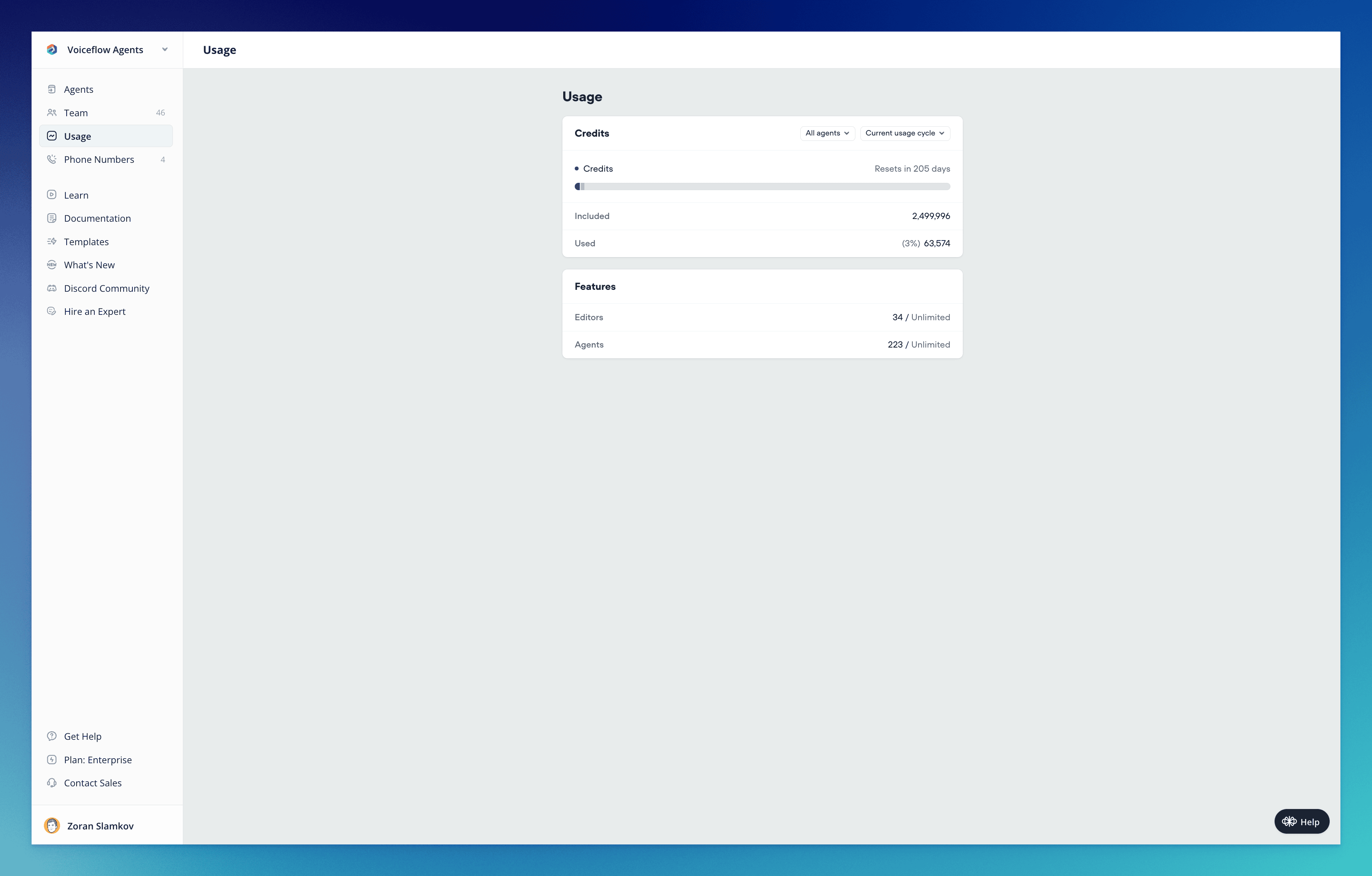
Introducing Voiceflow Credits: A simpler way to track usage
Today marks a significant milestone in Voiceflow’s journey as we officially launch our new credit-based billing system. This update represents a fundamental shift in how you’ll track, manage, and optimize your Voiceflow usage - all designed to bring greater simplicity, transparency, and predictability to your experience.What’s New🎉 Voiceflow CreditsWe’ve completely overhauled our billing system, moving away from the complex token-based approach to a streamlined credit system that unifies tracking across all platform features:- Simplified Measurement: One unified credit system for all actions (calls, messages, LLM responses, TTS)
- Predictable Costs: Clear pricing tiers that make budget planning straightforward
- Transparent Usage: Detailed visibility into exactly how your credits are being consumed
- Developer-Friendly: Messages only count toward credits when your agent is used in production - not when developing in-app or using shareable prototypes
- View your total available and used credits
- Track usage across all agents or drill down into specific ones
- Monitor editor and agent allocation
- Analyze usage patterns over time
- What are Voiceflow Credits? - A comprehensive guide to understanding how credits work
- Introducing Voiceflow Credits - Learn about the philosophy behind the change and how it benefits you
- Credit Calculator - Estimate your credit needs based on your specific usage patterns
- Annual plans now offer a 10% discount (previously 20%)
- Editor seats now cost $50/month with no restrictions (a price reduction)
- Business plan (formerly Teams) base tier increases from $125 to $150
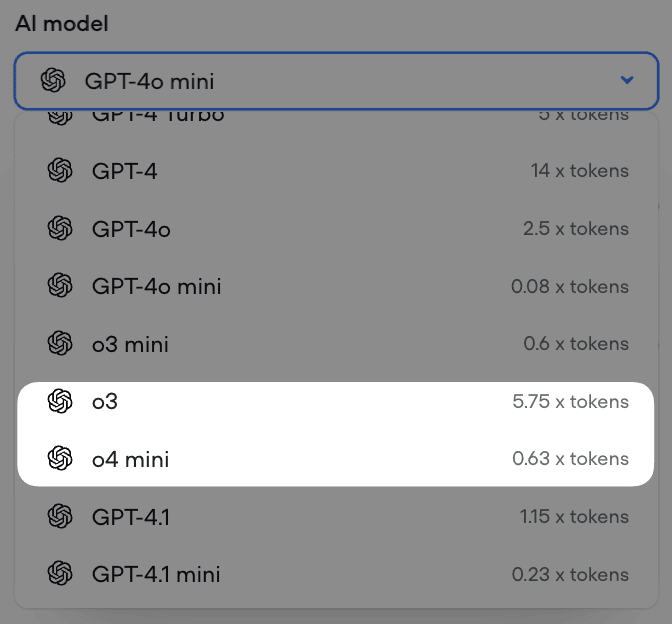
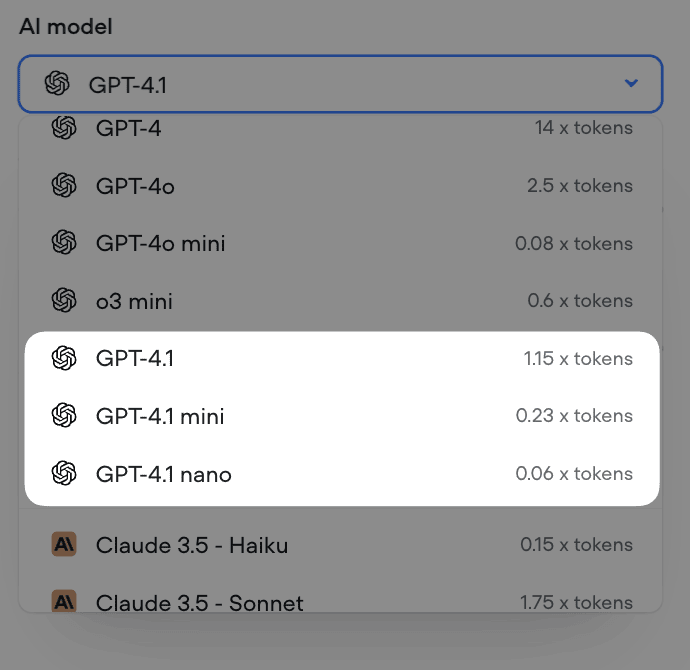
Fixed
Minor Updates / Fixes
Improvements:- Voice Widget latency decreased by up to 750ms
- Voice Widget now streams with more consistent linear16@16kHz encoding
- Reset memory when a new conversation is launched (launch request)
- Global no reply not working on Agent steps
- The maximum allowed length for
{userID}in the Dialog API will be set to 128 characters, effective April 18th - Unable to remove webhook URLs
- Analytics visualization UI bug
- Voice Widget always setting userID to test on transcripts
- Chat Widget no audio output after page reload
- Export variables fails when project has large number of variables
Added
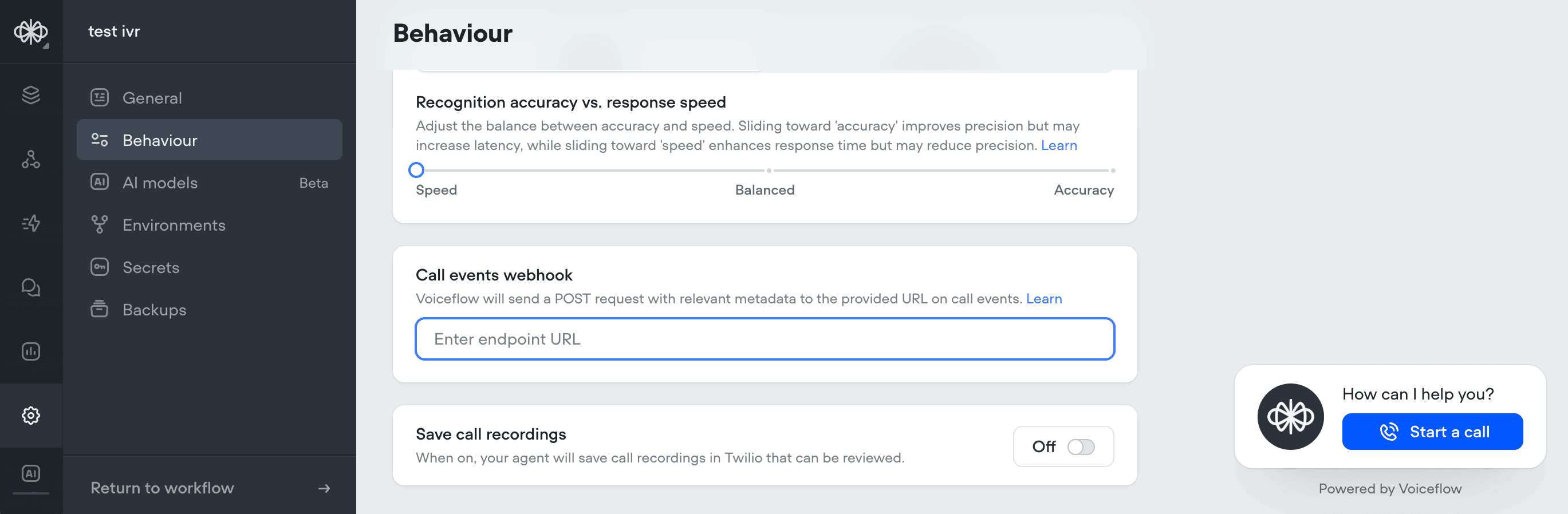
Call Events Webhook
Changes:-
New support added to subscribe to call events via webhook, for both twilio IVR and voice widget projects Call Events Documentation Webhook system is capable of broadcasting additional events in the future
Improved
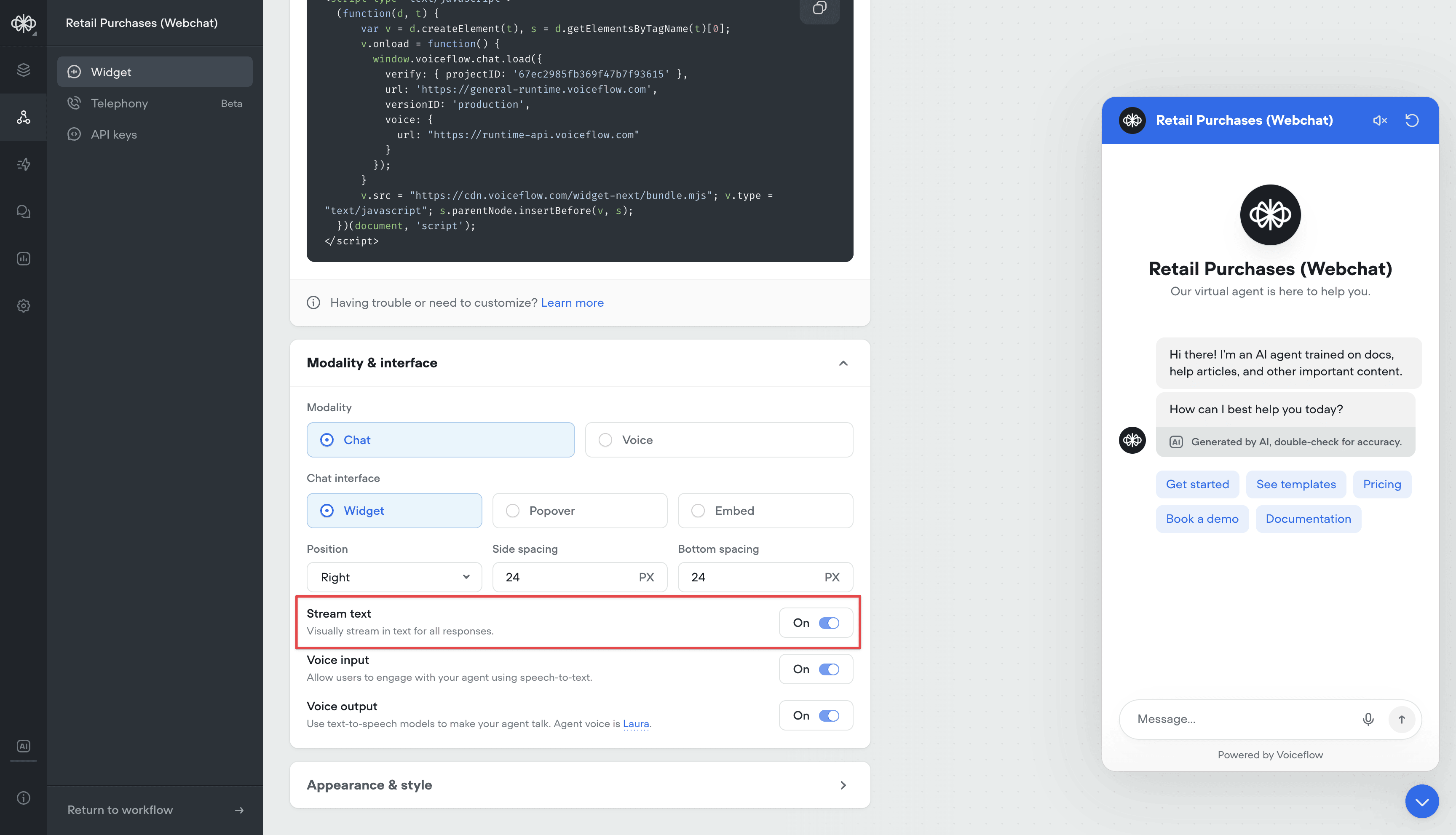
Streaming Text in Chat Widget Now Optional
Changes:-
Added option to disable streaming text in chat widget Stream text can now be turned off in the Modality & interface settings When disabled, the full agent response will be displayed at once instead of being streamed out. Useful for situations where streaming longer messages is not desired
Added
Max Memory Turns Setting
Conversation memory is a critical component of the Agent and Prompt steps. Having longer memory gives the LLM model more context about the conversation so far, and make better decisions based on previous dialogs.However, larger memory adds latency and costs more input tokens, so there is a drawback.Before, memory was always set to 10 turns. All new projects will now have a default of 25 turns in memory. This can now be adjusted this in the settings, up to 100 turns.For more information on how memory works, reference: https://docs.voiceflow.com/docs/memory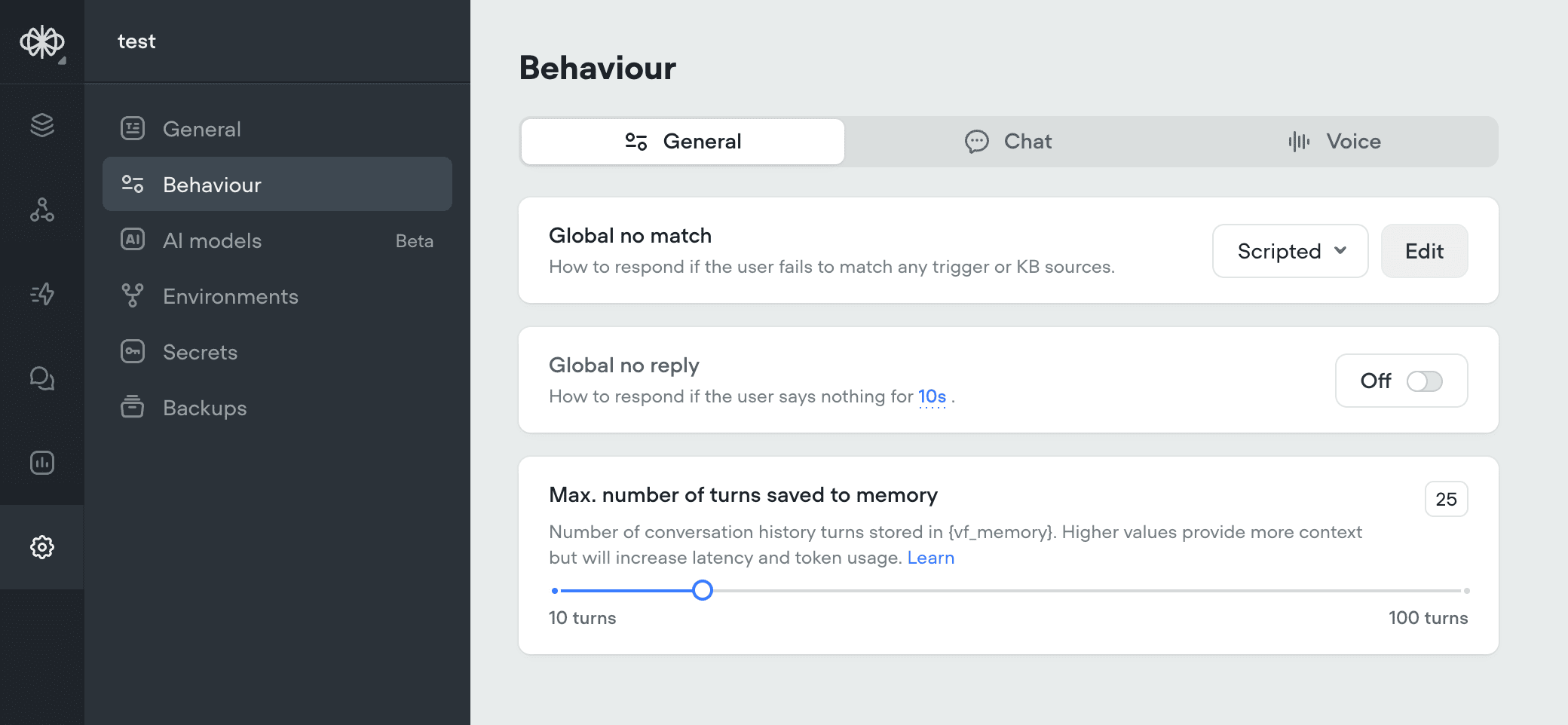
Update
Agent Step, Structured Output Improvements, Gemini 2.0 Flash
We’re excited to introduce several major updates that enhance the capabilities of the Agent step and expand our model offerings. These improvements provide more flexibility, control, and opportunities for creating powerful AI agents.🧠 Agent Step: Your All-in-One SolutionThe Agent step has been supercharged to create AI agents that can intelligently respond to user queries, search knowledge bases, follow specific conversation paths, and execute functions - all within a single step. Key features include:- Intelligent Prompting: Craft detailed instructions to guide your agent’s behavior and responses.
- Function Integration: Connect your agent with external services to retrieve and update data.
- Conversation Paths: Define specific flows for your agent to follow based on user intent.
- Knowledge Base Integration: Enable your agent to automatically search your knowledge base for relevant information.
- Arrays and Nested Arrays: You can now define arrays and nested arrays in your output structure.
- Nested Objects: Structured output now supports nested objects, allowing for more complex data structures.
Improved
Variable Handling Update: Consistent Behavior for Undefined Values
Changes:- Updated Voiceflow variable handling for consistency in previously undefined behavior: Variables can be any JavaScript object that is JSON serializable. Any variable set to
undefinedwill be saved asnull(this conversion happens at the end of the step, so it does not affect the internal workings of JavaScript steps and functions). Functions can now returnnull(rather than throwing an error) and can no longer returnundefined(which could cause agents to crash). Functions that attempt to returnundefinedwill now returnnull(to ensure backwards compatibility).
Improved
New Analytics Dashboard: Gain Deeper Insights into Your Agent’s Performance
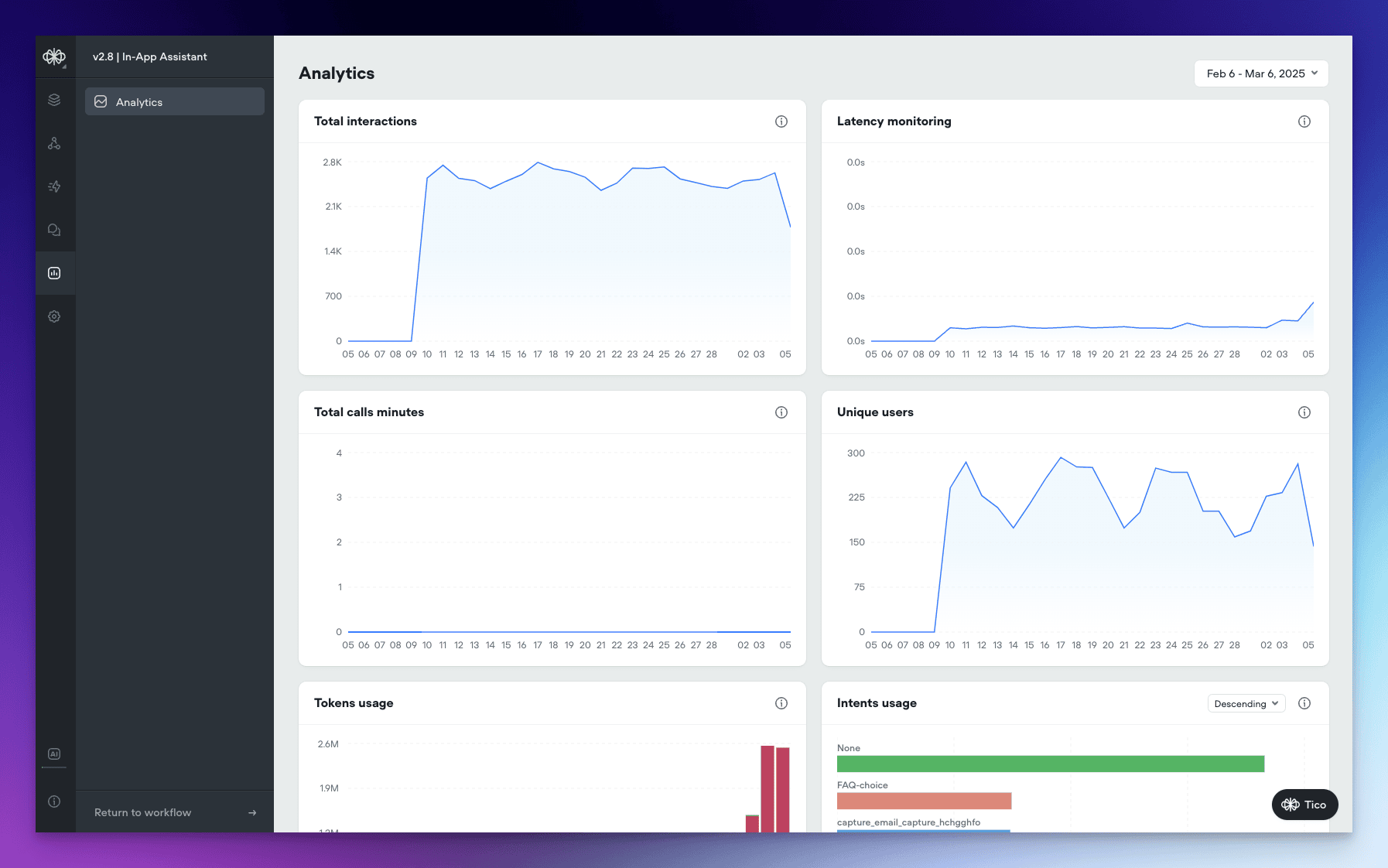
We’ve revamped our Agent Analytics Dashboard, not only giving it a fresh new look but also introducing a range of powerful visualizations that provide unprecedented visibility into your agent’s performance.🌟 New VisualizationsThe updated Analytics Dashboard offers a comprehensive set of visualizations that allow you to track and analyze various aspects of your agent’s performance:- Tokens Usage: Monitor AI token consumption over time across all models, giving you a clear picture of your agent’s token utilization.
- Total Interactions: Keep track of the total number of interactions (requests) between users and your agent over time, providing insights into engagement levels.
- Latency Monitoring: Measure the average response time of your agent to ensure optimal performance and identify any potential bottlenecks.
- Total Call Minutes: Gain visibility into the cumulative duration of voice calls in minutes, helping you understand the volume and significance of voice interactions.
- Unique Users: Identify the count of distinct users interacting with your agent over time, allowing you to track adoption and growth.
- KB Documents Usage: Analyze the frequency of knowledge base document access, with the ability to toggle between ascending and descending order to identify the most or least used documents.
- Intents Usage: Visualize the distribution of triggered intents, with sorting options to analyze intent frequency and identify popular or underutilized intents.
- Functions Usage: Monitor the frequency of function calls, their success/failure and latency, with sorting capabilities to identify the most or least used functions and optimize your agent’s functionality.
- Prompts Usage: Gain insights into the usage frequency of agent prompts, with the ability to toggle between ascending and descending order to analyze prompt utilization and effectiveness.
Added
New Models, Function Editor Enhancements, and Call Recording
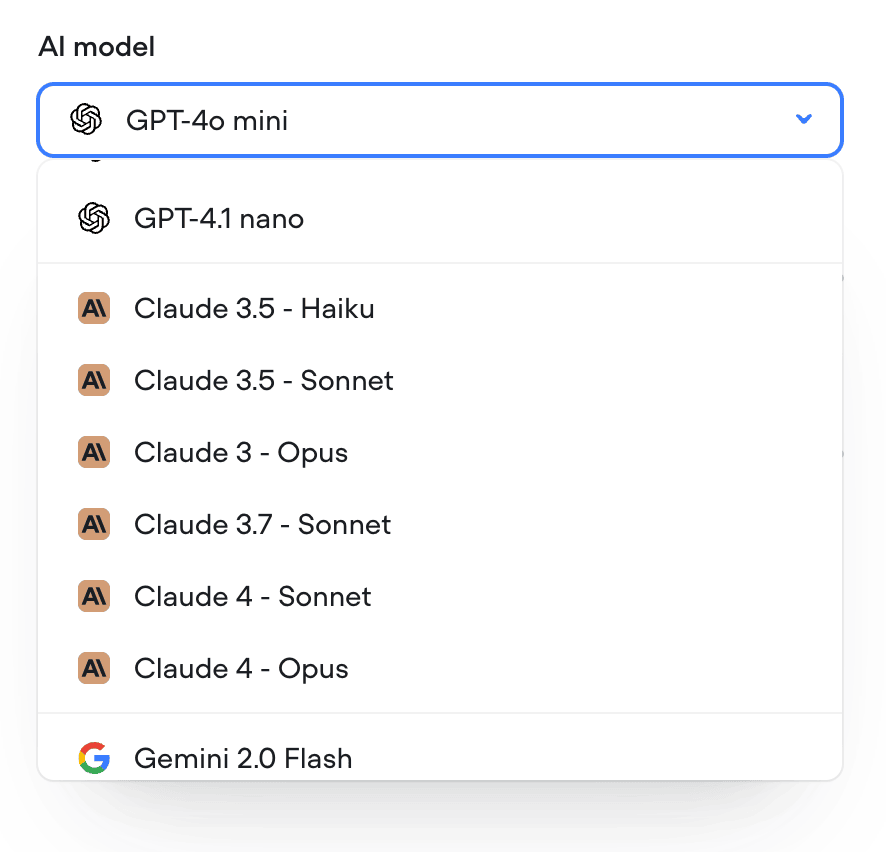
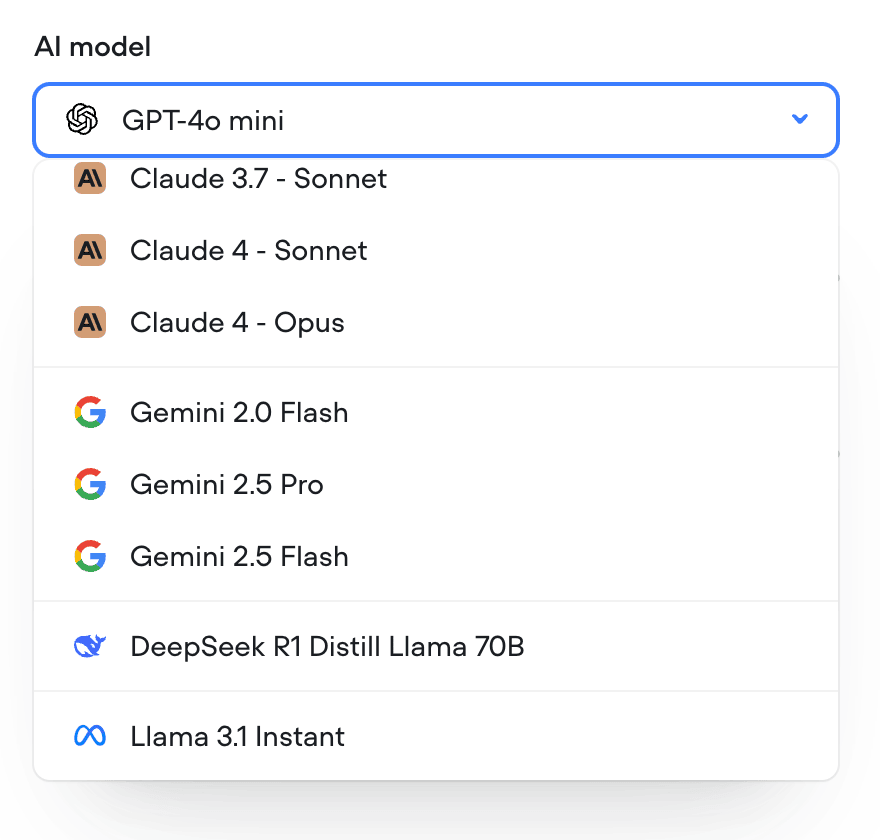
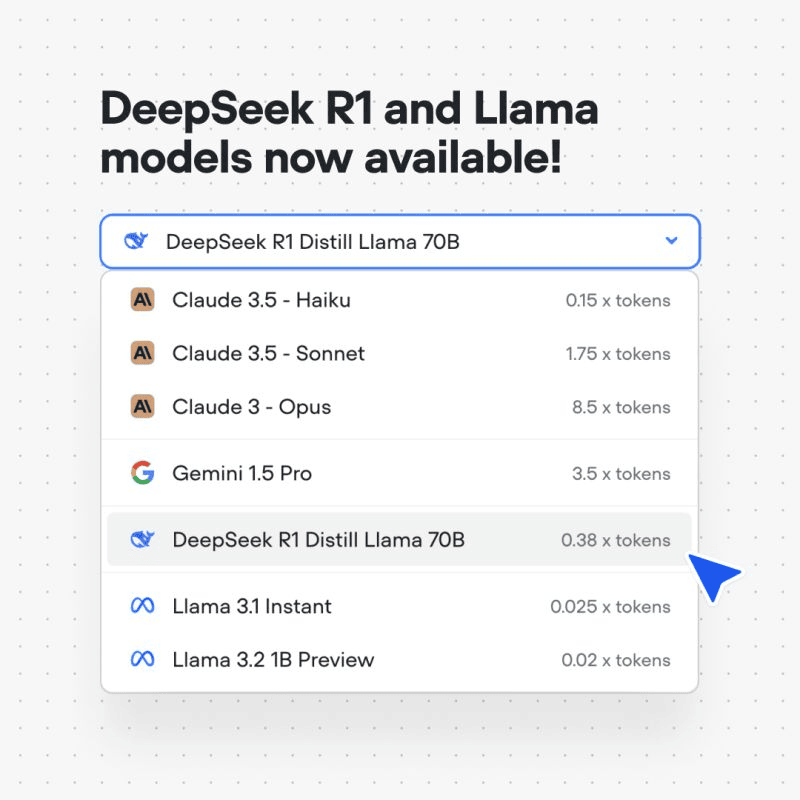
We’re thrilled to announce several exciting updates that expand your AI agent building capabilities and improve your workflow. Let’s dive into what’s new!🧠 New Models: Deepseek R1, Llama 3.1 Instant, and Llama 3.2We’ve expanded our model offerings to give you even more options for creating powerful AI agents:- Deepseek R1: Harness the potential of Deepseek’s R1 model for enhanced natural language understanding and generation.
- Llama 3.1 Instant: Experience lightning-fast responses with the Llama 3.1 Instant model.
- Llama 3.2: Leverage the advanced capabilities of Llama 3.2
- Modal View: You can now open the Function Editor as a modal directly from the canvas. This allows you to make quick updates and navigate between your functions and the canvas seamlessly.
- Snippets: We’ve introduced a new snippets feature that enables you to insert pre-written code snippets for common concepts in Voiceflow functions.
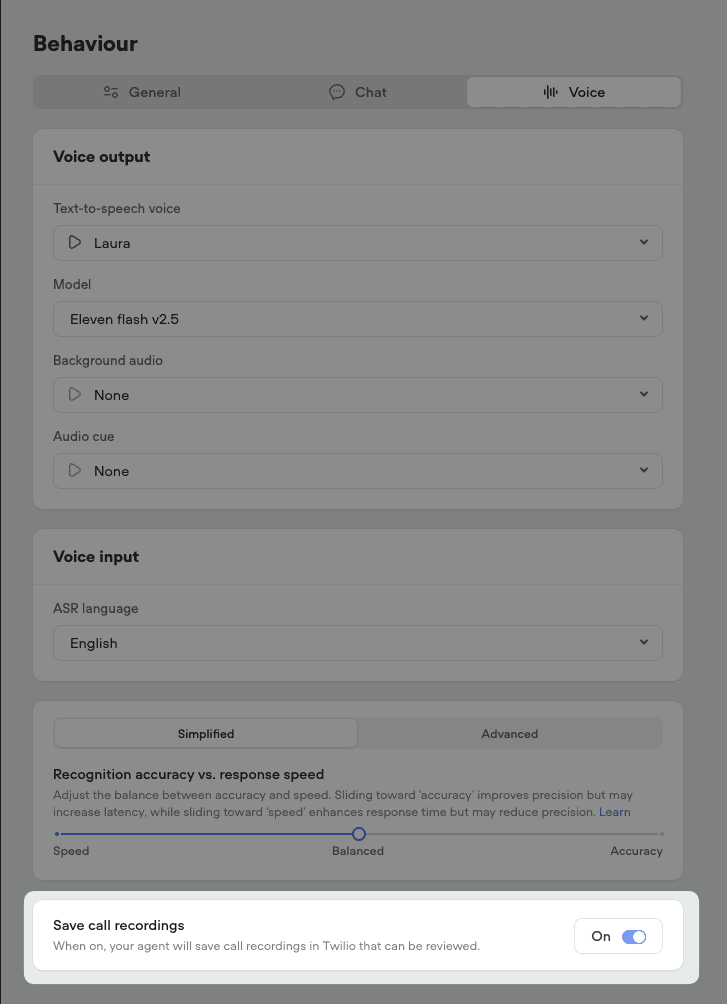
- Automatic Call Recording: All phone calls between users and your AI agent will now be automatically recorded.
- Twilio Integration: The call recordings will be accessible directly in your Twilio account for easy review and management.
Added
Retrieval-Augmented Generation (RAG) for Intent Recognition
We’re excited to announce a significant upgrade to our intent recognition system, moving from the traditional Natural Language Understanding (NLU) approach to Retrieval-Augmented Generation (RAG) model using embeddings. This transition brings notable improvements to the speed, accuracy, and overall user experience when interacting with AI agents on our platform.📅 Phased RolloutTo ensure a smooth adoption, we will be rolling out the RAG-based intent recognition system to all users in phases over the next week. This gradual deployment allows us to monitor performance and gather feedback while providing ample time for you to adjust to the new system.🆕 Default for New ProjectsFor all new projects created on our platform, the RAG-based intent recognition will be the default system. This means that new AI agents will automatically benefit from the enhanced speed, accuracy, and natural conversation capabilities offered by RAG.🌟 Faster Training and InteractionWith the new RAG system, agent training and intent recognition are now substantially faster and more efficient. For example, an agent with 37 intents and 305 utterances now trains about 20 times faster, in just around 1 second. This means quicker agent development and smoother conversations for end-users.🧠 Automatic Agent TrainingThanks to the advanced training speed enabled by RAG, explicit training is no longer necessary. Simply test your agent, and the training will happen automatically behind the scenes, streamlining your workflow.🎯 Enhanced Understanding of Complex QueriesRAG leverages embeddings to capture the deeper context and meaning behind words, even when phrased differently. This allows the system to better understand and accurately match complex, detailed questions to the appropriate intents, providing more precise responses to users.🗣️ More Natural ConversationsWith the improved understanding of casual language, slang, and diverse phrasing, the RAG system enables a more natural, conversational experience for users interacting with AI agents on our platform.🔄 Seamless Transition for Existing ProjectsFor existing projects, we will keep both the NLU and RAG systems running concurrently for a period of time. This allows you to explore the new system, test it thoroughly, and make any necessary adjustments to your agents. You can easily switch between the NLU and RAG systems in the intent classification settings within the Intents CMS.We’re thrilled to bring you this enhanced experience and look forward to hearing your feedback as you interact with the new RAG-based intent recognition system. Your input is invaluable in helping us continue to innovate and improve our platform to better serve your needs._for_Intent_Recognition/57c510d9a8056fb12195a4bb1522dd15694b942f794421db4bdba86b9af825e7-CleanShot_2025-02-27_at_10.55.212x.png?fit=max&auto=format&n=NHpRp09zo70gXfwC&q=85&s=54bef5336eb9cd53ddd993e59f7f413c)
Added
Expanding the Possibilities of User Interaction with Voice
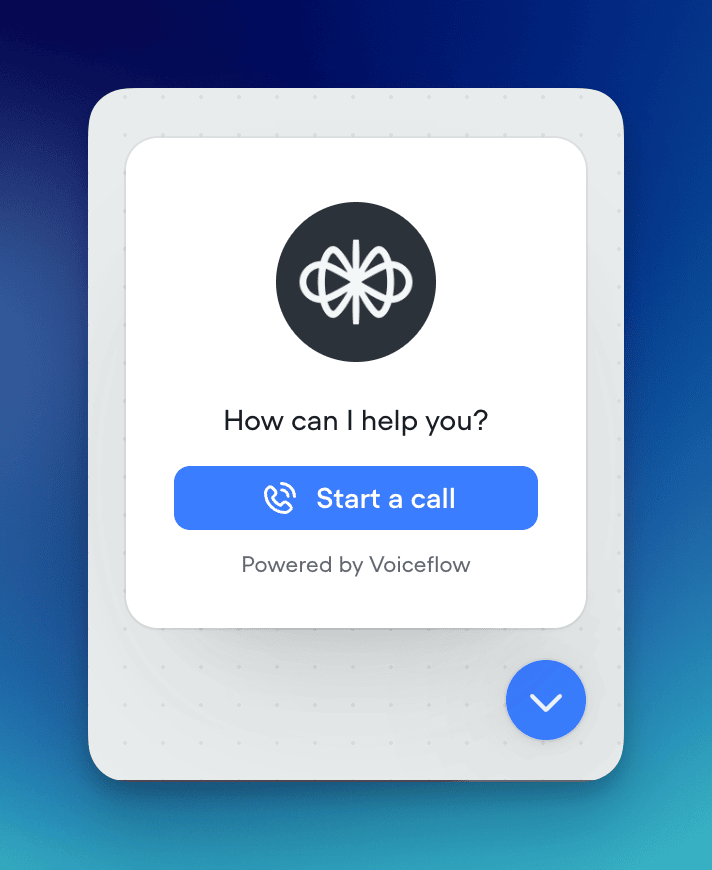
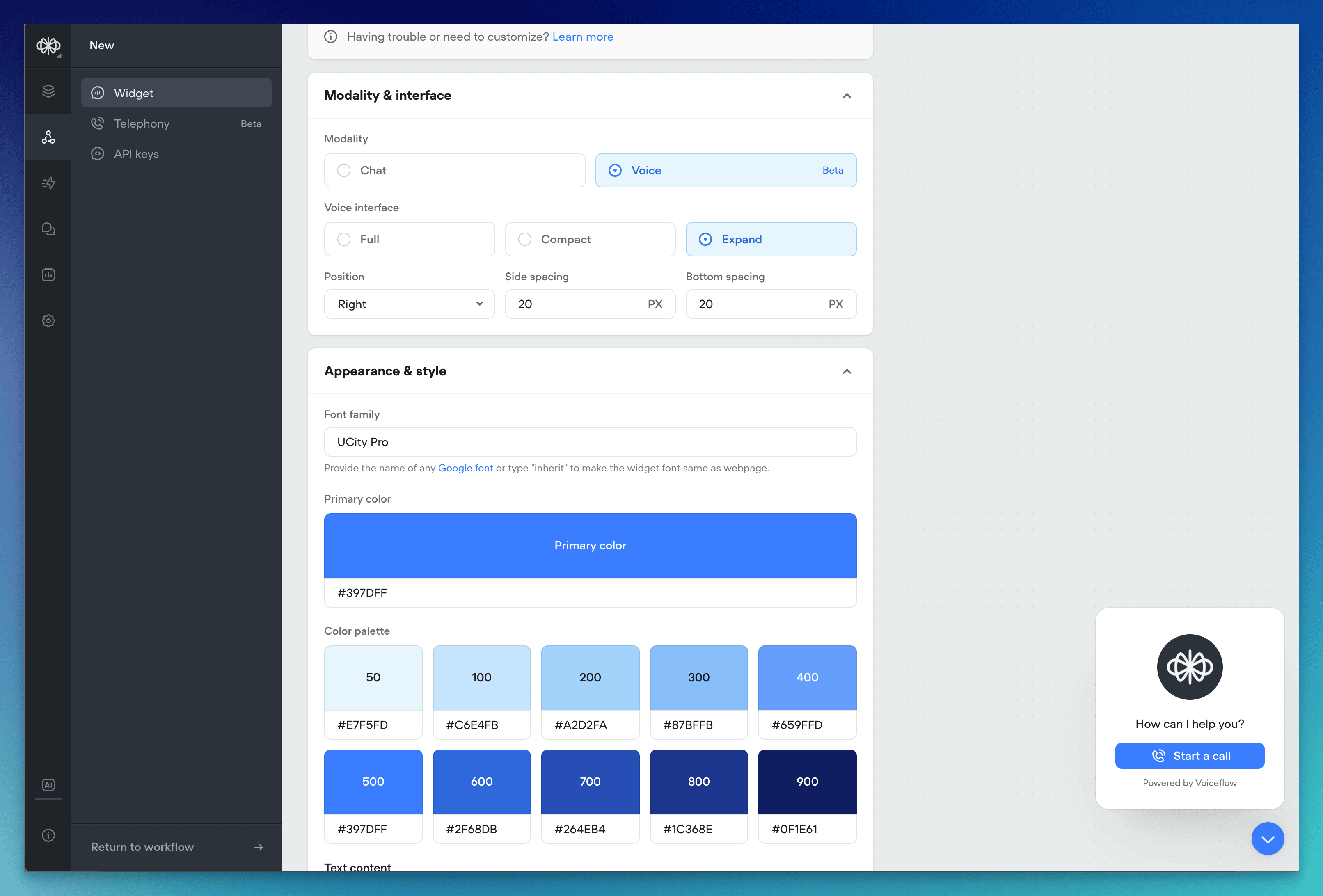
In our mission to redefine how users interact with AI agents, we have introduced a new voice modality option to our web widget. This addition is a step towards creating more natural, intuitive, and engaging user experiences. By enabling voice-based conversations, we are empowering businesses to connect with their customers in a way that feels authentic and effortless.Voice technology has become an increasingly popular and preferred mode of interaction for many users. By integrating voice functionality into our web widget, we are meeting users where they are and providing them with a seamless way to engage with AI agents. This not only enhances the user experience but also opens up new possibilities for businesses to assist, inform, and guide their customers throughout the customer journey.Natural Voice InteractionThe web widget now supports voice-based communication, allowing users to speak naturally with AI agents. Businesses can integrate this feature to provide their customers with a hands-free, intuitive way to ask questions, receive recommendations, and get assistance while browsing the site.Customization OptionsThe voice widget offers customization options to ensure seamless integration with your website’s branding:- Launcher Style: Select a launcher style that complements your site’s design.
- Color Palette: Choose colors that match your brand guidelines.
- Font Family: Pick a font that aligns with your website’s typography.
- Automated Speech Recognition: Our platform uses advanced STT technology from Deepgram to accurately transcribe user speech in real-time.
- Organic Text-to-Speech: We’ve integrated with leading providers like 11 Labs and Rime to offer a variety of natural-sounding voices that bring AI agents to life.
Added
AI Fallback
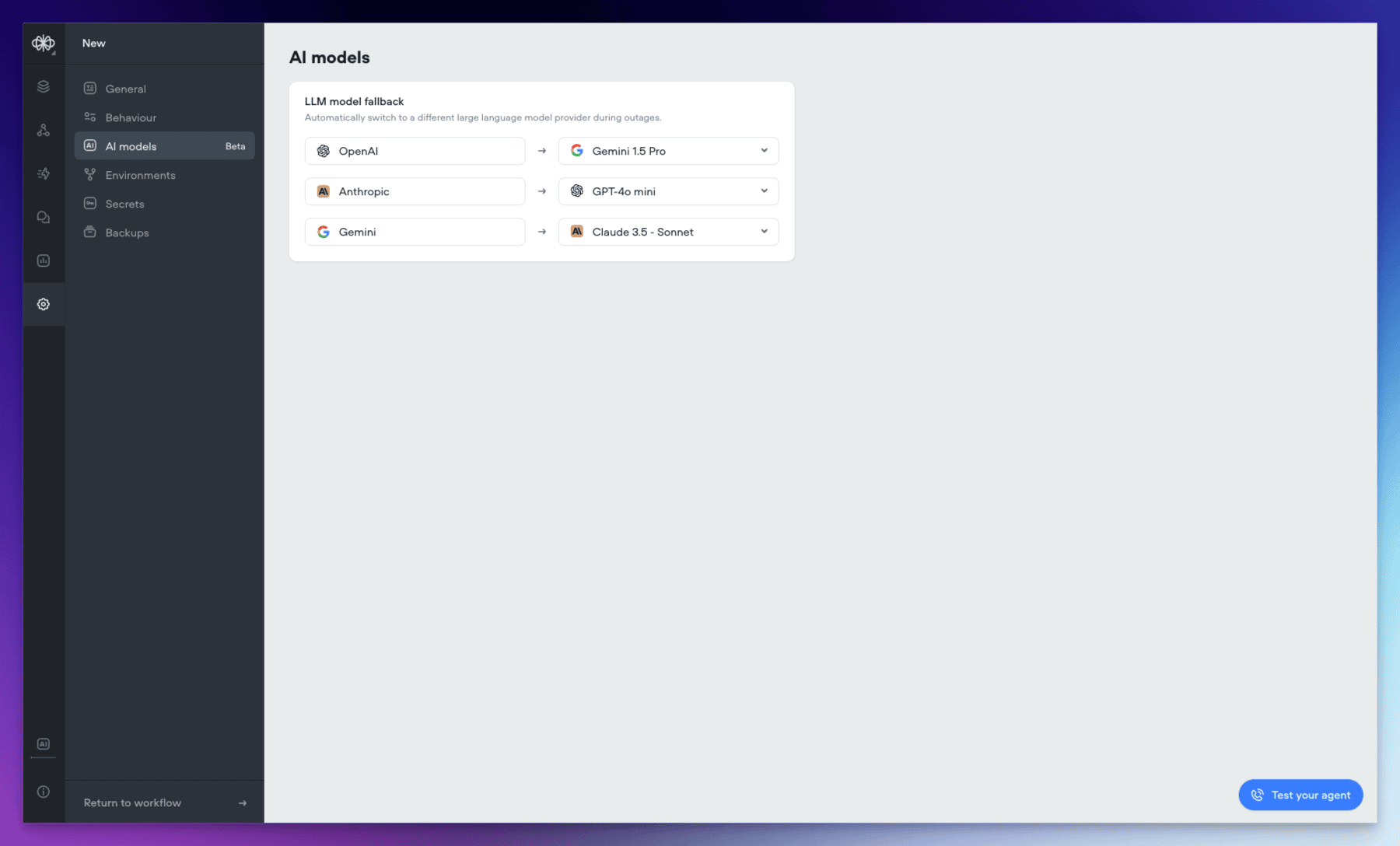
We’re excited to introduce AI Fallback, a powerful new feature in beta that enhances the reliability and continuity of your AI operations. This feature ensures your AI services remain operational even during provider outages or service interruptions.🔄 Automatic Fallback SwitchingAI Fallback automatically switches between models when issues arise. When your primary AI model experiences difficulties, the system seamlessly transitions to your configured backup model, ensuring continuous operation of your AI services.⚙️ Easy ConfigurationSetting up AI Fallback is straightforward:- Access your agent
- Navigate to agent settings
- Set your preferred fallback model by provider
- Minimizes service disruptions during model outages
- Maintains consistent AI performance
- Reduces operational impact of provider issues
- Ensures business continuity
- Identifies the next available model in your sequence
- Switches ongoing operations to the backup model
- Returns to the primary model once issues are resolved
Added
New Features: Structured Outputs and Variable Pathing
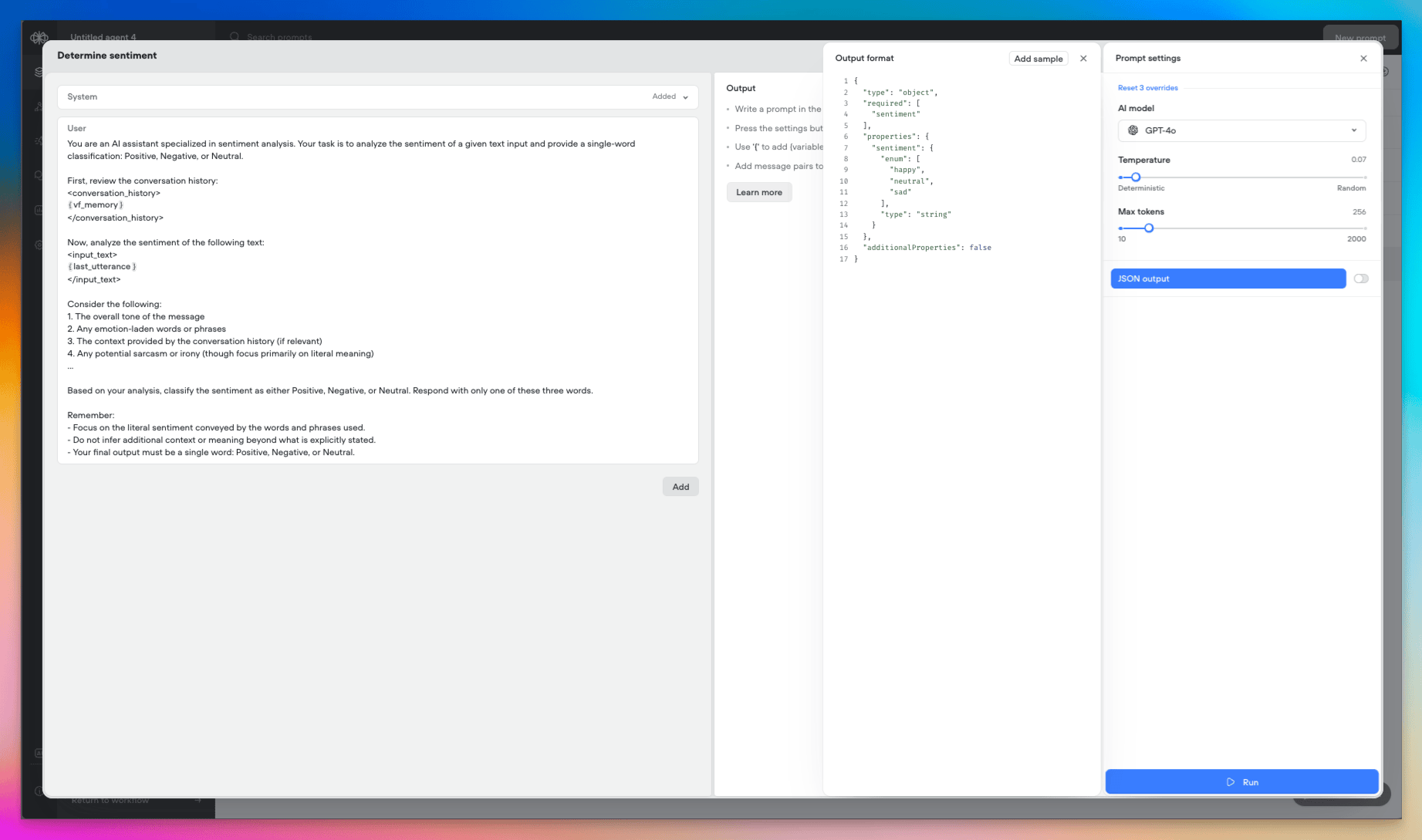
Today we’re introducing two powerful new capabilities in Voiceflow: Structured Outputs and Variable Pathing. These features expand the possibilities for working with data from large language models (LLMs) in your agents. Let’s explore what they enable!🎉 Structured OutputsStructured Outputs let you define the format of the data you expect an LLM to return, giving you more control and predictability over the results.- In a prompt step, enable the new “JSON Output” option to specify the structure of the LLM’s response.
- Today, Structured Outputs support the following data types: String Number Boolean Integer Enum
- Support for arrays and nested objects is planned for the near future.
- Structured Outputs are available with
gpt-4o-miniandgpt-4omodels.
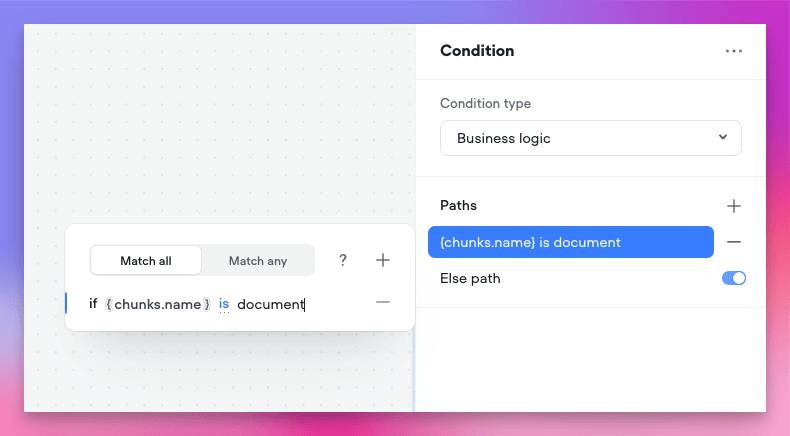
- Store an entire object in a single variable, then access its properties using dot notation (eg:
user.name,user.email). - Capture Structured Output responses or API results as objects.
- Use object properties directly in conditions, messages, and other steps.
- Reduce the need for multiple variables to represent a single entity.
- Define precise data requirements for LLMs to provide relevant information
- Capture responses as feature-rich objects in a single step
- Access and manipulate object properties throughout your project
- Streamline your project’s design while expanding its capabilities
Added
Voiceflow Telephony
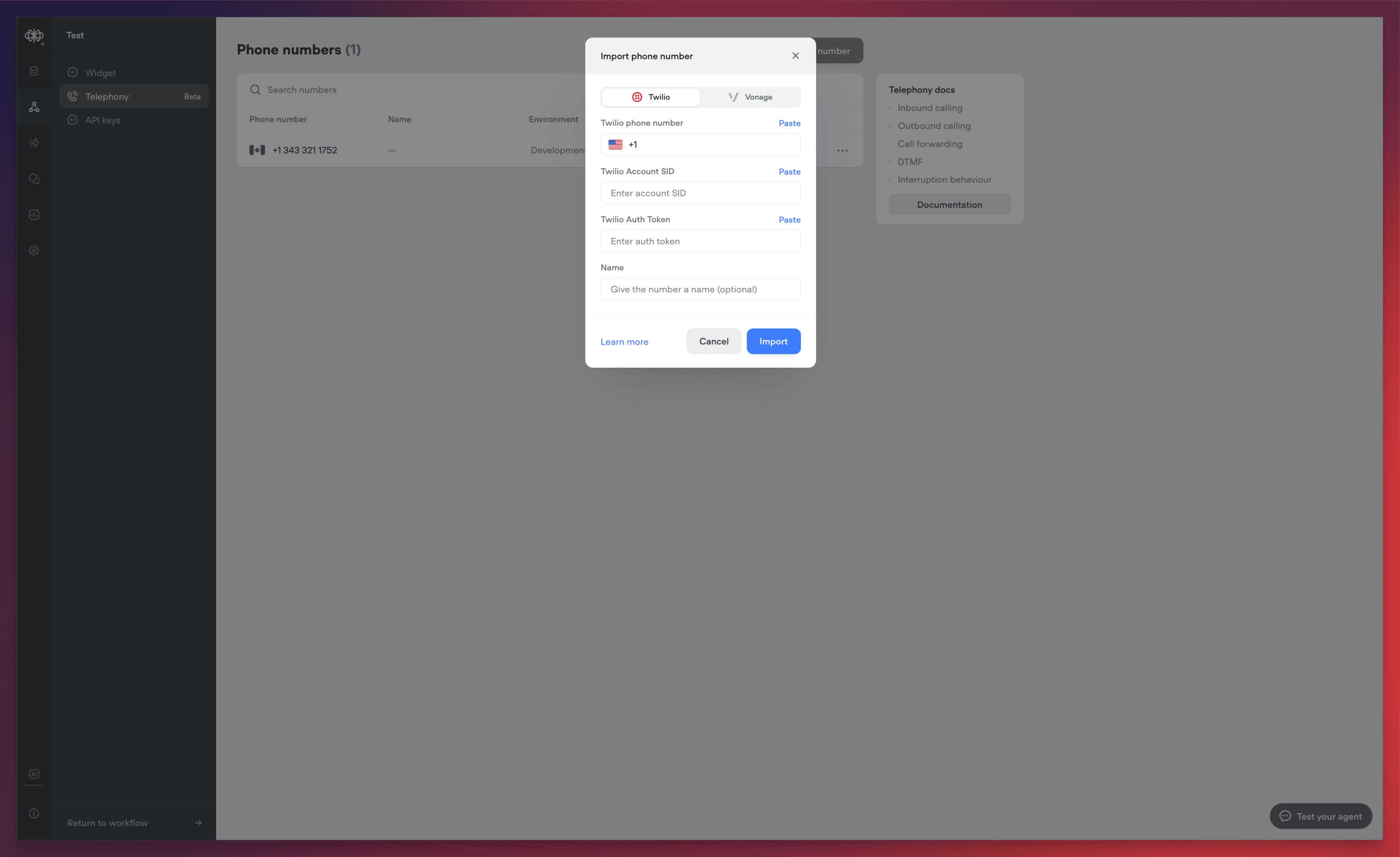
We’re excited to announce the release of Voiceflow Telephony, bringing enterprise-grade voice capabilities to your conversational experiences. This release represents a significant milestone in our mission to provide comprehensive, low-latency voice solutions for businesses of all sizes.Native Twilio IntegrationWe’ve integrated with Twilio to make phone-based interactions as simple as possible. The new integration allows you to:- Import existing Twilio phone numbers directly into Voiceflow
- Associate phone numbers with specific agents
- Configure separate numbers for development and production environments
- Test different versions of your agent against different phone numbers
- Dramatically reduced response times
- Near real-time agent reactions
- Optimized voice processing pipeline
- High-accuracy transcription
- Low-latency processing
- Support for over 20 languages
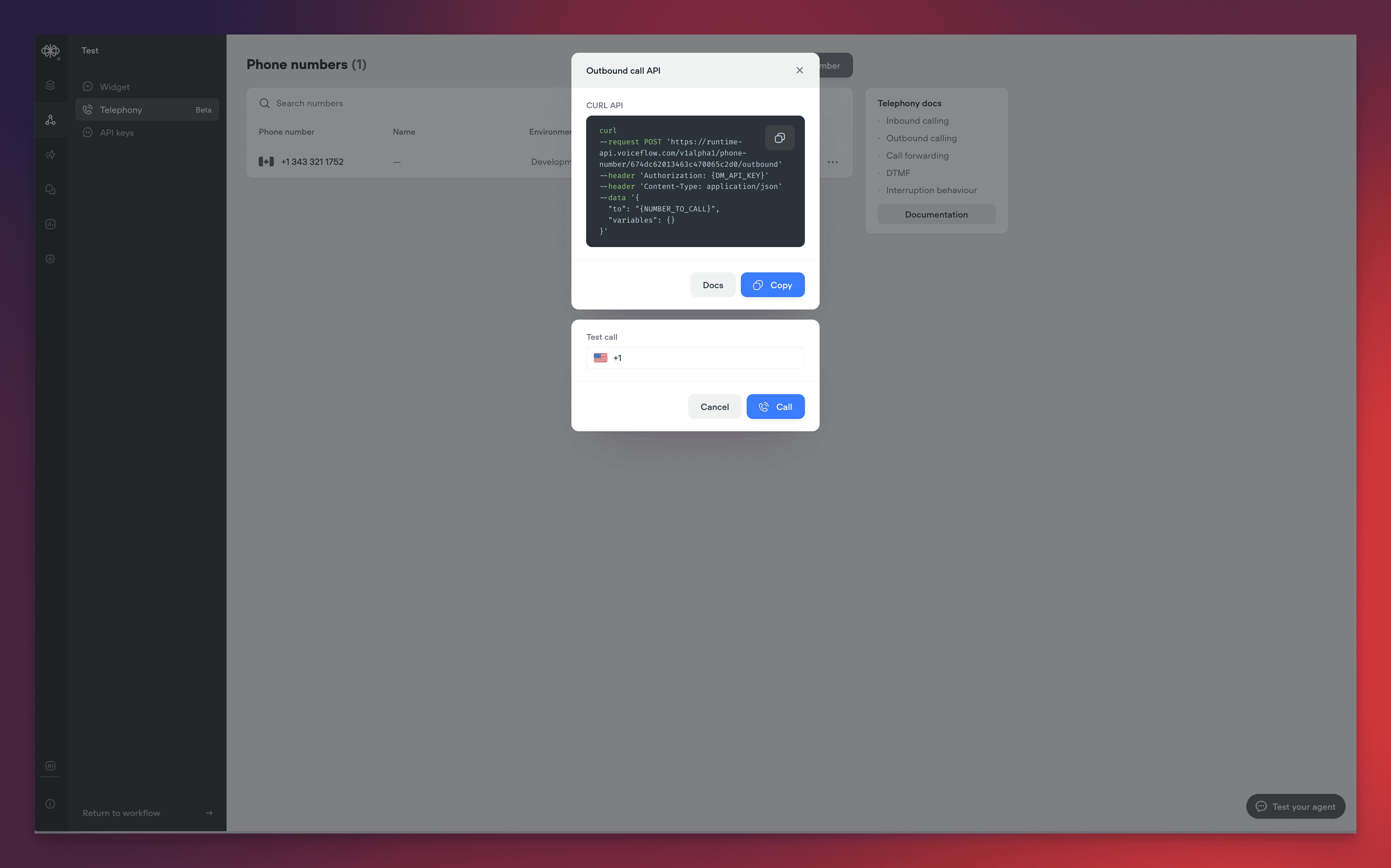
- Programmatically initiate calls to any phone number
- Test outbound calls directly from the Voiceflow interface
- Integrate outbound calling into your existing workflows
- Premium text-to-speech voices from industry leaders, such as: ElevenLabs Rime Google
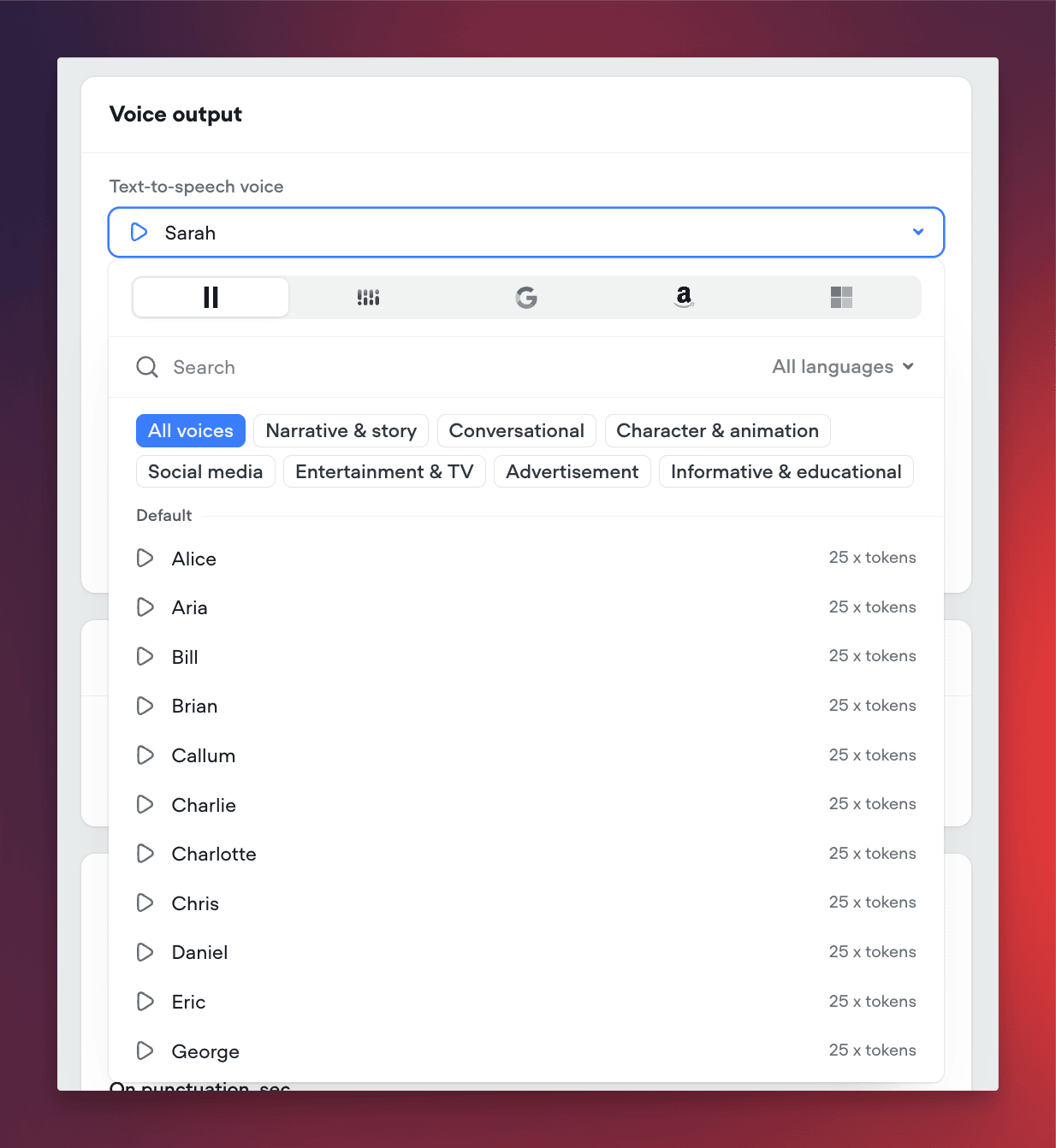
- Support for advanced telephony features through custom actions: Call forwarding DTMF handling Interruption behaviour
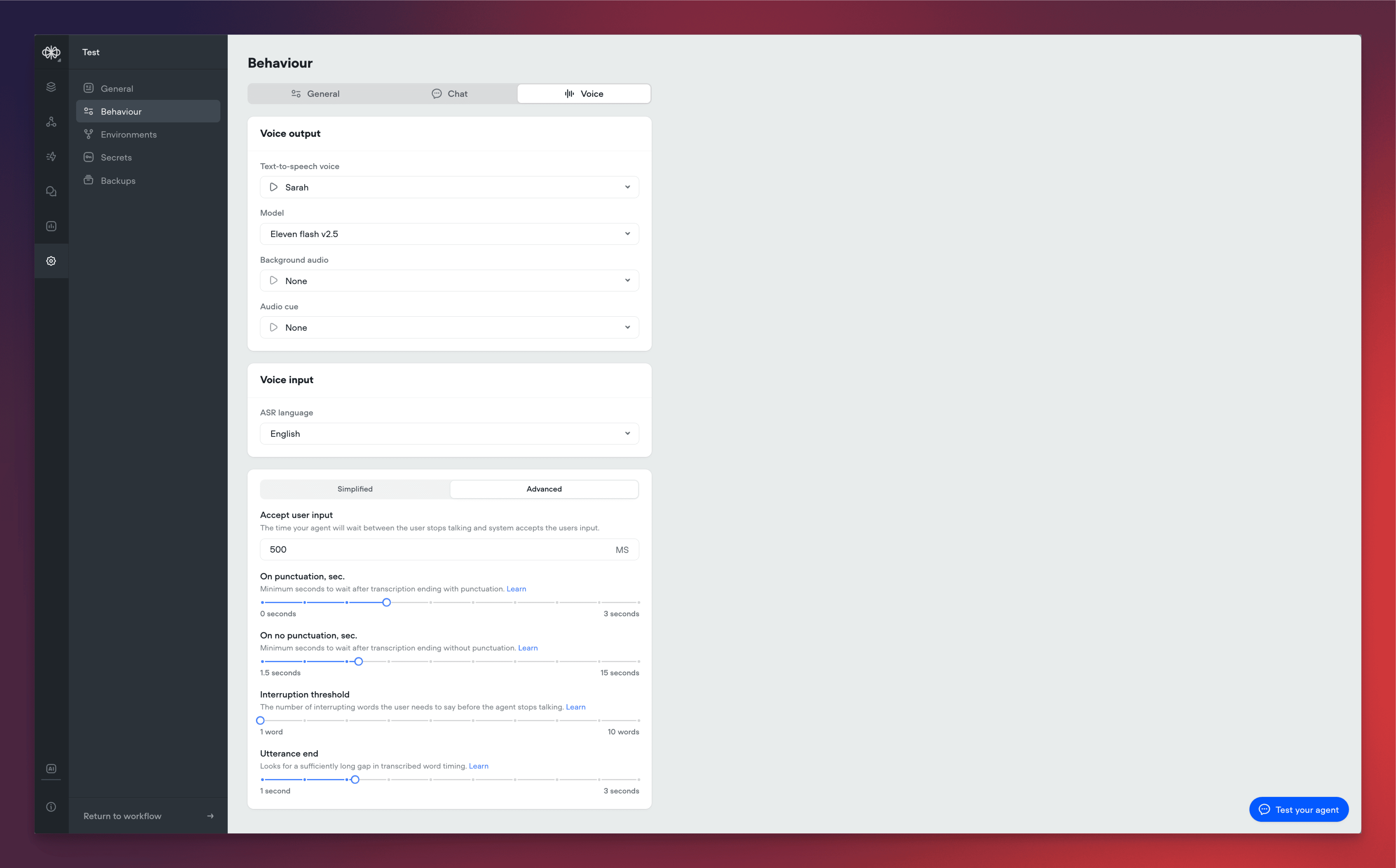
- Background audio customization
- Audio cue configuration
- Interruption threshold controls
- Utterance end detection
- Response timing optimization
- User input acceptance timing
- Enhanced call analytics and reporting
-
Additional voice customization options
Added
New AI-Native Webchat
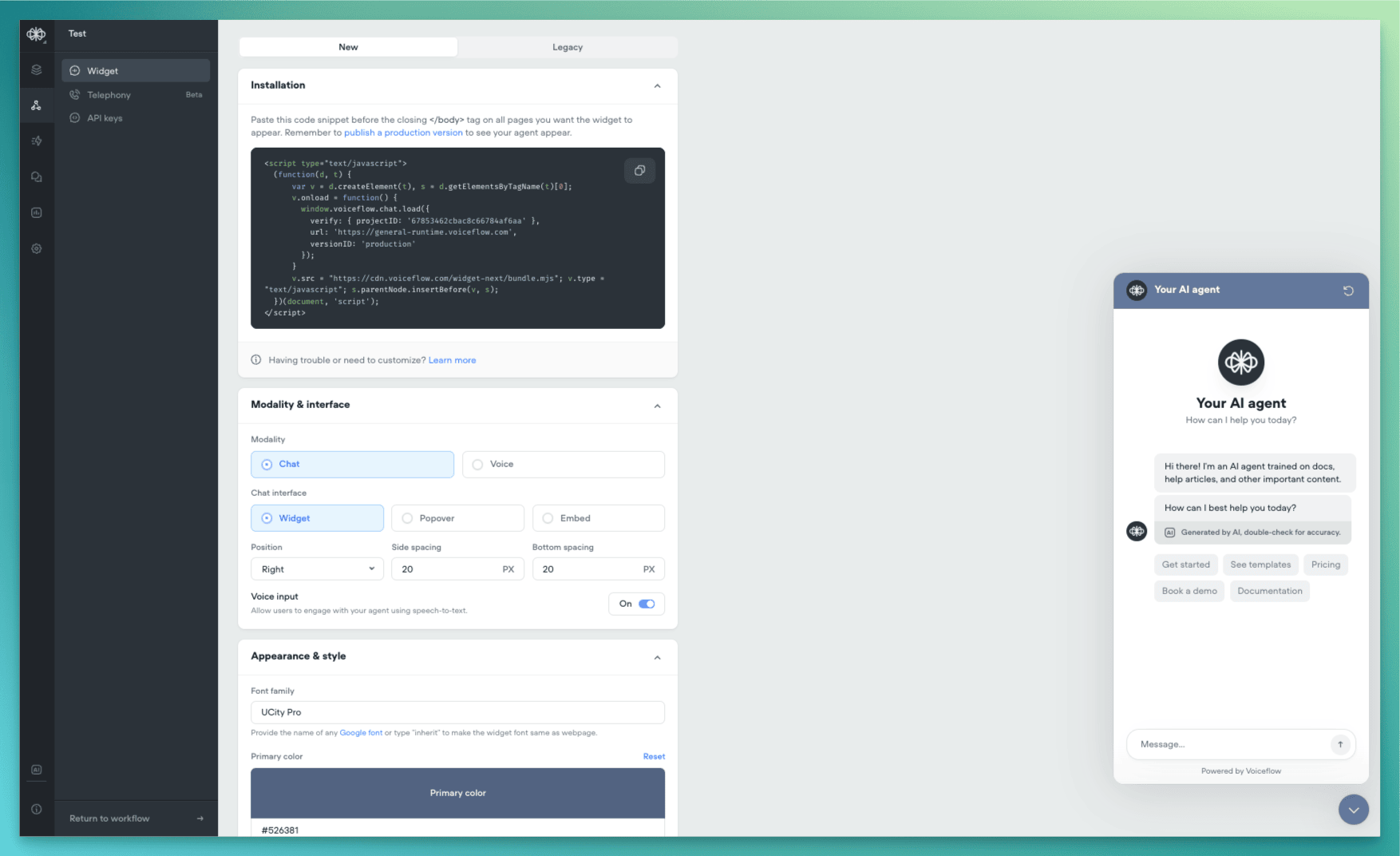
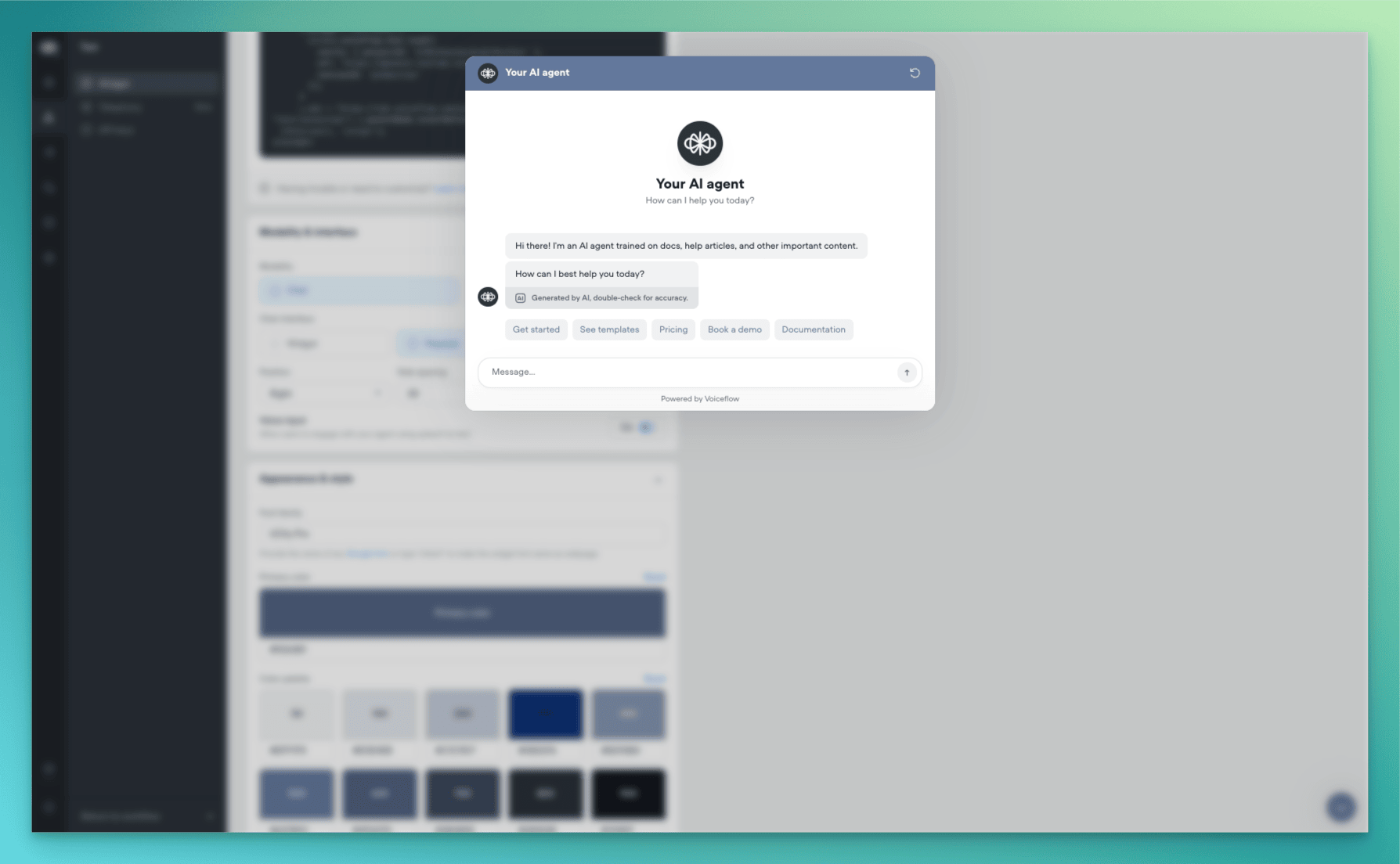
We’re excited to announce a complete reimagining of the Voiceflow webchat experience. This new version introduces AI-native capabilities, enhanced customization options, and flexible deployment methods to help you create more engaging conversational experiences.AI-NativeOur webchat has been rebuilt from the ground up to provide a more natural, AI-driven conversation experience:- Streaming Text Support: Experience real-time message generation with character-by-word streaming, creating a more engaging and dynamic conversation flow. Users can see responses being crafted in real-time, similar to popular AI chat interfaces.
- AI Disclaimers: Built-in support for displaying AI disclosure messages and customizable AI usage notifications to maintain transparency with your users.
- Widget: Traditional chat window that appears in the corner of your website
- Popover: Full-screen chat experience that overlays your content
- Embed: Seamlessly integrate the chat interface directly into your webpage layout
- Color System: Expanded colour palette support with primary, secondary, and accent colour definitions
- Typography: Custom font family support
- Launcher Variations: Classic bubble launcher with customizable icons Button-style launcher with text support
- Chat Persistence: Now configured through the snippet rather than UI settings.
- Custom CSS: Maintained compatibility with most existing class names.
- Proactive Messages: Temporarily unavailable in this release, with support coming soon
Added
Function libraries, starter templates and ElevenLabs support
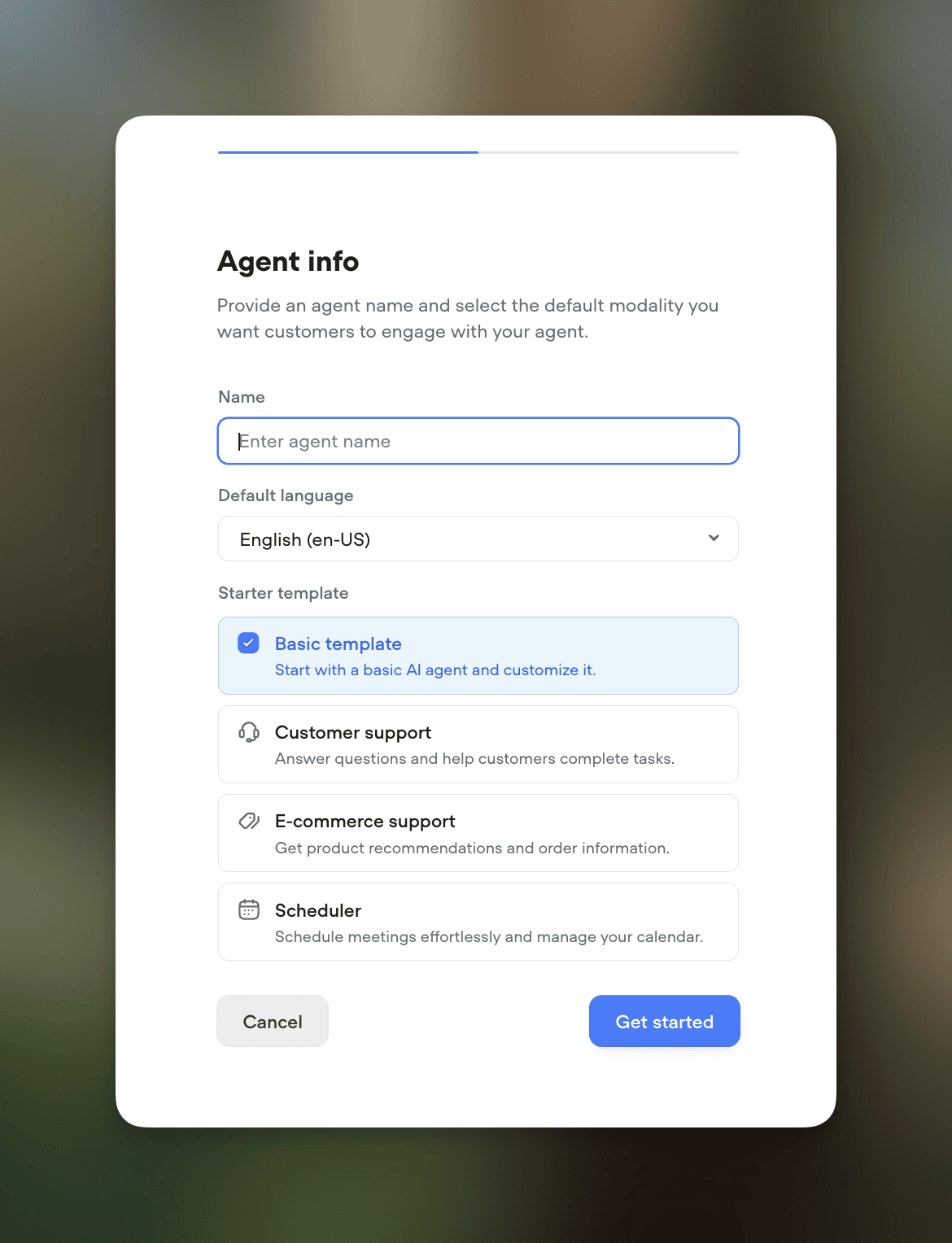
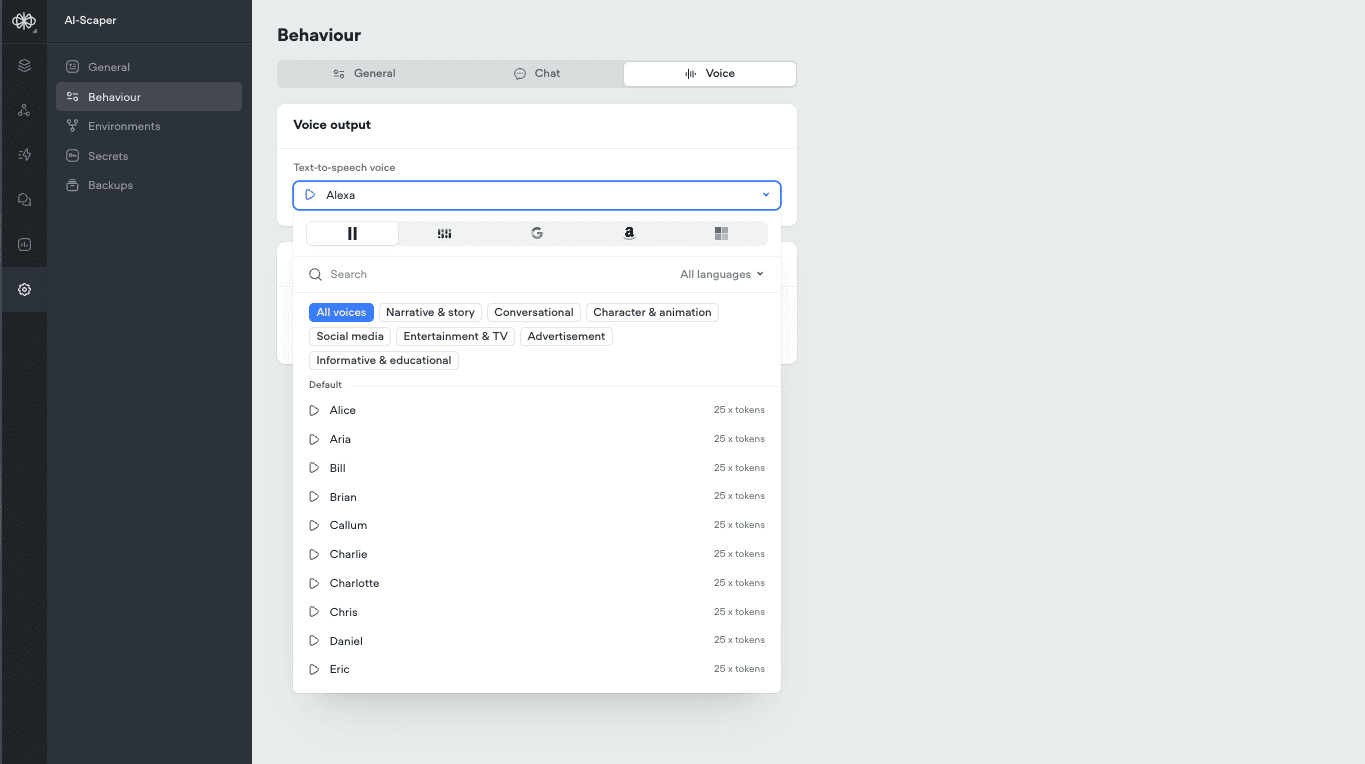
Function LibrariesIntegrate your agent with your favorite tools using our new function libraries. Access pre-built functions for popular platforms like Hubspot, Intercom, Shopify, Zendesk, and Zapier. These functions, sourced from Voiceflow and the community, make it easier than ever to connect Rev with your existing workflows. Showcase readily available integrations to your team and clients.Transcript Review HotkeysReviewing transcripts just got faster and more efficient. You can now pressR to mark a transcript as Reviewed or S to Save it for Later. These handy shortcut keys are perfect for power users who review a high volume of transcripts.Project Starter TemplatesGetting started is now a breeze. When creating a new project, choose from a set of templates tailored for common use cases like customer support, ecommerce support, and scheduling. These templates help you hit the ground running without the need for extensive setup and customization. Ideal for new users and busy teams.Expanded Voice SupportWe now offer an even greater selection of natural-sounding AI voices. We’ve added support for a variety of new options from ElevenLabs and Rime. Please note that using these voices consumes AI tokens. Check them out for your projects that could benefit from additional voice choices.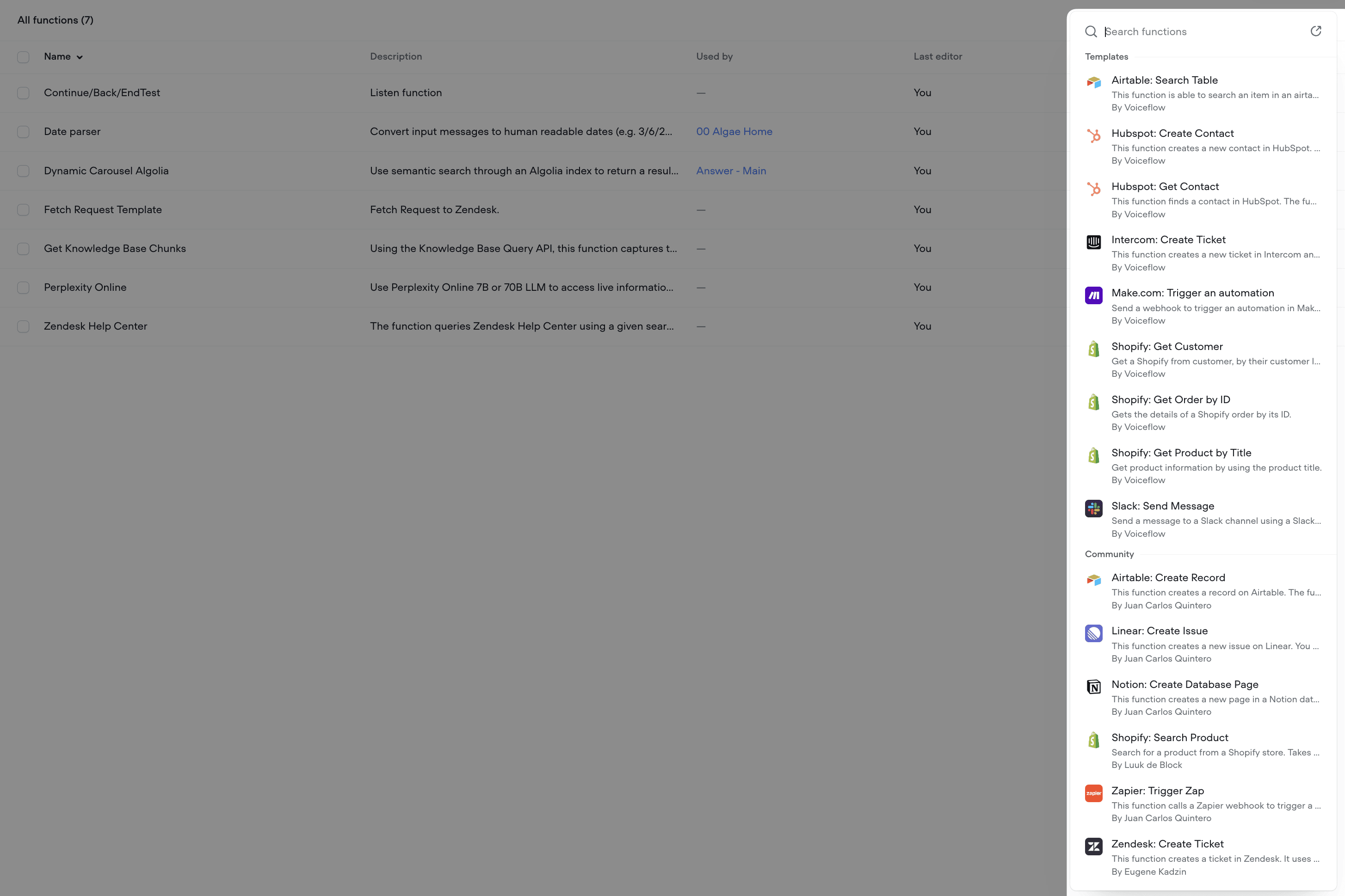
Deprecated
Important Update: Deprecation of AI Response and AI Set Steps
This is an important update to our platform. As part of our ongoing commitment to enhancing your experience and providing the most advanced tools for AI agent development, we have made the decision to deprecate the AI Response and AI Set steps.What does this mean for you?- On February 4th, 2025, the AI Response and AI Set steps will be disabled from the step toolbar in the Voiceflow interface to encourage users to move away of these deprecated steps. Existing steps will remain untouched and will continue working as per normal.
- On June 3rd, 2025, these steps will no longer be supported. Any existing projects using these steps will need to be migrated to the new Prompt and Set steps. We will be sending out additional communication in advance to the sunset date.
- Centralized prompt management:The Prompt CMS serves as a hub for all your prompts, making it easy to create, edit, and reuse them across your projects.
- Advanced prompt configuration: Leverage system prompts, message pairs, conversation history, and variables to craft highly contextual and dynamic responses.
- Seamless integration: The Prompt step allows you to bring your prompts directly into your conversation flows, while the Set step lets you assign prompt outputs to variables for enhanced logic and control.
- Continued innovation: We are committed to expanding the capabilities of these new features, with exciting updates planned for the near future.