All requests to Voiceflow’s APIs require an API key, a project ID, and in most cases a version ID or environment name. These three values tell the API who you are, which agent you’re targeting, and which version of it to run.

Finding your API key

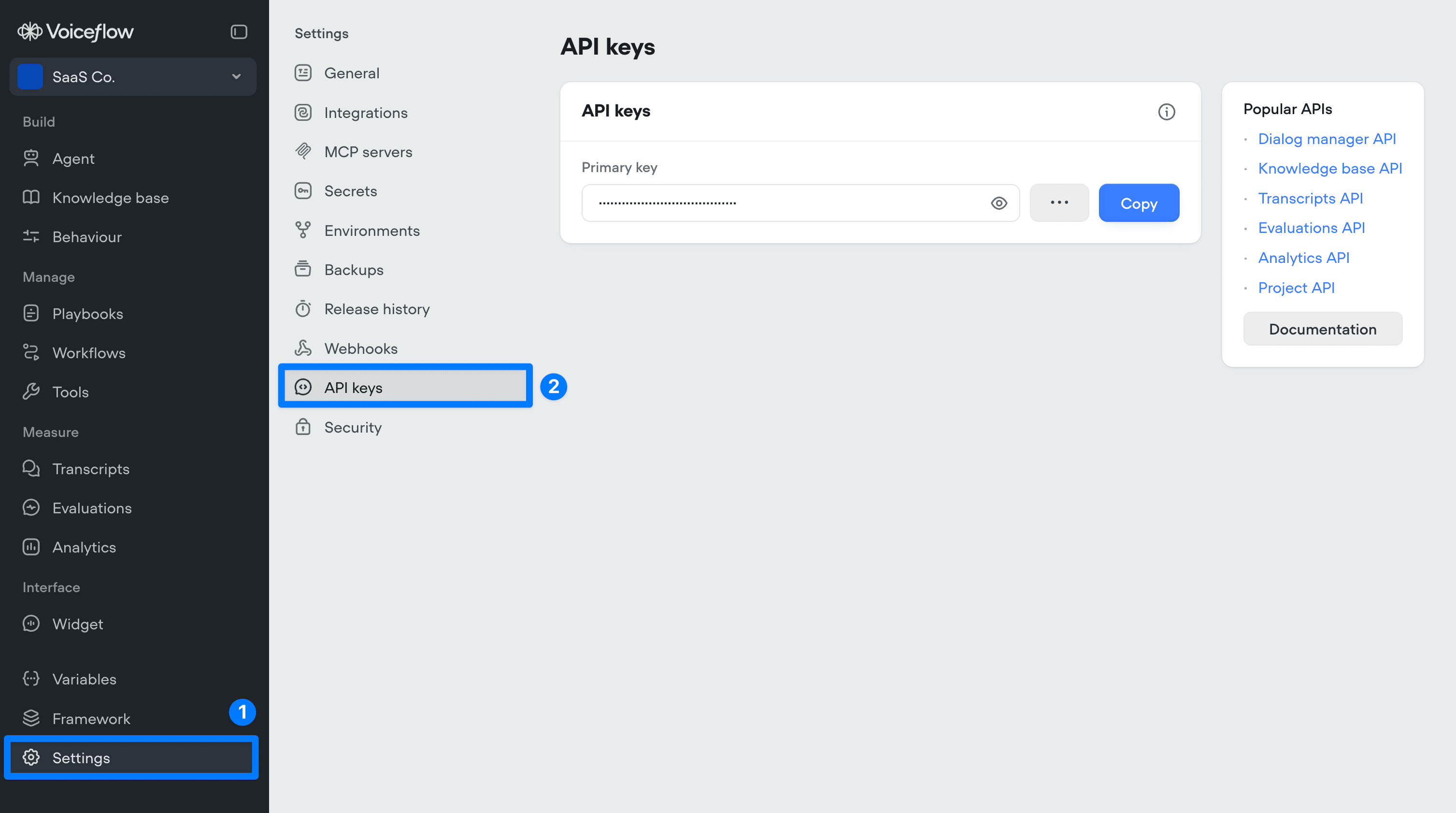
API keys are managed in SettingsAPI keys. Each project has its own API key, and all Voiceflow API keys begin with VF.DM..
Clean Shot 2026 03 13 At 12 43 30@2x
You can have a primary key and a secondary key active at the same time. This is useful for rotating keys without downtime — generate a secondary key, update your integration to use it, then promote it to primary and delete the old one. To create a secondary key, click the menu next to your primary key and select Create secondary key. Once you’re ready to rotate, click Promote next to the secondary key to make it primary. Pass your API key in the Authorization header of every request:
Authorization: VF.DM.your_api_key
Never share your API key or commit it to source control.

Project ID and version ID

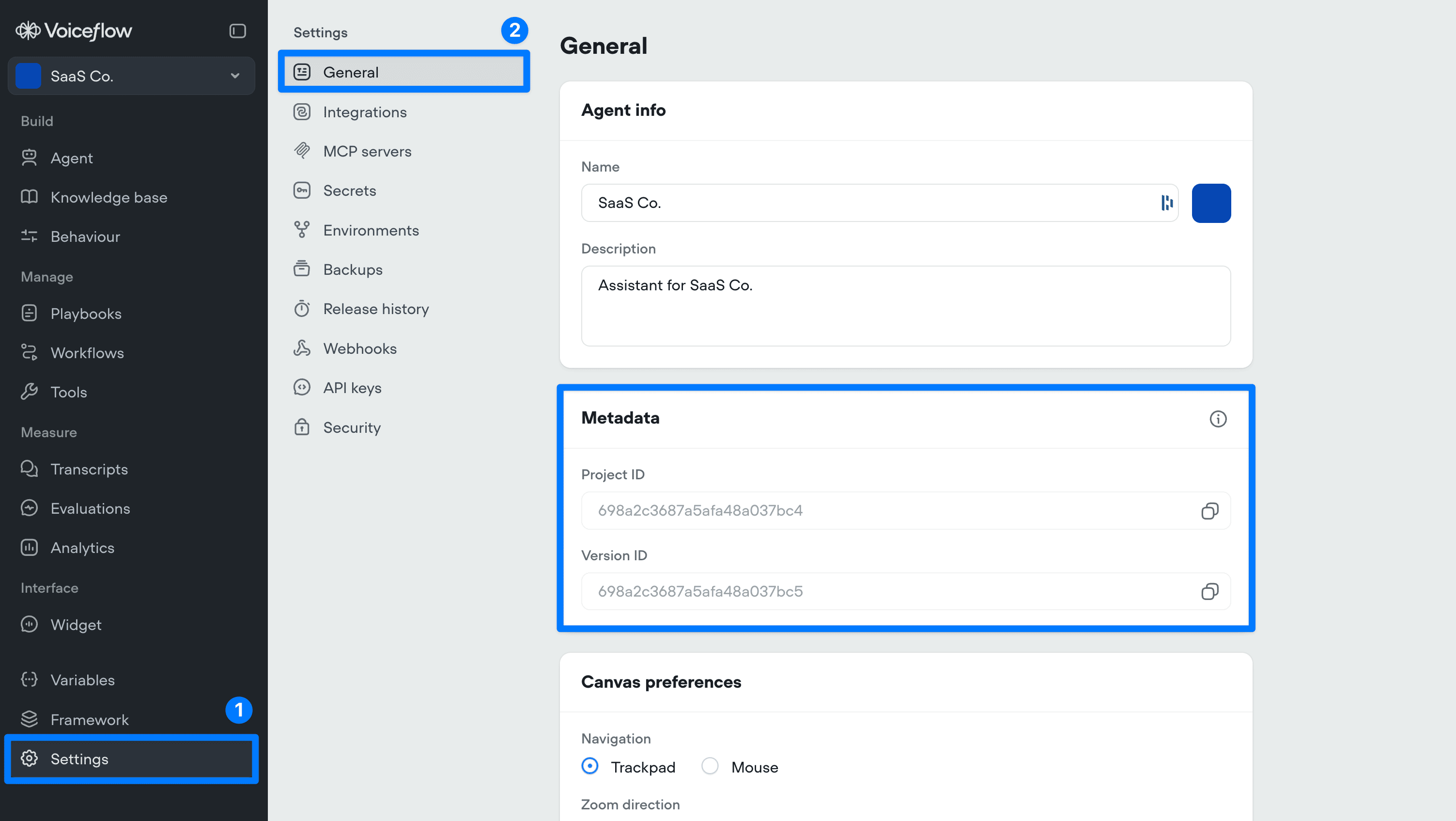
Your project ID and version ID are available in SettingsGeneral under the Metadata section.
Clean Shot 2026 03 13 At 12 45 30@2x
The Project ID identifies your agent and is required for most API requests. The Version ID identifies a specific snapshot of your agent. You can use the literal version ID from the Metadata panel, or use one of the following environment aliases instead:
ValueDescription
developmentThe latest unpublished version of your agent. This is the default.
stagingThe version currently published to your staging environment.
productionThe version currently published to your production environment.
Using an environment alias rather than a hardcoded version ID means your integration will always target the correct published version automatically. See Publishing your agent for more on how environments work.