

Before you start
You’ll need:- Claude Code installed on your machine, either the terminal CLI or the desktop app.
- A Voiceflow account. You’ll sign in to it during setup, and Claude acts on the projects that account can access.
Set up the Voiceflow MCP server
You can connect the server from the command line or from the Claude desktop app. Either way leaves you with the same connection.- Command line
- Desktop app
These steps need a local Claude Code install. They won’t work in Claude Code web or cloud environments, which don’t provide the
claude command or the /mcp command.1
Add the server
Run the following command in your terminal to register the Voiceflow MCP server. Run it directly from your terminal, not inside a Claude Code session.
2
Open the MCP menu
Start Claude Code, then run the 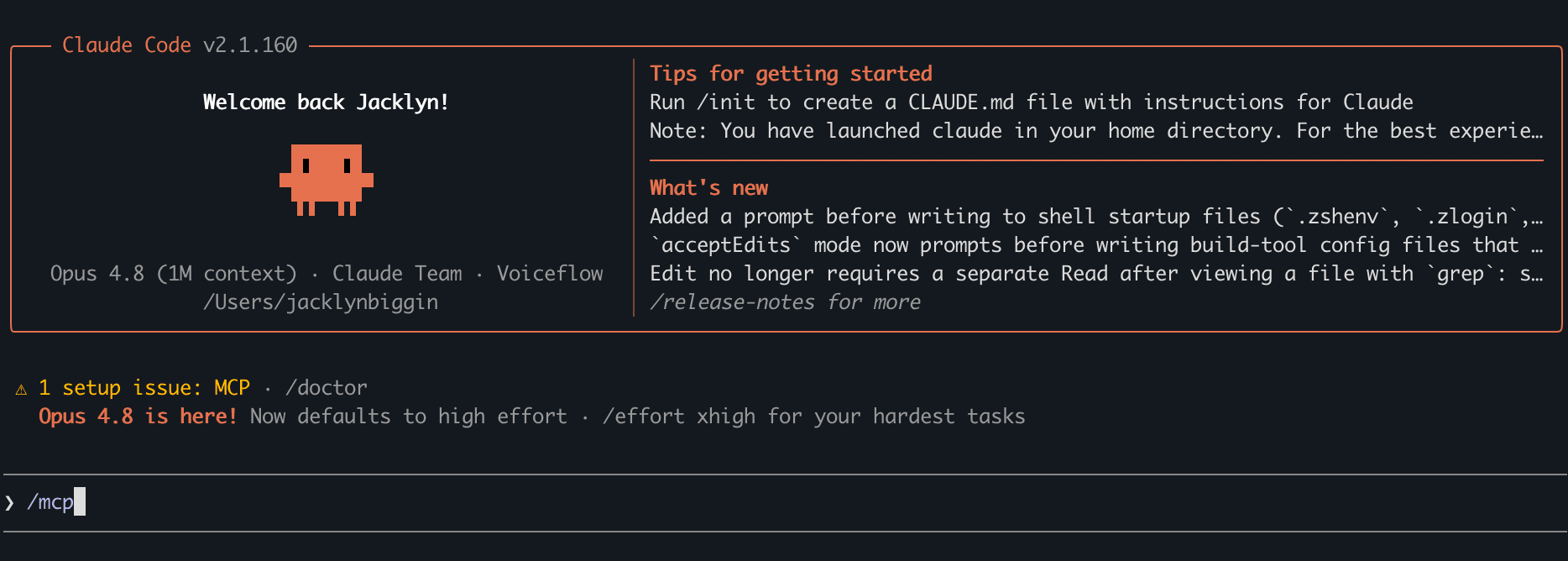
/mcp command. You’ll see voiceflow listed with a status indicating it needs authentication.3
Start the sign-in flow
Select 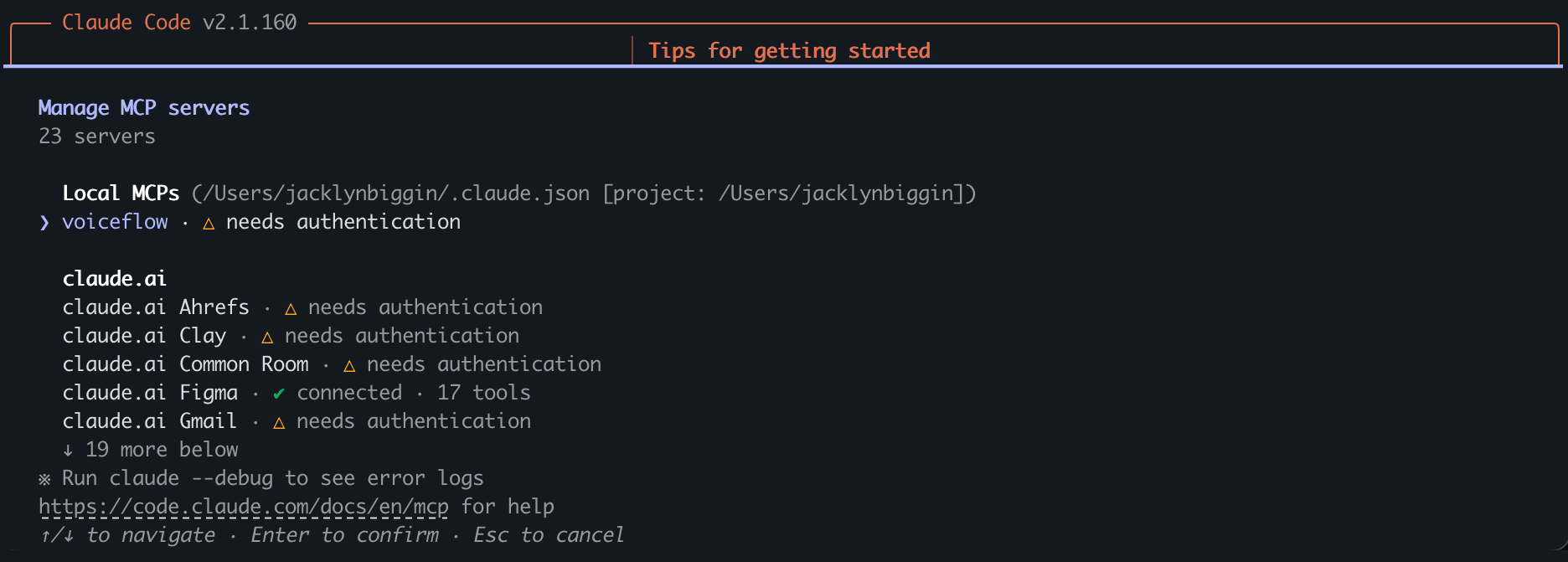
voiceflow, then choose Authenticate. Claude Code opens your browser to the Voiceflow sign-in page.4
Sign in to Voiceflow
Sign in and approve the request. Your browser redirects back to Claude Code to confirm the connection. If the browser doesn’t open on its own, copy the URL Claude Code prints and open it manually.
5
Verify the connection
To confirm everything is working, run:The 
voiceflow server should appear as connected. You can also run /mcp inside a session to see its live status and the number of tools it exposes.Try it out
Once everything is setup, you’re ready to start using Voiceflow through Claude Code. Just describe what you want in plain language, for example:Maintenance
The MCP server is hosted, so it updates automatically. There’s nothing to install or upgrade.Reconnect or remove the server
If you ever need to sign in again, for example after revoking access in Voiceflow, run/mcp, select voiceflow, and clear the authentication. The next time you use the server, Claude Code prompts you to sign in again.
To remove the server completely, run: