> ## Documentation Index
> Fetch the complete documentation index at: https://docs.voiceflow.com/llms.txt
> Use this file to discover all available pages before exploring further.
# Tests
> Run conversations against your agent and check that it behaves the way you expect.
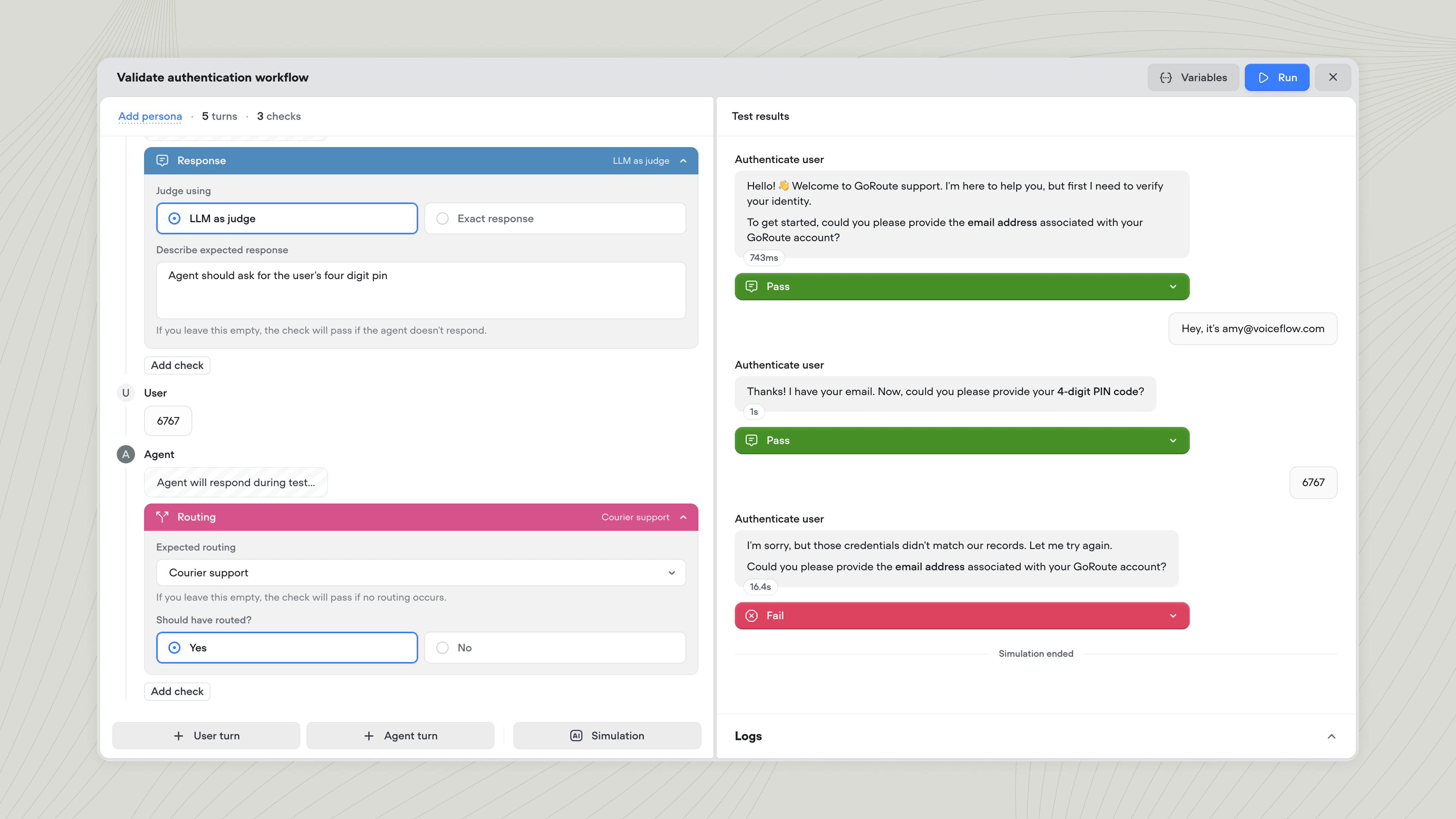 Tests let you verify your agent's behaviour before real users see it. Each test simulates a conversation between a user and your agent, then checks that things like the agent's responses, where it routed, and which tools it called match what you expected.
## Key concepts
| Concept | What it is |
| ------------ | ------------------------------------------------------------------------------------------------------------------------------------------------------------------------------------------------------------------ |
| **Test** | A simulated conversation between a user and your agent, with checks that confirm specific behaviour like "the agent escalates angry customers" or "the refund flow ends with a confirmation email." |
| **Turn** | A single message in the conversation. A turn is either a **User turn** (a message you wrote), an **Agent turn** (your agent's actual response), or a **Simulation** (an AI-generated section of the conversation). |
| **Check** | A condition that runs on one of your agent's turns. Checks look at the agent's response, where it routed, or what tools it called. |
| **Persona** | A saved set of starting variable values. Use personas to start a test as a specific kind of user. |
| **Past run** | The saved results from a previous time you ran a test. Useful for seeing how your agent's behaviour has changed over time. |
## Best practices
Follow this workflow for any meaningful change to your agent.
Create a new [environment](/documentation/deploy/environments/index) cloned from `Main` and name it after the change you're making.
Update playbooks, workflows, tools, or anything else in the new environment.
Write new tests for any behaviour you've introduced or changed. If your existing tests already cover what you're working on, you can skip this step.
Click **Run all tests** in the **Tests** tab to run both your new tests and any tests that were already on the environment. Existing tests catch behaviour you didn't mean to change.
If anything failed, dig into the result, adjust your changes, and re-run the tests. Repeat until everything passes.
Once your tests are green, [merge](/documentation/deploy/environments/merging) the environment back to `Main`. Or, [route some traffic](/documentation/deploy/environments/traffic-split) to the new environment first to A/B test it with humans before merging it to `Main`.
## Creating a test
To create a test, open **Tests** in the sidebar and click **New test**.
Tests let you verify your agent's behaviour before real users see it. Each test simulates a conversation between a user and your agent, then checks that things like the agent's responses, where it routed, and which tools it called match what you expected.
## Key concepts
| Concept | What it is |
| ------------ | ------------------------------------------------------------------------------------------------------------------------------------------------------------------------------------------------------------------ |
| **Test** | A simulated conversation between a user and your agent, with checks that confirm specific behaviour like "the agent escalates angry customers" or "the refund flow ends with a confirmation email." |
| **Turn** | A single message in the conversation. A turn is either a **User turn** (a message you wrote), an **Agent turn** (your agent's actual response), or a **Simulation** (an AI-generated section of the conversation). |
| **Check** | A condition that runs on one of your agent's turns. Checks look at the agent's response, where it routed, or what tools it called. |
| **Persona** | A saved set of starting variable values. Use personas to start a test as a specific kind of user. |
| **Past run** | The saved results from a previous time you ran a test. Useful for seeing how your agent's behaviour has changed over time. |
## Best practices
Follow this workflow for any meaningful change to your agent.
Create a new [environment](/documentation/deploy/environments/index) cloned from `Main` and name it after the change you're making.
Update playbooks, workflows, tools, or anything else in the new environment.
Write new tests for any behaviour you've introduced or changed. If your existing tests already cover what you're working on, you can skip this step.
Click **Run all tests** in the **Tests** tab to run both your new tests and any tests that were already on the environment. Existing tests catch behaviour you didn't mean to change.
If anything failed, dig into the result, adjust your changes, and re-run the tests. Repeat until everything passes.
Once your tests are green, [merge](/documentation/deploy/environments/merging) the environment back to `Main`. Or, [route some traffic](/documentation/deploy/environments/traffic-split) to the new environment first to A/B test it with humans before merging it to `Main`.
## Creating a test
To create a test, open **Tests** in the sidebar and click **New test**.
 A test conversation is built from turns. Use the buttons at the bottom of the editor to add turns:
* **User turn** is an exact user message you script.
* **Agent turn** waits for your agent's real response. Your agent's messages are generated using your playbooks and workflows each time a test is run.
* **Simulation** lets an AI play the user across a section of the conversation. You describe a scenario and success criteria, and the simulation passes if the AI reaches the criteria within a turn cap you set.
Click **Add persona** at the top of the editor to start the test with a saved [persona](/documentation/build/data/personas) (a set of starting variable values).
If your agent uses [events](/documentation/building-agents/behaviour), the **Launch** dropdown lets you start the test from a specific event instead of the default launch state.
A test conversation is built from turns. Use the buttons at the bottom of the editor to add turns:
* **User turn** is an exact user message you script.
* **Agent turn** waits for your agent's real response. Your agent's messages are generated using your playbooks and workflows each time a test is run.
* **Simulation** lets an AI play the user across a section of the conversation. You describe a scenario and success criteria, and the simulation passes if the AI reaches the criteria within a turn cap you set.
Click **Add persona** at the top of the editor to start the test with a saved [persona](/documentation/build/data/personas) (a set of starting variable values).
If your agent uses [events](/documentation/building-agents/behaviour), the **Launch** dropdown lets you start the test from a specific event instead of the default launch state.
.png?fit=max&auto=format&n=0Dnqk9anSsanVTnT&q=85&s=eaff9724d936e15cefeb93bf66661749) ### Adding checks to an agent turn
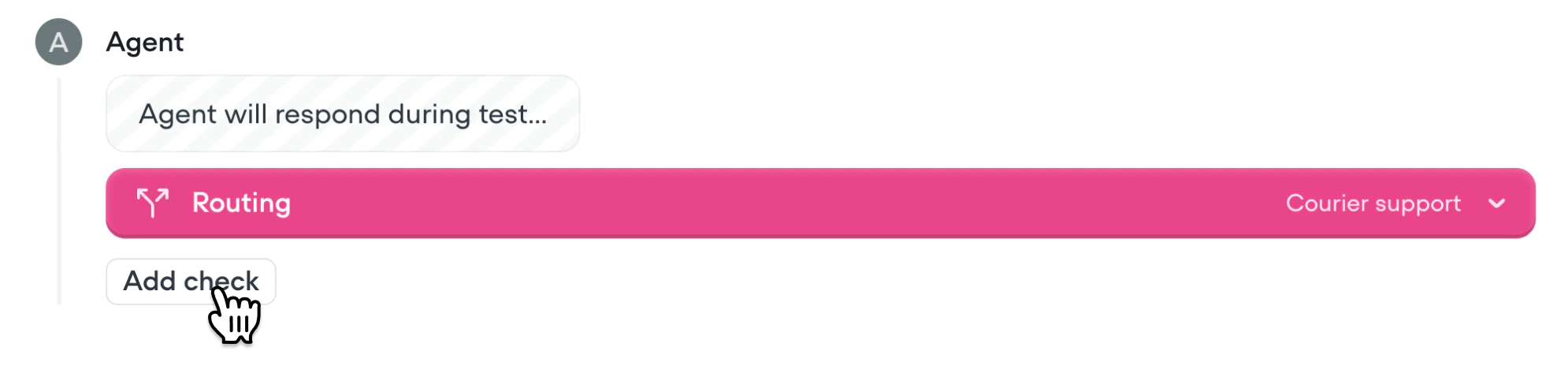
Checks allow you to verify that certain criteria are met during a turn. Click **Add check** on an agent turn and pick a type. Multiple checks can run on the same turn.
### Adding checks to an agent turn
Checks allow you to verify that certain criteria are met during a turn. Click **Add check** on an agent turn and pick a type. Multiple checks can run on the same turn.
 | Check type | What it checks |
| ------------- | -------------------------------------------------------------------------------------------------------------------------------------------------------------------------------------------------------------------------------------------------------------------------------------------- |
| **Response** | What your agent said. Choose **Exact response** to match a specific string, or **LLM as judge** to describe what you expect and let an AI grade the reply. |
| **Routing** | Whether your agent routed to a specific playbook or workflow. |
| **Tool call** | Whether a specific [API](/documentation/build/tools/api-tool), [Function](/documentation/build/tools/function-tool), [Integration](/documentation/build/steps/integration), [MCP](/documentation/build/tools/mcp-tool) or [System tool](/documentation/build/tools/system-tools) was called. |
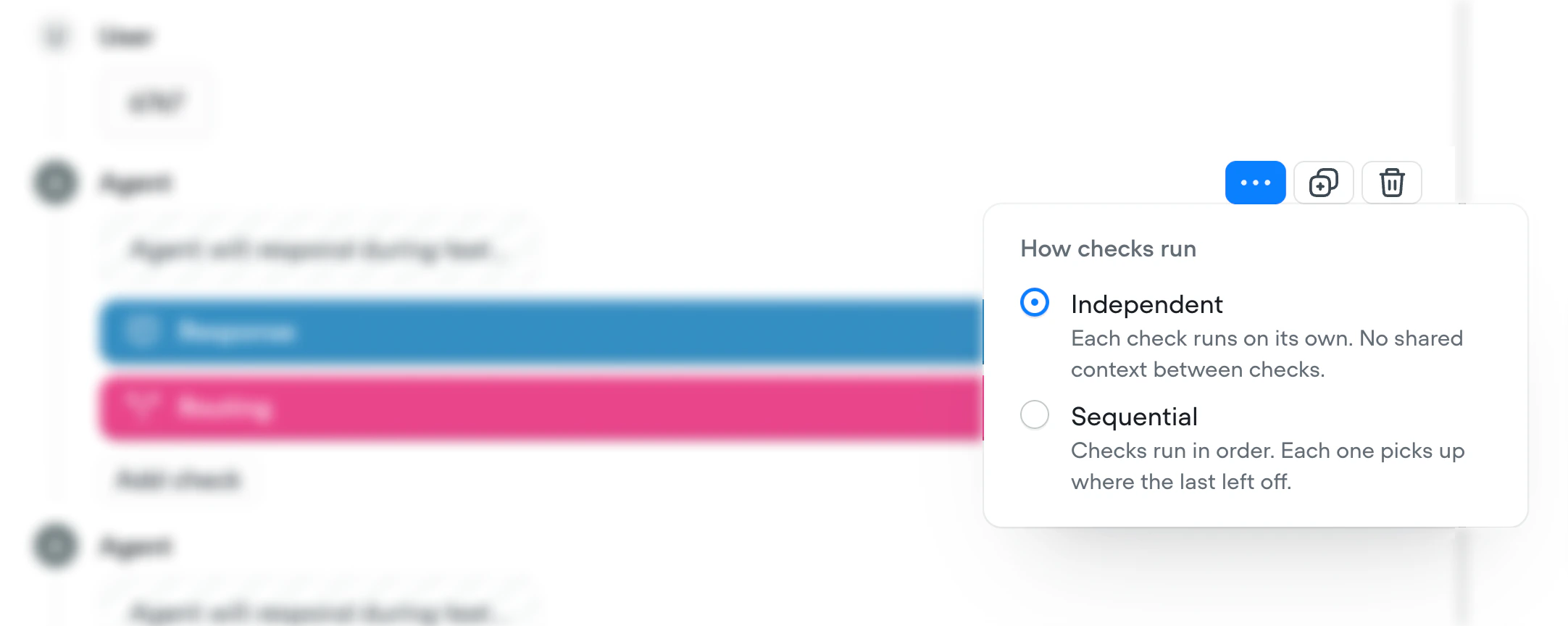
You can choose whether to run checks independently or sequentially on each turn by clicking the **...** button on a turn:
* **Independently**: each check runs on its own with no shared context. Use when order doesn't matter.
* **Sequentially**: checks run in order, each picking up where the last left off. Use when checks depend on each other.
| Check type | What it checks |
| ------------- | -------------------------------------------------------------------------------------------------------------------------------------------------------------------------------------------------------------------------------------------------------------------------------------------- |
| **Response** | What your agent said. Choose **Exact response** to match a specific string, or **LLM as judge** to describe what you expect and let an AI grade the reply. |
| **Routing** | Whether your agent routed to a specific playbook or workflow. |
| **Tool call** | Whether a specific [API](/documentation/build/tools/api-tool), [Function](/documentation/build/tools/function-tool), [Integration](/documentation/build/steps/integration), [MCP](/documentation/build/tools/mcp-tool) or [System tool](/documentation/build/tools/system-tools) was called. |
You can choose whether to run checks independently or sequentially on each turn by clicking the **...** button on a turn:
* **Independently**: each check runs on its own with no shared context. Use when order doesn't matter.
* **Sequentially**: checks run in order, each picking up where the last left off. Use when checks depend on each other.
 ## Running tests
Tests never run automatically. You always start them yourself, either as a single test or as a batch. For each test you run, you can see the conversation as it plays out, whether each check passed or failed along with the reasoning, and the full conversation logs.
### Running a single test
While editing a test, click **Run** in the top right to start it.
## Running tests
Tests never run automatically. You always start them yourself, either as a single test or as a batch. For each test you run, you can see the conversation as it plays out, whether each check passed or failed along with the reasoning, and the full conversation logs.
### Running a single test
While editing a test, click **Run** in the top right to start it.
 ### Running multiple tests
From the **Tests** tab, click **Run all tests** to run every test, or select specific tests and click **Run \[number] tests**.
### Running multiple tests
From the **Tests** tab, click **Run all tests** to run every test, or select specific tests and click **Run \[number] tests**.
 Tests run in parallel, and the runner shows each one passing or failing as it finishes. Click a test to see its full results. Use **Retry failed** to re-run just the failures, or **Retry all** to start over.
## Reviewing past runs
The **Past runs** tab lists every test and test batch that's been run on this environment. Open a past run to see exactly what failed, then go fix the issue in your agent.
Tests run in parallel, and the runner shows each one passing or failing as it finishes. Click a test to see its full results. Use **Retry failed** to re-run just the failures, or **Retry all** to start over.
## Reviewing past runs
The **Past runs** tab lists every test and test batch that's been run on this environment. Open a past run to see exactly what failed, then go fix the issue in your agent.
.png?fit=max&auto=format&n=KJ-CrghgpCVJUpuv&q=85&s=bfda312a6fa00ba51b4c871b3c9e863d) Once you've made a change, use **Retry failed** to re-run only the tests that didn't pass, or hit the retry icon next to a single test to re-run just that one and verify your fix.
## Test costs
Tests consume credits when LLM-powered features are used, the same as in a real conversation. See the [credits pricing table](/documentation/account-management/billing/credits-pricing-table) for what consumes credits.
Once you've made a change, use **Retry failed** to re-run only the tests that didn't pass, or hit the retry icon next to a single test to re-run just that one and verify your fix.
## Test costs
Tests consume credits when LLM-powered features are used, the same as in a real conversation. See the [credits pricing table](/documentation/account-management/billing/credits-pricing-table) for what consumes credits.