> ## Documentation Index
> Fetch the complete documentation index at: https://docs.voiceflow.com/llms.txt
> Use this file to discover all available pages before exploring further.
# Connecting a phone number
> Connect a phone number to your agent to enable voice calls over the phone.
 You can connect phone numbers to your agent from the **Phone numbers** tab in the sidebar. Voiceflow supports numbers from multiple providers, or you can provision a number directly through Voiceflow. Once connected, your number can receive [inbound calls](/documentation/deploy/phone/inbound-calling) and make [outbound calls](/documentation/deploy/phone/outbound-calling) through your agent.
## Adding a phone number
Open **Phone numbers** in the sidebar and click **Create number**. Select your provider and enter the required credentials.
* **Voiceflow number**: Voiceflow can provision a US or Canadian phone number for you. Select an area code and optionally give it a name. The number of Voiceflow numbers included depends on your [plan](https://voiceflow.com/pricing).
* **Twilio**: You'll need your phone number, Account SID, and Auth Token from your [Twilio console](https://console.twilio.com/).
* **Vonage**: You'll need your phone number, API Key, and API Secret from your [Vonage dashboard](https://dashboard.nexmo.com/).
* **Telnyx**: You'll need your phone number and API Key from your [Telnyx portal](https://portal.telnyx.com/).
## Assigning an existing number
If you've already connected a phone number to another project in your workspace, you can reuse it. Click **Assign existing number** to see all available numbers in your workspace and assign one to the current project.
## Routing calls to an environment
By default, a phone number linked to an agent routes each incoming call according to the [traffic split](/documentation/deploy/environments/traffic-split) configured in **Settings** → **Environments**, so the A/B tests and gradual rollouts you've set up for the rest of your agent apply to phone calls too.
If you'd rather point a phone number to a specific environment, this can be configured when linking the phone number or from the **Phone numbers** tab. Phone numbers can be pointed at the live or draft version of any environment. Once assigned, every call to that number goes to the version you selected, regardless of the traffic split.
You can connect phone numbers to your agent from the **Phone numbers** tab in the sidebar. Voiceflow supports numbers from multiple providers, or you can provision a number directly through Voiceflow. Once connected, your number can receive [inbound calls](/documentation/deploy/phone/inbound-calling) and make [outbound calls](/documentation/deploy/phone/outbound-calling) through your agent.
## Adding a phone number
Open **Phone numbers** in the sidebar and click **Create number**. Select your provider and enter the required credentials.
* **Voiceflow number**: Voiceflow can provision a US or Canadian phone number for you. Select an area code and optionally give it a name. The number of Voiceflow numbers included depends on your [plan](https://voiceflow.com/pricing).
* **Twilio**: You'll need your phone number, Account SID, and Auth Token from your [Twilio console](https://console.twilio.com/).
* **Vonage**: You'll need your phone number, API Key, and API Secret from your [Vonage dashboard](https://dashboard.nexmo.com/).
* **Telnyx**: You'll need your phone number and API Key from your [Telnyx portal](https://portal.telnyx.com/).
## Assigning an existing number
If you've already connected a phone number to another project in your workspace, you can reuse it. Click **Assign existing number** to see all available numbers in your workspace and assign one to the current project.
## Routing calls to an environment
By default, a phone number linked to an agent routes each incoming call according to the [traffic split](/documentation/deploy/environments/traffic-split) configured in **Settings** → **Environments**, so the A/B tests and gradual rollouts you've set up for the rest of your agent apply to phone calls too.
If you'd rather point a phone number to a specific environment, this can be configured when linking the phone number or from the **Phone numbers** tab. Phone numbers can be pointed at the live or draft version of any environment. Once assigned, every call to that number goes to the version you selected, regardless of the traffic split.
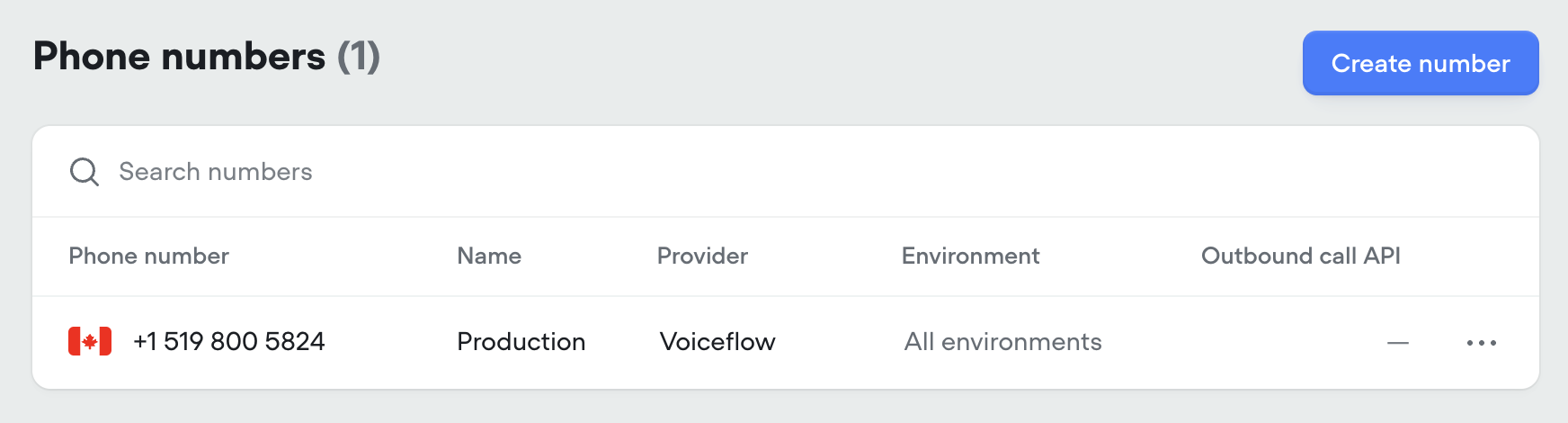 Routing a phone number to a draft is useful for testing changes by phone before publishing them. Switch back to **Published** when you're ready for callers to get the live experience again.
## Enabling call recording
You are responsible for complying with laws related to call recording and consent in your region.
You can record calls for quality assurance and compliance. Open **Transcripts** → **Transcript settings** and enable **Save call recordings**. Recordings are stored by Voiceflow and [linked to the call's transcript](/documentation/measure/transcripts).
Call recording is only available for phone calls. Voice conversations through the [web chat widget](/documentation/deploy/widget/embedding-the-chat-widget) cannot be recorded.
## Removing a phone number
To remove a number from your project, click the three dots menu next to it and select **Remove**. The phone number will remain linked to your Voiceflow account and can still be reused in other projects using the **Assign existing number** button at the top of the **Phone numbers** tab.
To fully unlink a phone number from your Voiceflow account, go to **Voiceflow Dashboard** → **Phone numbers**, then click the three dots menu next to the phone number and select **Delete**.
Routing a phone number to a draft is useful for testing changes by phone before publishing them. Switch back to **Published** when you're ready for callers to get the live experience again.
## Enabling call recording
You are responsible for complying with laws related to call recording and consent in your region.
You can record calls for quality assurance and compliance. Open **Transcripts** → **Transcript settings** and enable **Save call recordings**. Recordings are stored by Voiceflow and [linked to the call's transcript](/documentation/measure/transcripts).
Call recording is only available for phone calls. Voice conversations through the [web chat widget](/documentation/deploy/widget/embedding-the-chat-widget) cannot be recorded.
## Removing a phone number
To remove a number from your project, click the three dots menu next to it and select **Remove**. The phone number will remain linked to your Voiceflow account and can still be reused in other projects using the **Assign existing number** button at the top of the **Phone numbers** tab.
To fully unlink a phone number from your Voiceflow account, go to **Voiceflow Dashboard** → **Phone numbers**, then click the three dots menu next to the phone number and select **Delete**.