> ## Documentation Index
> Fetch the complete documentation index at: https://docs.voiceflow.com/llms.txt
> Use this file to discover all available pages before exploring further.
# A/B testing
> Split traffic across multiple environments at once for A/B testing and gradual rollouts.
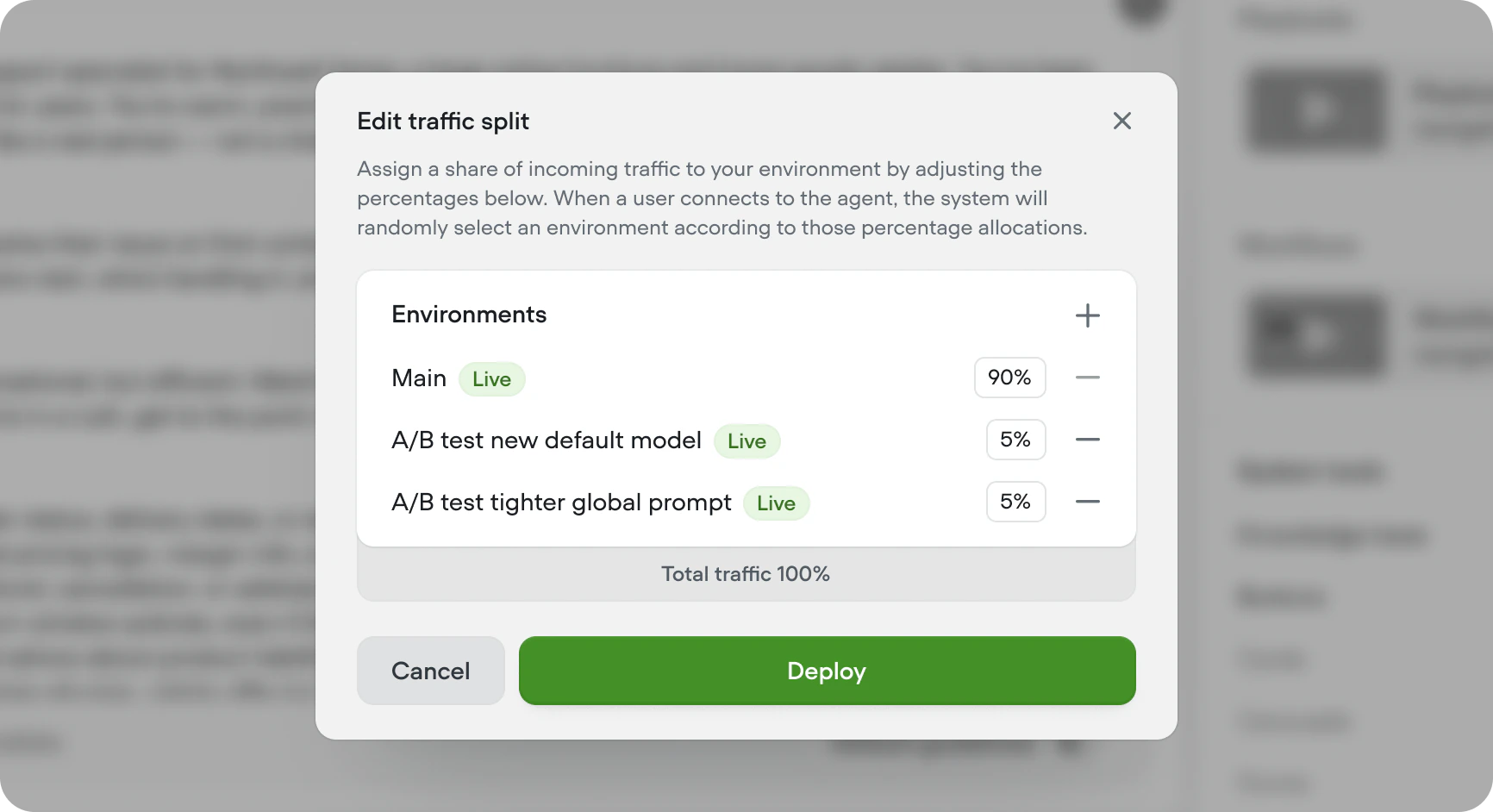 Traffic splitting allows you to assign a percentage of incoming traffic to different [environments](/documentation/deploy/environments). Allowing for A/B testing, and gradual rollouts.
Individual users stay on the same environment across sessions so their experience is consistent.
## When to use a traffic split
Use a traffic split when you want to measure a meaningful change before it reaches everyone, or compare two approaches head-to-head in production. For small, well-understood edits — copy tweaks, typos, minor prompt updates — you can simply edit `Main` and publish.
Once an environment has been validated as the winner, you should [merge it back into ](/documentation/deploy/environments/merging)`Main` rather than leave it running under a traffic split.
Use the Main environment as the source of truth for your agent. Once a change is ready — or an A/B test resolves in favour of the new environment — merge it back into Main, rather than leaving another environment serving 100% of traffic indefinitely.
## Editing traffic split
Click **Edit traffic split** in the top right of **Settings** → **Environments**. Add a row for each environment you want to include, set its percentage, and click **Deploy**. Percentages must add up to 100%. Removing an environment from the traffic split prevents users from automatically being routed to it but doesn't remove the environment from your project.
When a traffic split is changed, the new settings will only be enforced for new sessions. Existing sessions will continue on their current environment.
## Recommended rollout
Create a new environment cloned from `Main` and name it after the change(s) you're making.
Work on the new environment and save ⇧⌘S or [publish versions](/documentation/deploy/environments/publishing) as you go.
Once you're happy with the changes, open [**edit traffic split**](/documentation/deploy/environments/traffic-split) and send a small percentage of live traffic to the new environment.
Compare this environment to `Main` using your KPIs in [Analytics](https://docs.voiceflow.com/documentation/measure/analytics), [Evaluations](https://docs.voiceflow.com/documentation/measure/evaluations) and [Transcripts](https://docs.voiceflow.com/documentation/measure/transcripts).
If this environments proves to be performing better than the live version of Main, [merge](/documentation/deploy/environments/merging) the environment to `Main`. Delete the environment on merge to keep your project clean.
Repeat this process to continually improve your agent over time.
## Considerations
* Users are automatically routed to an environment based on your specified traffic split. You can't pick specific users or cohorts to land on a particular environment. If you need cohort-based routing, pass a specific environment alias when your users connect (for example, in your [chat widget](/documentation/deploy/widget/embedding-the-chat-widget) snippet) instead of relying on this feature.
* Traffic split applies to every way your users connect to your agent (chat widget, phone, API, custom clients). If you need different routing per channel, point each channel at a specific [environment alias](/documentation/deploy/environments/index#aliases).
Traffic splitting allows you to assign a percentage of incoming traffic to different [environments](/documentation/deploy/environments). Allowing for A/B testing, and gradual rollouts.
Individual users stay on the same environment across sessions so their experience is consistent.
## When to use a traffic split
Use a traffic split when you want to measure a meaningful change before it reaches everyone, or compare two approaches head-to-head in production. For small, well-understood edits — copy tweaks, typos, minor prompt updates — you can simply edit `Main` and publish.
Once an environment has been validated as the winner, you should [merge it back into ](/documentation/deploy/environments/merging)`Main` rather than leave it running under a traffic split.
Use the Main environment as the source of truth for your agent. Once a change is ready — or an A/B test resolves in favour of the new environment — merge it back into Main, rather than leaving another environment serving 100% of traffic indefinitely.
## Editing traffic split
Click **Edit traffic split** in the top right of **Settings** → **Environments**. Add a row for each environment you want to include, set its percentage, and click **Deploy**. Percentages must add up to 100%. Removing an environment from the traffic split prevents users from automatically being routed to it but doesn't remove the environment from your project.
When a traffic split is changed, the new settings will only be enforced for new sessions. Existing sessions will continue on their current environment.
## Recommended rollout
Create a new environment cloned from `Main` and name it after the change(s) you're making.
Work on the new environment and save ⇧⌘S or [publish versions](/documentation/deploy/environments/publishing) as you go.
Once you're happy with the changes, open [**edit traffic split**](/documentation/deploy/environments/traffic-split) and send a small percentage of live traffic to the new environment.
Compare this environment to `Main` using your KPIs in [Analytics](https://docs.voiceflow.com/documentation/measure/analytics), [Evaluations](https://docs.voiceflow.com/documentation/measure/evaluations) and [Transcripts](https://docs.voiceflow.com/documentation/measure/transcripts).
If this environments proves to be performing better than the live version of Main, [merge](/documentation/deploy/environments/merging) the environment to `Main`. Delete the environment on merge to keep your project clean.
Repeat this process to continually improve your agent over time.
## Considerations
* Users are automatically routed to an environment based on your specified traffic split. You can't pick specific users or cohorts to land on a particular environment. If you need cohort-based routing, pass a specific environment alias when your users connect (for example, in your [chat widget](/documentation/deploy/widget/embedding-the-chat-widget) snippet) instead of relying on this feature.
* Traffic split applies to every way your users connect to your agent (chat widget, phone, API, custom clients). If you need different routing per channel, point each channel at a specific [environment alias](/documentation/deploy/environments/index#aliases).