> ## Documentation Index
> Fetch the complete documentation index at: https://docs.voiceflow.com/llms.txt
> Use this file to discover all available pages before exploring further.
# Environments
> Work on multiple versions of your agent in parallel, conduct A/B tests with traffic splits, and roll changes back with confidence.
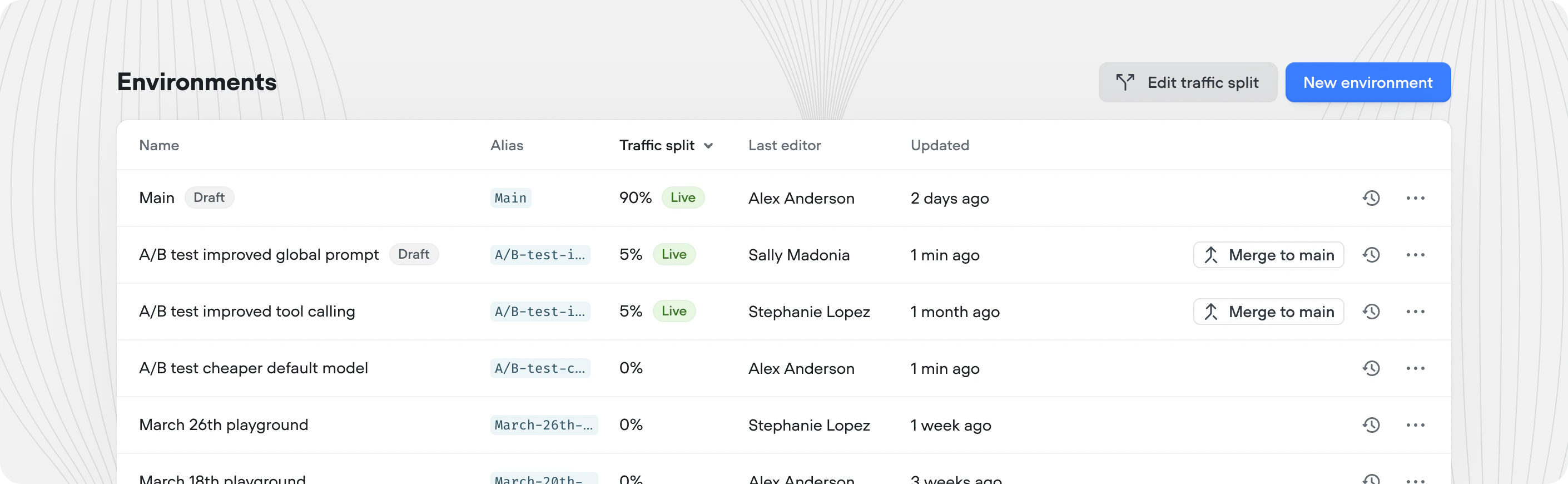 Environments are independent copies of your AI agent. This makes it safe to test a change in isolation, compare two versions of your agent against each other (A/B test), or roll out a new version gradually. Environments are independent copies of your AI agent. This makes it safe to test a change in isolation, compare two versions of your agent against each other (A/B test), or roll out a new version gradually.
Each environment has its own [draft version](/documentation/deploy/environments/publishing), **live version,** and independent [version history](/documentation/deploy/environments/publishing#version-history-and-reverting). Every project starts with a single environment called `Main`, which is what your users connect to by default.
## Key concepts
| Concept | What it is |
| --------------------- | --------------------------------------------------------------------------------------------------------------------------------------------------- |
| **Environment** | An independent copy of your agent. |
| **Draft version** | An auto-saved working version of the environment, updated as you make edits. |
| **Live version** | The most recently published version of the environment that's [receiving traffic](/documentation/deploy/environments/traffic-split), if configured. |
| **Traffic splitting** | Control what % of live traffic is reaching which environment. |
| **Merging** | Promoting a specific environment to Main. |
| **Version history** | Snapshots of an environments versions over time. |
## Best practices
Use the following workflow for any meaningful change to your agent. `Main` keeps serving users throughout, and you can roll back at any step.
Create a new environment cloned from `Main` and name it after the change(s) you're making.
Work on the new environment and save ⇧⌘S or [publish versions](/documentation/deploy/environments/publishing) as you go.
Once you're happy with the changes, open [**edit traffic split**](/documentation/deploy/environments/traffic-split) and send a small percentage of live traffic to the new environment.
Compare this environment to `Main` using your KPIs in [Analytics](https://docs.voiceflow.com/documentation/measure/analytics), [Evaluations](https://docs.voiceflow.com/documentation/measure/evaluations) and [Transcripts](https://docs.voiceflow.com/documentation/measure/transcripts).
If this environments proves to be performing better than Main, [merge](/documentation/deploy/environments/merging) the environment to `Main`. Delete the environment on merge to keep your project clean.
Repeat this process to continually improve your agent over time.
Each project supports up to 10 environments, including Main. If you're close to the limit, merge or delete the ones you no longer need.
## Managing environments
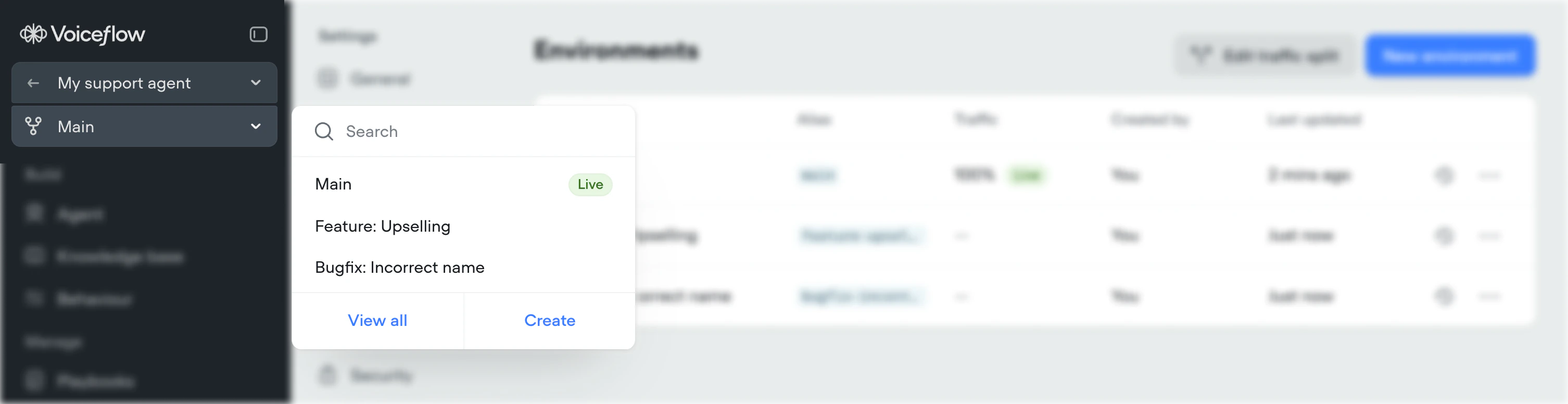
You can manage a project's environments from **Settings** → **Environments** when editing a project. Or click the environment name in the left menu under the project name and press 'view all'.
Environments are independent copies of your AI agent. This makes it safe to test a change in isolation, compare two versions of your agent against each other (A/B test), or roll out a new version gradually. Environments are independent copies of your AI agent. This makes it safe to test a change in isolation, compare two versions of your agent against each other (A/B test), or roll out a new version gradually.
Each environment has its own [draft version](/documentation/deploy/environments/publishing), **live version,** and independent [version history](/documentation/deploy/environments/publishing#version-history-and-reverting). Every project starts with a single environment called `Main`, which is what your users connect to by default.
## Key concepts
| Concept | What it is |
| --------------------- | --------------------------------------------------------------------------------------------------------------------------------------------------- |
| **Environment** | An independent copy of your agent. |
| **Draft version** | An auto-saved working version of the environment, updated as you make edits. |
| **Live version** | The most recently published version of the environment that's [receiving traffic](/documentation/deploy/environments/traffic-split), if configured. |
| **Traffic splitting** | Control what % of live traffic is reaching which environment. |
| **Merging** | Promoting a specific environment to Main. |
| **Version history** | Snapshots of an environments versions over time. |
## Best practices
Use the following workflow for any meaningful change to your agent. `Main` keeps serving users throughout, and you can roll back at any step.
Create a new environment cloned from `Main` and name it after the change(s) you're making.
Work on the new environment and save ⇧⌘S or [publish versions](/documentation/deploy/environments/publishing) as you go.
Once you're happy with the changes, open [**edit traffic split**](/documentation/deploy/environments/traffic-split) and send a small percentage of live traffic to the new environment.
Compare this environment to `Main` using your KPIs in [Analytics](https://docs.voiceflow.com/documentation/measure/analytics), [Evaluations](https://docs.voiceflow.com/documentation/measure/evaluations) and [Transcripts](https://docs.voiceflow.com/documentation/measure/transcripts).
If this environments proves to be performing better than Main, [merge](/documentation/deploy/environments/merging) the environment to `Main`. Delete the environment on merge to keep your project clean.
Repeat this process to continually improve your agent over time.
Each project supports up to 10 environments, including Main. If you're close to the limit, merge or delete the ones you no longer need.
## Managing environments
You can manage a project's environments from **Settings** → **Environments** when editing a project. Or click the environment name in the left menu under the project name and press 'view all'.
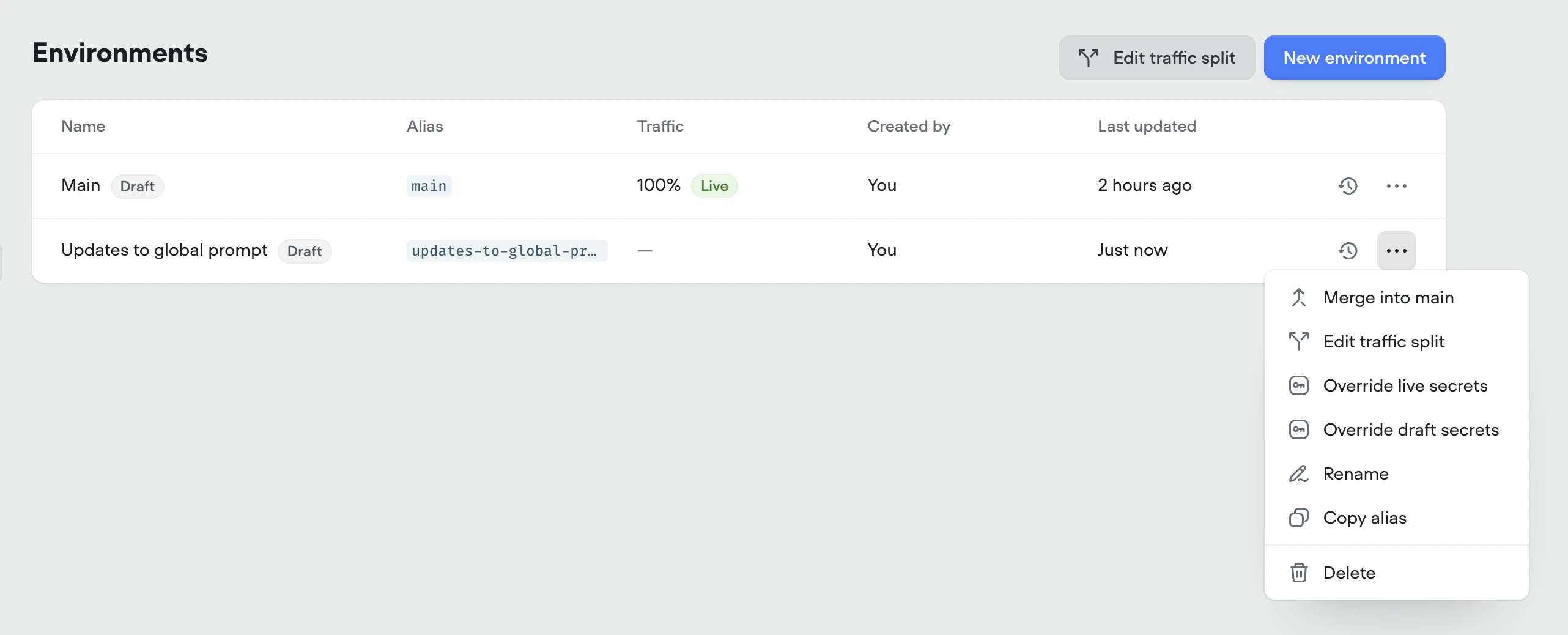 ### Creating an environment
Click **New environment** in the top right. Give the environment a name, pick an environment to **Clone from**, and click **Create**.
### Creating an environment
Click **New environment** in the top right. Give the environment a name, pick an environment to **Clone from**, and click **Create**.
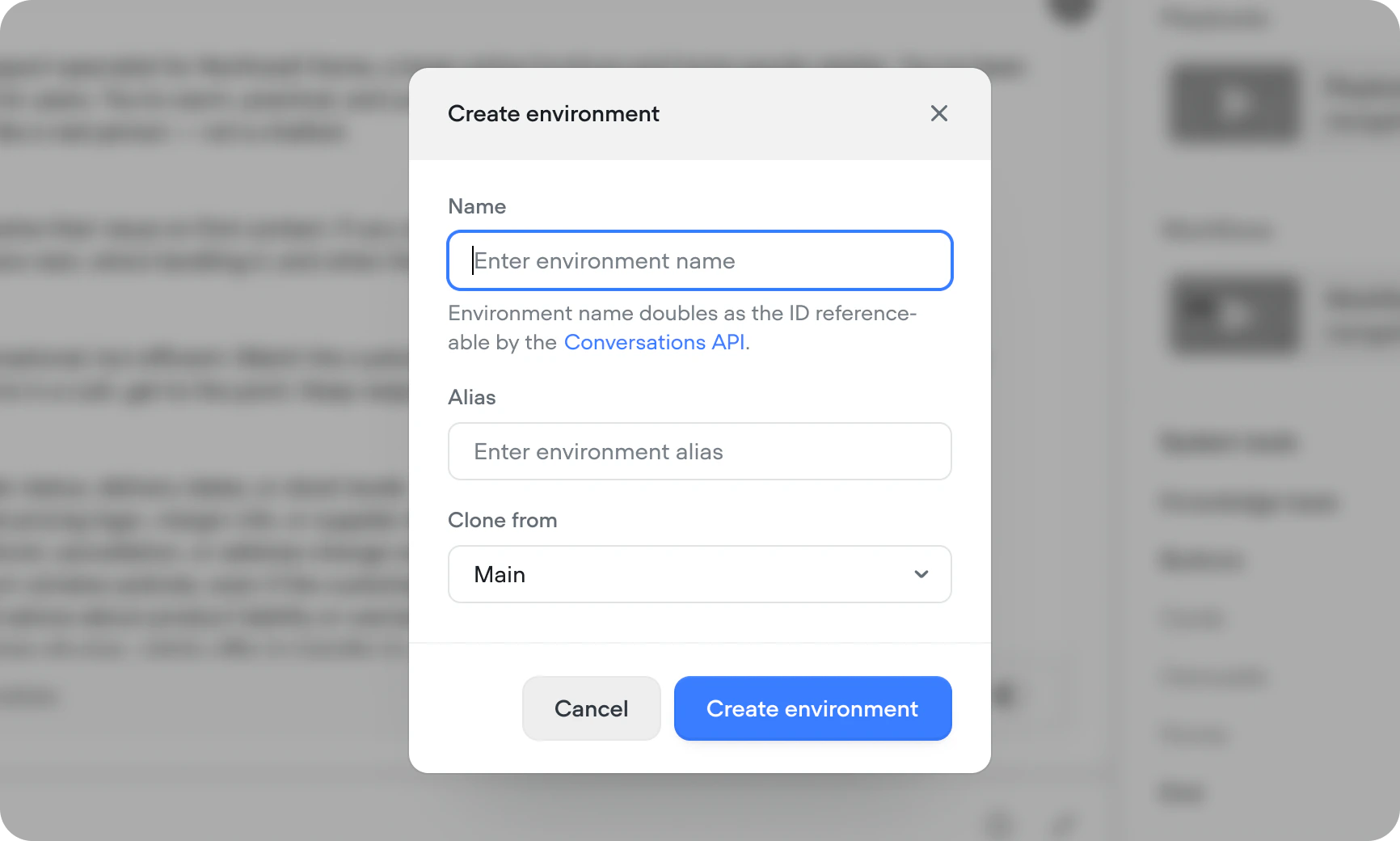 Most of content from the environment that you chose to clone from will be copied into your new environment - see below for the exceptions.
| Data type | Behaviour when cloning |
| ------------------------------------------------------------------------------------------------ | ---------------------------------------------------------------------------------------------------------------------------------------------------------------------------------------------------------------------------------------------------------------------------------------------------------------------------------------------- |
| Workflows, playbooks, and tools | Cloned into the new environment. |
| Agent configuration (model, instructions, guardrails) | Cloned into the new environment. |
| Widget settings | Cloned into the new environment. |
| Variables | Cloned into the new environment. |
| Knowledge base documents | The contents of each knowledge base document are shared project-wide. The list of documents included in the original environment is cloned into the new environment. This means that adding or removing documents in the knowledge base is environment-specific, but modifying a document affects all environments that contain that document. |
| Knowledge base metadata | Environment specific. Adding or removing metadata from a document only affects a specific environment. |
| Knowledge base [integrations](/documentation/build/Importing-data-sources) (Shopify and Zendesk) | Shared project-wide. |
| Phone numbers | Shared project-wide, but assigned to a specific environment. |
| Secrets | Shared project-wide, with [per-environment overrides](/documentation/building/data/secrets) available for both draft and live versions of each environment. |
| Evaluations | Shared project wide. Results can be filtered to a specific environment and version. |
| Analytics | Shared project wide. Data can be filtered to a specific environment and version. |
### Switching between environments
Use the environment switcher at the top of the sidebar of any page inside your project to switch between environments. You can edit any environment, including ones your users are currently interacting with. Edits only affect the draft version until you [publish your environment](/documentation/deploy/environments/publishing).
Most of content from the environment that you chose to clone from will be copied into your new environment - see below for the exceptions.
| Data type | Behaviour when cloning |
| ------------------------------------------------------------------------------------------------ | ---------------------------------------------------------------------------------------------------------------------------------------------------------------------------------------------------------------------------------------------------------------------------------------------------------------------------------------------- |
| Workflows, playbooks, and tools | Cloned into the new environment. |
| Agent configuration (model, instructions, guardrails) | Cloned into the new environment. |
| Widget settings | Cloned into the new environment. |
| Variables | Cloned into the new environment. |
| Knowledge base documents | The contents of each knowledge base document are shared project-wide. The list of documents included in the original environment is cloned into the new environment. This means that adding or removing documents in the knowledge base is environment-specific, but modifying a document affects all environments that contain that document. |
| Knowledge base metadata | Environment specific. Adding or removing metadata from a document only affects a specific environment. |
| Knowledge base [integrations](/documentation/build/Importing-data-sources) (Shopify and Zendesk) | Shared project-wide. |
| Phone numbers | Shared project-wide, but assigned to a specific environment. |
| Secrets | Shared project-wide, with [per-environment overrides](/documentation/building/data/secrets) available for both draft and live versions of each environment. |
| Evaluations | Shared project wide. Results can be filtered to a specific environment and version. |
| Analytics | Shared project wide. Data can be filtered to a specific environment and version. |
### Switching between environments
Use the environment switcher at the top of the sidebar of any page inside your project to switch between environments. You can edit any environment, including ones your users are currently interacting with. Edits only affect the draft version until you [publish your environment](/documentation/deploy/environments/publishing).
 ### Cloning to new environment
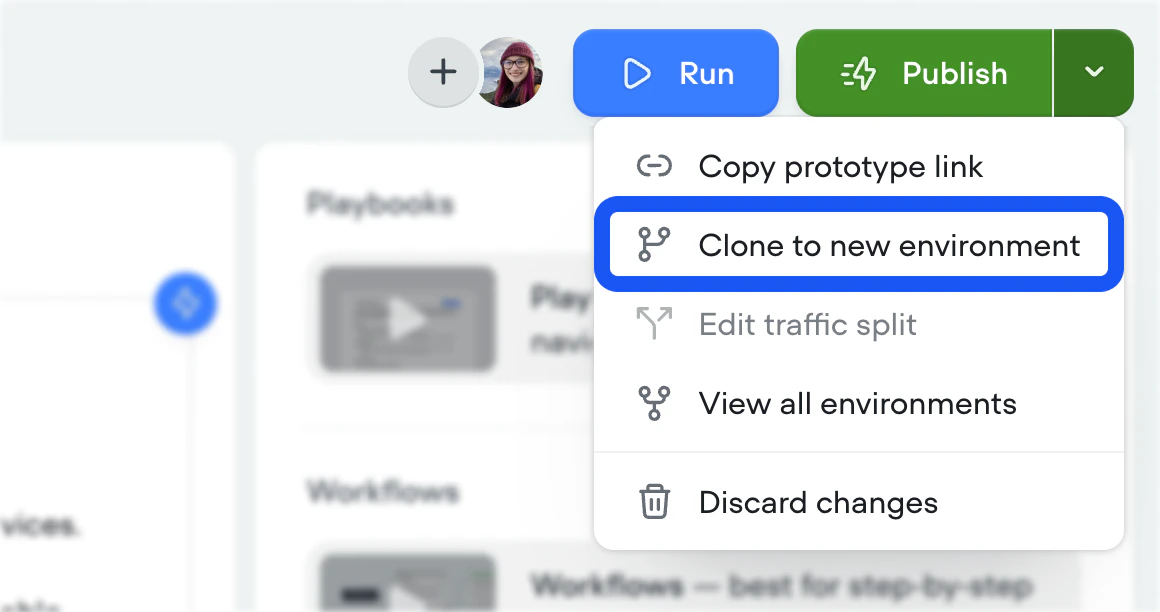
Press the dropdown arrow next to the publish button, and select **Clone environment** to clone the current draft version to a new environment.
### Cloning to new environment
Press the dropdown arrow next to the publish button, and select **Clone environment** to clone the current draft version to a new environment.
 ### Discarding changes
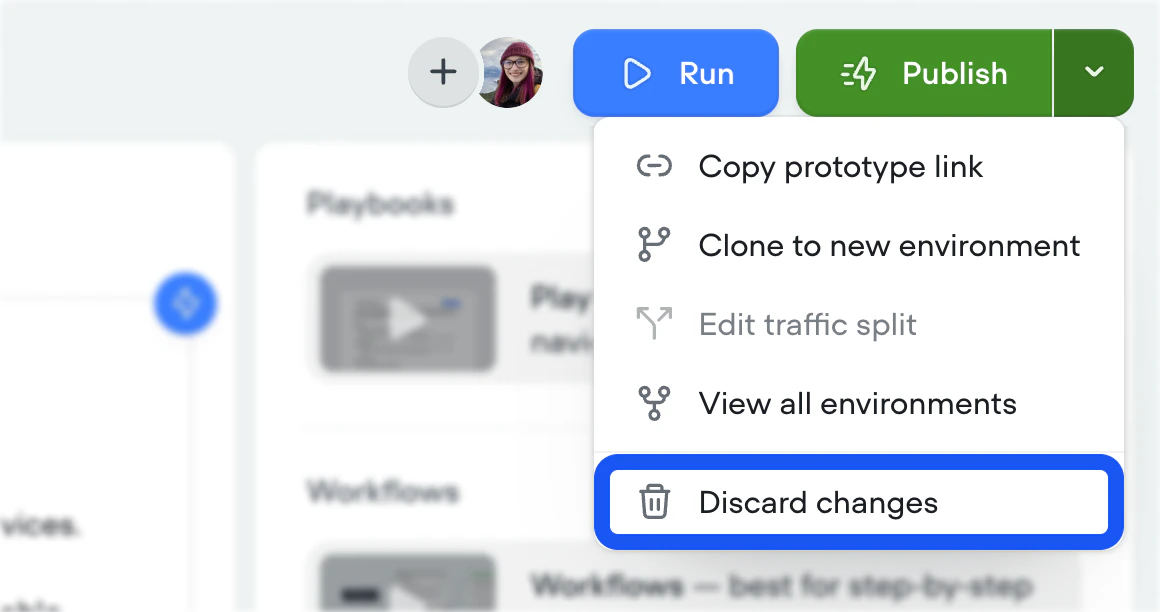
Press the dropdown arrow next to the publish button, and select **Discard changes** to open a diff view where you can confirm the selection.
### Discarding changes
Press the dropdown arrow next to the publish button, and select **Discard changes** to open a diff view where you can confirm the selection.
 ### Aliases
Every environment has a short, URL-safe **alias** used in API calls, the chat widget, and any other programmatic reference. `Main`'s alias is `main`. Aliases don't change when you rename an environment, so integrations keep working.
Copy an environment's alias from the **Alias** column in **Settings** → **Environments**.
### Legacy projects
Projects created before environments launched use three fixed environments (Development, Staging, and Production) with aliases `development`, `staging`, and `production`. These keep working until you opt into migration.
After migrating, update integrations that use the legacy aliases, including the [chat widget snippet](/documentation/deploy/widget/web-chat-api#choosing-which-environment-the-widget-loads). If you're making use of the [start session API endpoint](/api-reference/session/start-session), you'll also need to update this to point to the `main` environment, rather than `production`.
### Aliases
Every environment has a short, URL-safe **alias** used in API calls, the chat widget, and any other programmatic reference. `Main`'s alias is `main`. Aliases don't change when you rename an environment, so integrations keep working.
Copy an environment's alias from the **Alias** column in **Settings** → **Environments**.
### Legacy projects
Projects created before environments launched use three fixed environments (Development, Staging, and Production) with aliases `development`, `staging`, and `production`. These keep working until you opt into migration.
After migrating, update integrations that use the legacy aliases, including the [chat widget snippet](/documentation/deploy/widget/web-chat-api#choosing-which-environment-the-widget-loads). If you're making use of the [start session API endpoint](/api-reference/session/start-session), you'll also need to update this to point to the `main` environment, rather than `production`.