> ## Documentation Index
> Fetch the complete documentation index at: https://docs.voiceflow.com/llms.txt
> Use this file to discover all available pages before exploring further.
# Overview
> Pre-built integrations to the platforms you already use.
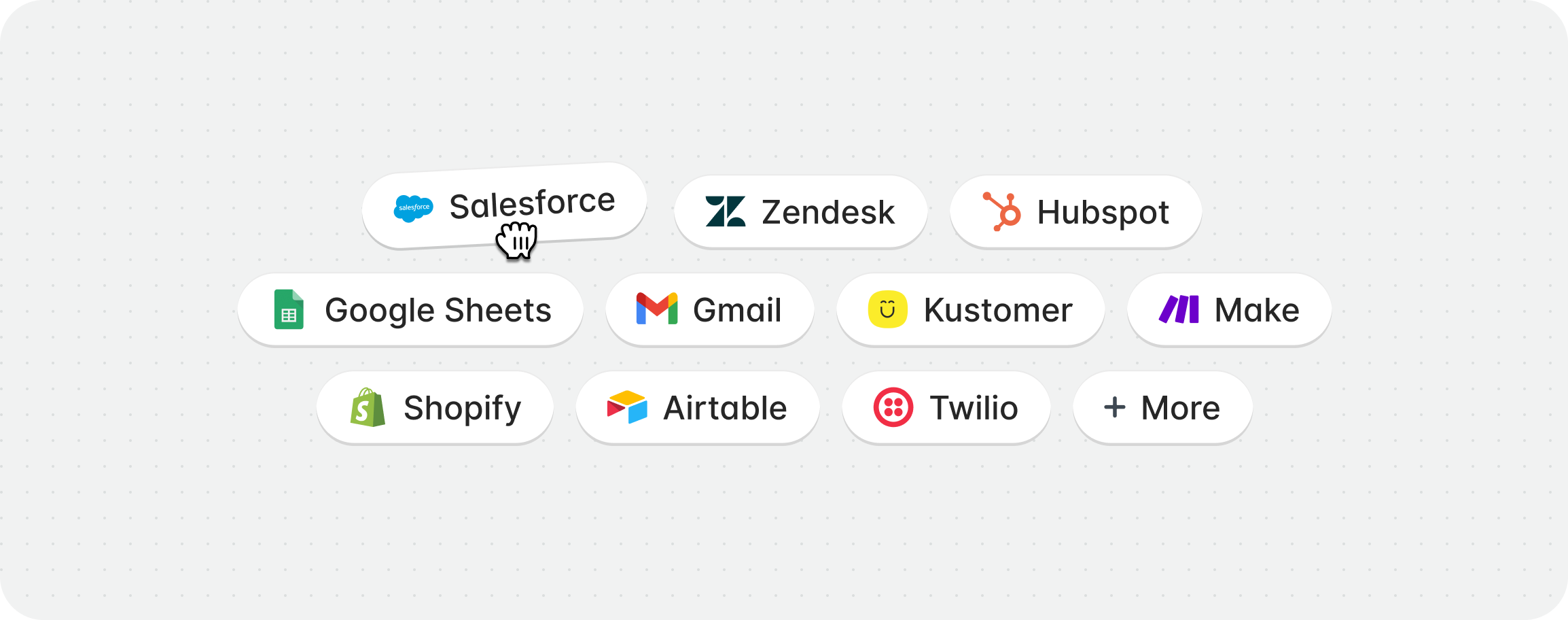 Integration tools are pre-built connectors that let your agent interact with external platforms without configuring raw API requests. Each integration comes with ready-made tools — like creating a ticket in Zendesk, updating a lead in Salesforce, or sending an SMS in Twilio — so you can connect your agent to the tools your team already uses.
## Available integrations
| Integration | What your agent can do |
| ------------------------------------------------------------------ | ---------------------------------------------------------------------------------------- |
| [**Airtable**](/documentation/build/tools/airtable-tool) | Read, create, and update records in your bases |
| [**Gmail**](/documentation/build/tools/gmail-tool) | Send emails and create drafts |
| [**Google Sheets**](/documentation/build/tools/google-sheets-tool) | Read and write rows in spreadsheets |
| [**HubSpot**](/documentation/build/tools/hubspot-tool) | Create and update contacts, deals, and tickets |
| [**Make**](/documentation/build/tools/make-tool) | Trigger scenarios and pass data to automations |
| [**Salesforce**](/documentation/build/tools/salesforce-tool) | Create and update contacts, leads, and cases; add comments to cases |
| [**Shopify**](/documentation/build/tools/shopify) | Look up orders, products, and customers; cancel and update orders; update customer info |
| [**Twilio**](/documentation/build/tools/twilio-tool) | Send SMS messages |
| [**Zendesk**](/documentation/build/tools/zendesk-tool) | Create, find, and update tickets; add comments; look up users, groups, and organizations |
Voiceflow regularly adds new integrations based on customer demand. Need something we're missing? [Book a demo](https://www.voiceflow.com/demo)
## Setting up an integration
You can add, or connect an integration tools directly from within a [playbook](/documentation/build/playbooks).
Integration tools are pre-built connectors that let your agent interact with external platforms without configuring raw API requests. Each integration comes with ready-made tools — like creating a ticket in Zendesk, updating a lead in Salesforce, or sending an SMS in Twilio — so you can connect your agent to the tools your team already uses.
## Available integrations
| Integration | What your agent can do |
| ------------------------------------------------------------------ | ---------------------------------------------------------------------------------------- |
| [**Airtable**](/documentation/build/tools/airtable-tool) | Read, create, and update records in your bases |
| [**Gmail**](/documentation/build/tools/gmail-tool) | Send emails and create drafts |
| [**Google Sheets**](/documentation/build/tools/google-sheets-tool) | Read and write rows in spreadsheets |
| [**HubSpot**](/documentation/build/tools/hubspot-tool) | Create and update contacts, deals, and tickets |
| [**Make**](/documentation/build/tools/make-tool) | Trigger scenarios and pass data to automations |
| [**Salesforce**](/documentation/build/tools/salesforce-tool) | Create and update contacts, leads, and cases; add comments to cases |
| [**Shopify**](/documentation/build/tools/shopify) | Look up orders, products, and customers; cancel and update orders; update customer info |
| [**Twilio**](/documentation/build/tools/twilio-tool) | Send SMS messages |
| [**Zendesk**](/documentation/build/tools/zendesk-tool) | Create, find, and update tickets; add comments; look up users, groups, and organizations |
Voiceflow regularly adds new integrations based on customer demand. Need something we're missing? [Book a demo](https://www.voiceflow.com/demo)
## Setting up an integration
You can add, or connect an integration tools directly from within a [playbook](/documentation/build/playbooks).
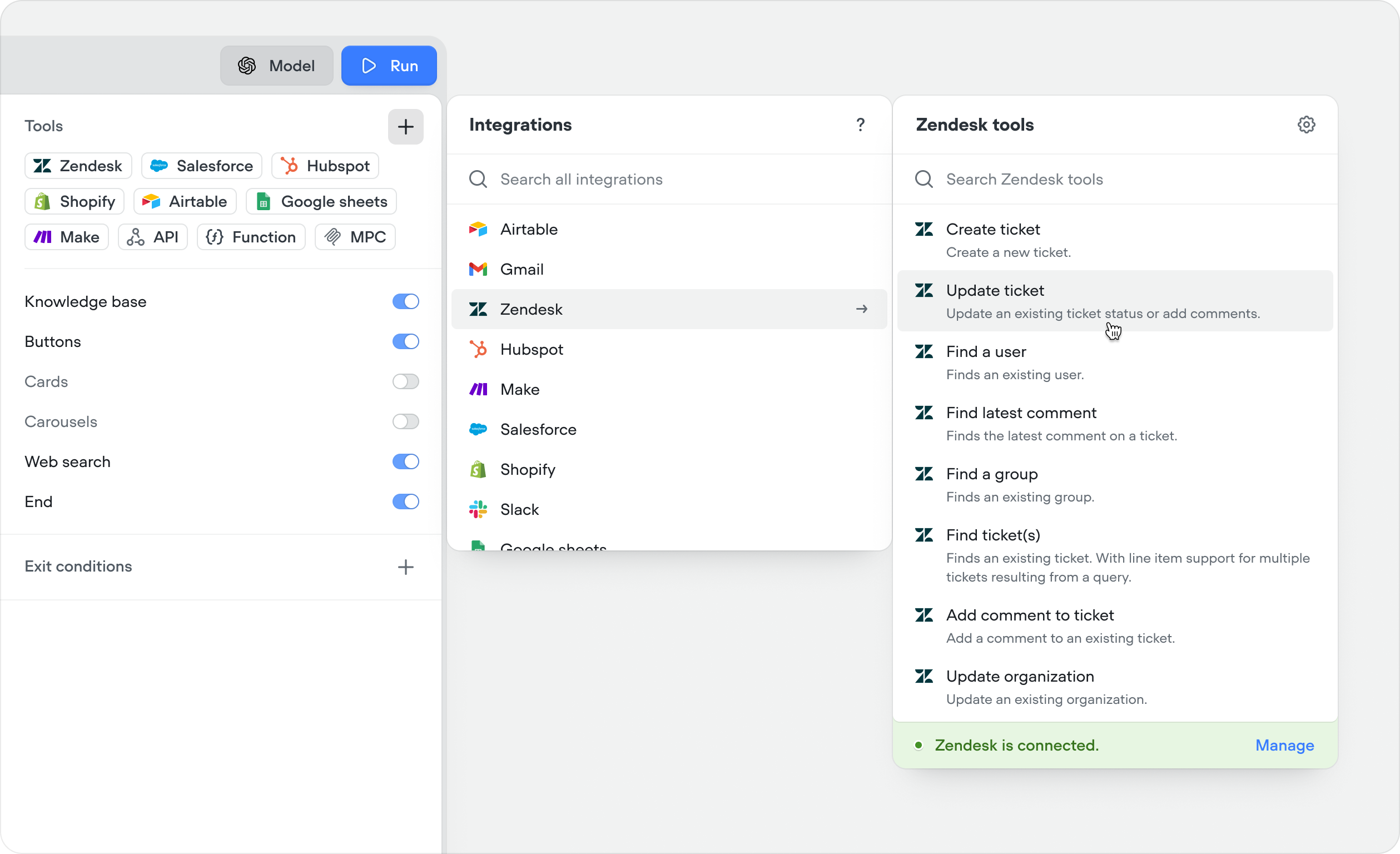 You can also add integration tools from within a workflow using the [Integration step](/documentation/build/steps/integration), or from the tools CMS tab. Integrations can be managed centrally in Settings → Integrations.
Follow the OAuth flow or enter API credentials to connect your account. Each integration has its own authentication method.
Choose which actions you want your agent to have access to. You don't need to enable everything — only add what's relevant to your use case.
## Using integration tools
There are two ways to use an integration tool:
### In a playbook
Add integration tool to a playbook's Tools editor. The agent will call it autonomously when it determines they're needed based on the conversation context, the tool's description, and your playbook instructions.
You can also add integration tools from within a workflow using the [Integration step](/documentation/build/steps/integration), or from the tools CMS tab. Integrations can be managed centrally in Settings → Integrations.
Follow the OAuth flow or enter API credentials to connect your account. Each integration has its own authentication method.
Choose which actions you want your agent to have access to. You don't need to enable everything — only add what's relevant to your use case.
## Using integration tools
There are two ways to use an integration tool:
### In a playbook
Add integration tool to a playbook's Tools editor. The agent will call it autonomously when it determines they're needed based on the conversation context, the tool's description, and your playbook instructions.
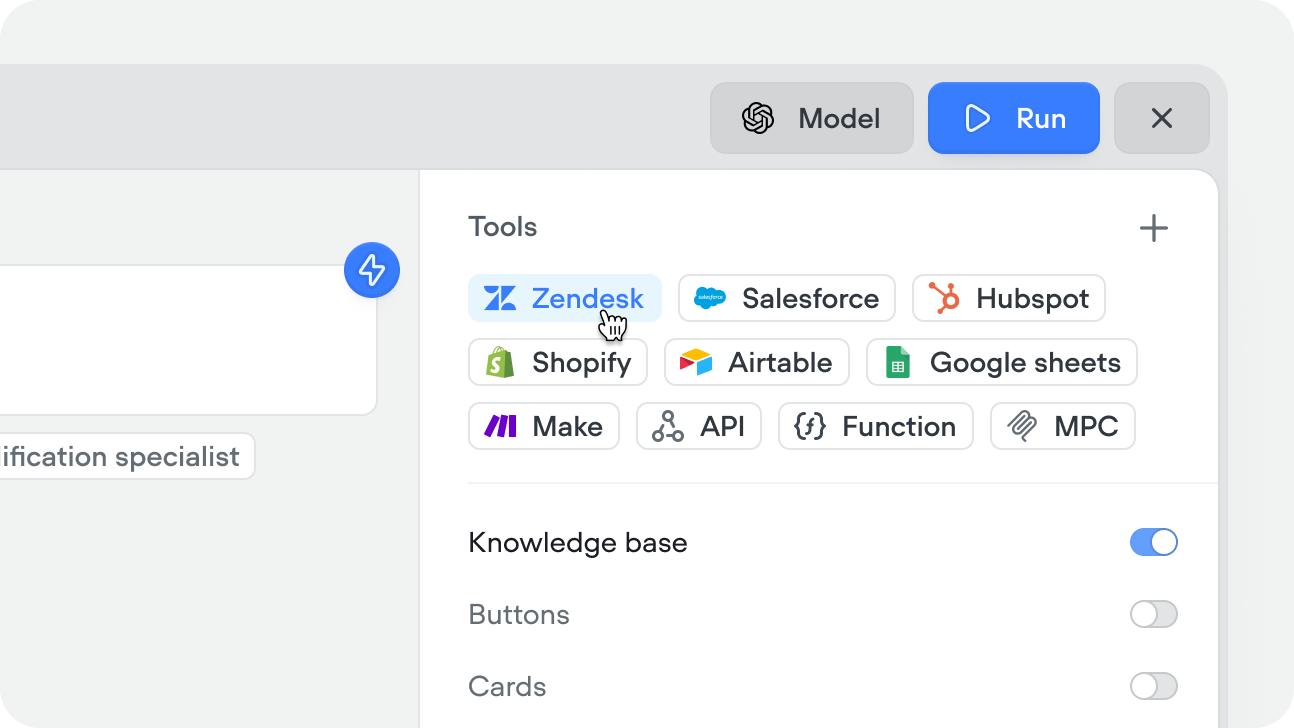 Give your tool a clear name and description — together they tell your AI agent what the tool does and when to use it. For extra guidance on when to call it, add that to your instructions.
### In a workflow
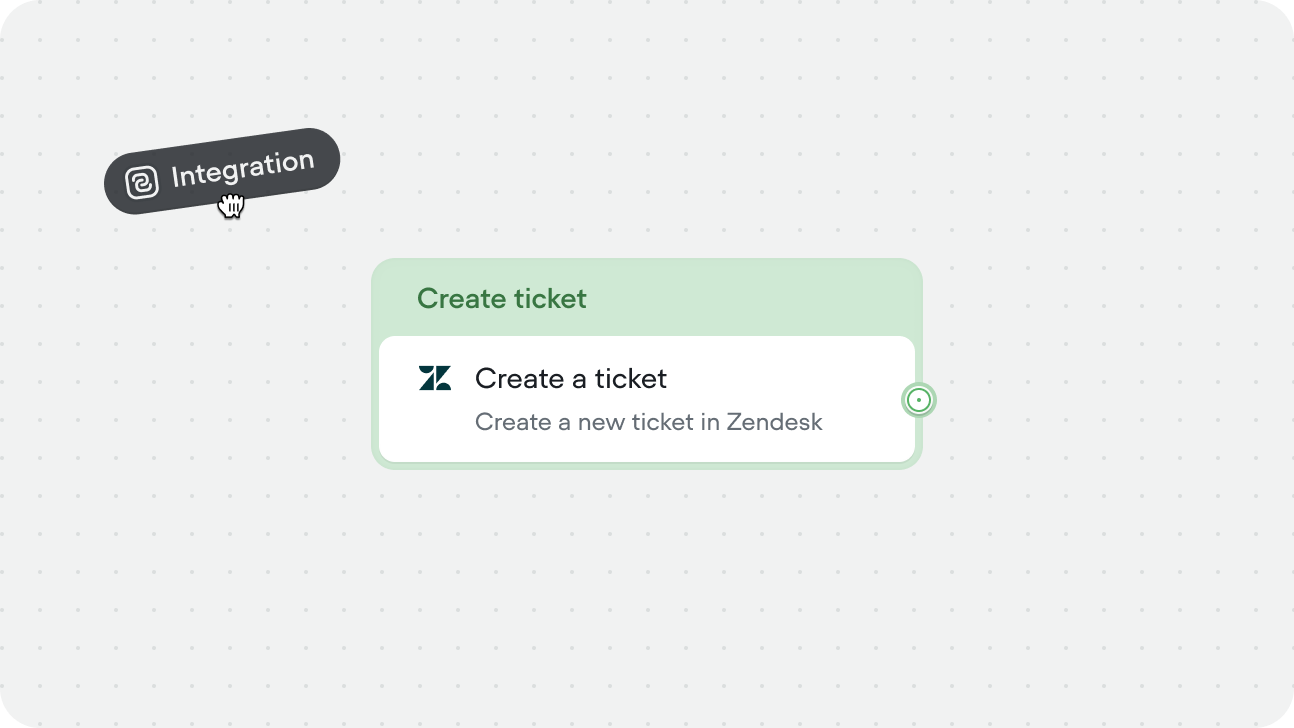
Drag an integration step onto the canvas and select the specific tool you want to run. Input variables are mapped explicitly in the step config — the agent doesn't decide whether to call it, the workflow executes it at that point in the flow every time.
Use this when the action is part of a fixed process — for example, always creating a Salesforce case after collecting a complaint, or always sending a confirmation email through Gmail after a booking is made.
Give your tool a clear name and description — together they tell your AI agent what the tool does and when to use it. For extra guidance on when to call it, add that to your instructions.
### In a workflow
Drag an integration step onto the canvas and select the specific tool you want to run. Input variables are mapped explicitly in the step config — the agent doesn't decide whether to call it, the workflow executes it at that point in the flow every time.
Use this when the action is part of a fixed process — for example, always creating a Salesforce case after collecting a complaint, or always sending a confirmation email through Gmail after a booking is made.