> ## Documentation Index
> Fetch the complete documentation index at: https://docs.voiceflow.com/llms.txt
> Use this file to discover all available pages before exploring further.
# API tool
> Make HTTP requests to external APIs.
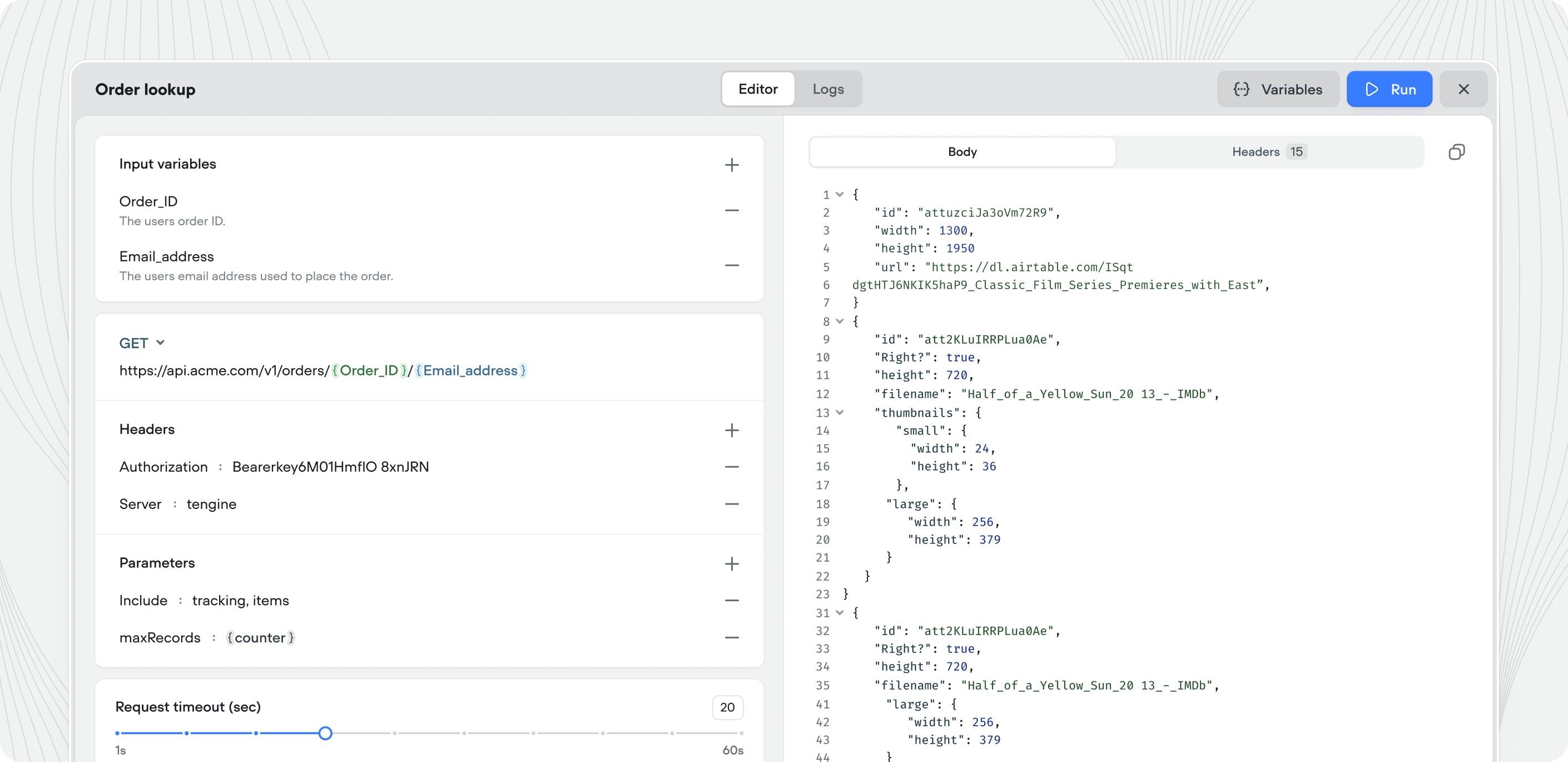 The API tool lets your agent call external APIs during a conversation. Use it to fetch data from third-party services, submit information to webhooks, or integrate with any REST API. Unlike the [Function tool](/documentation/build/tools/function-tool), the API tool requires no JavaScript code, making it accessible to less-technical builders.
## Creating an API tool
You can add, or create an API tool directly from within a [playbook](/documentation/build/playbooks).
The API tool lets your agent call external APIs during a conversation. Use it to fetch data from third-party services, submit information to webhooks, or integrate with any REST API. Unlike the [Function tool](/documentation/build/tools/function-tool), the API tool requires no JavaScript code, making it accessible to less-technical builders.
## Creating an API tool
You can add, or create an API tool directly from within a [playbook](/documentation/build/playbooks).
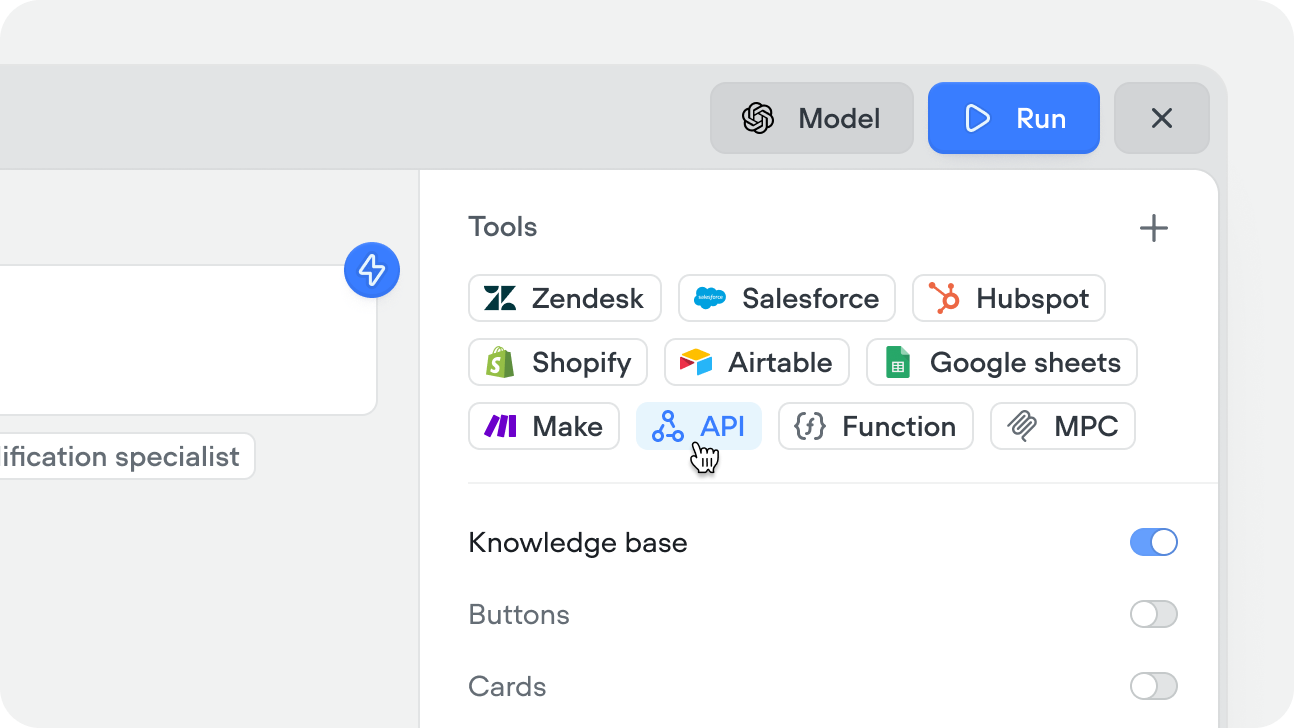 You can also create API tools from within a workflow using the [API step](/documentation/build/steps/API), or from the tools CMS tab.
Define your HTTP request:
| Field | Description |
| -------------- | ------------------------------------------------------------------------------------------------------------------------- |
| **Method** | `GET`, `POST`, `PUT`, `PATCH`, or `DELETE` |
| **URL** | The endpoint to call. Use curly braces for variables (e.g. `https://api.example.com/users/{user_id}`) |
| **Headers** | Key-value pairs like `Authorization` or `Content-Type` |
| **Parameters** | Query parameters appended to the URL |
| **Body** | Request body for `POST`, `PUT`, and `PATCH` requests — choose from **Form data**, **URL encoded**, or **Raw** (e.g. JSON) |
Optionally define input variables that can be passed in by a [playbook](/documentation/build/playbooks) or an [API step](/documentation/build/steps/API). Use them in your URL, headers, or parameters by wrapping them in curly braces. Add a description to each so the agent knows what to pass.
Click **Run** in the top right corner to test your API call. Click **Variables** to enter test values, then **Run** to execute. The response panel shows the JSON body, status code, size, and response time (e.g. `200 OK · 11.3 kB · 354ms`). Use **Show raw** for the unformatted response, or the **Headers** tab to inspect response headers.
## Testing the API tool
Click **Run** in the top right corner of the API tool editor to test your API call. Click **Variables** to enter test values for your input variables, then click **Run** to execute the request.
The response panel displays the JSON response body along with the status code, response size, and response time (eg: `200 OK · 11.3 kB · 354ms`). Click **Show raw** to see the unformatted response, or use the **Headers** tab to inspect the response headers.
## Using the API tool
There are two ways to use an API tool:
### In a playbook
Add the API tool to a playbook's Tools editor. The agent will call it autonomously when it determines the tool is needed based on the conversation context, the tool's description, and your playbook instructions. For example, an "Order Lookup" API tool added to an order status playbook — the agent decides when to call it, passes the right input variables, and uses the response to answer the customer.
Give the tool a clear name and description that covers both what it does and when the agent should use it. The tool description is always in context when the agent considers calling a tool, so the "when" belongs here.
Use playbook instructions for supporting context — ordering, error handling, or how the tool fits into the larger flow.
### In a workflow
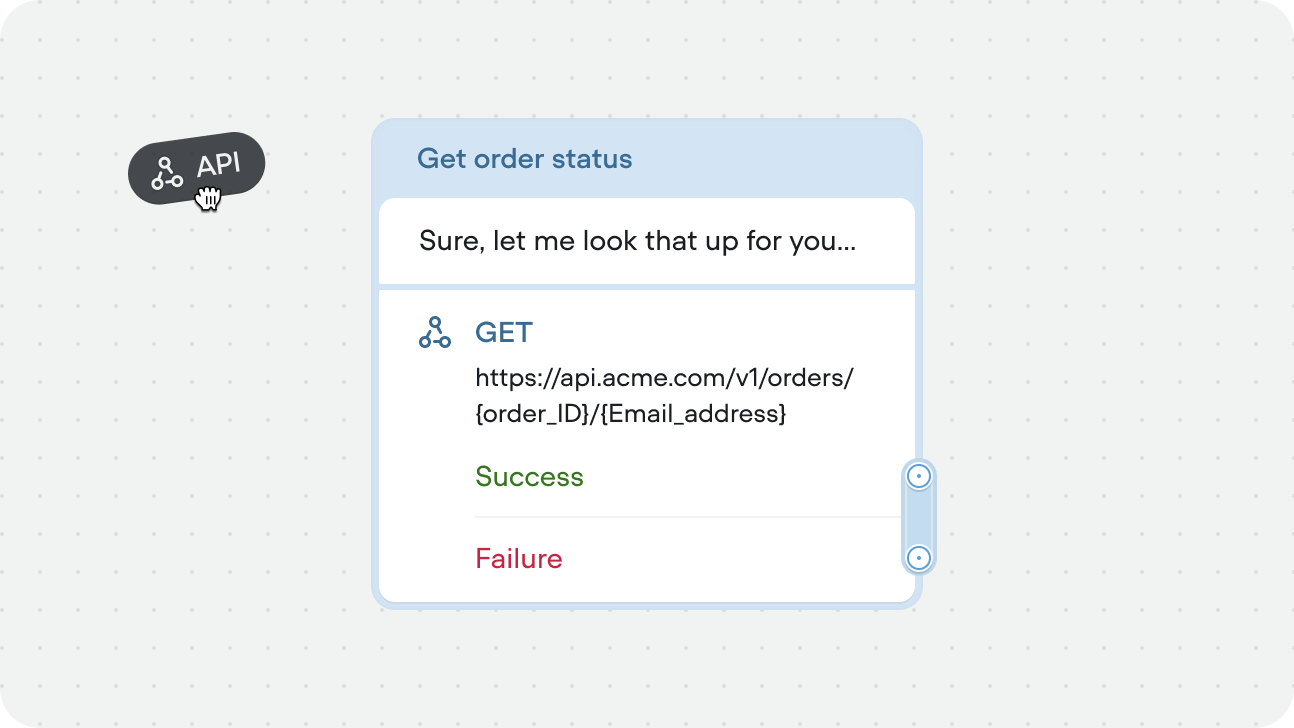
Drag an [API step](/documentation/build/steps/API) onto the canvas and select the API tool you want to call. Input variables are mapped explicitly in the step config — the agent doesn't decide whether to call it, the workflow executes it at that point in the flow every time.
Use this when the API call is part of a fixed process — for example, always verifying identity before accessing account data, or always sending a confirmation after a booking is made.
You can also create API tools from within a workflow using the [API step](/documentation/build/steps/API), or from the tools CMS tab.
Define your HTTP request:
| Field | Description |
| -------------- | ------------------------------------------------------------------------------------------------------------------------- |
| **Method** | `GET`, `POST`, `PUT`, `PATCH`, or `DELETE` |
| **URL** | The endpoint to call. Use curly braces for variables (e.g. `https://api.example.com/users/{user_id}`) |
| **Headers** | Key-value pairs like `Authorization` or `Content-Type` |
| **Parameters** | Query parameters appended to the URL |
| **Body** | Request body for `POST`, `PUT`, and `PATCH` requests — choose from **Form data**, **URL encoded**, or **Raw** (e.g. JSON) |
Optionally define input variables that can be passed in by a [playbook](/documentation/build/playbooks) or an [API step](/documentation/build/steps/API). Use them in your URL, headers, or parameters by wrapping them in curly braces. Add a description to each so the agent knows what to pass.
Click **Run** in the top right corner to test your API call. Click **Variables** to enter test values, then **Run** to execute. The response panel shows the JSON body, status code, size, and response time (e.g. `200 OK · 11.3 kB · 354ms`). Use **Show raw** for the unformatted response, or the **Headers** tab to inspect response headers.
## Testing the API tool
Click **Run** in the top right corner of the API tool editor to test your API call. Click **Variables** to enter test values for your input variables, then click **Run** to execute the request.
The response panel displays the JSON response body along with the status code, response size, and response time (eg: `200 OK · 11.3 kB · 354ms`). Click **Show raw** to see the unformatted response, or use the **Headers** tab to inspect the response headers.
## Using the API tool
There are two ways to use an API tool:
### In a playbook
Add the API tool to a playbook's Tools editor. The agent will call it autonomously when it determines the tool is needed based on the conversation context, the tool's description, and your playbook instructions. For example, an "Order Lookup" API tool added to an order status playbook — the agent decides when to call it, passes the right input variables, and uses the response to answer the customer.
Give the tool a clear name and description that covers both what it does and when the agent should use it. The tool description is always in context when the agent considers calling a tool, so the "when" belongs here.
Use playbook instructions for supporting context — ordering, error handling, or how the tool fits into the larger flow.
### In a workflow
Drag an [API step](/documentation/build/steps/API) onto the canvas and select the API tool you want to call. Input variables are mapped explicitly in the step config — the agent doesn't decide whether to call it, the workflow executes it at that point in the flow every time.
Use this when the API call is part of a fixed process — for example, always verifying identity before accessing account data, or always sending a confirmation after a booking is made.
 ## Running API tools asynchronously
Both API tools in workflows or playbooks can run async. The async toggle is available at the instance level, not tool level allowing you to use the same tool, with different config.
## Running API tools asynchronously
Both API tools in workflows or playbooks can run async. The async toggle is available at the instance level, not tool level allowing you to use the same tool, with different config.
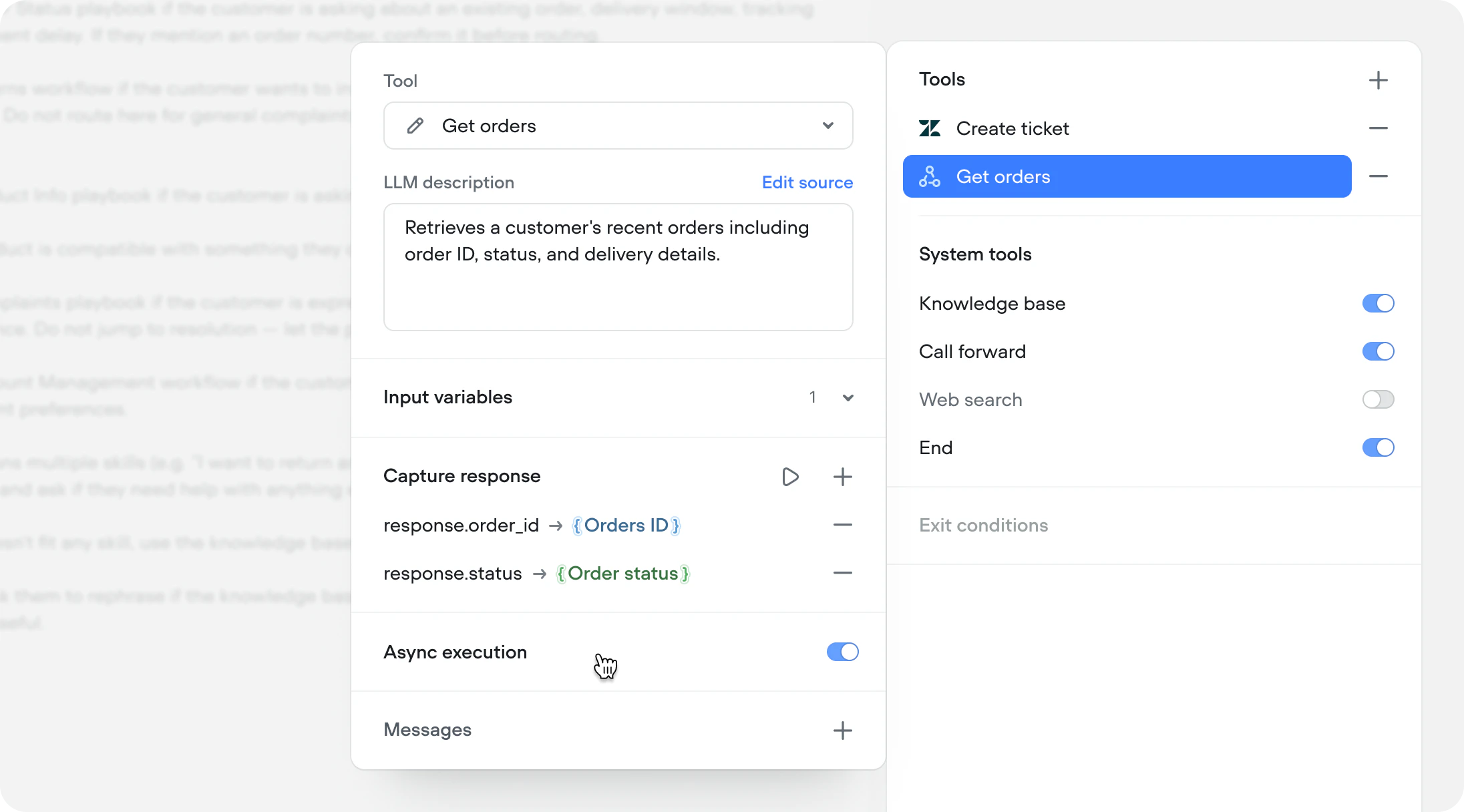 When you run an API tool async, it will immediately continue the conversation without waiting for the results of the API tool to return.
### Fire and forget
Use async when you don't need the API response to continue the conversation. The call fires in the background and the agent moves on immediately.
This is ideal for logging and side effects — sending an event to an analytics platform, writing to a CRM, triggering a webhook, or any operation where the agent doesn't need to reference the result. The user gets a faster experience because the conversation never pauses for a background task.
### Async with deferred response
Use async when the API call is slow or not immediately relevant, but the response still matters. The call fires in the background and the agent continues the conversation naturally. When the response arrives, it's captured and the agent can reference it on the next turn.
For example, during your [initialization workflow](/documentation/build/framework/initialization-workflow), you authenticate the user and simultaneously fire an async call to fetch their recent orders. By the time authentication completes and the agent takes over, the order data is already available. The agent can open the conversation with "I see you have a recent order for a queen mattress arriving Thursday — is that what you're calling about?" instead of asking the user to explain why they're reaching out.
When you run an API tool async, it will immediately continue the conversation without waiting for the results of the API tool to return.
### Fire and forget
Use async when you don't need the API response to continue the conversation. The call fires in the background and the agent moves on immediately.
This is ideal for logging and side effects — sending an event to an analytics platform, writing to a CRM, triggering a webhook, or any operation where the agent doesn't need to reference the result. The user gets a faster experience because the conversation never pauses for a background task.
### Async with deferred response
Use async when the API call is slow or not immediately relevant, but the response still matters. The call fires in the background and the agent continues the conversation naturally. When the response arrives, it's captured and the agent can reference it on the next turn.
For example, during your [initialization workflow](/documentation/build/framework/initialization-workflow), you authenticate the user and simultaneously fire an async call to fetch their recent orders. By the time authentication completes and the agent takes over, the order data is already available. The agent can open the conversation with "I see you have a recent order for a queen mattress arriving Thursday — is that what you're calling about?" instead of asking the user to explain why they're reaching out.
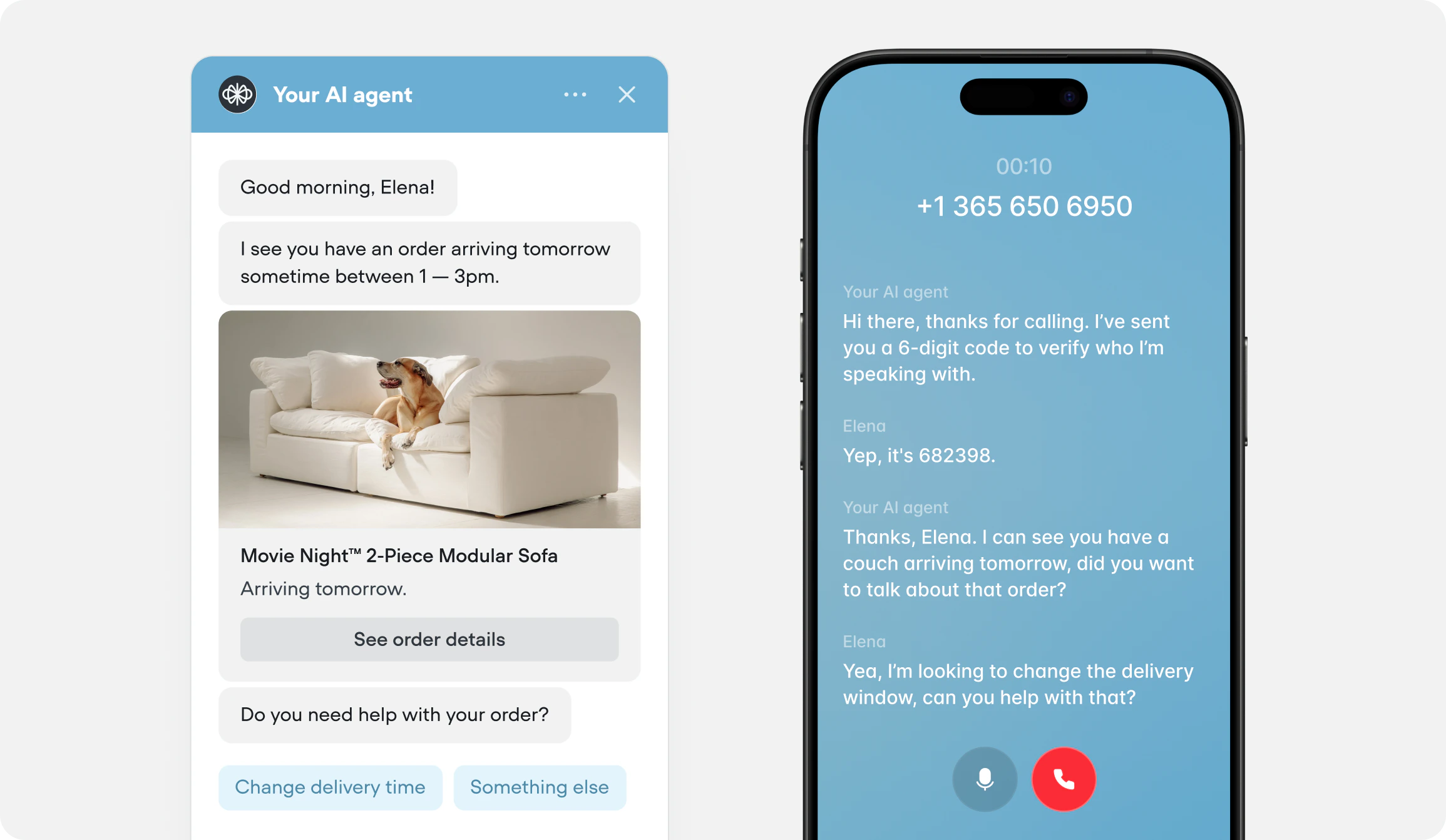 This pattern is powerful for predictive experiences — preloading context the agent will likely need so the conversation starts ahead of the user. It also works for long-running operations, large dataset searches, or any third-party service with unpredictable latency. Instead of the user waiting on a loading state, the agent keeps moving and weaves the result in when it's ready.