> ## Documentation Index
> Fetch the complete documentation index at: https://docs.voiceflow.com/llms.txt
> Use this file to discover all available pages before exploring further.
# Markdown shortcuts for instructions
> Type markdown shortcuts to create headings, lists, callouts, and bold or italic text as you write, and paste formatted markdown from anywhere.
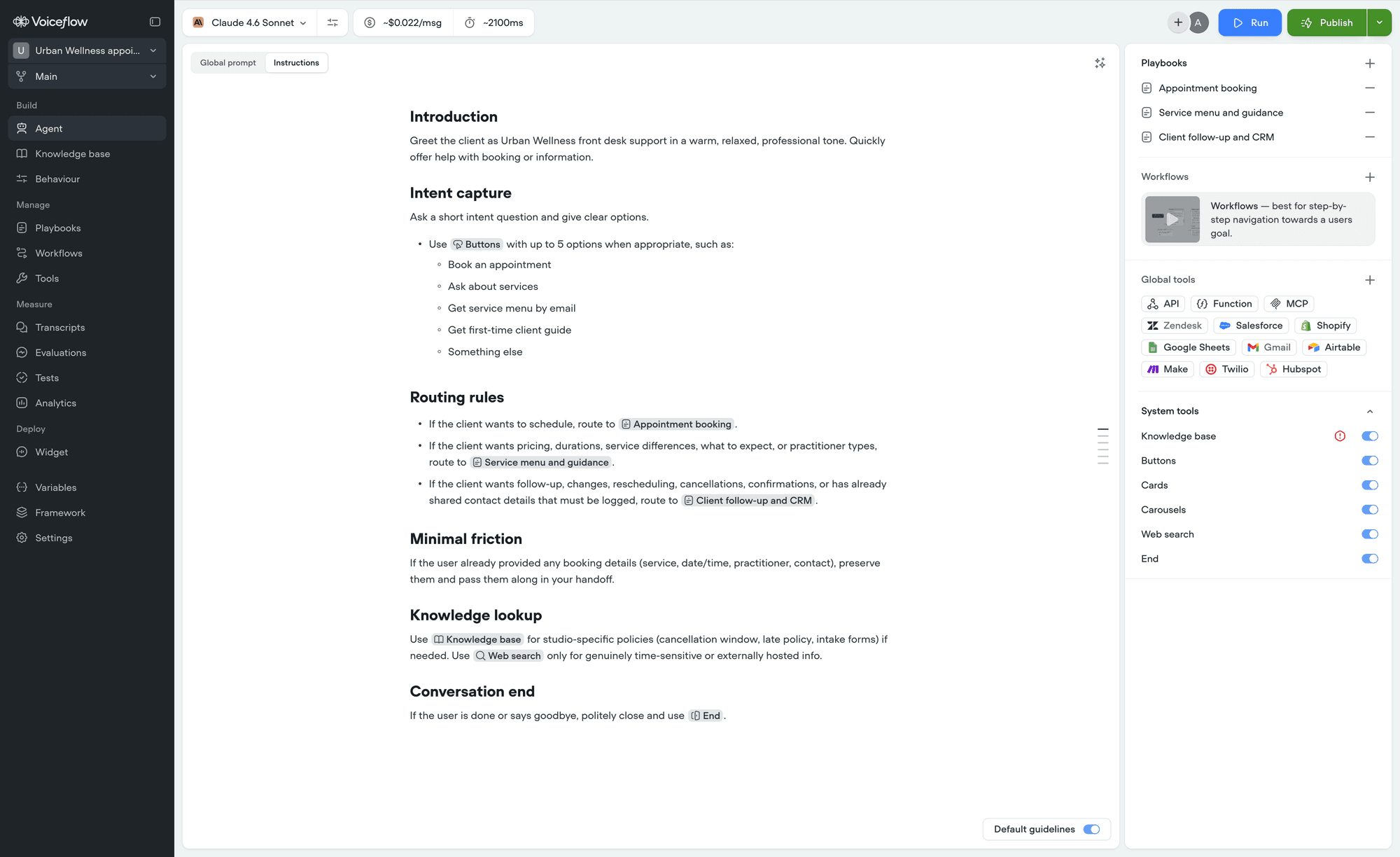 If you already write markdown, you can format your instructions without touching a menu. Type the shortcut, and the text converts as you go.
Markdown is optional. Everything here can also be done from the [insert menu](/documentation/build/editor/overview) or the formatting toolbar, so use whichever is faster for you.
## Formatting blocks
Type these at the start of a line, then press space.
| Type this | You get |
| -------------- | ------------- |
| `# ` | Heading 1 |
| `## ` | Heading 2 |
| `### ` | Heading 3 |
| `- ` or `* ` | Bulleted list |
| `1. ` or `1) ` | Numbered list |
| `> ` | Callout |
| `>> ` | Steps |
| `---` | Divider |
Two places where these deliberately do nothing: inside a heading, so `1.` stays a literal number rather than starting a list, and inside a [Steps block](/documentation/build/editor/overview), which holds plain text only.
## Formatting text inline
Wrap the text and it converts once you close it.
| Type this | You get |
| -------------------- | ---------------- |
| `**text**` | **Bold** |
| `*text*` or `_text_` | *Italic* |
| `__text__` | Underlined text |
| `~~text~~` | Strikethrough |
| `` `text` `` | `Inline code` |
| `==text==` | Highlighted text |
| `***text***` | Bold and italic |
| `[text](url)` | A link |
Typing a URL and pressing space or Enter turns it into a link automatically, so you rarely need the link syntax.
## Pasting markdown
Copy a block of markdown from anywhere - a document, a message, another agent - and paste it in. Headings, lists, quotes, links, and text formatting all come through formatted rather than as raw characters.
This works with sources that write markdown into plain text, like Slack. Pasting from a rich source such as Google Docs keeps its formatting too.
Code blocks, tables, and images are not supported. If you paste any of them, the text inside is kept and the formatting is dropped, so nothing is lost. Headings below Heading 3 become regular text.
## Next steps
Every shortcut for formatting, blocks, and menus.
Point at your tools, playbooks, and workflows by name.
If you already write markdown, you can format your instructions without touching a menu. Type the shortcut, and the text converts as you go.
Markdown is optional. Everything here can also be done from the [insert menu](/documentation/build/editor/overview) or the formatting toolbar, so use whichever is faster for you.
## Formatting blocks
Type these at the start of a line, then press space.
| Type this | You get |
| -------------- | ------------- |
| `# ` | Heading 1 |
| `## ` | Heading 2 |
| `### ` | Heading 3 |
| `- ` or `* ` | Bulleted list |
| `1. ` or `1) ` | Numbered list |
| `> ` | Callout |
| `>> ` | Steps |
| `---` | Divider |
Two places where these deliberately do nothing: inside a heading, so `1.` stays a literal number rather than starting a list, and inside a [Steps block](/documentation/build/editor/overview), which holds plain text only.
## Formatting text inline
Wrap the text and it converts once you close it.
| Type this | You get |
| -------------------- | ---------------- |
| `**text**` | **Bold** |
| `*text*` or `_text_` | *Italic* |
| `__text__` | Underlined text |
| `~~text~~` | Strikethrough |
| `` `text` `` | `Inline code` |
| `==text==` | Highlighted text |
| `***text***` | Bold and italic |
| `[text](url)` | A link |
Typing a URL and pressing space or Enter turns it into a link automatically, so you rarely need the link syntax.
## Pasting markdown
Copy a block of markdown from anywhere - a document, a message, another agent - and paste it in. Headings, lists, quotes, links, and text formatting all come through formatted rather than as raw characters.
This works with sources that write markdown into plain text, like Slack. Pasting from a rich source such as Google Docs keeps its formatting too.
Code blocks, tables, and images are not supported. If you paste any of them, the text inside is kept and the formatting is dropped, so nothing is lost. Headings below Heading 3 become regular text.
## Next steps
Every shortcut for formatting, blocks, and menus.
Point at your tools, playbooks, and workflows by name.