> ## Documentation Index
> Fetch the complete documentation index at: https://docs.voiceflow.com/llms.txt
> Use this file to discover all available pages before exploring further.
# Importing data sources
> Ground your agent's responses in your own content.
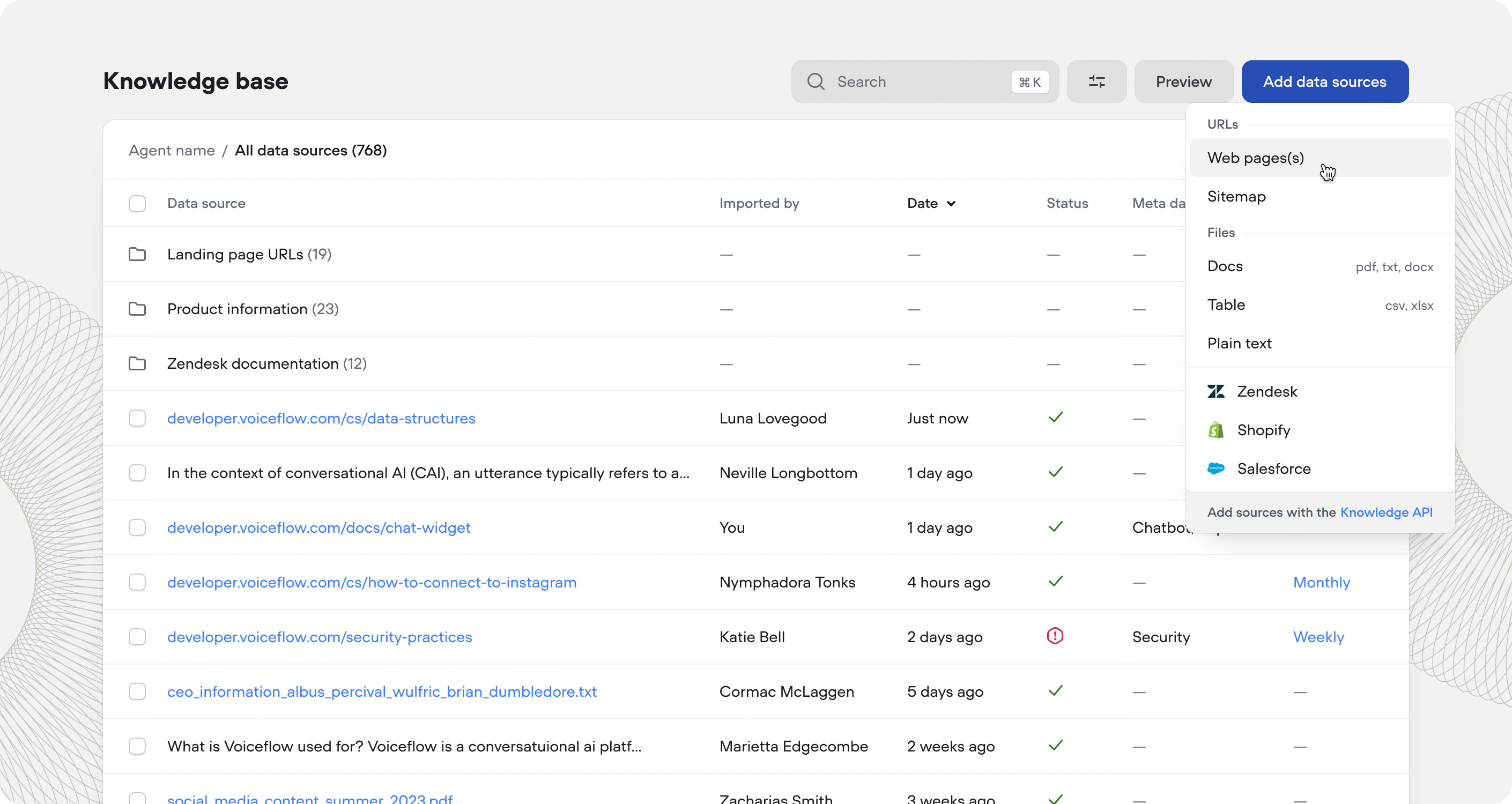 The knowledge base gives your agent access to your own content — product docs, support articles, company policies, pricing pages, FAQs. When a user asks a question, the agent retrieves the most relevant content and uses it to generate an accurate, grounded response.
Instead of scripting every possible answer, you upload your content once and let the agent find what it needs.
## Adding a data source
Click 'Knowledge base' in the navigation menu, or use the shortcut Shift + K
Select the type of data you'd like to import
The knowledge base gives your agent access to your own content — product docs, support articles, company policies, pricing pages, FAQs. When a user asks a question, the agent retrieves the most relevant content and uses it to generate an accurate, grounded response.
Instead of scripting every possible answer, you upload your content once and let the agent find what it needs.
## Adding a data source
Click 'Knowledge base' in the navigation menu, or use the shortcut Shift + K
Select the type of data you'd like to import
 ## Data types
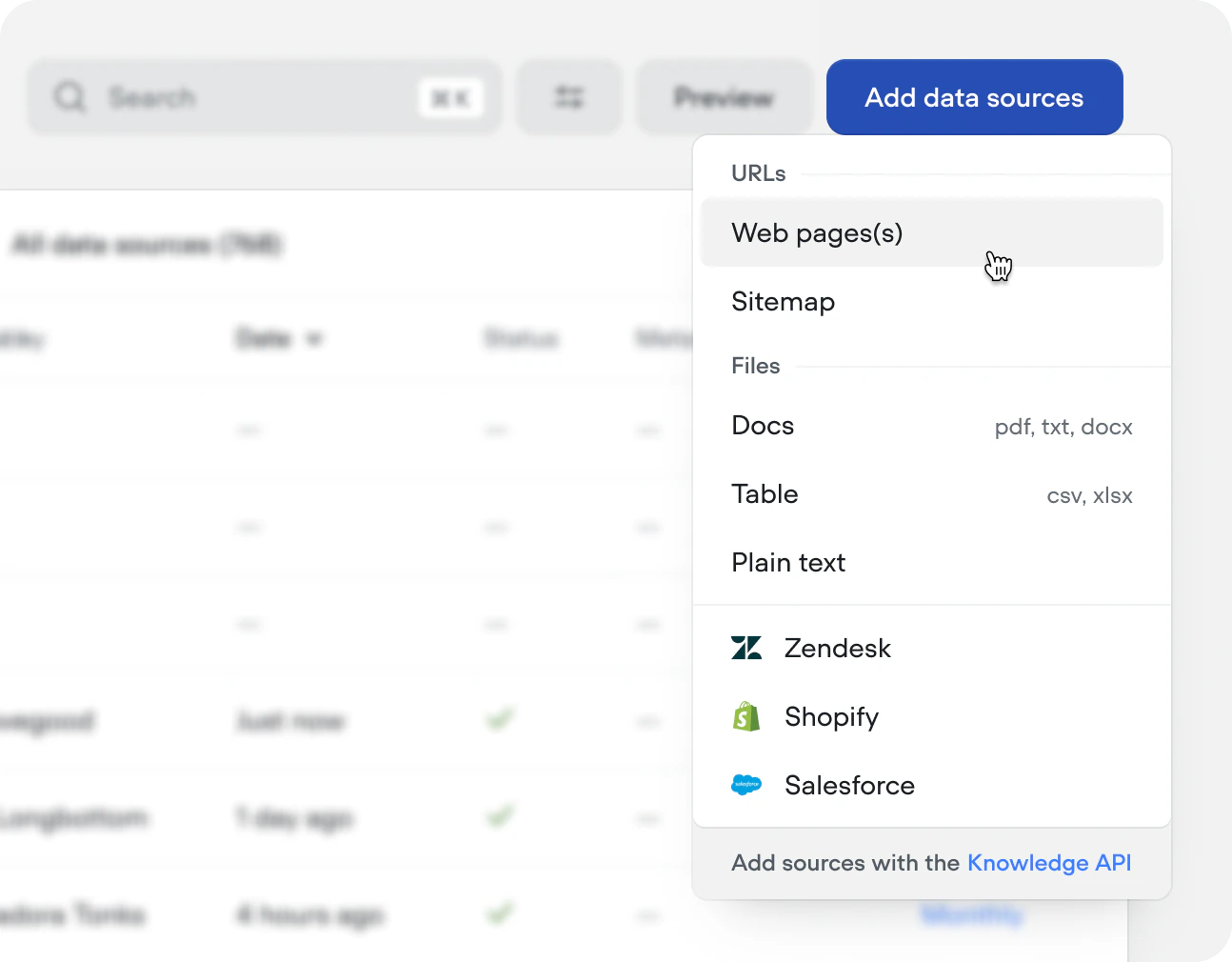
Voiceflow supports an array of data sources:
| Type | What it imports |
| --------------- | -------------------------------------------------------------------------------------------- |
| **Web page(s)** | One or more URLs — paste each on a new line. Must be publicly accessible. |
| **Sitemap** | All pages from a site via sitemap URL. Ideal for full help centers or doc sites. |
| **Docs** | `.pdf`, `.txt`, or `.docx` files up to 10 MB. Only text content is imported. |
| **Table** | `.csv` or `.xlsx` files up to 10 MB. Each row is a chunk; column headers become field names. |
| **Plain text** | Paste raw content directly. |
| **Zendesk** | Import articles directly from your Zendesk knowledge base. |
| **Shopify** | Import product catalouges, inventory data and SKU info. |
You an also import and manage data sources through the [Knowledge base API](/api-reference/knowledge-base-api/knowledge-base-api-overview).
## Refresh rate
For URL and integration data sources, set a refresh rate to keep your knowledge base in sync with the source. You can do this on import, or retroactively by pressing the checkbox next to the data source or folder.
| Option | Best for |
| ----------- | ---------------------------------------------- |
| **Never** | Static content that won't change |
| **Daily** | Frequently updated content (blogs, news sites) |
| **Weekly** | Occasionally updated content (support centers) |
| **Monthly** | Stable content (policies, pricing pages) |
## LLM chunking strategies
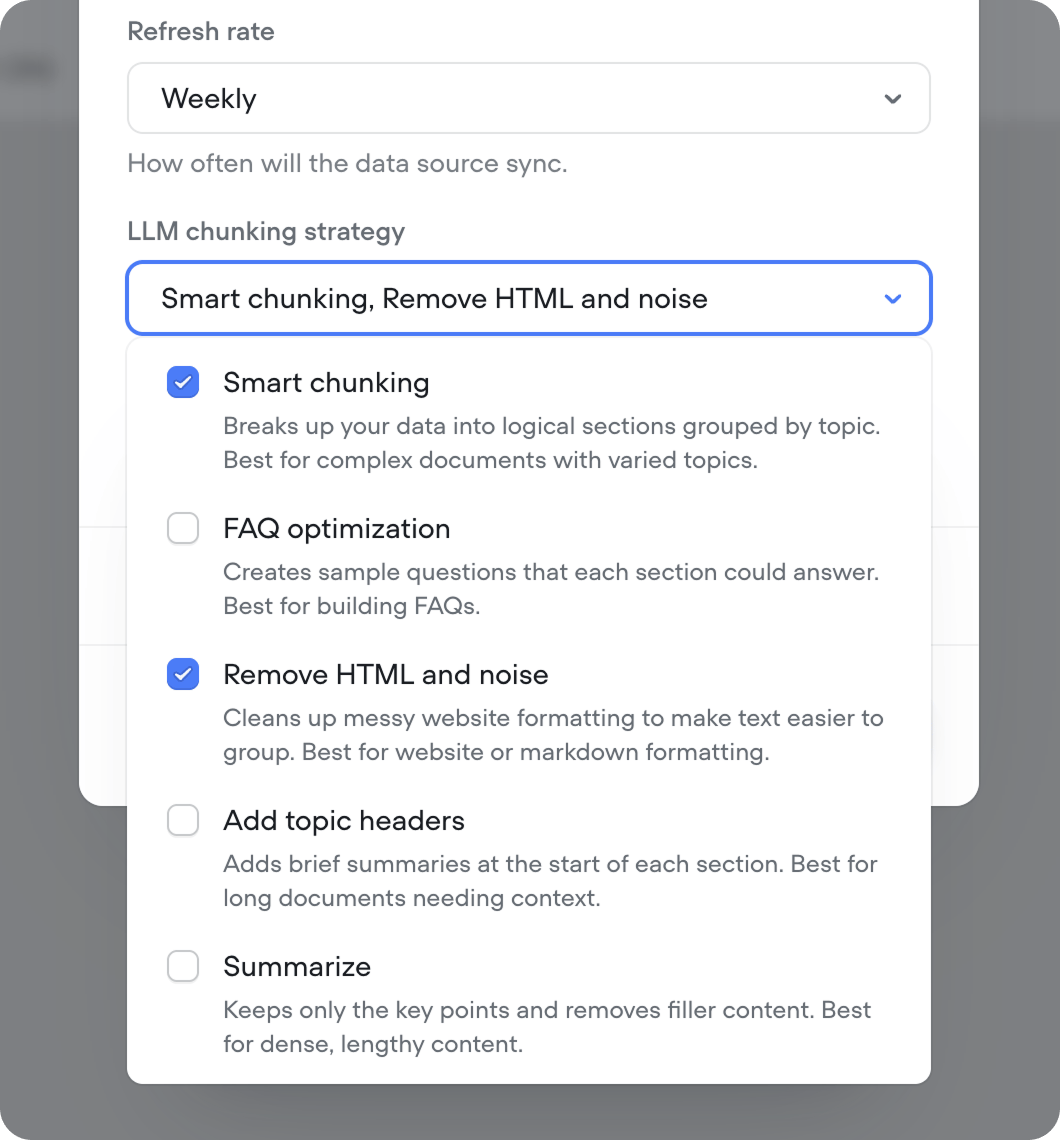
When your agent queries the knowledge base, it finds chunks of content most similar to the user's question. LLM chunking strategies use AI to split your content into optimized chunks — improving retrieval quality and helping your agent find useful answers.
## Data types
Voiceflow supports an array of data sources:
| Type | What it imports |
| --------------- | -------------------------------------------------------------------------------------------- |
| **Web page(s)** | One or more URLs — paste each on a new line. Must be publicly accessible. |
| **Sitemap** | All pages from a site via sitemap URL. Ideal for full help centers or doc sites. |
| **Docs** | `.pdf`, `.txt`, or `.docx` files up to 10 MB. Only text content is imported. |
| **Table** | `.csv` or `.xlsx` files up to 10 MB. Each row is a chunk; column headers become field names. |
| **Plain text** | Paste raw content directly. |
| **Zendesk** | Import articles directly from your Zendesk knowledge base. |
| **Shopify** | Import product catalouges, inventory data and SKU info. |
You an also import and manage data sources through the [Knowledge base API](/api-reference/knowledge-base-api/knowledge-base-api-overview).
## Refresh rate
For URL and integration data sources, set a refresh rate to keep your knowledge base in sync with the source. You can do this on import, or retroactively by pressing the checkbox next to the data source or folder.
| Option | Best for |
| ----------- | ---------------------------------------------- |
| **Never** | Static content that won't change |
| **Daily** | Frequently updated content (blogs, news sites) |
| **Weekly** | Occasionally updated content (support centers) |
| **Monthly** | Stable content (policies, pricing pages) |
## LLM chunking strategies
When your agent queries the knowledge base, it finds chunks of content most similar to the user's question. LLM chunking strategies use AI to split your content into optimized chunks — improving retrieval quality and helping your agent find useful answers.
 | Strategy | Description | Best for |
| ------------------------- | --------------------------------------------------------- | ------------------------------------------------------------------- |
| **Smart chunking** | Breaks content into logical sections grouped by topic | Complex documents with varied topics (policy docs, course catalogs) |
| **FAQ optimization** | Generates sample questions each section could answer | Product info, help center content |
| **Remove HTML and noise** | Cleans up messy formatting to make text easier to process | Blog posts, markdown-heavy docs, CMS exports |
| **Add topic headers** | Adds brief summaries at the start of each section | Long documents needing context (research papers, onboarding guides) |
| **Summarize** | Keeps only key points and removes filler | Dense, lengthy content (legal agreements, strategy briefs) |
LLM chunking strategies consume credits on each sync. If your content doesn't change often, reduce your refresh rate to avoid unnecessary credit usage. No credits are consumed when syncing without an LLM chunking strategy selected.
Chunking strategies aren't one-size-fits-all. Experiment with different combinations on each data source to find what gets your agent the best results.
## Metadata
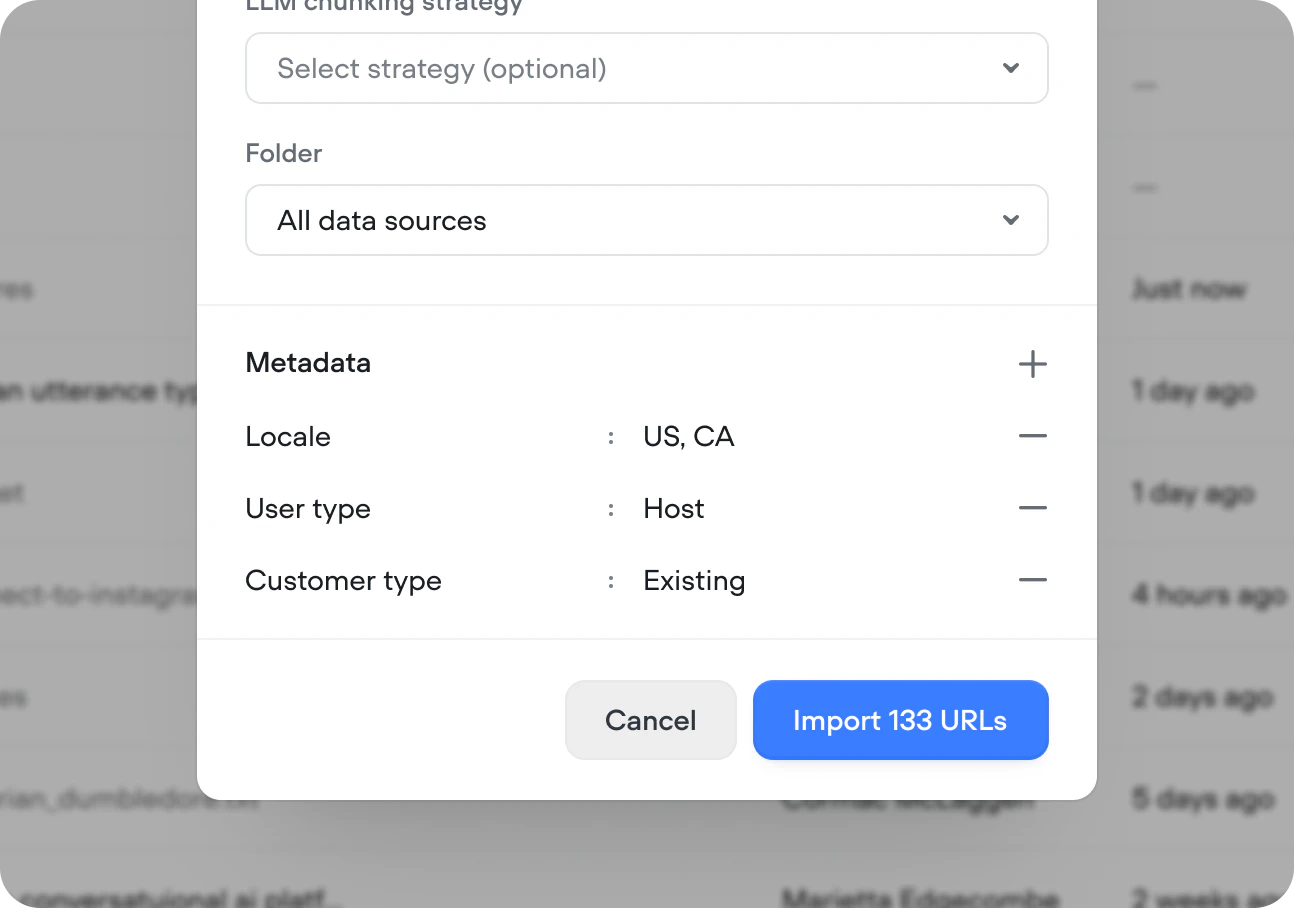
Attach metadata to any data source to filter what gets returned when your agent [queries the knowledge base](/documentation/build/querying-the-knowledge-base). Useful when you have multiple brands, product lines, locales, or subscription tiers and your agent needs to make sure the right information reaches the right users.
For example, if you have different policies for enterprise and self-serve customers, tag each data source with `plan: enterprise` or `plan: self-serve` and filter queries accordingly.
Click **+** in the **Metadata** section of the import config to add key-value pairs:
| Strategy | Description | Best for |
| ------------------------- | --------------------------------------------------------- | ------------------------------------------------------------------- |
| **Smart chunking** | Breaks content into logical sections grouped by topic | Complex documents with varied topics (policy docs, course catalogs) |
| **FAQ optimization** | Generates sample questions each section could answer | Product info, help center content |
| **Remove HTML and noise** | Cleans up messy formatting to make text easier to process | Blog posts, markdown-heavy docs, CMS exports |
| **Add topic headers** | Adds brief summaries at the start of each section | Long documents needing context (research papers, onboarding guides) |
| **Summarize** | Keeps only key points and removes filler | Dense, lengthy content (legal agreements, strategy briefs) |
LLM chunking strategies consume credits on each sync. If your content doesn't change often, reduce your refresh rate to avoid unnecessary credit usage. No credits are consumed when syncing without an LLM chunking strategy selected.
Chunking strategies aren't one-size-fits-all. Experiment with different combinations on each data source to find what gets your agent the best results.
## Metadata
Attach metadata to any data source to filter what gets returned when your agent [queries the knowledge base](/documentation/build/querying-the-knowledge-base). Useful when you have multiple brands, product lines, locales, or subscription tiers and your agent needs to make sure the right information reaches the right users.
For example, if you have different policies for enterprise and self-serve customers, tag each data source with `plan: enterprise` or `plan: self-serve` and filter queries accordingly.
Click **+** in the **Metadata** section of the import config to add key-value pairs:
 ## Knowledge base and environments
Every environment in your project shares the same knowledge base, but each environment decides which documents from the shared set it uses, and stores its own metadata for those documents.
Changes to the knowledge base go live when you publish the environment, just like any other change to your agent.
Here's a few important things to keep in mind:
* **Content edits apply everywhere the document is used.** When you edit a knowledge base document and publish, this edit will be applied to all environments. When an environment is published, this edit will become visible to users interacting with that environment. Other environments that use the same document will pick up the new content the next time each of them publishes.
* **Metadata can be different on each environment.** The same document can carry different metadata on different environments, which is useful for testing how different metadata affects what the agent retrieves.
* **Integrations only need to be set up once.** After you connect Shopify or Zendesk as knowledge base sources on one environment, you can use the same connection from every other environment.
When you create a new environment by cloning an existing one, the new environment starts with the same set of documents as the one you cloned from.
## Troubleshooting imports
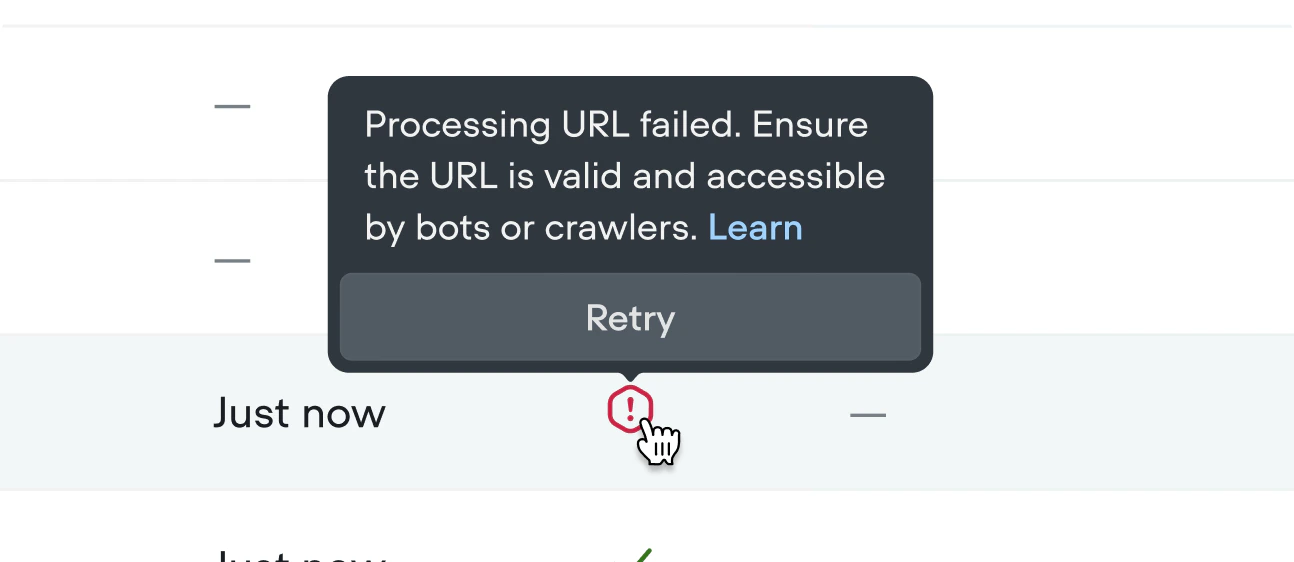
If an import fails, hover over the error icon for details. Failed files are handled gracefully — they won't break your project and the rest of your import will still process.
## Knowledge base and environments
Every environment in your project shares the same knowledge base, but each environment decides which documents from the shared set it uses, and stores its own metadata for those documents.
Changes to the knowledge base go live when you publish the environment, just like any other change to your agent.
Here's a few important things to keep in mind:
* **Content edits apply everywhere the document is used.** When you edit a knowledge base document and publish, this edit will be applied to all environments. When an environment is published, this edit will become visible to users interacting with that environment. Other environments that use the same document will pick up the new content the next time each of them publishes.
* **Metadata can be different on each environment.** The same document can carry different metadata on different environments, which is useful for testing how different metadata affects what the agent retrieves.
* **Integrations only need to be set up once.** After you connect Shopify or Zendesk as knowledge base sources on one environment, you can use the same connection from every other environment.
When you create a new environment by cloning an existing one, the new environment starts with the same set of documents as the one you cloned from.
## Troubleshooting imports
If an import fails, hover over the error icon for details. Failed files are handled gracefully — they won't break your project and the rest of your import will still process.
 ## Developers
The Knowledge base API gives you programmatic access to the documents that power your agent’s knowledge base. You can use it to [create](https://v4-docs.voiceflow.com/api-reference/kbpublicapidocument/create-document), [retrieve](https://v4-docs.voiceflow.com/api-reference/kbpublicapidocument/get-document), [update](https://v4-docs.voiceflow.com/api-reference/kbpublicapidocument/update-document-metadata), and [delete](https://v4-docs.voiceflow.com/api-reference/kbpublicapidocument/delete-document) documents, as well as manage their metadata and individual chunks.
## Developers
The Knowledge base API gives you programmatic access to the documents that power your agent’s knowledge base. You can use it to [create](https://v4-docs.voiceflow.com/api-reference/kbpublicapidocument/create-document), [retrieve](https://v4-docs.voiceflow.com/api-reference/kbpublicapidocument/get-document), [update](https://v4-docs.voiceflow.com/api-reference/kbpublicapidocument/update-document-metadata), and [delete](https://v4-docs.voiceflow.com/api-reference/kbpublicapidocument/delete-document) documents, as well as manage their metadata and individual chunks.