> ## Documentation Index
> Fetch the complete documentation index at: https://docs.voiceflow.com/llms.txt
> Use this file to discover all available pages before exploring further.
# Test suites
> Create and manage test suite definitions for your agents.
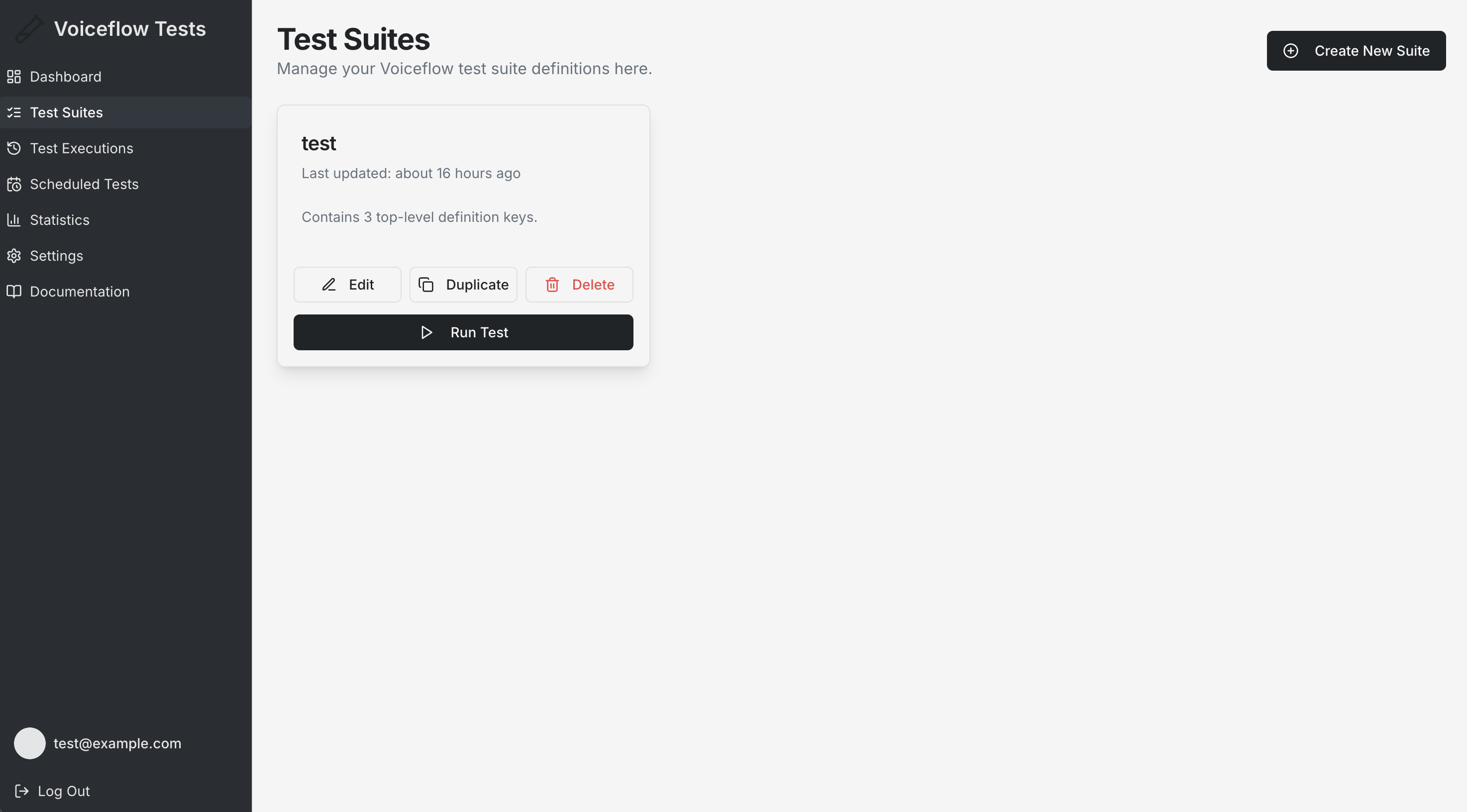
## Overview
Test Suites are the core building blocks of your Voiceflow testing workflow. They define collections of tests that validate your agents against expected behaviors and responses.
## What is a Test Suite?
A Test Suite is a JSON-formatted definition that contains:
* **Test Configuration**: API keys, environment settings, and Voiceflow project details
* **Test Cases**: Individual test scenarios with user inputs and expected agent responses
* **Validation Rules**: Criteria for determining test success or failure
## Creating Test Suites
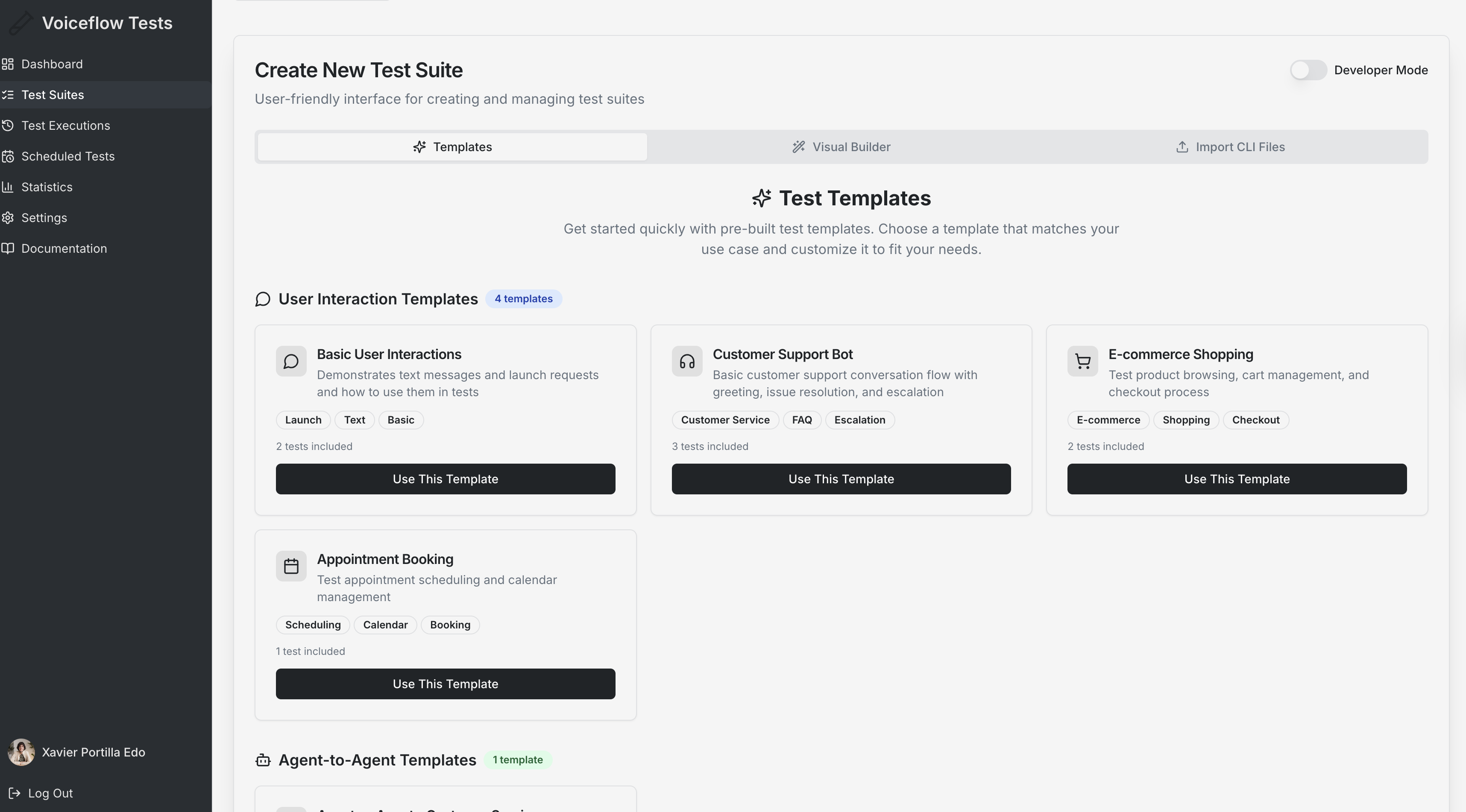
### Method 1: From a template
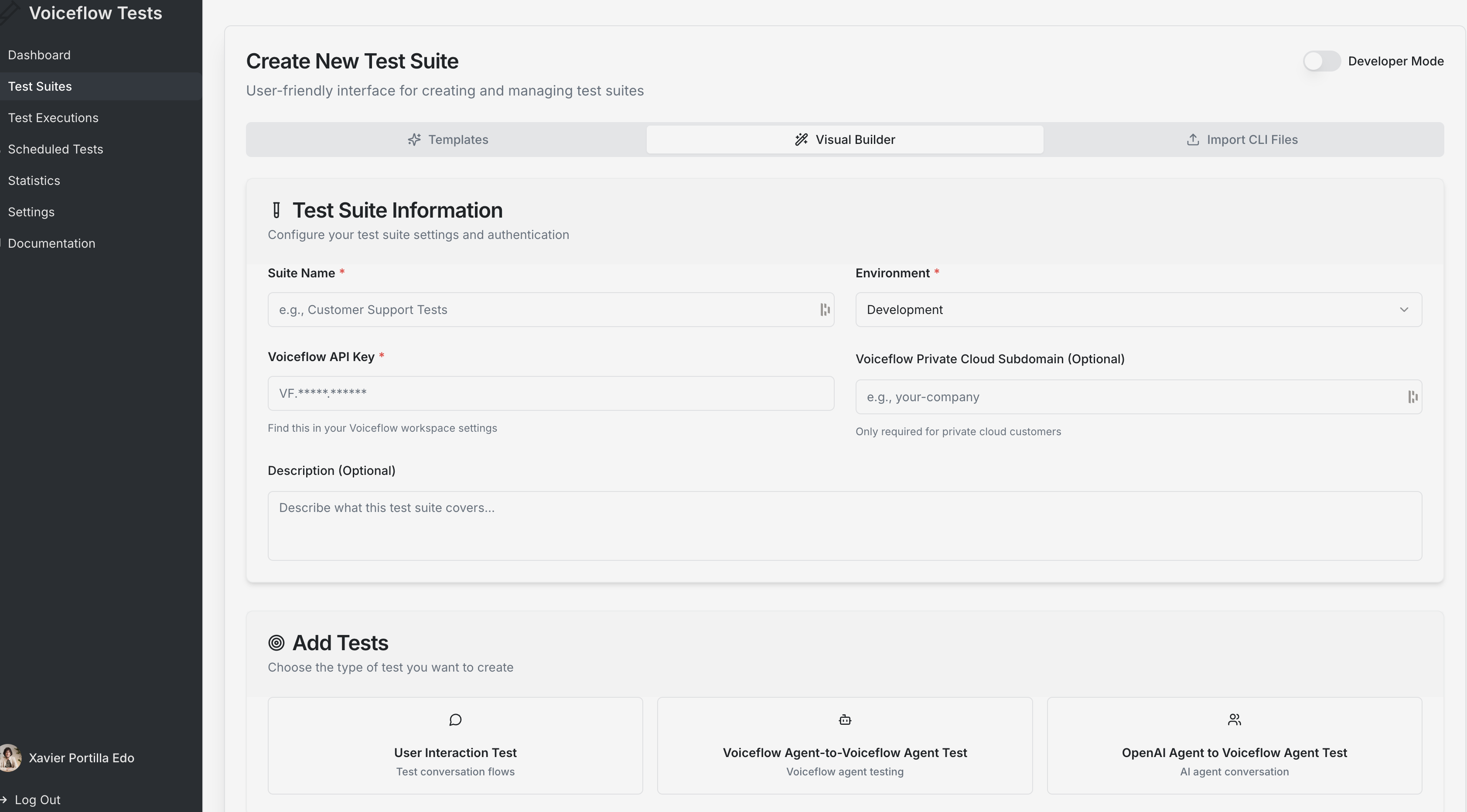
### Method 2: Visual Builder
### Method 3: Import YAML Files
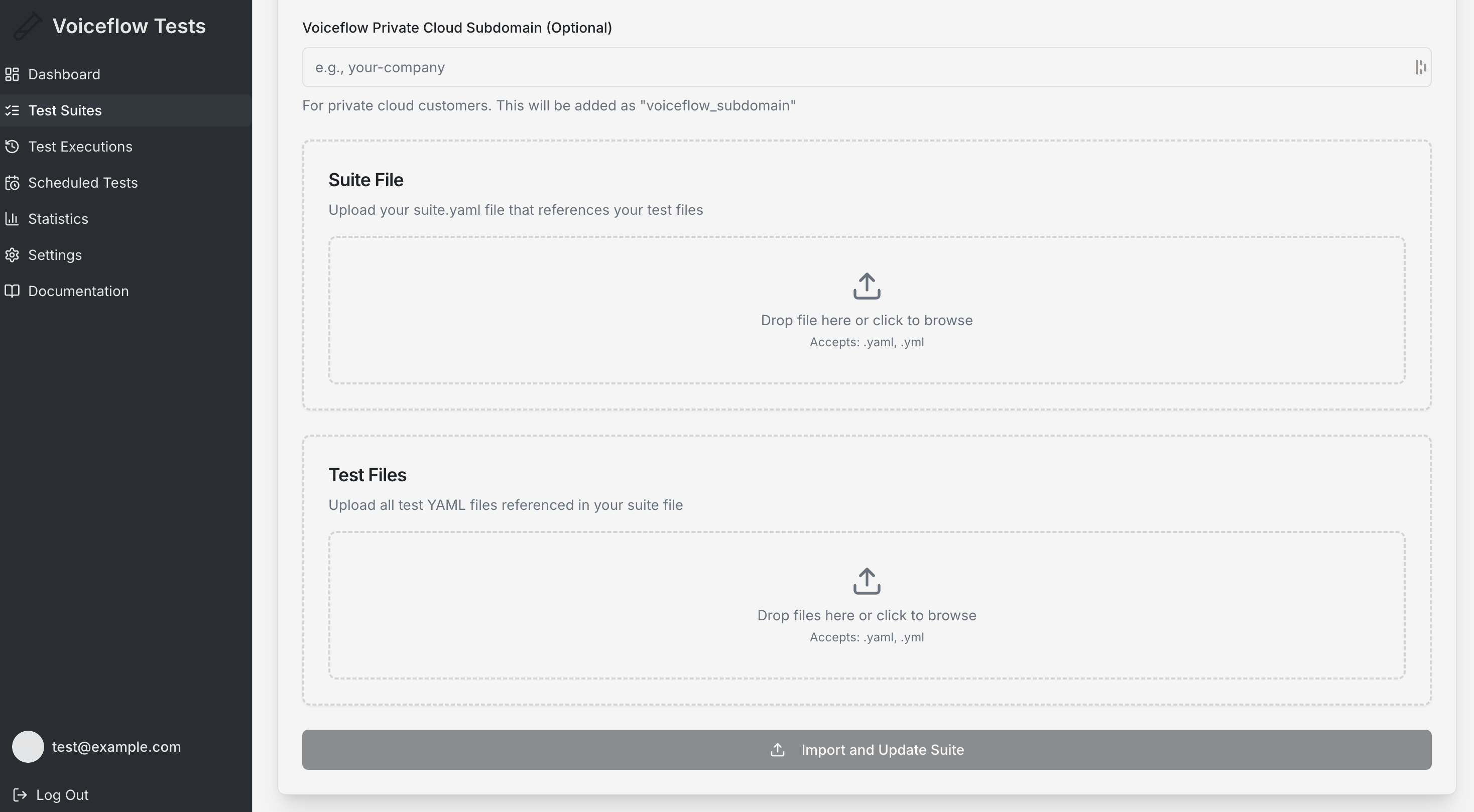
1. Navigate to **Test Suites** → **"Create New Suite"**
2. Choose the **"Import YAML Files"** tab
3. Upload your files:
* **Suite File**: Your main `suite.yaml` file
* **Test Files**: All referenced test YAML files
4. The system automatically converts YAML to JSON format
5. Review the imported data before saving
#### Supported File Structure
##### Required Files
The YAML import feature expects the standard Voiceflow CLI file structure:
###### Suite File (suite.yaml or suite.yml)
Individual test case files referenced in the suite. You can find more details on the [Suite Reference](https://docs.voiceflow.com/docs/automated-testing#/) page.
###### Test Files (individual .yaml/.yml files)
Individual test case files referenced in the suite. You can find more details on the [Test Reference](https://docs.voiceflow.com/docs/automated-testing#/) page.
### Method 4: Manual Entry
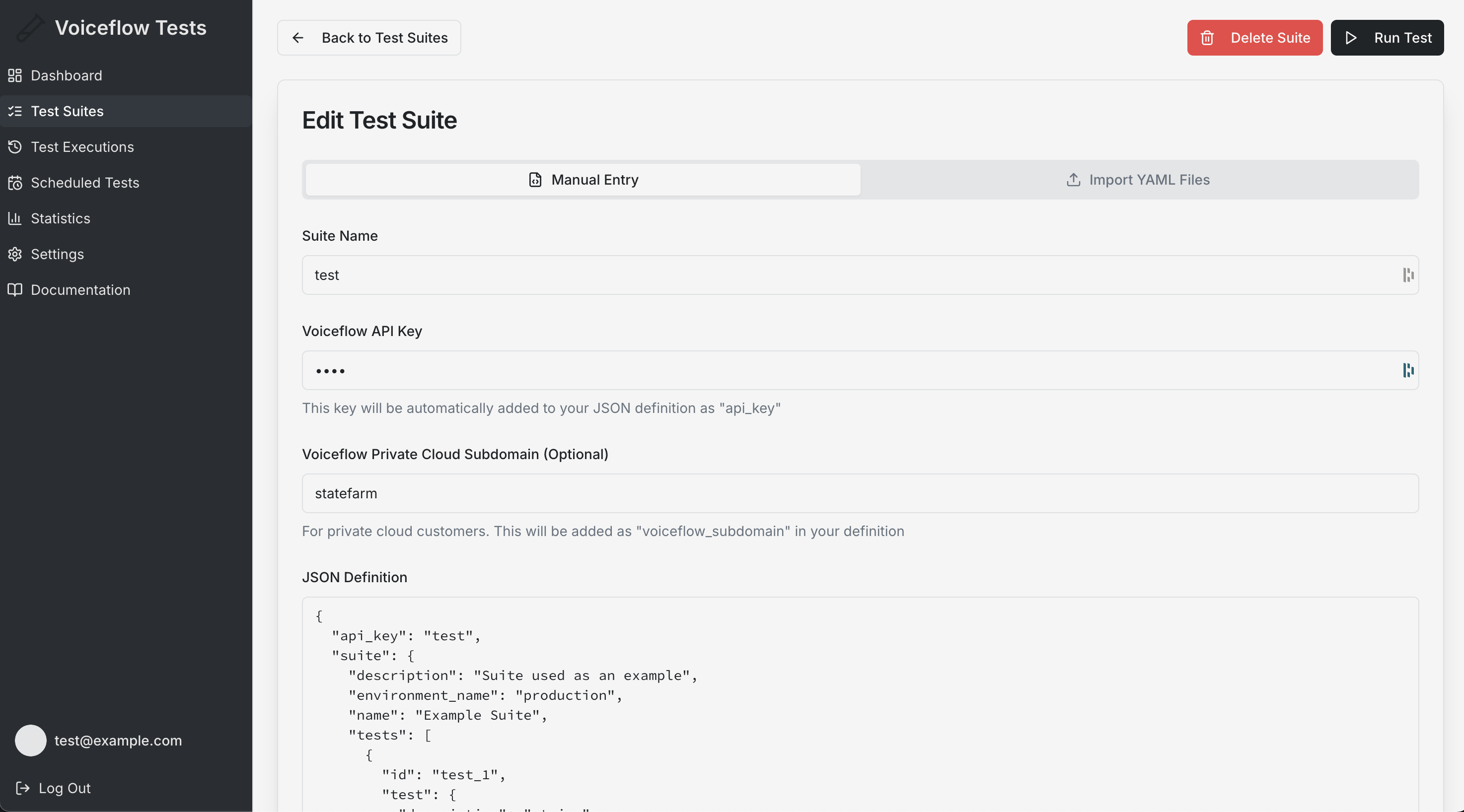
1. Navigate to **Test Suites** in the sidebar
2. Click **"Create New Suite"**
3. Choose the **"Manual Entry"** tab
4. Fill in the required information:
* **Suite Name**: A descriptive name for your test suite
* **Voiceflow API Key**: Your Voiceflow project API key (format: VF.*****.*****)
* **Voiceflow Subdomain** (Optional): For private cloud customers
* **JSON Definition**: The complete test definition in JSON format
## Managing Test Suites
### Viewing Your Test Suites
* **Suite List**: All your test suites are displayed as cards with key information
* **Last Updated**: See when each suite was last modified
* **Quick Actions**: Run, edit, duplicate, or delete suites directly from the list
### Suite Actions
* **Run Test**: Execute the test suite immediately
* **Edit**: Modify the suite configuration and test definitions
* **Duplicate**: Create a copy of an existing suite for modification
* **Delete**: Permanently remove a test suite (requires confirmation)
### Test Suite Structure
Your JSON definition should include:
```json theme={null}
{
"api_key": "VF.xxxxx.xxxxx",
"suite": {
"name": "Main Conversation Flow Tests",
"description": "Tests for primary user interactions",
"environment_name": "production",
"tests": [
{
"id": "greeting_test",
"test": {
"name": "Greeting Test",
"description": "Test the bot's greeting response",
"interactions": [
{
"id": "greeting_interaction",
"user": {
"type": "text",
"text": "Hello"
},
"agent": {
"validate": [
{
"id": "greeting_validation",
"type": "exact_match",
"value": "Hello! How can I help you today?"
}
]
}
}
]
}
}
]
}
}
```
For more details on the JSON structure, refer to the [Test Suite JSON Schema](https://docs.voiceflow.com/reference/post_api-v1-tests-execute#/).
## API Integration
Test suites integrate with the Voiceflow API for execution:
* **Execution Endpoint**: Tests are submitted to the Voiceflow Dialog Manager API
* **Status Monitoring**: Real-time status updates during test execution
* **Results Retrieval**: Detailed logs and results are fetched after completion
## Validation Types
Your tests can use various validation methods:
* **Exact Match**: Response must exactly match expected text
* **Contains**: Response must contain specific text
* **Regex**: Response must match a regular expression pattern
* **Similarity**: Response must be semantically similar (AI-powered)
* **Variable Check**: Validate specific variables are set correctly