> ## Documentation Index
> Fetch the complete documentation index at: https://docs.voiceflow.com/llms.txt
> Use this file to discover all available pages before exploring further.
# Authentication
> Connecting to your agent via Voiceflow's APIs.
All requests to Voiceflow's APIs require an API key, a project ID, and in most cases an environment alias. These three values tell the API who you are, which agent you're targeting, and which environment of it to run.
## Finding your API key
API keys are managed in **Settings** → **API keys**. Each project has its own API key, and all Voiceflow API keys begin with `VF.DM.`.
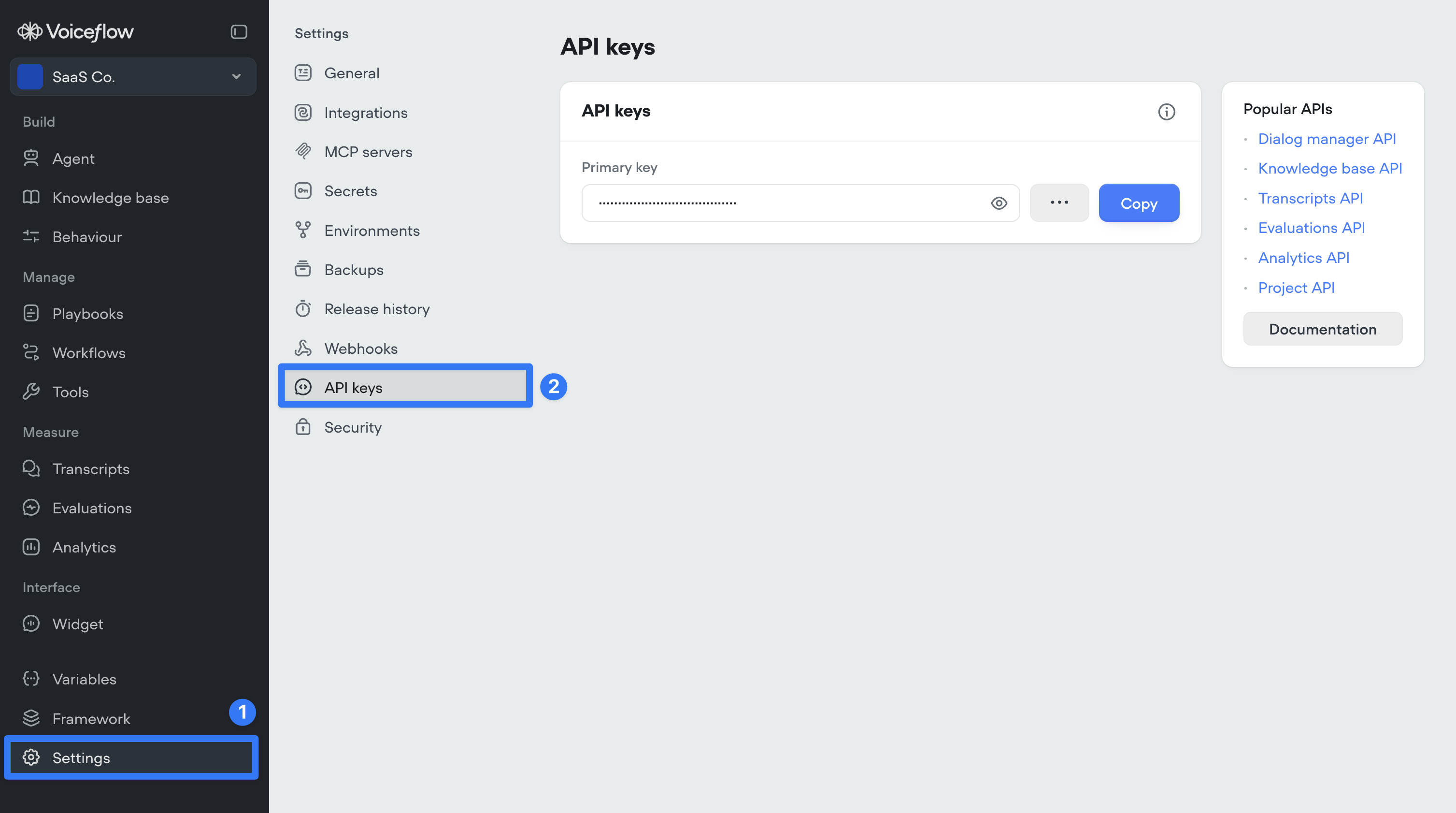 You can have a primary key and a secondary key active at the same time. This is useful for rotating keys without downtime — generate a secondary key, update your integration to use it, then promote it to primary and delete the old one. To create a secondary key, click the **...** menu next to your primary key and select **Create secondary key**. Once you're ready to rotate, click **Promote** next to the secondary key to make it primary.
Pass your API key in the `Authorization` header of every request:
```bash theme={null}
Authorization: VF.DM.your_api_key
```
Never share your API key or commit it to source control.
## Project ID and environment alias
Your project ID is available in **Settings** → **General** under the **Metadata** section.
You can have a primary key and a secondary key active at the same time. This is useful for rotating keys without downtime — generate a secondary key, update your integration to use it, then promote it to primary and delete the old one. To create a secondary key, click the **...** menu next to your primary key and select **Create secondary key**. Once you're ready to rotate, click **Promote** next to the secondary key to make it primary.
Pass your API key in the `Authorization` header of every request:
```bash theme={null}
Authorization: VF.DM.your_api_key
```
Never share your API key or commit it to source control.
## Project ID and environment alias
Your project ID is available in **Settings** → **General** under the **Metadata** section.
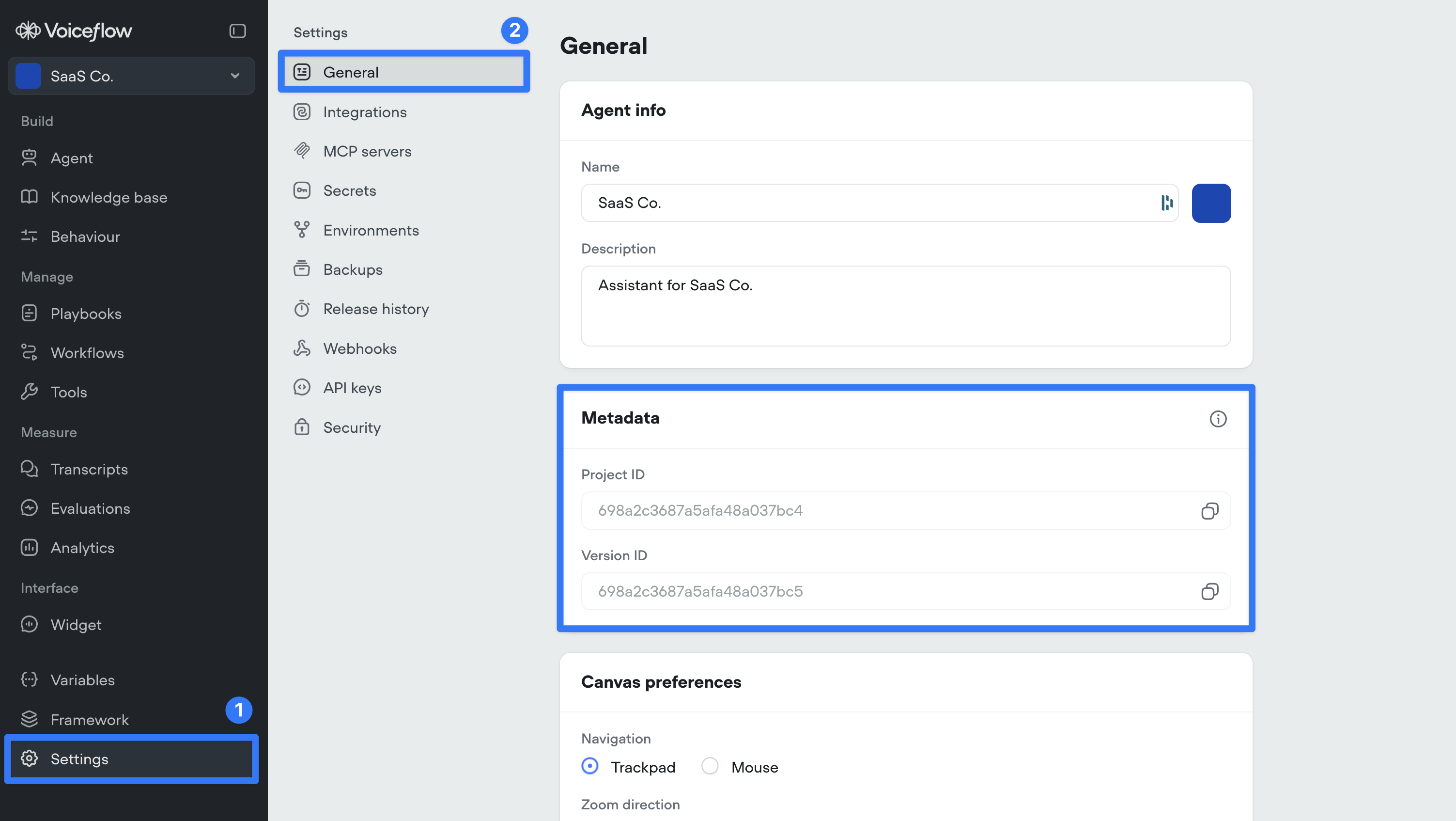 The **Project ID** identifies your agent and is required for most API requests.
To identify which environment to target, pass its **alias**. Every environment in a project has a short, URL-safe alias you can copy from the **Alias** column in **Settings** → **Environments**. By default, a new project has a single environment called **Main** with alias `main`. Aliases are static, so you can rename an environment without breaking any integrations that point at it.
Using an alias (rather than a specific version ID) means your integration always targets whichever version is currently live for that environment, so your users pick up changes as soon as you publish them. See [Environments](/documentation/deploy/environments) for the full model.
If your project was created before environments launched and has not yet been migrated, you can continue to use the legacy `development`, `staging`, and `production` aliases. After migrating, switch your integrations to use your new environment aliases.
The **Project ID** identifies your agent and is required for most API requests.
To identify which environment to target, pass its **alias**. Every environment in a project has a short, URL-safe alias you can copy from the **Alias** column in **Settings** → **Environments**. By default, a new project has a single environment called **Main** with alias `main`. Aliases are static, so you can rename an environment without breaking any integrations that point at it.
Using an alias (rather than a specific version ID) means your integration always targets whichever version is currently live for that environment, so your users pick up changes as soon as you publish them. See [Environments](/documentation/deploy/environments) for the full model.
If your project was created before environments launched and has not yet been migrated, you can continue to use the legacy `development`, `staging`, and `production` aliases. After migrating, switch your integrations to use your new environment aliases.